IRQL_NOT_LESS_OR_EQUAL stop code on Windows 10 and 11: what it means and how to fix it
In short
IRQL_NOT_LESS_OR_EQUAL means a driver or part of Windows touched memory it was not allowed to. Usually a driver or faulty RAM is to blame. Here is how to find which, step by step.
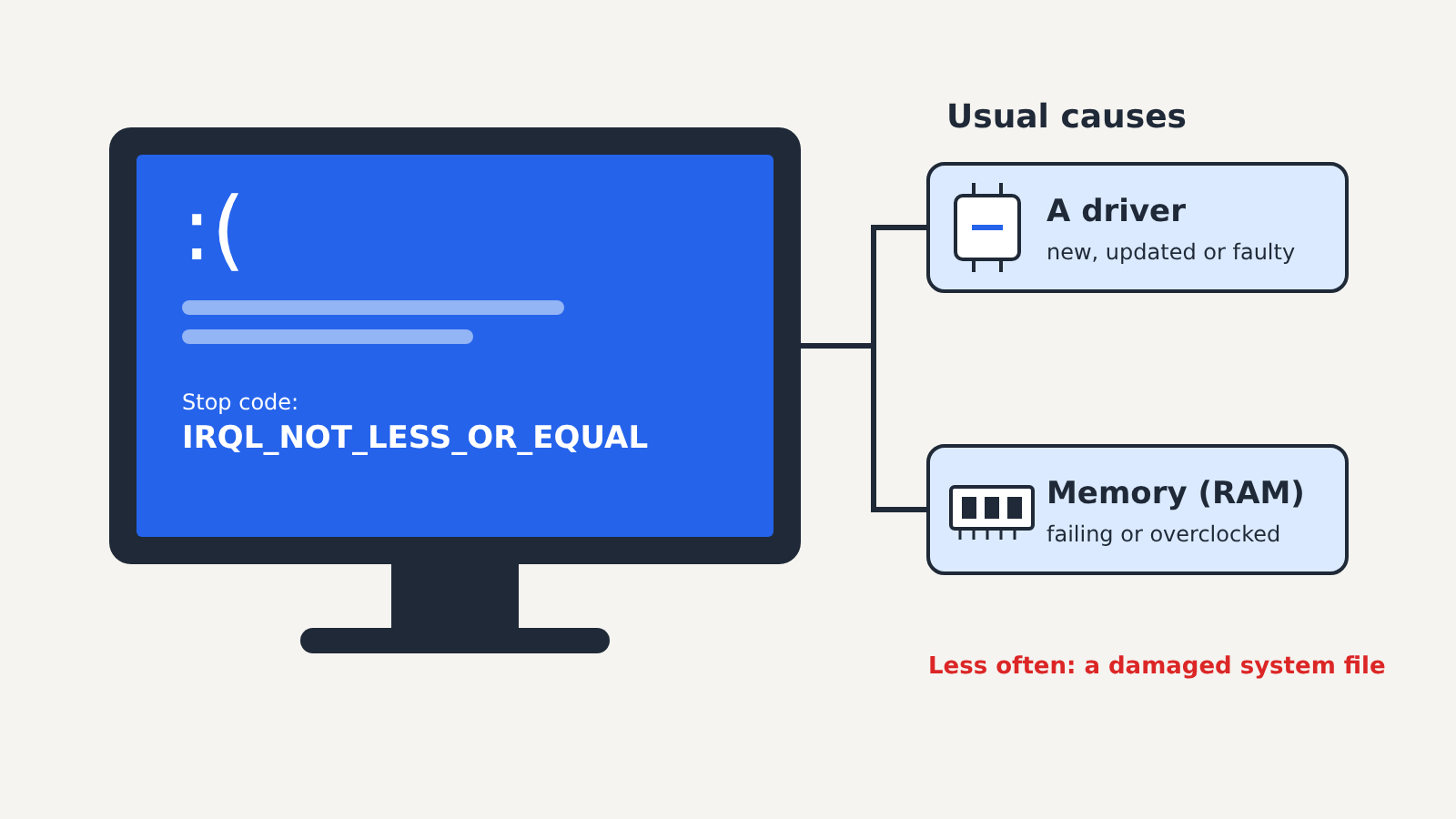
The stop code IRQL_NOT_LESS_OR_EQUAL means a driver or part of Windows tried to read memory it wasn't allowed to touch at that moment, so Windows stopped everything to protect your data. If it happened once, note it and carry on. If it keeps coming back, treat it as "fix soon": the cause is usually a driver or faulty memory, and both get worse over time, not better.
It appears on Windows 10 and Windows 11 as a blue (or on some recent Windows 11 builds, black) screen saying "Your device ran into a problem and needs to restart", with Stop code: IRQL_NOT_LESS_OR_EQUAL at the bottom. Microsoft's documentation lists it as bug check 0x0000000A ("Bug Check 0xA: IRQL_NOT_LESS_OR_EQUAL" on Microsoft Learn). The steps below follow that page and Microsoft's support article on troubleshooting blue screen errors.
What the name means
IRQL stands for interrupt request level, a priority Windows gives to the code that is running. While code runs at a high priority, it may only use memory that is guaranteed to be in RAM at that moment. Microsoft's bug check page says this error appears when Windows or a kernel-mode driver accessed paged memory at an invalid address while running at a raised IRQL. Put simply, something low in the system grabbed memory it had no right to, at a time it wasn't allowed to wait. When the address a driver reaches for isn't valid at all, Windows reports a close relative instead: PAGE_FAULT_IN_NONPAGED_AREA, which has its own fixes.
On a home PC that almost always comes down to one of these:
- A driver that is new, recently updated, outdated or simply buggy. Graphics, network, Wi-Fi, audio and antivirus drivers are common suspects because they run deep in the system. The same kinds of driver are the usual cause of the SYSTEM_SERVICE_EXCEPTION stop code, so if you've seen both, start with them.
- Memory (RAM) that is failing, badly seated, or running faster than it is rated for because of overclocking or an aggressive XMP/EXPO memory profile in the firmware settings. The same memory faults are behind many MEMORY_MANAGEMENT crashes.
- Less often, damaged Windows system files.
A close relative, DRIVER_IRQL_NOT_LESS_OR_EQUAL (bug check 0xD1), means the same kind of mistake by a driver, and the blue screen often names the driver file. If yours shows a line like "What failed: something.sys", write that name down. It tells you which driver to update or remove.
Is it urgent?
One crash after installing something new is common and often goes away after an update. Repeated crashes are worth fixing this week: each one closes your apps without saving, and if the cause is bad RAM it can quietly corrupt files. If the PC crashes before you can sign in, go straight to the recovery steps in the last section.
Before you start, if you can still sign in, save your work and make sure your important files are backed up. Several fixes below involve restarting more than once.
Fixes, from simplest to hardest
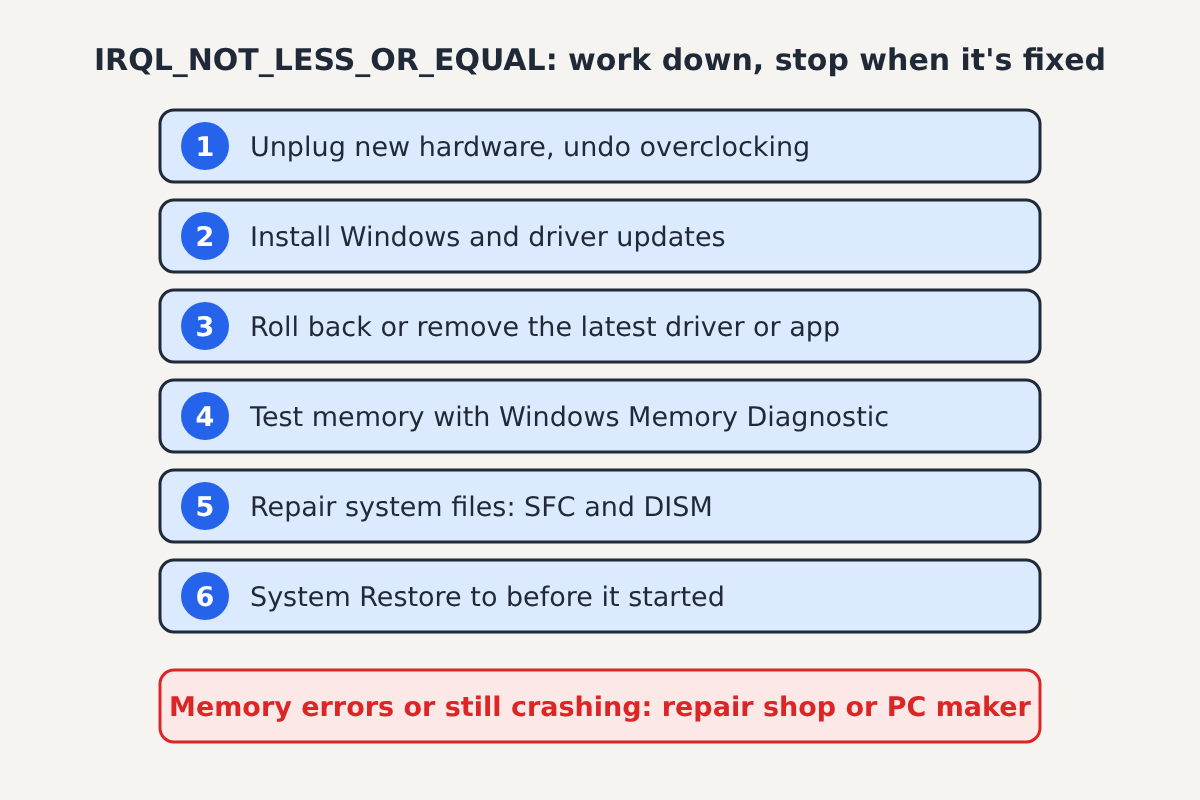
1. Undo the last change to the hardware
If the crashes began after you added a device, unplug it and see whether they stop. That includes USB adapters, docks, new graphics cards and new memory sticks. If you or a previous owner turned on overclocking or a memory profile (XMP or EXPO) in the BIOS/UEFI settings, set them back to the defaults. Your PC or motherboard maker's manual shows where the setting lives.
2. Install Windows and driver updates
Go to Settings > Windows Update and install everything offered, including anything under Advanced options > Optional updates > Driver updates. Then check your PC maker's support site (or the graphics card maker's, for a desktop with a separate card) for newer drivers. Microsoft's blue screen guide puts updates near the top because many driver bugs that cause stop codes are fixed in later versions.
3. Roll back or remove the latest driver or app
If the crashes started straight after a driver update, open Device Manager (right-click the Start button), find the device, open Properties > Driver and choose Roll Back Driver if it's available. If they started after you installed an app, especially antivirus, a VPN, or system tools that install their own drivers, uninstall it from Settings > Apps > Installed apps and restart.
If Windows won't stay up long enough to do this, start it in Safe Mode, which loads only basic drivers. Hold Shift while you click Restart, then go to Troubleshoot > Advanced options > Startup Settings > Restart and press 4.
4. Test your memory
Type Windows Memory Diagnostic in the Start menu search, open it and choose Restart now and check for problems. The test runs before Windows loads and takes several minutes. When Windows starts again it shows the result as a notification; if you miss it, open Event Viewer, go to Windows Logs > System and look for an entry from the source MemoryDiagnostics-Results.
Any errors here mean the RAM, its slot or its settings are the problem. On a desktop, with the power cable unplugged, you can reseat the memory sticks or test them one at a time. On most laptops the memory is soldered in, so this is a job for the maker or a repair shop.
5. Repair system files
Open Terminal (Admin) or Command Prompt (Admin) and run these one at a time, letting each finish:
DISM /Online /Cleanup-Image /RestoreHealth
sfc /scannow
DISM repairs the store Windows uses to fix itself; SFC then replaces any damaged system files from it. Restart when both are done.
6. Use System Restore
If restore points were being made on your PC, System Restore puts system files, drivers and settings back to an earlier date without touching your documents. Search for Create a restore point, click System Restore and pick a point from before the crashes started. Restore points aren't switched on by default on every PC, so you may find none.
If Windows won't start at all
After two failed starts Windows should open the recovery menu, a blue "Choose an option" screen. From there, Troubleshoot > Advanced options gives you Startup Settings (for Safe Mode), Uninstall Updates and System Restore. Our guide to INACCESSIBLE_BOOT_DEVICE walks through getting into this menu when a PC won't boot, and the same tools come up for the CRITICAL_PROCESS_DIED stop code.
If the crashes began right after a Windows update, uninstalling that update from the recovery menu is a reasonable test. Install it again later once a newer version is out; if an update itself fails to install, see Windows Update error 0x80070002.
When to get help
Take the PC to a repair shop, or to the maker if it's under warranty, when Windows Memory Diagnostic reports errors on a laptop, when the crashes continue after every step above, or when they happen even in Safe Mode. Those point to hardware. Opening a laptop or swapping parts yourself can void the warranty, so check the terms first.
If the hardware checks out and nothing else works, Settings > System > Recovery > Reset this PC with Keep my files reinstalls Windows and removes the drivers and apps you added, while keeping your documents. You'll need to reinstall your apps afterwards, so back up first.
