PAGE_FAULT_IN_NONPAGED_AREA on Windows 10 and 11: what it means and how to fix it
In short
PAGE_FAULT_IN_NONPAGED_AREA (bug check 0x50) means Windows read memory that was not there. Microsoft lists drivers, antivirus and a damaged file system as causes; here is how to find yours.
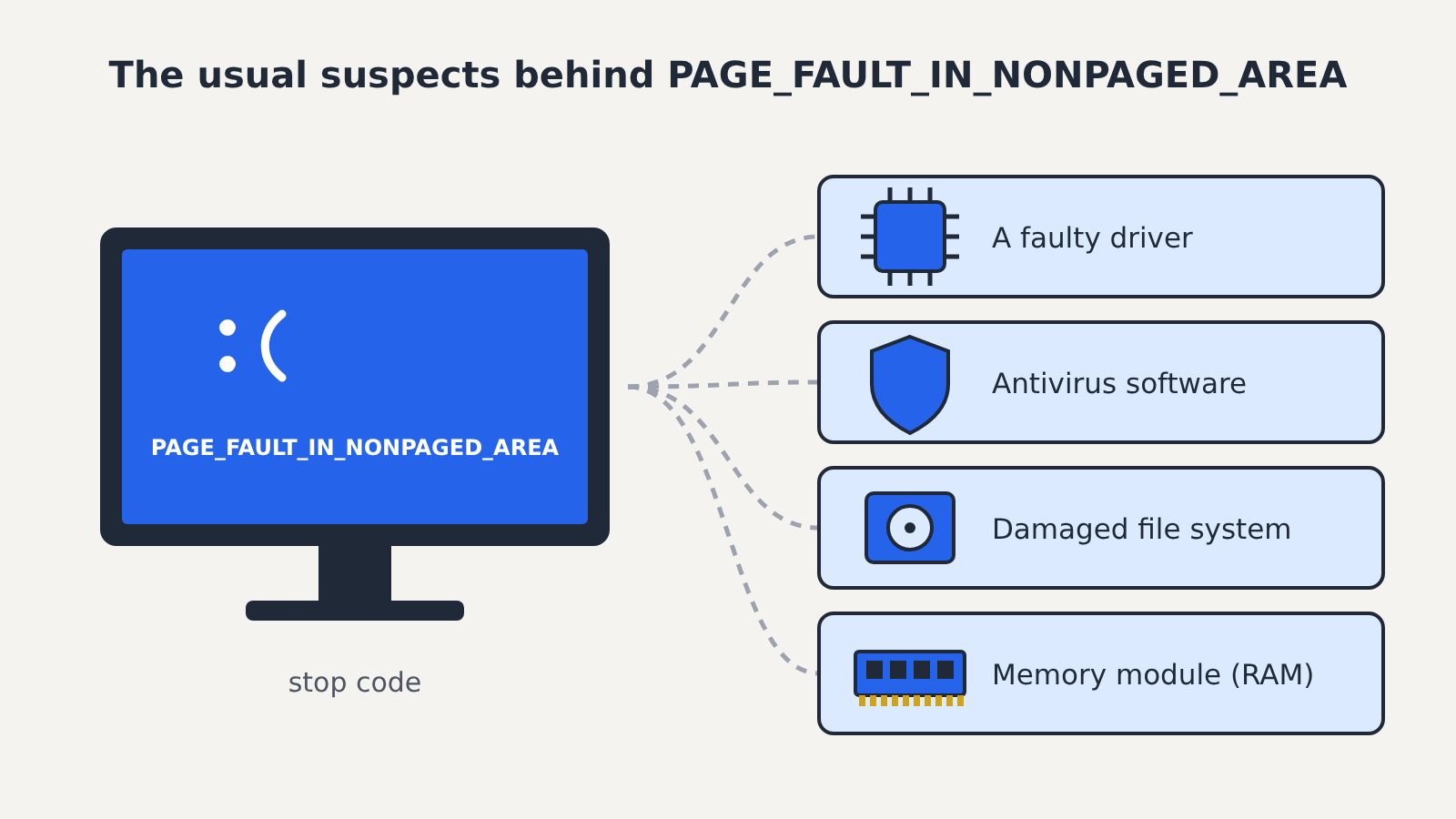
PAGE_FAULT_IN_NONPAGED_AREA is a Windows stop code (bug check 0x50) that means Windows, or a driver running inside it, tried to read memory that is not there: an address that is wrong, or memory that has already been freed. Because this happened in a part of memory that must always be present, Windows cannot recover and restarts.
Urgency: fix soon. A single crash is not a reason to replace anything. Repeated crashes need the steps below, because Microsoft lists the usual causes as a faulty driver or system service, antivirus software, or a corrupted NTFS volume (the file system on your drive), and older versions of its documentation also name failing hardware, usually memory.
This applies to Windows 10 and Windows 11. The screen says "Your PC ran into a problem and needs to restart" with Stop code: PAGE_FAULT_IN_NONPAGED_AREA. Sometimes it also names a file under "What failed", such as a driver ending in .sys.
Read the "What failed" line first
If the stop screen names a file, that is your best lead. Write it down before the PC restarts, or find it afterwards in Event Viewer > Windows Logs > System, in the error from the source BugCheck.
- A name you recognise from a graphics card, network adapter, VPN, anti-cheat or antivirus product points straight at that software.
- ntfs.sys points to the file system on your drive: go to step 4.
- A core Windows file such as ntoskrnl.exe does not mean Windows is broken. It only says where the crash surfaced; the cause is usually a driver or memory, so work through the steps in order.
Search the file name on the maker's own support site, not on download sites offering "driver fixers".
Fixes, from simplest to hardest
Stop as soon as the crashes stop.
1. Undo the last change
Think about what changed just before the crashes began: new hardware, a new driver, a Windows update, a game or security app. Unplug new hardware and uninstall the new app or driver, then use the PC for a day.
If Windows crashes too quickly, start in Safe Mode: hold Shift while you click Restart, then choose Troubleshoot > Advanced options > Startup Settings > Restart and press 4. Safe Mode loads only basic drivers, so if the crashes stop there, a driver or app is almost certainly to blame.
2. Update Windows and drivers
Open Settings > Windows Update, install everything, and look under Advanced options > Optional updates for driver updates. Get graphics, chipset and network drivers from your PC maker or the component maker. If the named driver is already up to date, roll it back instead: in Device Manager, right-click the device and choose Properties > Driver > Roll Back Driver.
3. Remove third-party antivirus to test
Microsoft names antivirus software as a known trigger for this stop code, because it runs drivers deep inside Windows. If you use a third-party antivirus, uninstall it with the maker's own uninstaller and test. Microsoft Defender switches on by itself when no other antivirus is installed, so the PC stays protected. If the crashes stop, reinstall the latest version from the maker's site or stay with Defender.
4. Check the drive for file system errors
A damaged NTFS volume is a documented cause, so check the drive. Open Terminal (Admin) or Command Prompt (Admin) and run:
chkdsk C: /fWindows will offer to run the check at the next restart because the drive is in use; type Y and restart. It can take a while on a large drive. If the check finds errors, back up your files soon: a drive that develops file system damage on its own can be starting to fail.
5. Test your memory
Type Windows Memory Diagnostic in the Start menu search and choose Restart now and check for problems. The result appears as a notification after Windows starts, and in Event Viewer under the source MemoryDiagnostics-Results. Errors mean a memory module needs replacing. If you set an XMP or EXPO memory profile or overclocked the PC, put the BIOS back to defaults before you decide the memory is faulty.
6. Repair system files, then restore
Run these in an admin terminal, one after the other:
DISM /Online /Cleanup-Image /RestoreHealth
sfc /scannow
If the crashes started on a known date, type Create a restore point in the Start menu, open System Restore and choose a point from before then. Your documents are kept; apps and drivers installed since are removed.
When to hand it over
Take the PC to a repair shop or its maker if the memory test or the disk check finds errors, if crashes continue in Safe Mode, or if you need to open a PC that is still under warranty. Back up first. The same faults can show other stop codes too, such as MEMORY_MANAGEMENT or IRQL_NOT_LESS_OR_EQUAL; if you see more than one, mention them all, because several codes together point more strongly to hardware. If the PC will not start Windows at all, INACCESSIBLE_BOOT_DEVICE covers the startup recovery options.
Sources: Microsoft Learn, "Bug Check 0x50: PAGE_FAULT_IN_NONPAGED_AREA"; Microsoft Learn, "Advanced troubleshooting for stop or blue screen errors".
