Windows Update error 0x80070002: what it means and how to fix it
In short
Error 0x80070002 means a Windows update could not find a file it needed, usually because the download is incomplete. Six fixes in order, from a restart and freeing space to clearing the update cache, DISM and SFC, and installing the update manually.
Windows Update error 0x80070002 means an update couldn't find a file it needed: the code translates to ERROR_FILE_NOT_FOUND. Usually the update's own download is incomplete or the update cache is muddled, and Windows can still run normally in the meantime. It's a "fix soon" problem, because the PC isn't getting security updates until it's sorted, but nothing is broken and your files aren't at risk.
You'll see it in Settings > Windows Update on Windows 11 and Windows 10, usually next to a named update as "Install error - 0x80070002" or "Download error - 0x80070002". The steps below follow Microsoft's support articles "Troubleshoot problems updating Windows" and "Free up space for Windows updates", plus its Microsoft Learn article "Troubleshoot Windows Update Error 0x80070002".
One note for Windows 10: Microsoft ended support for Windows 10 on October 14, 2025. After that date, security updates only come through the Extended Security Updates (ESU) programme, so if you're not enrolled, Windows Update may have little to install anyway.
Fixes, from simplest to hardest
Try installing the update again after each step.
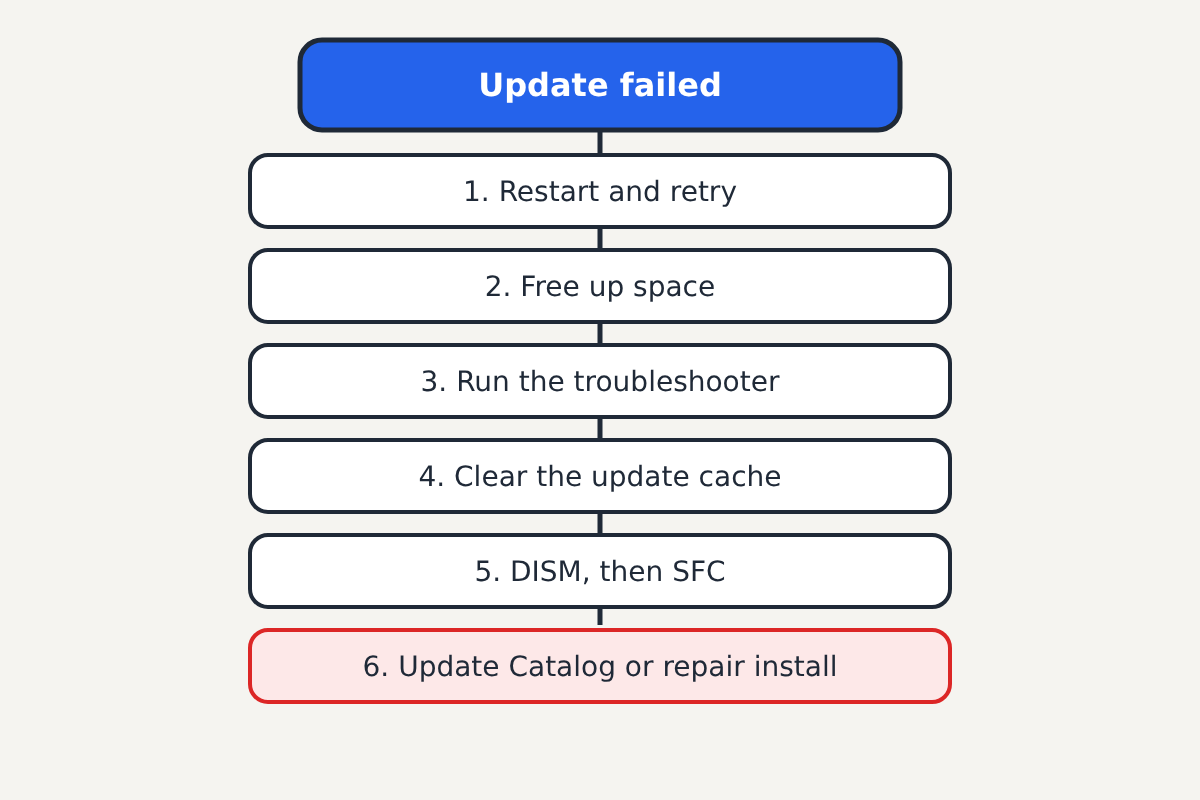
1. Restart and try again
Restart the PC (Start > Power > Restart, not Shut down, which on many PCs doesn't fully restart Windows), then go to Settings > Windows Update and select Retry or Check for updates. A download that was interrupted by a sleep, a dropped connection or a power cut often completes on the second attempt.
Check the date and time while you're there. Settings > Time & language > Date & time should have Set time automatically switched on.
2. Free up disk space
An update that runs out of room part-way can leave files missing. Microsoft says monthly quality updates typically need a few gigabytes free and feature updates several more, and that an upgrade to a new version needs at least 20 GB free on a 64-bit PC. Go to Settings > System > Storage and use Cleanup recommendations, or turn on Storage Sense, then empty the Recycle Bin.
3. Run the Windows Update troubleshooter
On Windows 11, Microsoft's first recommendation is the automated Windows Update troubleshooter in the Get Help app: open Get Help and search for "Windows Update troubleshooter". On Windows 10, it's under Settings > Update & Security > Troubleshoot > Additional troubleshooters > Windows Update. It checks the update services and resets common problems automatically.
4. Clear the Windows Update cache
If the troubleshooter doesn't fix it, the downloaded update files themselves may be corrupt. Clearing them makes Windows download everything fresh.
- Type services in the Start search box and open Services.
- Find Windows Update, right-click it and choose Stop.
- Open File Explorer and go to
C:\Windows\SoftwareDistribution\Download. Delete everything inside the Download folder (not the folder itself). - Back in Services, right-click Windows Update and choose Start.
- Restart and check for updates again.
This only removes temporary update downloads; it doesn't uninstall anything or touch your files.
5. Repair Windows system files
If one update keeps failing, damaged system files can be the cause. Microsoft's Learn article uses the DISM tool to repair the component store that updates rely on. Open Command Prompt as administrator (search for cmd, right-click, Run as administrator) and run these one at a time, waiting for each to finish:
DISM /Online /Cleanup-Image /RestoreHealth
sfc /scannow
DISM can sit at 20% or 60% for several minutes; that's normal. Restart when both are done and try the update again.
6. Install the update another way
If Windows Update itself keeps failing, note the update's KB number from the Windows Update page (for example KB50xxxxx) and download that update directly from the Microsoft Update Catalog (catalog.update.microsoft.com), choosing the version for your Windows edition and processor (most PCs are x64). Run the downloaded file to install it.
For a feature update, such as a new yearly version of Windows 11, Microsoft's Installation Assistant or a repair install from the official Windows 11 download page can update Windows while keeping your files and apps. Back up first.
When the error comes back
If 0x80070002 returns for every update after all six steps, the system's update components are badly damaged. Microsoft's Learn article walks IT staff through finding the exact missing file in the CBS log (C:\Windows\Logs\CBS\CBS.log), but for most people a repair install (step 6) or Settings > System > Recovery > Fix problems using Windows Update, available on recent Windows 11 versions, is the safer route. Avoid "registry fix" tools or download sites that promise to fix update errors: Microsoft provides every update and repair tool free.
Ignore any pop-up or phone call that claims your PC has an update error and asks you to call a number or let someone connect remotely. Windows never shows a phone number in an update error; our guide to the fake virus warning pop-up with a phone number shows what those scams look like. And if an update has left Windows unable to start, see our guide to the CRITICAL_PROCESS_DIED stop code for how to use the recovery tools.
Sources: Microsoft Support: "Troubleshoot problems updating Windows", "Free up space for Windows updates"; Microsoft Learn: "Troubleshoot Windows Update Error 0x80070002".
