VIDEO_TDR_FAILURE stop code on Windows 10 and 11: what it means and how to fix it
In short
VIDEO_TDR_FAILURE means Windows tried to reset a frozen graphics driver and the reset failed. What causes it, and the fixes in order from simplest to hardest.
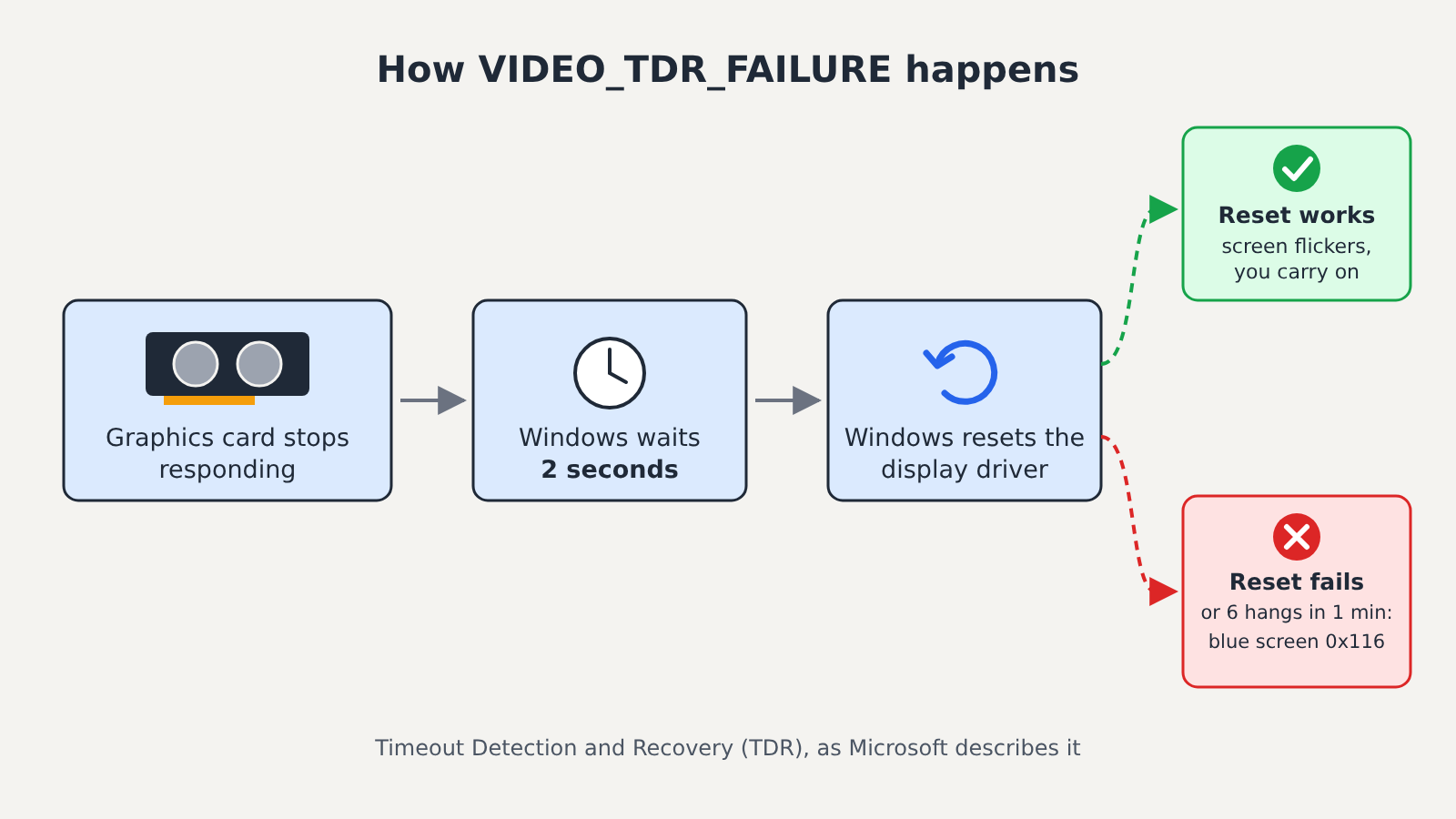
The stop code VIDEO_TDR_FAILURE means your graphics card stopped responding, Windows tried to reset its driver to get the screen back, and the reset failed, so Windows restarted the whole PC instead. One crash can wait. If it keeps happening, treat it as "fix soon": the cause is usually the graphics driver, and less often heat, power or an overclock.
You'll see it on Windows 10 and Windows 11 as a blue screen (black on Windows 11 version 24H2 and later) reading "Your device ran into a problem and needs to restart", with Stop code: VIDEO_TDR_FAILURE at the bottom. Microsoft documents it as bug check 0x00000116 ("Bug Check 0x116: VIDEO_TDR_FAILURE" on Microsoft Learn), so a crash report showing 0x116 is the same error. It looks the same whatever graphics card you have: NVIDIA, AMD or Intel, built in or separate.
What TDR means
TDR stands for Timeout Detection and Recovery, a safety net built into Windows. Microsoft describes it like this: when the graphics card takes too long on a task, usually during a game or other heavy graphics work, the screen stops updating and the PC looks frozen. Windows waits 2 seconds, then resets the display driver and the card to get the desktop back.
Most of the time that works. The screen flickers or goes black for a moment, and Windows shows the message "Display driver stopped responding and has recovered". Some older games go black after this and need restarting.
The blue screen comes in two cases. Either the reset itself doesn't finish in time, or the card hangs too often: by default Windows gives up on the sixth hang when five or more have happened within one minute.
So a VIDEO_TDR_FAILURE is often the end of a run of smaller freezes. If you've seen "Display driver stopped responding" messages before, they are the same problem.
Look at the "What failed" line
Under the stop code, Windows may add What failed: and a file name. For this error it is almost always the graphics driver, a file ending in .sys. In Microsoft's own example the file is nvlddmkm.sys, the NVIDIA display driver; AMD and Intel drivers have their own file names, and a web search for the name tells you whose it is. That tells you which driver to update first, which matters on laptops that have both a built-in Intel or AMD chip and a separate graphics card.
If the screen went by too fast, search the Start menu for Event Viewer, open Windows Logs > System and look for an entry from BugCheck at the time of the crash. It shows the code 0x00000116 and four values a technician can use.
Is it urgent?
Not an emergency, and the stop code doesn't harm your files on its own. Every crash closes your apps without saving, though, so save often until it stops.
A real stop code never shows a phone number. If a screen like this asks you to call "Microsoft support" or install remote-access software, it is a scam: read our guide to the fake virus warning pop-up before doing anything else.
What causes it
Microsoft lists these causes for 0x116:
- A display driver that needs updating so it handles the reset properly.
- Overclocked parts, including the graphics card, processor or memory.
- Components that don't work well together, or wrong settings, especially memory configuration and timings.
- Not enough cooling.
- Not enough power for the graphics card.
- Faulty parts, such as memory modules or the motherboard.
- Heavy visual effects or too many programs running in the background, so the card can't respond in time.

Fixes, from simplest to hardest
Stop as soon as the crashes stop. If Windows crashes before you can work, start in Safe Mode: hold Shift while you click Restart, then choose Troubleshoot > Advanced options > Startup Settings > Restart and press 5 for Safe Mode with networking, so you can still download a driver.
1. Install Windows and driver updates
Go to Settings > Windows Update, choose Check for updates and install everything. Then open Advanced options > Optional updates and install any display driver offered there. Microsoft says Windows Update delivers drivers for video cards along with other hardware.
2. Get the current graphics driver from its maker
If crashes continue, install the latest driver for the card named in "What failed" from NVIDIA, AMD or Intel. On a laptop, check your laptop maker's support page first: some ship their own versions of graphics drivers, and theirs are the ones built for your model.
3. Roll back a driver that came just before the crashes
If the crashes started right after a driver update, right-click Start, open Device Manager, expand Display adapters, double-click the card and on the Driver tab choose Roll Back Driver. You need to be signed in as an administrator. If rolling back isn't offered, choose Uninstall device, restart, and let Windows install the driver again.
4. Undo any overclock
If you or a tuning app raised the graphics card, processor or memory speeds, put them back to default. That includes memory XMP or EXPO profiles turned on in the BIOS or UEFI settings, which Microsoft's mention of memory timings covers. Uninstall the tuning app if you no longer need it.
5. Lighten the load
Close what you don't need while gaming or editing, and reduce visual effects: search the Start menu for Adjust the appearance and performance of Windows and choose Adjust for best performance. If the crashes stop, the card was being pushed past what it could finish in time, and the hardware checks below are worth doing.
6. Check cooling and power
On a laptop, use it on a hard, flat surface with the vents clear, and use the charger that came with it.
On a desktop, shut down, switch off at the wall and unplug before opening the case. Then look at three things on the graphics card.
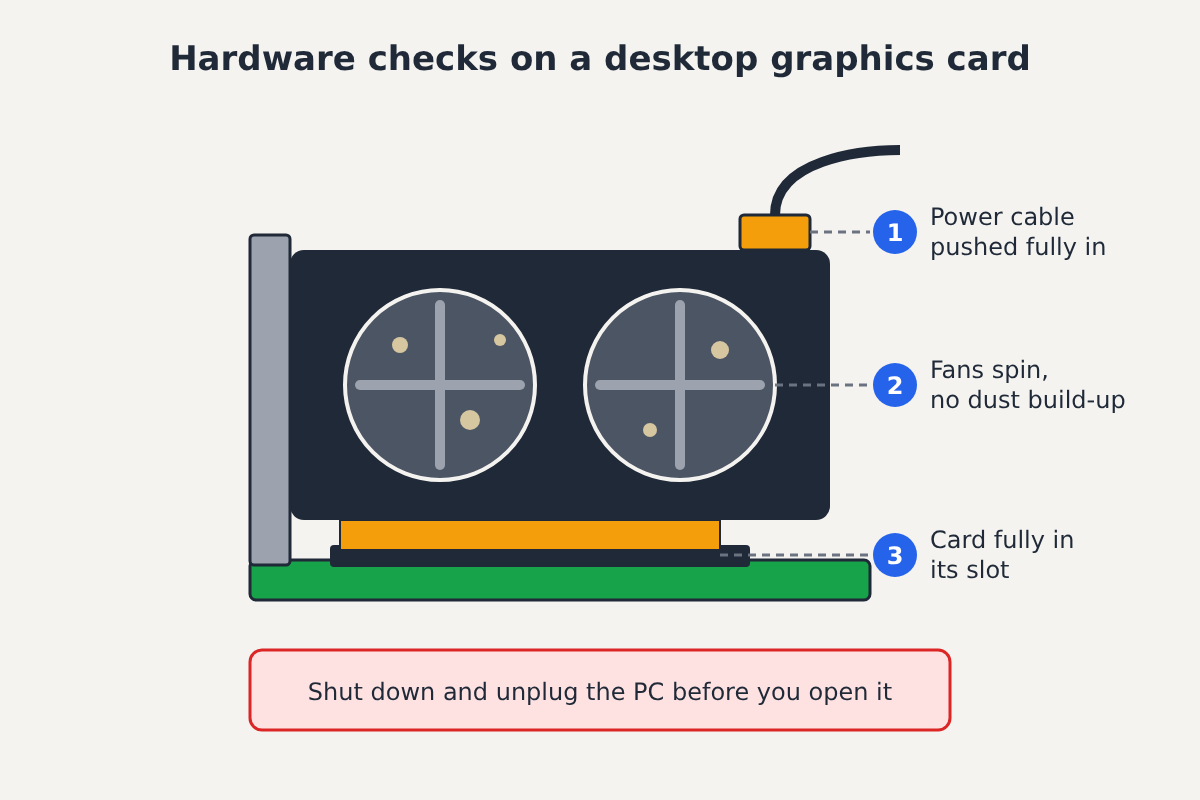
If the card needs more power than your power supply can give, for example after an upgrade, a technician can confirm it. Opening a laptop or a sealed prebuilt PC may void its warranty, so leave that to the maker or a repair shop.
7. Test the memory
Because faulty memory is on Microsoft's list, search the Start menu for Windows Memory Diagnostic and choose Restart now and check for problems. If it reports errors, our MEMORY_MANAGEMENT stop code guide explains what to do next.
Don't change the TDR registry settings
Some forums suggest raising TdrDelay or turning TDR off in the registry. Microsoft says these keys are for testing and debugging during driver development and that end users shouldn't change them. Turning detection off doesn't fix a hung card; it removes the safety net that gets your screen back.
When to get help
If the crashes continue after these steps, or start with a new card, contact the PC or graphics card maker or a repair shop. Tell them the stop code, the file from the "What failed" line and when it happens (gaming, video, waking from sleep). A card that is still under warranty may need replacing. If you also see WHEA_UNCORRECTABLE_ERROR, that points more strongly to hardware. For other driver-related crashes, see KMODE_EXCEPTION_NOT_HANDLED.
Sources: Microsoft Learn: "Bug Check 0x116: VIDEO_TDR_FAILURE", "WDDM support for timeout detection and recovery", "Testing and debugging TDR during driver development"; Microsoft Support: "Troubleshooting Windows unexpected restarts and stop code errors", "Update drivers through Device Manager in Windows".
