INACCESSIBLE_BOOT_DEVICE stop code on Windows 10 and 11: what it means and how to fix it
In short
INACCESSIBLE_BOOT_DEVICE (0x7B) means Windows lost access to its startup drive while booting. The usual causes, the BitLocker key to find first, and the recovery steps in order, from unplugging drives to Startup Repair, System Restore and a disk check.
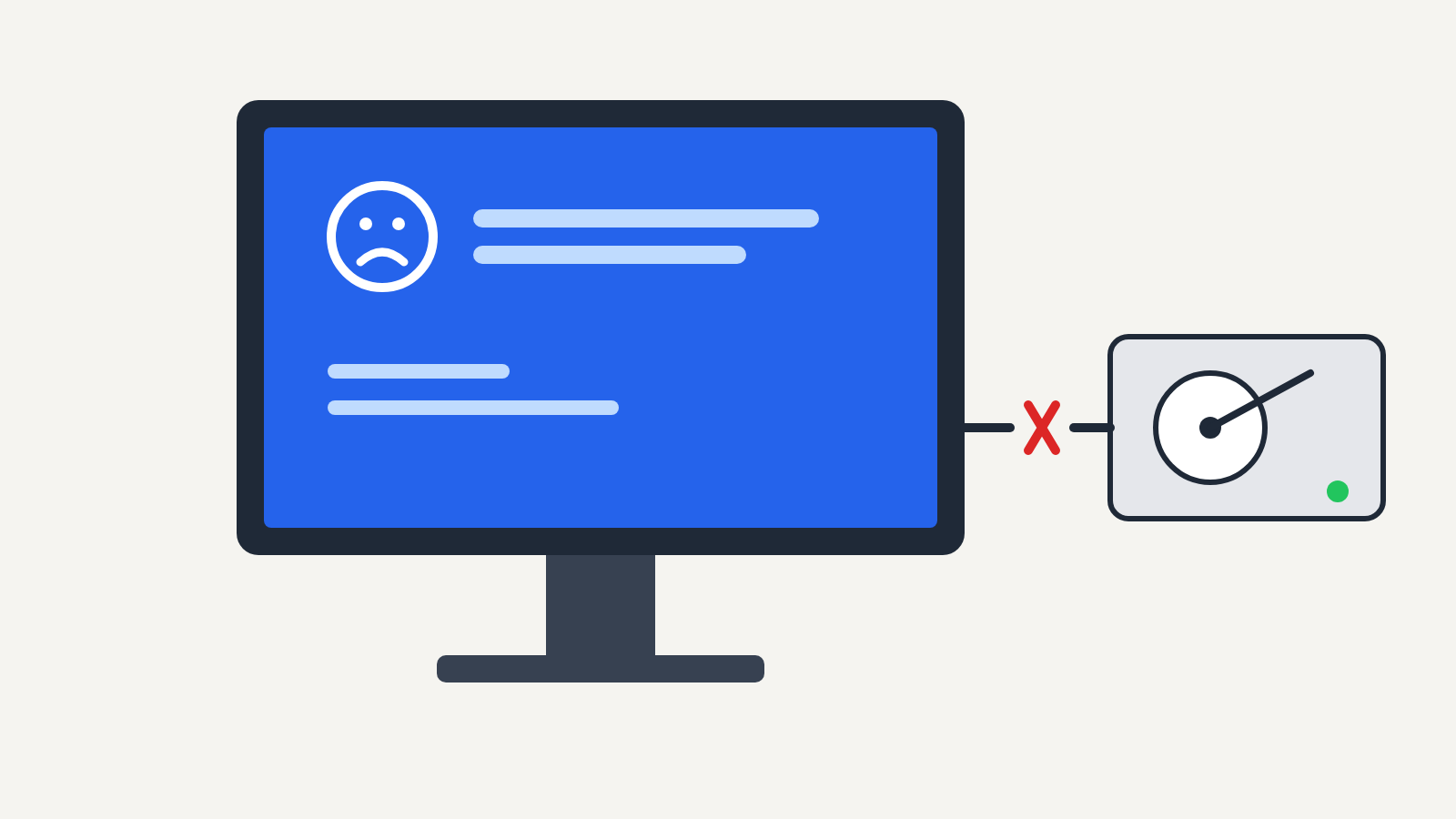
The stop code INACCESSIBLE_BOOT_DEVICE means Windows lost access to the drive it starts from partway through starting up, so it stopped rather than carry on without its system files. It's a "fix now" problem because the PC won't start, but in most cases your files are still on the drive: the cause is usually a setting, a driver or an update, not a dead disk.
It appears on Windows 10 and Windows 11 as a blue (or on some recent builds, black) screen that says "Your device ran into a problem and needs to restart" with Stop code: INACCESSIBLE_BOOT_DEVICE. Microsoft's documentation lists it as bug check 0x7B ("Bug Check 0x7B INACCESSIBLE_BOOT_DEVICE" on Microsoft Learn), and the steps below follow that page, Microsoft's "Stop error 7B or Inaccessible_Boot_Device troubleshooting" guide and its support article on unexpected restarts and stop codes.
Why it happens
Microsoft's bug check page says this error often comes from a failure of the boot device itself, but the common triggers on home PCs are more ordinary:
- A firmware (BIOS/UEFI) setting changed, especially the storage controller mode (AHCI, RAID or Intel RST/VMD). Microsoft notes that switching the controller mode can cause this exact error, because Windows was set up for the other mode.
- A Windows update that didn't finish installing, or a storage driver it changed.
- A new or cloned drive, or a drive that has moved to a different port or controller.
- A failing SSD or hard drive, or a loose cable in a desktop.
Before you start, check one thing. Many Windows 11 PCs have device encryption or BitLocker switched on without their owners knowing. Changing firmware settings or using the recovery tools can trigger a BitLocker recovery screen asking for a 48-digit key. If you use a Microsoft account, the key is usually stored at aka.ms/myrecoverykey; look it up from another device before you start, so you're not locked out of your own drive.
Fixes, from simplest to hardest
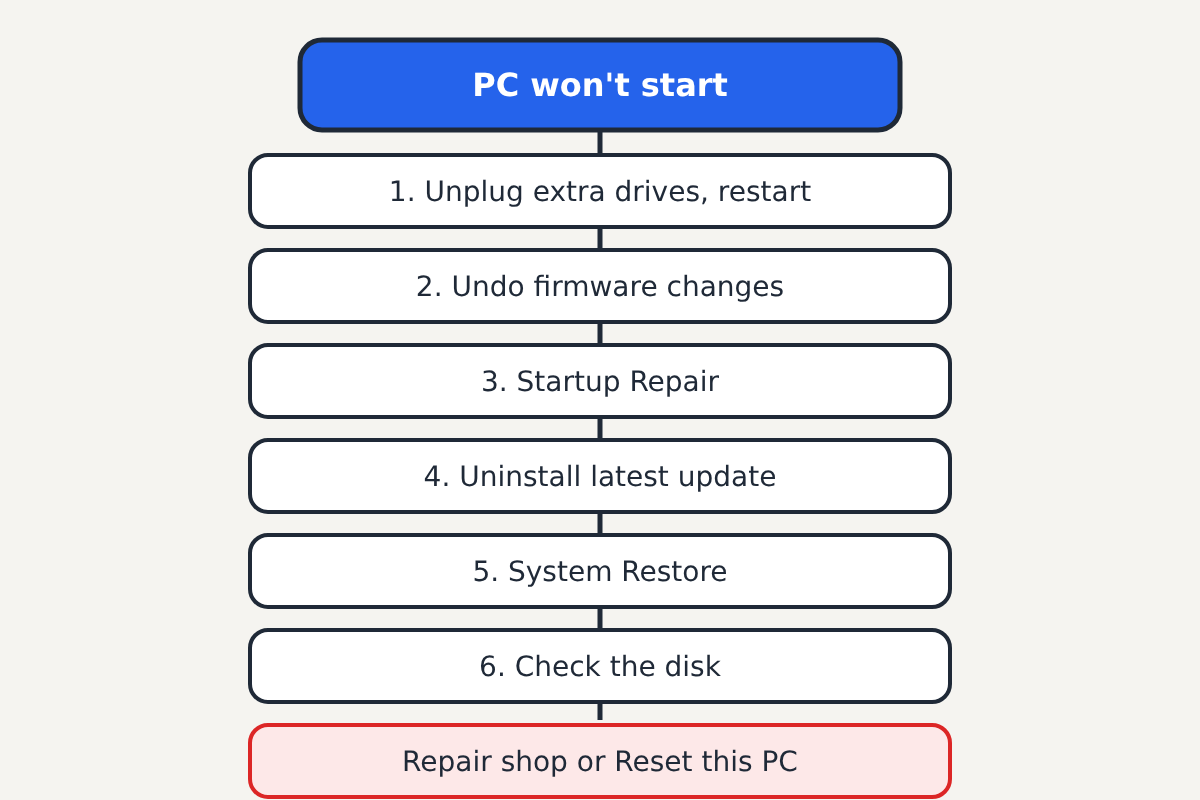
1. Restart once, and unplug extra drives
A single occurrence can be a fluke. Restart the PC. If it happens again, shut down and unplug USB drives, SD cards and docking stations, then try again. On a desktop where you recently added a drive, disconnect the new one.
2. Undo recent firmware changes
If the error started after you changed something in the BIOS/UEFI setup (or after a firmware update reset it), go back in and look at the storage or SATA mode setting. Set it back to what it was: on most PCs that originally shipped with Windows this is AHCI, or RAID/Intel RST/VMD on many laptops. The right value is whatever Windows was installed with; your PC maker's manual or support page lists the default. Save and restart.
3. Use Startup Repair
If Windows fails to start twice in a row, it should open the Windows Recovery Environment (a blue "Choose an option" screen) on the third try. If it doesn't, switch the PC off with the power button as soon as the Windows logo appears, two or three times, until "Preparing Automatic Repair" shows.
Go to Troubleshoot > Advanced options > Startup Repair and let it run. It fixes boot configuration problems automatically.
4. Uninstall the latest update
If the error appeared straight after Windows Update, go to Troubleshoot > Advanced options > Uninstall Updates in the same recovery menu. Try Uninstall latest quality update first (the monthly update), then the latest feature update if that doesn't help.
5. Try System Restore, then Safe Mode
Troubleshoot > Advanced options > System Restore returns system files and settings to an earlier restore point without touching your documents. It only works if restore points were being created, which isn't on by default on every PC.
If there's no restore point, try Safe Mode. Under Troubleshoot > Advanced options > Startup Settings > Restart, press 4 for Safe Mode. If Windows starts in Safe Mode, a driver is the likely cause. Microsoft's Windows Server guide for 0x7B notes that starting in Safe Mode can reverse driver start-up changes that cause the error, so restart normally afterwards and see if it's fixed. If not, roll back or update the storage driver from your PC maker's site.
6. Check the drive
From the recovery menu, open Command Prompt and run:
chkdsk C: /f
The drive letter can differ in the recovery environment; dir C:\ should show the Windows folder. If chkdsk reports bad sectors or can't read the drive at all, or the PC's firmware doesn't list the drive, the drive itself is failing. Stop here and copy your files off if you still can.
Microsoft's 7B troubleshooting guide also covers rebuilding the boot configuration data (bootrec /rebuildbcd) and reverting pending update actions with DISM. Those are worth trying if you're comfortable at a command prompt, but Startup Repair runs the same kind of checks automatically.
When to stop and get help
If the drive isn't detected in the firmware, chkdsk can't read it, or you hear clicking from a hard drive, don't keep running repairs: every attempt puts more strain on a failing drive. Take it to a repair shop or data recovery service, or the PC maker if it's under warranty.
If the drive is healthy but nothing above works, Troubleshoot > Reset this PC with Keep my files reinstalls Windows while keeping your documents, though you'll need to reinstall apps. Back up first if you can.
For a different stop code, see our guide to CRITICAL_PROCESS_DIED on Windows, which uses many of the same recovery tools.
Sources: Microsoft Learn: "Bug Check 0x7B INACCESSIBLE_BOOT_DEVICE", "Stop error 7B or Inaccessible_Boot_Device troubleshooting", "Error 0x7B after you reconfigure hardware devices"; Microsoft Support: "Troubleshooting Windows unexpected restarts and stop code errors".
