Error code 0xc000000f "Your PC/Device needs to be repaired" (\Boot\BCD) on Windows 10 and 11: what it means and how to fix it
In short
Error 0xc000000f with File: \Boot\BCD means Windows cannot read the startup file that tells it where Windows is. Your files are usually fine. Here is how to rebuild the boot files with Startup Repair or bcdboot, step by step.
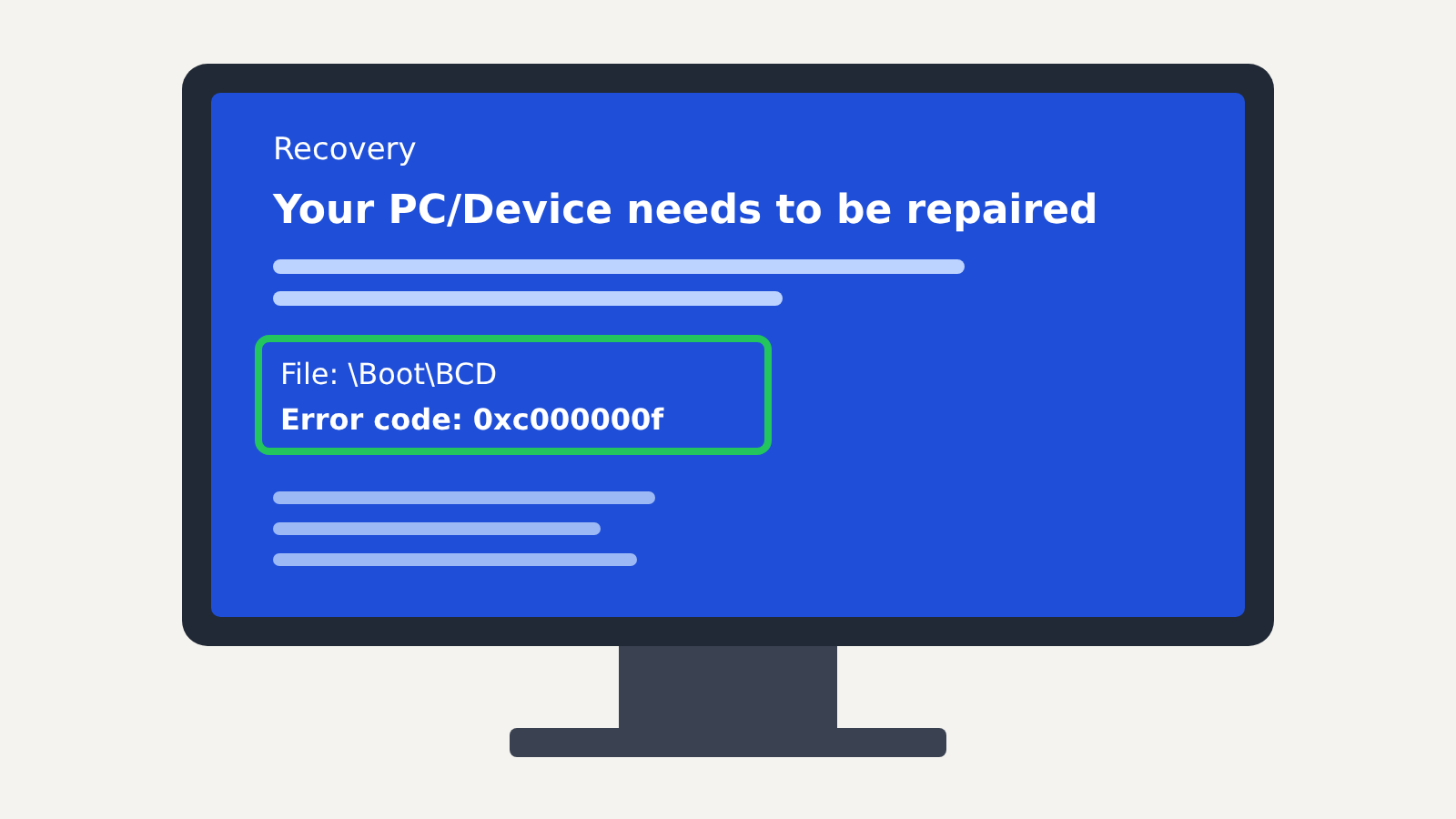
Error code 0xc000000f with "File: \Boot\BCD" means Windows can't read its Boot Configuration Data, the small file that tells the Windows Boot Manager where Windows is installed and how to start it. It's a "fix now" problem, because the PC won't get past this screen, but it is usually a broken startup file rather than lost data: your documents live on a different part of the drive and are normally untouched.
On Windows 10 and Windows 11 the blue Recovery screen typically reads:
Your PC/Device needs to be repaired The Boot Configuration Data file doesn't contain valid information for an operating system. File: \Boot\BCD Error code: 0xc000000f You'll need to use recovery tools. If you don't have any installation media (like a disc or USB device), contact your PC administrator or PC/Device manufacturer.
Below that are the keys Enter to try again, F8 for Startup Settings and Esc for UEFI Firmware Settings. Older Windows 10 builds word the second line as "The Boot Configuration Data for your PC is missing or contains errors." Close relatives point at the same file: 0xc0000034 ("The Boot Configuration Data file is missing some required information") and 0xc000000e ("A required device isn't connected or can't be accessed"). The steps below cover all three.
What the BCD is and why it breaks
Starting Windows happens in three hand-offs. Your PC's firmware (UEFI on most PCs from the last decade, BIOS on older ones) starts the Windows Boot Manager from a small boot partition. The Boot Manager reads the BCD to find Windows. Then Windows itself loads from the main partition, usually C:. This error means the middle hand-off failed: the BCD is missing, damaged or points at a drive that isn't there.
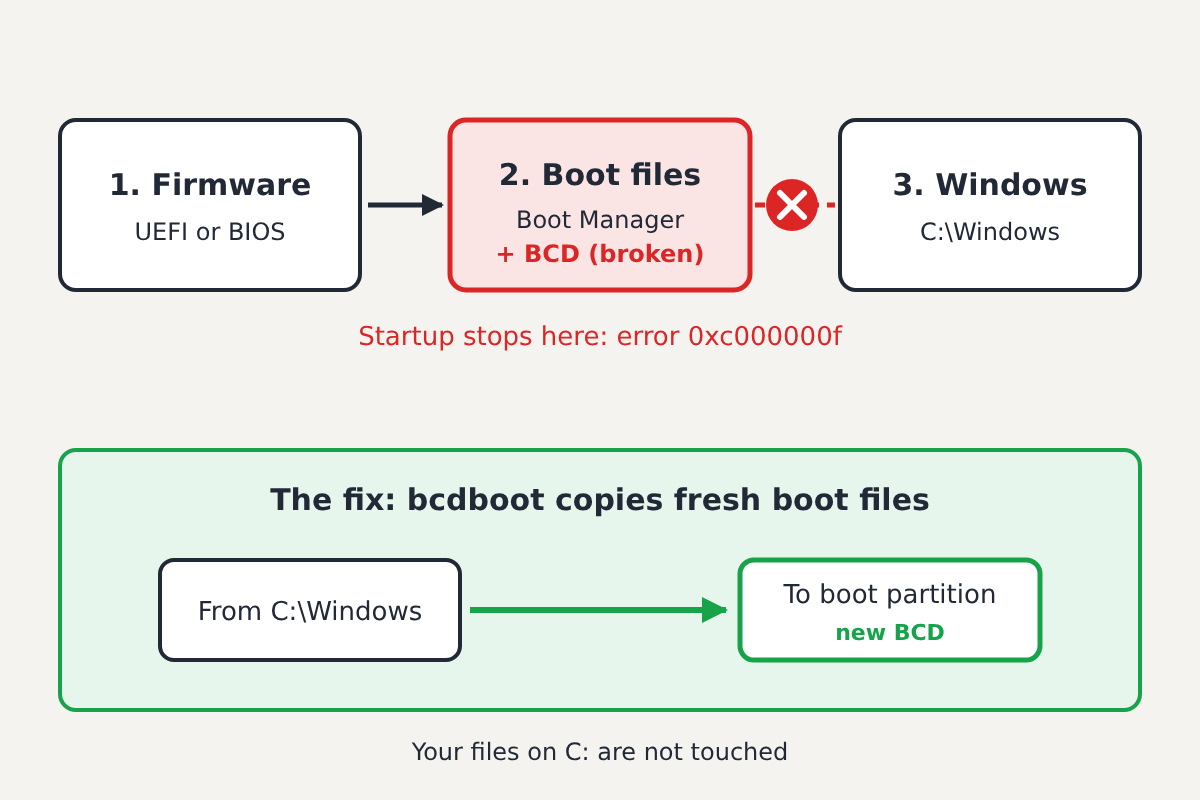
Common causes:
- Power was lost, or the PC was forced off, during a Windows update or while it was writing to the boot partition.
- The boot order in the firmware changed, so the PC tries to start from the wrong drive. This happens after adding a second drive, plugging in a USB stick, or a firmware update that reset settings.
- A drive was cloned or swapped, or a second drive that held the boot partition was removed. Dual-boot setups where another operating system was deleted are a classic case.
- A firmware setting changed, such as switching between UEFI and Legacy/CSM mode, or changing the storage controller mode.
- The drive is failing and can no longer read that part of the disk.
Before you start: have your BitLocker key ready
Many Windows 11 PCs and plenty of Windows 10 PCs encrypt the drive with device encryption or BitLocker. Recovery tools may ask for the 48-digit recovery key, and the repair commands below can't reach an encrypted drive until it is unlocked. Find the key from a phone or another computer first. If you sign in with a Microsoft account it is usually at aka.ms/myrecoverykey; our guide to finding your BitLocker recovery key lists the other places it can be.
How to fix error 0xc000000f, simplest first
1. Unplug extras and check the boot drive
Remove USB sticks, SD cards, external drives and docks, then press Enter to try again. A USB drive left in a port is enough to send some PCs to the wrong disk.
If that changes nothing, restart and press Esc on the error screen (or your PC's own key, often F2, F10, F12 or Del) to open the firmware settings. Check the boot order: the first entry should be Windows Boot Manager on the drive Windows is installed on. If you recently changed the boot mode (UEFI versus Legacy or CSM) or the storage mode (AHCI, RAID or Intel RST), set it back the way it was. Save and restart.
If the drive doesn't appear in the firmware at all, skip to "When to get help" below. No software repair can fix a drive the PC can't see.
2. Get into the recovery tools
The tools you need live in the Windows Recovery Environment. Press F8 on the error screen for Startup Settings, or let Windows try a few times; if it reaches the blue Choose an option screen, go to Troubleshoot > Advanced options.
Often it won't, because the recovery tools are started through the same broken BCD. Then you need Windows installation media, which is what the screen means by "recovery tools". On another computer, download Microsoft's media creation tool from microsoft.com/software-download (Windows 11 or Windows 10, matching yours) and make a bootable USB stick of at least 8 GB. Boot the broken PC from it, choose your language, then click Repair your computer in the bottom-left corner, not Install now. That opens the same Choose an option screen.
3. Run Startup Repair
Go to Troubleshoot > Advanced options > Startup Repair and choose your Windows. It checks the boot files and BCD and rebuilds what it can. If it finishes and Windows starts, you're done. If it reports that it couldn't repair your PC, our guide to the "Automatic Repair couldn't repair your PC" screen explains how to read its log. For this error, the next step is usually the fix.
4. Rebuild the boot files with bcdboot
This is Microsoft's own method for rebuilding the boot files, and it only writes to the boot partition. Open Troubleshoot > Advanced options > Command Prompt.
First, find the letter of your Windows drive, which isn't always C: in recovery. Type diskpart, press Enter, then type list vol. Look for:
- the large NTFS volume that holds Windows (often C: or D:), and
- a small FAT32 volume of about 100 to 300 MB, labelled System or with no label. That is the EFI boot partition on a UEFI PC.
On a UEFI PC (you found the FAT32 volume), note its volume number and give it a letter:
select vol 2 (use the number from your list)
assign letter=S
exit
Then rebuild the boot files, using your Windows letter in place of C if it was different:
bcdboot C:\Windows /s S: /f UEFI
"Boot files successfully created" means it worked. Type exit, choose Continue or remove the USB stick and restart.
On an older BIOS PC (no FAT32 volume, usually a "System Reserved" NTFS volume instead), type exit to leave diskpart and run these from Microsoft's Bootrec documentation, one at a time:
bootrec /fixmbr
bootrec /fixboot
bootrec /rebuildbcd
When /rebuildbcd finds your Windows installation, type Y to add it. If bootrec /fixboot says "Access is denied", that's a common result on newer PCs; use the bcdboot command instead with /f ALL in place of /f UEFI, aimed at the System Reserved volume's letter.
If a command says the drive is locked or encrypted, unlock it first with your BitLocker key:
manage-bde -unlock C: -RecoveryPassword followed by the 48-digit key.
5. Check the drive for errors
If the BCD keeps breaking, or bcdboot fails with a read error, check the Windows partition from the same Command Prompt:
chkdsk C: /f
If chkdsk reports bad sectors or can't read the disk, stop running repairs. Each pass strains a failing drive, and your priority is getting your files off it. A repair shop or data recovery service can copy them before the drive is replaced.
6. Reset or reinstall as a last resort
If the drive is healthy and the boot files still won't stick, Troubleshoot > Reset this PC > Keep my files reinstalls Windows and keeps your personal files, though your apps need reinstalling. A clean install from the USB stick erases the drive, so copy anything irreplaceable off first.
When to get help instead
Take the PC to a repair shop, or to the maker if it's under warranty, when the drive doesn't show in the firmware, a hard drive clicks, chkdsk can't read the disk, or the error returns soon after bcdboot worked. Those point to hardware. If the PC instead stops on a blue screen naming INACCESSIBLE_BOOT_DEVICE, the stop code Windows shows when it loses its startup drive, the boot files were found and the problem has moved one step later, to the drive or its storage driver.
Sources: Microsoft Learn: "Advanced troubleshooting for Windows boot problems", "BCDBoot command-line options", "Windows Recovery Environment (Windows RE)"; Microsoft Support: "Use Bootrec.exe in the Windows RE to troubleshoot startup issues", "Recovery options in Windows", "Create installation media for Windows".
