CRITICAL_PROCESS_DIED stop code on Windows: what it means and how to fix it
In short
A core Windows process stopped, so Windows shut down to protect your files. What causes it, how urgent it is, and the fixes to try whether or not your PC still starts.
CRITICAL_PROCESS_DIED means a Windows process that the system can't run without stopped unexpectedly, so Windows shut itself down to protect your files. How urgent it is depends on how often you see it: a single crash after an update is usually a "fix soon" problem, but repeated crashes, or a PC that can't start, mean you should back up your files now and work through the steps below.
The stop code applies to Windows 10 and Windows 11. Microsoft's documentation lists it as bug check 0x000000EF, and the screen reads "Your PC ran into a problem and needs to restart" with Stop code: CRITICAL_PROCESS_DIED underneath. On recent Windows 11 versions Microsoft has replaced the familiar blue background with a simpler black screen, but the stop code line works the same way, and it is the part to write down.
What causes it
Windows depends on a handful of core processes to run at all. When one of them fails or is shut down, Windows can't safely continue, so it stops everything and restarts. The usual reasons behind that failure are:
- Damaged Windows system files, often after an interrupted update or a sudden power loss
- A faulty or outdated driver, especially for storage, graphics or newly added hardware
- A storage drive that is starting to fail and returns bad data
- Recently installed software that hooks deep into the system, such as some security or tuning tools
- Less often, faulty memory (RAM) or malware
The stop code tells you which process stopped, not why. That is why the fixes below go from the simplest causes to the hardest.
To see how often it has happened, search the Start menu for "View reliability history". Reliability Monitor lists each crash by date next to updates and app installs, which makes it easier to spot a crash pattern that started with a particular change.
If Windows still starts
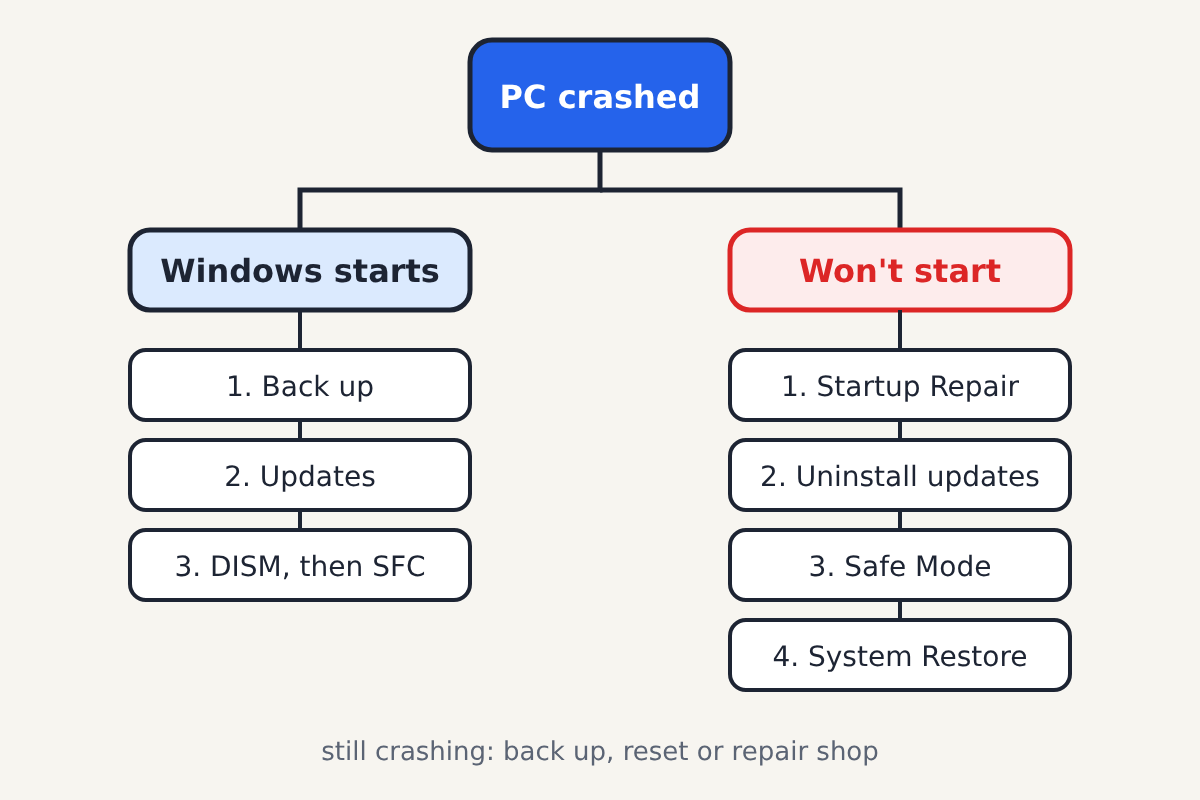
Work through these in order, restarting after each one and watching whether the crash comes back.
- Back up first. Copy your important files to an external drive or cloud storage before you change anything. If the drive is failing, this may be your best chance.
- Undo recent changes. Unplug any hardware you added recently. If the crashes started after you installed an app or driver, uninstall it from Settings > Apps > Installed apps.
- Install updates. Open Settings > Windows Update, install everything offered, and check Advanced options > Optional updates for driver updates.
- Repair system files. Right-click Start, choose Terminal (Admin) or Windows PowerShell (Admin), and run these two commands one at a time, letting each finish:
DISM /Online /Cleanup-Image /RestoreHealth sfc /scannow DISM repairs the Windows image that the System File Checker (sfc) uses as its reference, so running it first gives sfc a healthy source to copy from.
- Check the drive. In the same admin window, run
chkdsk C: /scanto look for file system errors. If your PC maker supplies a drive health tool, run it too. - Test the memory. Search the Start menu for Windows Memory Diagnostic and let it restart and test your RAM.
If Windows won't start or keeps crashing
After two or three failed starts in a row, Windows usually opens its recovery environment on its own, showing Automatic Repair or Choose an option. From there, go to Troubleshoot > Advanced options and try, in this order:
- Startup Repair, which fixes common boot problems automatically.
- Uninstall Updates, if the crashes began right after a Windows update. Remove the latest quality update first.
- Startup Settings, then choose Safe Mode. If Windows runs normally in Safe Mode, a driver or startup app is the likely cause; uninstall recent ones from there.
- System Restore, which rolls system files and drivers back to an earlier restore point without touching your documents.
The recovery environment may ask for your BitLocker recovery key if your drive is encrypted. You can find it by signing in to your Microsoft account on another device and looking under Devices; it is not a sign of a scam or of anything having gone wrong.
When to reset or get a repair
If none of the steps help, Settings > System > Recovery > Reset this PC reinstalls Windows. Choose Keep my files to keep your documents, but back them up anyway, and expect to reinstall your apps.
If the crash keeps returning even after a reset, or the drive makes clicking noises, or the PC fails the memory test, the problem is hardware. Take it to the PC maker's support or a repair shop rather than reinstalling again; continuing to use a failing drive can cost you the files you haven't backed up.
A real stop code screen never shows a phone number or asks you to call anyone. If you see a "blue screen" inside a browser window with a support number on it, that is a fake virus warning, not a Windows crash.
