MEMORY_MANAGEMENT stop code on Windows 10 and 11: what it means and how to fix it
In short
MEMORY_MANAGEMENT (bug check 0x1A) means Windows found its memory records damaged. The cause is usually a RAM module or a driver; here is how to tell which and fix it.
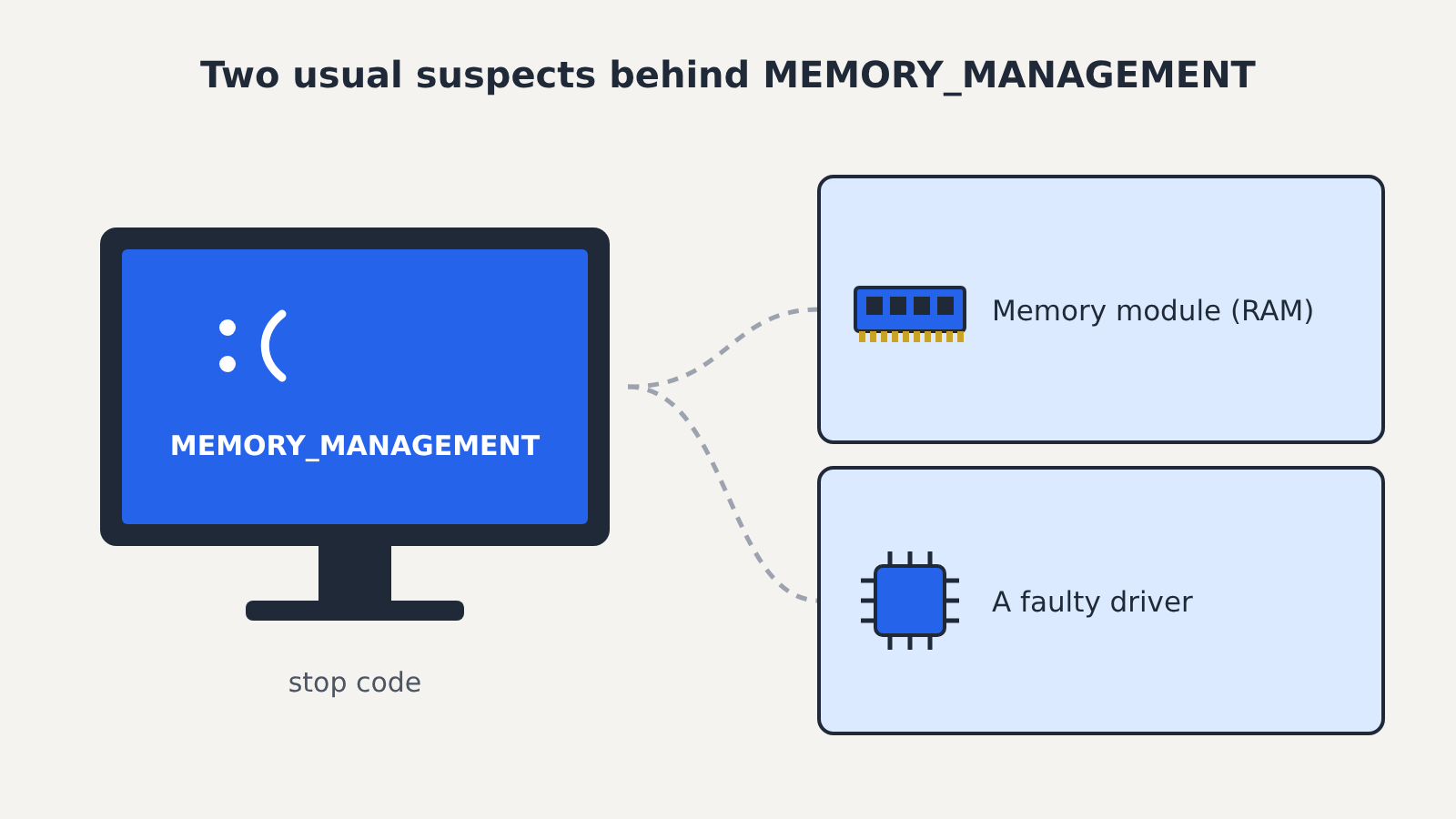
MEMORY_MANAGEMENT is a Windows stop code (bug check 0x1A) that means Windows found its own record of how memory is being used damaged or inconsistent, and stopped the PC rather than risk corrupting your files. Microsoft's documentation describes it simply as "a severe memory management error occurred".
Urgency: fix soon. One crash after a big update or a new driver may never come back. Crashes that repeat, especially under load such as gaming, video editing or many browser tabs, need the steps below, because the two usual causes are a faulty memory module or a buggy driver, and a failing memory module can quietly damage files before it crashes the PC.
This applies to Windows 10 and Windows 11. The screen says "Your PC ran into a problem and needs to restart" with Stop code: MEMORY_MANAGEMENT underneath.
What the stop code actually tells you
Windows keeps tables of which memory pages belong to which program and driver. MEMORY_MANAGEMENT means those tables no longer add up. Two kinds of fault cause almost all of these crashes:
- Hardware: a memory module (RAM stick) returning wrong data, a module that is not fully seated, or memory running faster than it reliably can because of an overclock or a memory profile (XMP or EXPO) set in the BIOS.
- Software: a driver that misuses memory. Microsoft's reference lists, for example, parameter 0x1233, where a driver tried to map a physical memory page that was not locked; Microsoft calls that a bug in the code that made the call.
The stop code alone does not tell you which. The memory test in step 4 is what separates them.
Find the detail Windows saved
The stop screen shows only the name, but Windows records more. After the PC restarts, open Event Viewer, go to Windows Logs > System and look for an error from the source BugCheck at the time of the crash. Its text reads like "The bugcheck was: 0x0000001a (0x…, …)". The first value in the brackets is the subtype Microsoft's documentation explains. You do not need to decode it yourself, but write it down: a repair shop, your PC maker or Microsoft's support forum can use it, and if the same value appears every time, the cause is consistent.
Fixes, from simplest to hardest
Stop as soon as the crashes stop.
1. Undo recent hardware and speed changes
If you added or swapped RAM, put the old configuration back. If you enabled an XMP or EXPO memory profile or overclocked the PC, set the BIOS back to its defaults and see whether the crashes stop. Memory speed settings are a common cause on gaming PCs, and turning them off costs little in everyday use.
2. Install Windows and driver updates
Open Settings > Windows Update, install everything, and check Advanced options > Optional updates for driver updates. Update your graphics driver from your PC maker or from the graphics card maker's site. A driver bug that has already been fixed is the easiest cause to remove.
3. Roll back the latest driver or app
If the crashes began after installing a driver, a game with an anti-cheat component, a VPN or security software, uninstall it and test for a day. For a driver, open Device Manager, right-click the device, choose Properties > Driver > Roll Back Driver.
If Windows crashes too quickly to do this, start in Safe Mode: hold Shift while you click Restart, then choose Troubleshoot > Advanced options > Startup Settings > Restart and press 4.
4. Test your memory
Type Windows Memory Diagnostic in the Start menu search, open it and choose Restart now and check for problems. The test runs before Windows loads. When Windows starts again it shows the result as a notification; if you miss it, look in Event Viewer > Windows Logs > System for an entry from MemoryDiagnostics-Results.
Microsoft's guidance on stop errors suggests this tool to rule out a problem with the physical memory modules. A clean result does not fully clear the RAM, because some faults only show up when the memory is warm or under heavy load. If you have more than one module and the crashes continue, a repair shop can test each module on its own, or you can run the PC with one module at a time if you are comfortable opening it (switch off and unplug first, and check whether opening the case affects your warranty).
If the test reports errors, the module needs replacing. That is a hardware repair, not something software can fix.
5. Repair Windows system files
Open Terminal (Admin) or Command Prompt (Admin) and run:
DISM /Online /Cleanup-Image /RestoreHealth
sfc /scannow
Let each one finish. This repairs damaged Windows files, which can be a side effect of earlier crashes as well as a cause.
6. Use System Restore
If the crashes started on a known date, type Create a restore point in the Start menu, open System Restore and pick a point from before they began. This undoes drivers and updates installed since, and keeps your documents.
When to hand it over
Take the PC to a repair shop or contact its maker if the memory test finds errors, if crashes continue after a clean test and all the steps above, or if the PC is under warranty and you would have to open it. Back up your files first. If the PC also crashes with other stop codes, such as IRQL_NOT_LESS_OR_EQUAL, CRITICAL_PROCESS_DIED or PAGE_FAULT_IN_NONPAGED_AREA or the hardware error WHEA_UNCORRECTABLE_ERROR, mention them all: several different codes together point more strongly to hardware.
Sources: Microsoft Learn, "Bug Check 0x1A: MEMORY_MANAGEMENT"; Microsoft Learn, "Advanced troubleshooting for stop or blue screen errors".
