"Automatic Repair couldn't repair your PC" on Windows 10 and 11: what it means and what to try next
In short
Automatic Repair couldn't repair your PC means Windows' own startup repair ran and failed, not that your files are gone. How to see the stop code hiding behind the loop, read SrtTrail.txt, and work through Safe Mode, update removal, System Restore and an offline file repair.
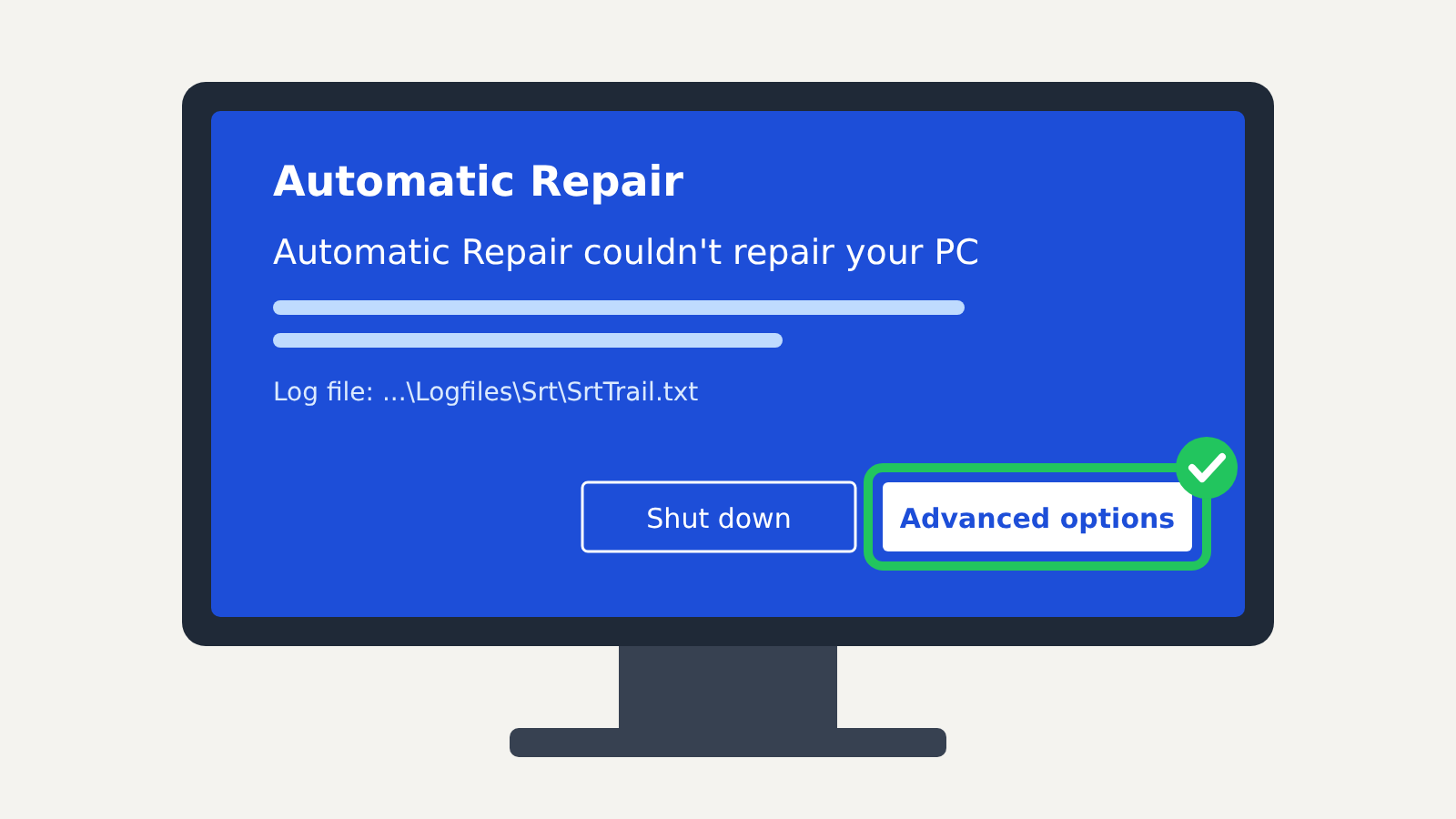
"Automatic Repair couldn't repair your PC" means Windows failed to start, ran its own startup repair tool, and that tool could not find or fix the cause. It's a "fix now" problem, since the PC won't reach the desktop, but it rarely means your files are gone: the repair tool only fixes a narrow set of boot problems, and several better tools sit one button away.
On Windows 10 and Windows 11 the screen reads, under the heading Automatic Repair:
Automatic Repair couldn't repair your PC. Press "Advanced options" to try other options to repair your PC or "Shut down" to turn off your PC. Log file: C:\WINDOWS\System32\Logfiles\Srt\SrtTrail.txt
It usually follows "Preparing Automatic Repair" and "Diagnosing your PC". Some Windows 10 PCs show a similar screen, "Your PC did not start correctly", with Restart and Advanced options buttons. The steps below are the same for both.
Why you're seeing it
The screen belongs to the Windows Recovery Environment (Windows RE). Microsoft's documentation says Windows switches to it on its own after two failed attempts in a row to start Windows, after two unexpected shutdowns within two minutes of the desktop loading, or after a Secure Boot error. Automatic Repair then runs Startup Repair, which checks things like the boot configuration and damaged startup files.
So the message is a symptom, not a diagnosis. Whatever stopped Windows from starting is still there. The usual suspects:
- A Windows update or driver that didn't install cleanly.
- Damaged system files, often after a power cut or a forced shutdown during an update.
- A stop code (blue screen) that happens so early in startup you never see it.
- A failing drive, or a drive Windows can't reach, as with INACCESSIBLE_BOOT_DEVICE, the stop code for a lost startup drive.
Pressing Restart over and over tends to bring you straight back here. Press Advanced options instead.
Before you start: find your BitLocker key
Many Windows 11 PCs, and plenty of Windows 10 ones, have device encryption or BitLocker turned on. Opening Command Prompt or System Restore from the recovery menu can ask for the 48-digit recovery key. Look it up first from a phone or another computer. If you sign in with a Microsoft account, it is usually at aka.ms/myrecoverykey. Our guide to the BitLocker recovery screen and where to find your key lists the other places it can be.
What to try, in order
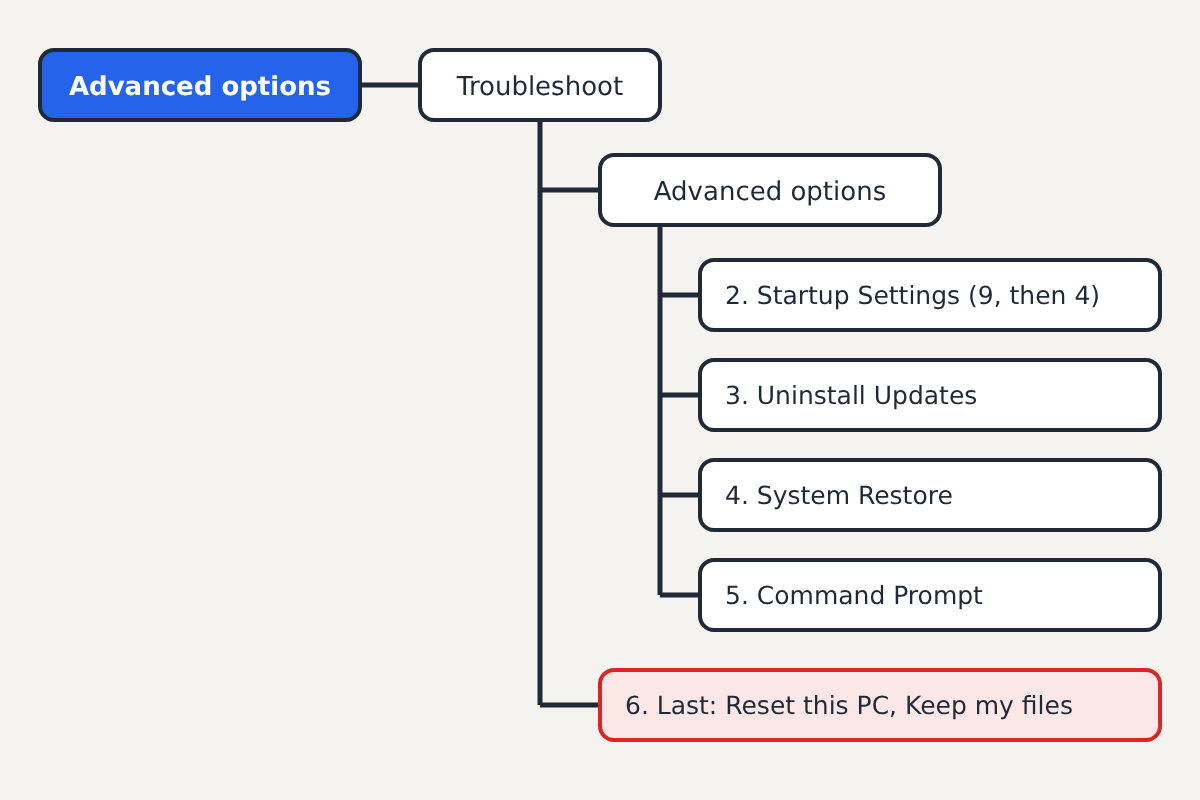
1. Unplug extras and shut down properly
Remove USB drives, SD cards, phones, docks and any new hardware. Press Shut down, wait a few seconds, then switch on again. If a startup glitch or a USB device was the cause, Windows can start normally from a cold boot.
2. Find out what's really crashing
Go to Advanced options > Troubleshoot > Advanced options > Startup Settings > Restart. When the numbered list appears, press 9 (Disable automatic restart after failure). If a stop code is hiding behind the loop, Windows now stays on the blue screen long enough to read it, for example CRITICAL_PROCESS_DIED or MEMORY_MANAGEMENT. Write it down: that code tells you far more than the Automatic Repair screen does, and each one has its own fixes. See what CRITICAL_PROCESS_DIED means and how to fix it for one of the most common.
Then go back to Startup Settings and press 4 for Safe Mode (or 5 for Safe Mode with Networking). If Windows starts in Safe Mode, the core of Windows is fine and something that loads at a normal start is to blame. Uninstall the app or driver you added most recently, then restart normally.
3. Uninstall the latest update
If the problem started right after Windows Update, go to Troubleshoot > Advanced options > Uninstall Updates. Try "Uninstall latest quality update" (the monthly one) first. If that changes nothing, try "Uninstall latest feature update".
4. Use System Restore
Troubleshoot > Advanced options > System Restore puts system files, drivers and settings back to an earlier restore point. Your documents and photos aren't touched. It only helps if restore points were being made, which isn't switched on by default on every PC; if the list is empty, move on.
5. Read the log, check the disk, repair system files
Open Troubleshoot > Advanced options > Command Prompt. First, check which letter Windows has here, because it isn't always C: in the recovery environment. Type dir C:\ and look for a Windows folder; if it isn't there, try dir D:\.
To read the log the screen mentioned, type:
notepad C:\Windows\System32\Logfiles\Srt\SrtTrail.txt
Near the top, look for the line that names the root cause. It may name a specific file (often a .sys driver), a recent update, or say the cause is unknown. A named driver file points you to the program or device that installed it, which you can remove from Safe Mode. Close Notepad to return to the command prompt.
Then check the drive for file system errors:
chkdsk C: /f
And repair Windows' own files while Windows isn't running (the offline form of System File Checker, from Microsoft's sfc documentation):
sfc /scannow /offbootdir=C:\ /offwindir=C:\Windows
Use the letter you found earlier in place of C: if it was different. Type exit, choose Continue, and see if Windows starts.
If the log or chkdsk reports bad sectors or a drive it can't read, or the drive is missing from the list in your PC's firmware setup, stop running repairs. Every pass strains a failing drive. Get your files copied off first by a repair shop or data recovery service.
6. Reset this PC, keeping your files
If the drive is healthy and nothing above helped, go to Troubleshoot > Reset this PC > Keep my files. This reinstalls Windows but keeps your personal files; your installed apps are removed and need reinstalling. You'll need your BitLocker key here too if the drive is encrypted. Copy anything irreplaceable off first if you can, for example by taking the drive to a shop.
When to get help instead
Take the PC to a repair shop, or to the maker if it's under warranty, when the drive isn't detected, a hard drive clicks, chkdsk can't read the disk, or Reset this PC fails too. Those point to hardware, and repeated repairs won't fix hardware.
Sources: Microsoft Learn: "Windows Recovery Environment (Windows RE)", "Sfc" command reference; Microsoft Support: "Recovery options in Windows", "Troubleshooting Windows unexpected restarts and stop code errors".
