"Service" or "significantly degraded" in iPhone Battery Health: what it means and what to do
In short
Battery Health says Service or "significantly degraded"? Your iPhone battery has worn down. What each Battery Health message means, how urgent it is, and when a new battery is the only fix.
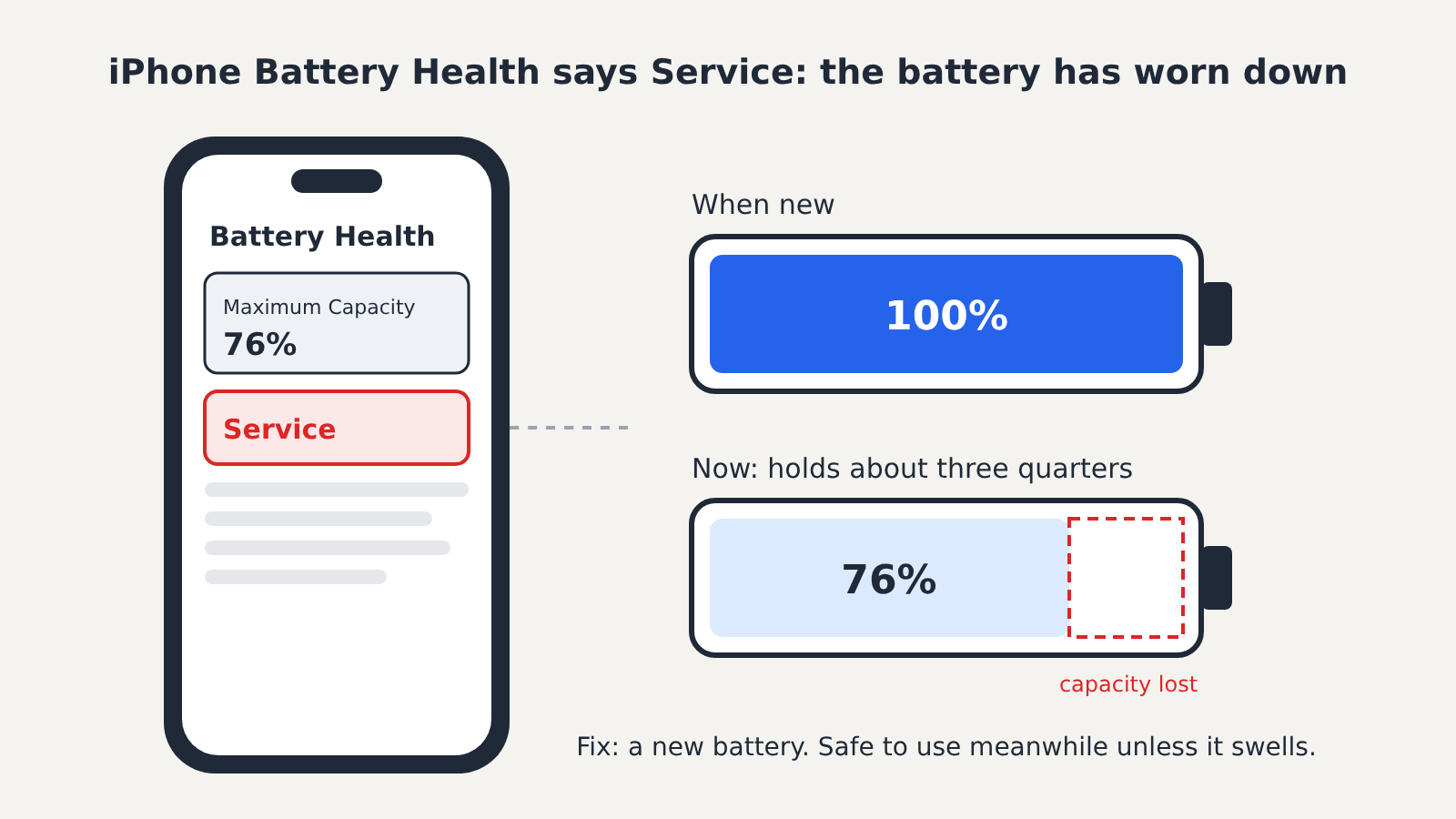
If Settings shows Service next to Battery Health, or the message "Your battery's health is significantly degraded", your iPhone is telling you the battery has worn out enough that a replacement would bring back its full capacity and speed. It is not an emergency. The phone is safe to keep using, but expect shorter days on a charge and, on some models, slower performance until the battery is replaced. The one exception is a battery that has swollen: if the screen is lifting away from the frame or the back is bulging, stop using and charging the phone and take it in for service now.
This guide covers iPhone 6 and later on iOS 11.3 and newer, the versions that have the Battery Health screen. The menu names below are from recent versions of iOS; on some models and versions the screen is called Battery Health & Charging. The message wording comes from Apple's support articles "iPhone battery and performance" and "About genuine iPhone batteries".
Where to find the message
Open Settings > Battery > Battery Health (or Battery Health & Charging). You'll see two things:
- Maximum Capacity: how much charge the battery can hold compared with when it was new. 100% is new; the number only goes down over time.
- Peak Performance Capability: a sentence that tells you whether the battery can still deliver the bursts of power the phone needs.
On iPhone 15 and later the battery's cycle count is also listed in Settings, under Battery Health or General > About depending on the iOS version. One cycle is 100% of capacity used, whether in one go or spread across several partial charges.
A real battery warning only ever appears here, in Settings, or as a system alert from iOS itself. A page in Safari that says your battery is "damaged" or "infected" and tells you to install an app or call a number is a scam. Close the tab and see how to deal with fake virus pop-ups in Safari.
What each Battery Health message means
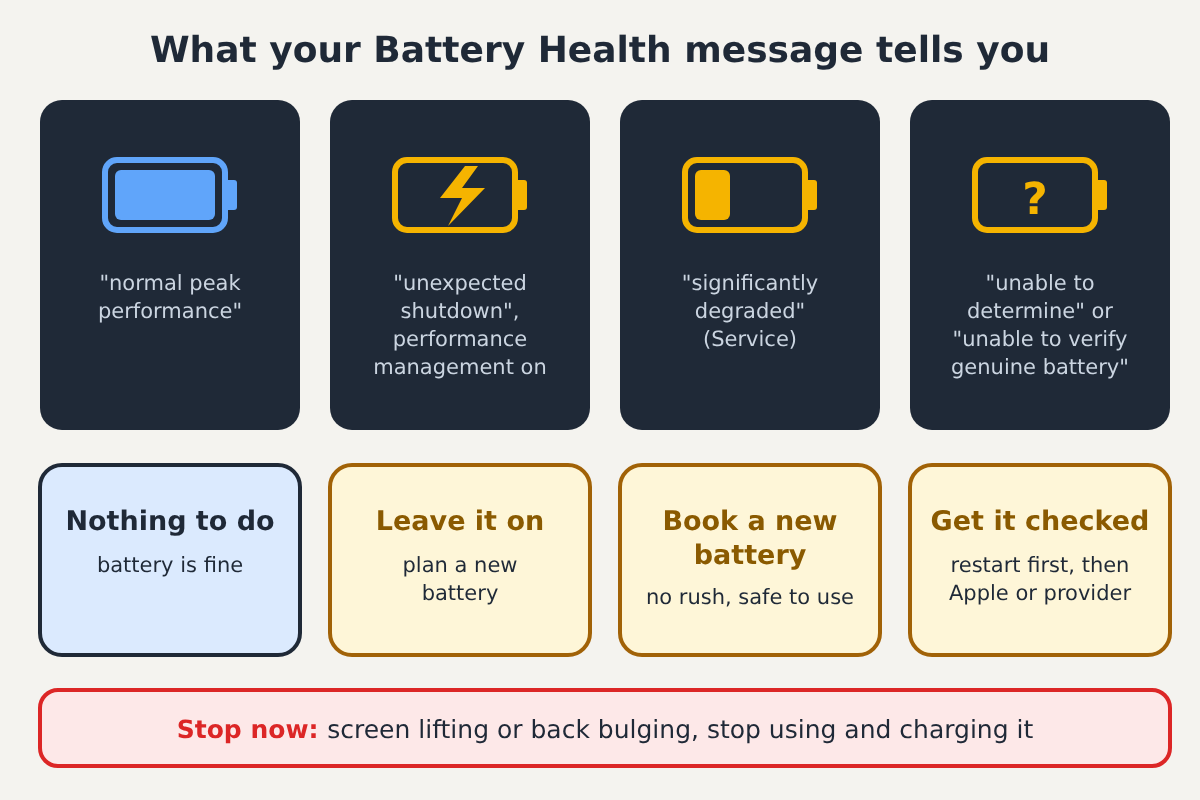
"Your battery is currently supporting normal peak performance."
Everything is fine. No action needed, whatever the Maximum Capacity number says.
"This iPhone has experienced an unexpected shutdown because the battery was unable to deliver the necessary peak power. Performance management has been applied to help prevent this from happening again."
An aged battery couldn't supply a sudden demand for power, so the phone switched itself off to protect its components. iOS has now switched on performance management, which smooths out those demands so the phone stays on. The cost is that some things may feel slower: apps taking longer to open, lower screen brightness, lower speaker volume or a lower frame rate. Apple says newer iPhones, with better hardware for handling peak power, usually show less of this slowdown.
Under the message there is a Disable link. Tapping it turns performance management off, and you can't turn it back on by hand. If the phone shuts down unexpectedly again, iOS switches it back on by itself. Most people are better off leaving it on and replacing the battery, which removes the need for it.
Cold is a common trigger for these shutdowns, even with a healthy battery. If the shutdowns happened outdoors in winter, read why phones die fast in the cold before you decide the battery is to blame.
"Your battery's health is significantly degraded. An Apple Authorized Service Provider can replace the battery to restore full performance and capacity."
This is the message behind the Service label. The battery has aged chemically and holds noticeably less charge than it did. Nothing is broken, and the phone keeps working, but battery life will keep shrinking. Book a replacement when it suits you.
Apple doesn't publish one exact percentage that triggers this message. For a sense of scale: Apple designs iPhone 14 and earlier batteries to keep 80% of their original capacity after 500 full charge cycles, and iPhone 15 and later after 1,000 cycles, under normal conditions. If your Maximum Capacity is under 80%, the battery has passed that design point.
"This iPhone is unable to determine battery health."
iOS couldn't read the battery's condition. A restart sometimes clears it. If it stays, it can mean a battery fault or a battery that iOS can't communicate with properly, and the battery should be checked by Apple or an Apple Authorized Service Provider.
"Important Battery Message: Unable to verify this iPhone has a genuine Apple battery."
This appears on iPhone XS, XS Max, XR and later when the battery isn't a genuine Apple battery, or when it was fitted without the steps Apple uses to pair it to the phone. The phone still works, but Battery Health won't show figures for it. Recent iOS versions also show the battery as Unknown Part under Settings > General > About > Parts and Service History. If you didn't know the battery had been replaced, for example on a phone you bought used, ask the seller, and consider a check at an Apple Store or authorized provider.
What to do, from simplest to hardest
- Restart the phone. This rules out a one-off reading error, especially for "unable to determine battery health".
- Update iOS in Settings > General > Software Update. Battery reporting and performance management are part of iOS, and updates refine them. If the update stops with "Unable to Install Update", work through the fixes for an iOS update that won't install before you go further.
- Check the conditions. Shutdowns in the cold, or heavy use in the heat, can strain even a good battery. If the phone has shown a temperature warning, let it cool down first.
- Stretch the remaining battery life while you wait for a replacement: Low Power Mode (Settings > Battery), lower screen brightness and fewer apps refreshing in the background all help. Optimized Battery Charging, the feature that sometimes shows Charging On Hold at 80%, slows further wear but won't bring capacity back.
- Replace the battery. This is the only fix for "significantly degraded". You can have it done by Apple, at an Apple Authorized Service Provider, or through Apple's Self Service Repair for supported models if you're comfortable with a full repair. If your iPhone has AppleCare+ and the battery holds less than 80% of its original capacity, the replacement is covered. Back up the phone to iCloud or a computer before you hand it in.
A battery can't be repaired or "recalibrated" back to health by an app, and any app or website that promises to do it is wasting your time or worse.
When to stop using the phone now
Stop using it, don't charge it, and take it to Apple or an authorized provider if you notice any of these:
- The screen is lifting away from the frame, or the back or case is bulging.
- The phone gets hot while it's idle and not charging.
- You smell something sweet or chemical, or see smoke.
A swollen lithium-ion battery can be damaged further by pressure or heat, so don't press on it, pierce it or try to remove it yourself.
