"Unable to verify this iPhone has a genuine Apple battery": what it means and what to do
In short
Your iPhone could not confirm its battery is a genuine, properly installed Apple part, so it hides battery health. The phone still works. Here is how to read the label in Parts and Service History and what to do about each one.
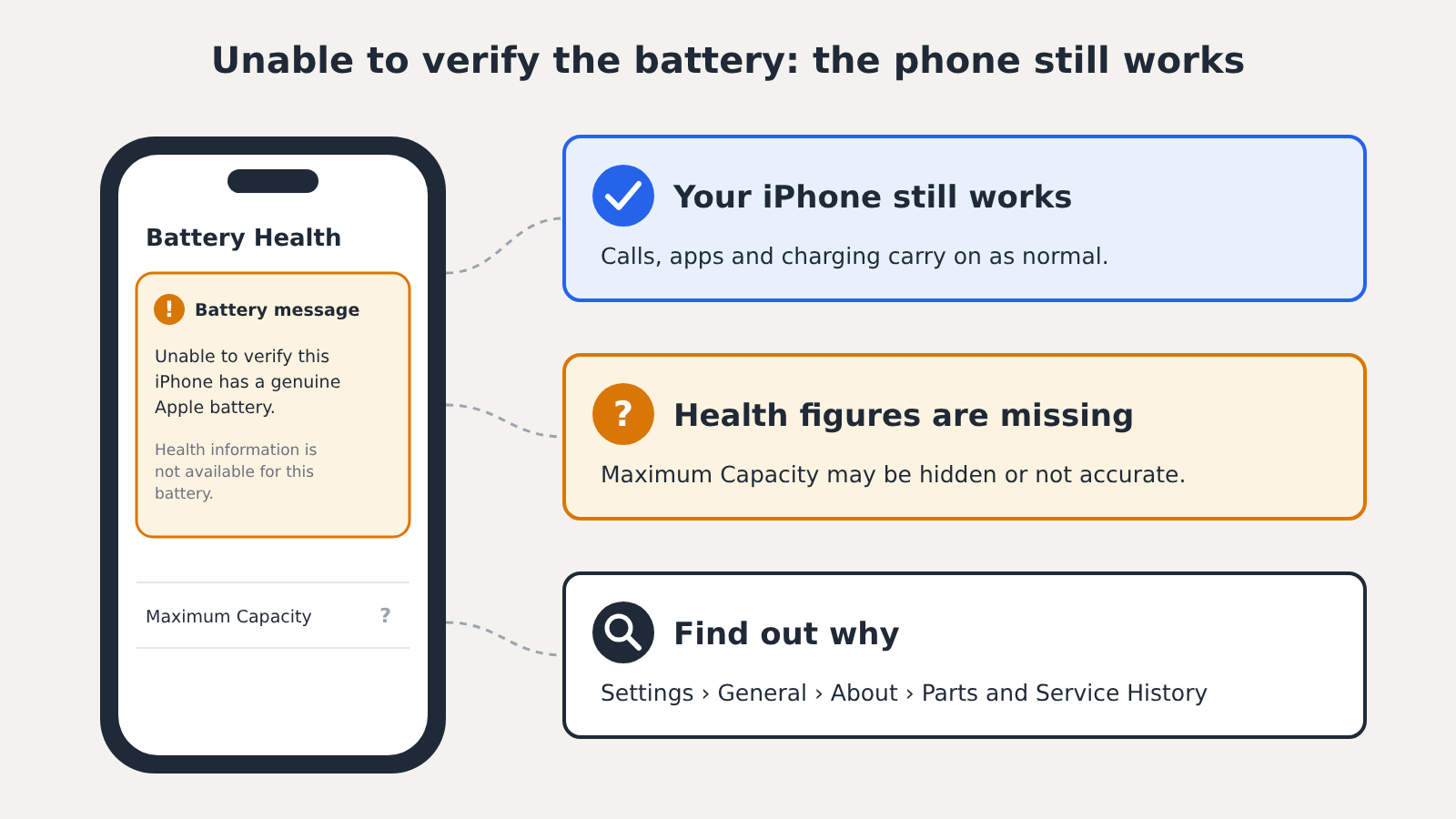
The message means your iPhone could not confirm that its battery is a new, genuine Apple battery that was installed and linked to the phone by an approved process, so it stops showing battery health figures it can't vouch for. It is not urgent on its own: Apple says these messages don't affect your ability to use your iPhone or the battery. Fix it soon only if you want accurate health readings back, and stop using the phone if the battery shows physical warning signs (more on that below).
This answer applies to iPhone XR, iPhone XS, iPhone XS Max and later models, including iPhone SE (2nd and 3rd generation), on iOS 15.2 and later. On iOS 15.1 or earlier the same situation shows as an "Important Battery Message" instead. The source throughout is Apple's support articles "About genuine iPhone batteries" and "iPhone Parts and Service History".
Where the message appears
Go to Settings > Battery > Battery Health (called Battery Health & Charging on some iOS versions). Instead of a Maximum Capacity percentage, you may see:
"Unable to verify this iPhone has a genuine Apple battery. Health information is not available for this battery."
Apple's own wording on its support page is that the health information "might not be accurate" for this battery. That matters because the percentage and the "Service" recommendation are how you normally judge whether a battery is worn out. If you came here because you were checking for that, our guide to the "Service" and "significantly degraded" battery health messages explains what those readings mean on a battery iOS can verify.
After a repair, iOS also shows a notification the first time you unlock the phone and another one five days later, pointing you to the repair details.
Why iOS can't verify the battery
Genuine Apple batteries are calibrated at the factory, and that data is stored on Apple's servers. When a battery is replaced, the repair has to be finished so the iPhone can check the part and link it to that phone. If any of that is missing, iOS can't vouch for it. Apple lists these causes:
- The battery is not a genuine Apple part.
- The battery is genuine but was already used in another iPhone.
- The repair was never finished, so the part hasn't been verified and linked to this iPhone.
- The battery isn't working as expected, or has been modified.
You will usually see this after a battery swap at a shop that isn't part of Apple's repair network, after a self-done repair, or on a second-hand iPhone that someone else had repaired. A battery that came with the phone from Apple and was never touched should not show it.
Check what label your battery has
On iOS 15.2 and later, open Settings > General > About. A repaired iPhone has a Parts and Service History section there. Next to Battery you'll see one of these labels, and each one tells you what to do next.
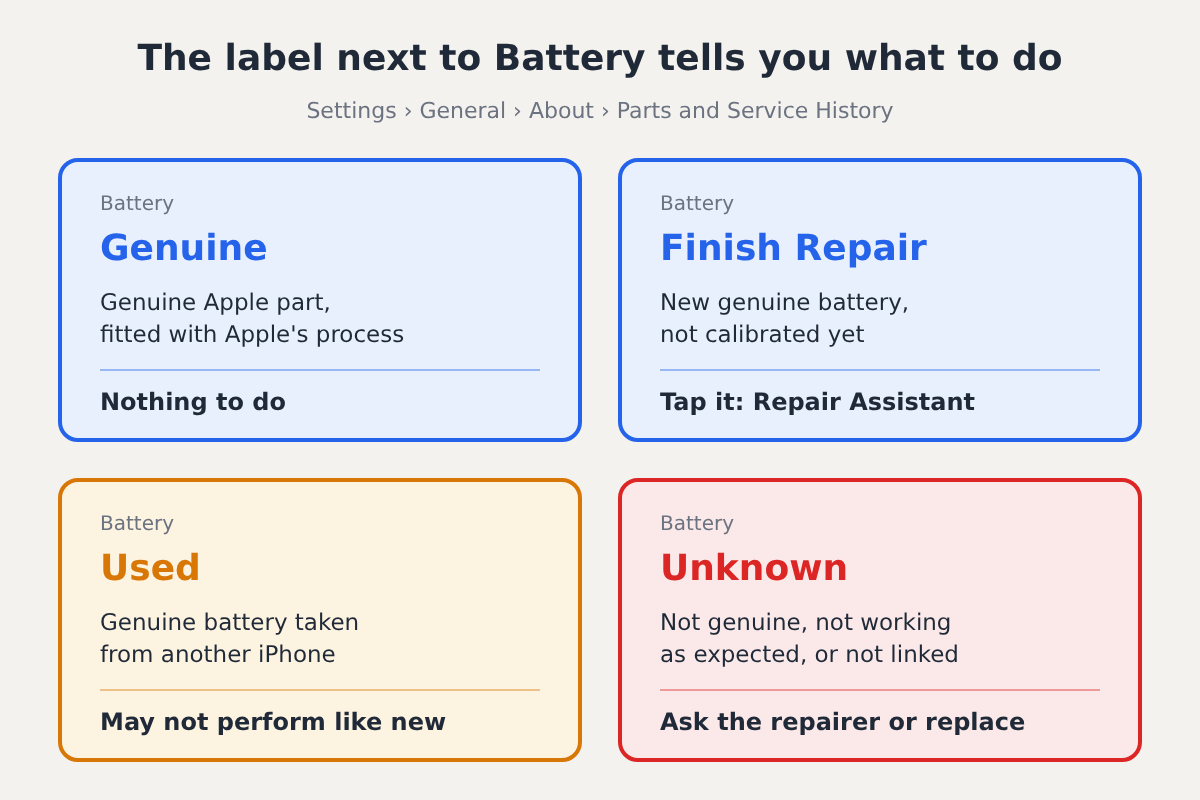
- Genuine: the repair used genuine Apple parts and processes. The health readings should be trustworthy.
- Finish Repair: a new Apple battery is installed but not yet calibrated. Tap it and follow the Repair Assistant steps on screen. Apple says the label stays until you do.
- Used: a genuine Apple battery that was previously in another iPhone. Apple notes it might not perform as well as a new genuine battery. This label appears on iPhone 15 and later with iOS 18 or later.
- Unknown (with an exclamation icon): the battery isn't a genuine Apple part, isn't working as expected, hasn't been verified and linked after the repair, or can't be verified. This is the label behind the "Unable to verify" message.
If you're on iOS 15.1 or earlier you only get the "Important Battery Message" and won't see these details. Updating iOS gives you the fuller picture.
What to do, from simplest to hardest
- Decide whether you need to do anything. If the phone holds a charge through your day, doesn't get unusually hot and the battery looks normal, you can keep using it. The message itself doesn't limit the phone.
- If the label says Finish Repair, finish it. Tap the label in Parts and Service History and follow the steps. Make sure the iPhone is on Wi-Fi and up to date first.
- If you just had the battery replaced, go back to whoever did it. Ask whether they fitted a genuine Apple battery and completed the repair. A genuine battery that wasn't linked can show as Unknown, and the repairer is the one who can sort that out.
- If you bought the iPhone used, ask the seller about its repair history. An Unknown part can lower the phone's trade-in value, so it's worth knowing before you buy or sell.
- If you want reliable health readings back, replace the battery with a genuine one. Apple recommends a provider with certified technicians using genuine parts: Apple itself, an Apple Authorized Service Provider or an Independent Repair Provider. For out-of-warranty repairs on some models introduced in 2021 or later, Apple's Self Service Repair is also available in certain countries or regions. Apple's advice is that for most people a trained technician is the safer choice, because a damaged lithium-ion battery can overheat or catch fire.
When to stop using the phone
Apple warns that non-genuine batteries can cause unexpected behaviour after installation, after software updates or while charging, and might lead to safety issues. Stop charging and using the iPhone, and take it to a repair provider, if:
- the screen or back starts to lift or bulge, which points to a swollen battery;
- the phone gets very hot while charging or doing light work;
- it shuts down suddenly at a charge level that should be plenty.
Don't press on a swollen battery or try to open the phone yourself. If your iPhone simply pauses at 80%, that is a different and normal feature, explained in our post on why an iPhone shows "Charging On Hold". Heat warnings have their own message too: see what "iPhone needs to cool down" means.
