"Your iPhone has been hacked" or virus pop-up in Safari: what it means and how to close it
In short
A Safari pop-up saying your iPhone is hacked or infected is a scam page, not an Apple warning. How to close it, clear Safari, check for profiles and what to do if you called the number.
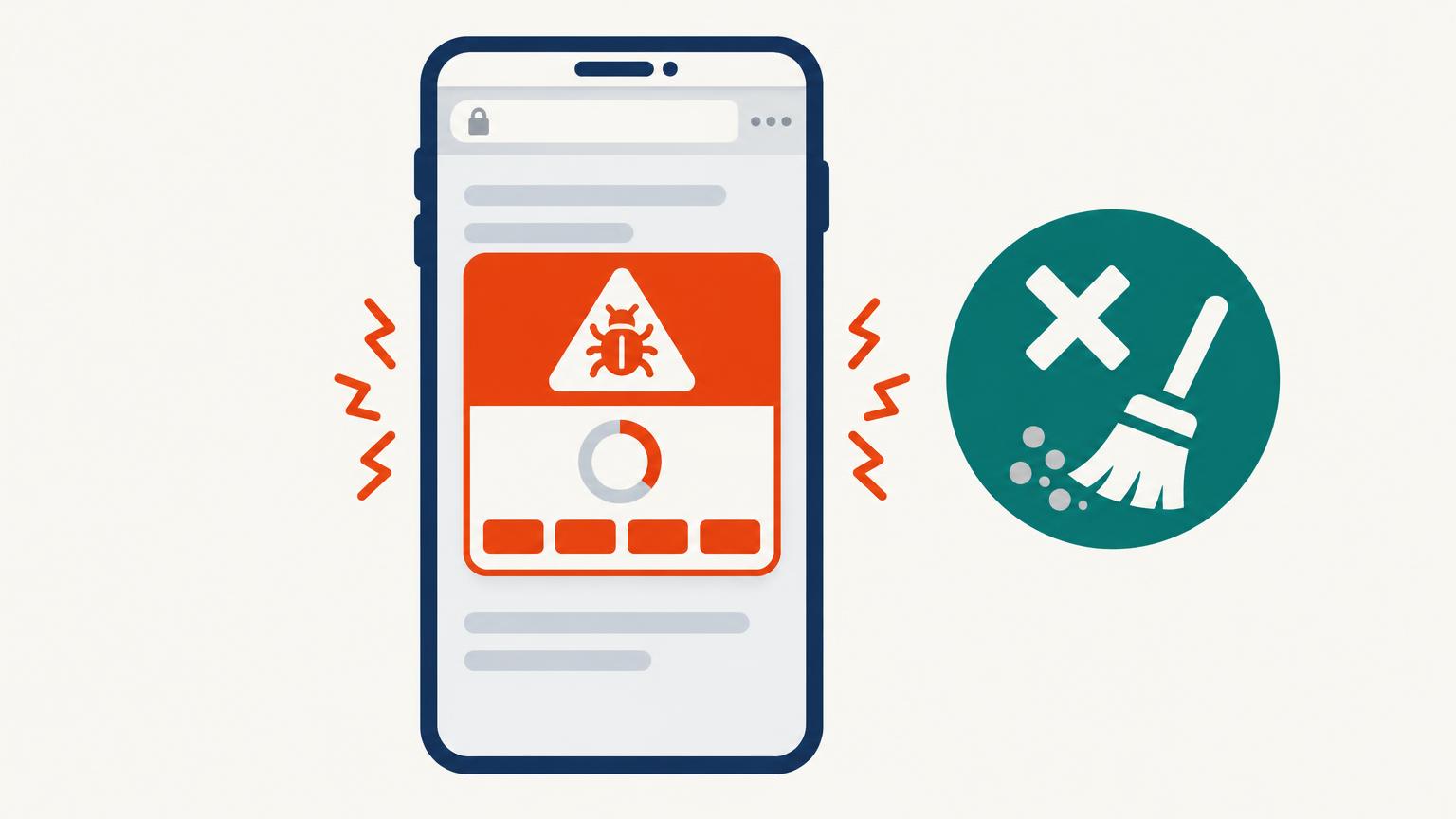
A pop-up in Safari saying your iPhone "has been hacked", "is infected with viruses" or "is damaged" is a scam web page, not a message from Apple or from iOS. A website cannot scan your iPhone, and Apple does not send virus warnings through pop-ups in the browser.
Urgency: close it now, but nothing on your iPhone is broken. The only real risk is what the page wants you to do next: call a phone number, install an app or profile, tap a "clean" button, or type in your Apple Account password or card details. If you did none of those, closing the page and clearing Safari's data is enough.
This applies to iPhone and iPad on iOS and iPadOS 17, 18 and 26. The menu paths below are for iOS 18 and later; on iOS 17, Safari's settings sit directly under Settings instead of Settings > Apps.
What these pop-ups look like
The wording changes constantly, but the patterns repeat:
- "Your iPhone has been hacked" or "Virus detected (3)" with a countdown timer
- A fake scan with a progress bar and a list of "infected" files
- An Apple logo, an "Apple Security" heading or a fake Apple Support phone number
- A button to "Remove virus now" that leads to the App Store, a configuration profile download or a payment page
- Vibration, a siren sound or a page that will not let you go back
Apple's support page on blocking pop-ups describes exactly this: some pop-ups are third-party ads that use phishing tactics such as warnings or prizes to make you believe they come from Apple or another trusted company.
The tell is where it appears. A real iOS alert never shows up inside a web page under Safari's address bar, and it never asks you to call a number. Pages that claim your storage is full and your photos are about to be deleted use the same trick: the genuine Storage Almost Full alert on iPhone comes from iOS and only offers to open Settings.
How to get rid of it, simplest first
1. Do not tap anything inside the pop-up
That includes "OK", "Cancel" and "Close" buttons drawn inside the page. On scam pages these buttons can all lead to the same place. Do not call any phone number it shows.
2. Close the tab or force-quit Safari
Tap the tabs button and swipe the tab away. If the page keeps reopening or the tabs view will not respond, swipe up from the bottom of the screen and pause (or double-click the Home button on older models), then swipe Safari's card up to close it.
3. Clear Safari's history and website data
This stops the page from reopening the next time you launch Safari.
- Open Settings > Apps > Safari.
- Tap Clear History and Website Data.
- Choose to clear all history, then confirm.
This signs you out of websites and removes your browsing history on every device signed in to the same Apple Account with Safari syncing on. Your bookmarks and passwords stay.
4. Turn on the two Safari protections
In Settings > Apps > Safari, make sure Block Pop-ups and Fraudulent Website Warning are both switched on. Apple's guidance points to these two settings for exactly this problem. Neither catches every scam page, but they cut down how often you land on one.
5. Check for anything the page made you install
If you tapped through before closing it:
- Apps: delete any app you installed because the pop-up told you to, especially "cleaners", "security" apps or VPNs you did not know before.
- Profiles: open Settings > General > VPN & Device Management. If you see a profile you did not install on purpose and that did not come from your employer or school, tap it and remove it. An app listed there under Enterprise App was installed from outside the App Store; what the Untrusted Enterprise Developer alert means explains when to delete it.
- Calendar spam: if you keep getting fake alerts as calendar events, open the Calendar app, find the unknown subscribed calendar and delete it.
If you already called the number or paid
These are tech support scams, and the people on the phone usually try to get remote access to your devices or a payment by card or gift card.
- Hang up and do not call back.
- If you installed a remote-access or screen-sharing app for them, delete it.
- If you typed your Apple Account password, change it from Settings > [your name] > Sign-In & Security, and turn on two-factor authentication if it is not already on.
- If you paid with a card, call your bank on the number printed on the back of the card and explain what happened. If you paid with gift cards, contact the gift card company as soon as you can.
- Never pay anyone to "unlock" or "clean" an iPhone.
Apple accepts reports of scam messages and suspicious calls at reportphishing@apple.com. In the US you can also report the scam to the FTC at ReportFraud.ftc.gov.
You do not need to reset your iPhone
A pop-up on a web page does not mean malware is running on your iPhone. iOS keeps apps and websites in separate sandboxes, and a page in Safari cannot install software without you tapping through prompts. Erasing your iPhone is not a fix for a browser pop-up.
What does help is keeping iOS up to date, so that Safari has the latest security fixes. If your iPhone also shows other odd behaviour after you have closed the page and cleared Safari (apps you did not install, a profile that comes back, settings changing on their own), contact Apple Support rather than following advice from a website.
Related messages
Scam texts follow the same playbook as these pop-ups; see how to spot fake package delivery texts. On a computer, the same scam shows up as a fake virus warning with a phone number, and the steps to close it are similar.
Sources: Apple Support, "Block pop-up ads and windows in Safari"; Apple Support, "Recognize and avoid social engineering schemes"; US Federal Trade Commission guidance on tech support scams.
