"Waiting for activation" on iMessage or FaceTime: what it means and how to fix it
In short
"Waiting for activation" means your iPhone has not finished linking your phone number to iMessage and FaceTime. It can take up to 24 hours. Here is what blocks it and the fixes Apple lists, from simplest to hardest.
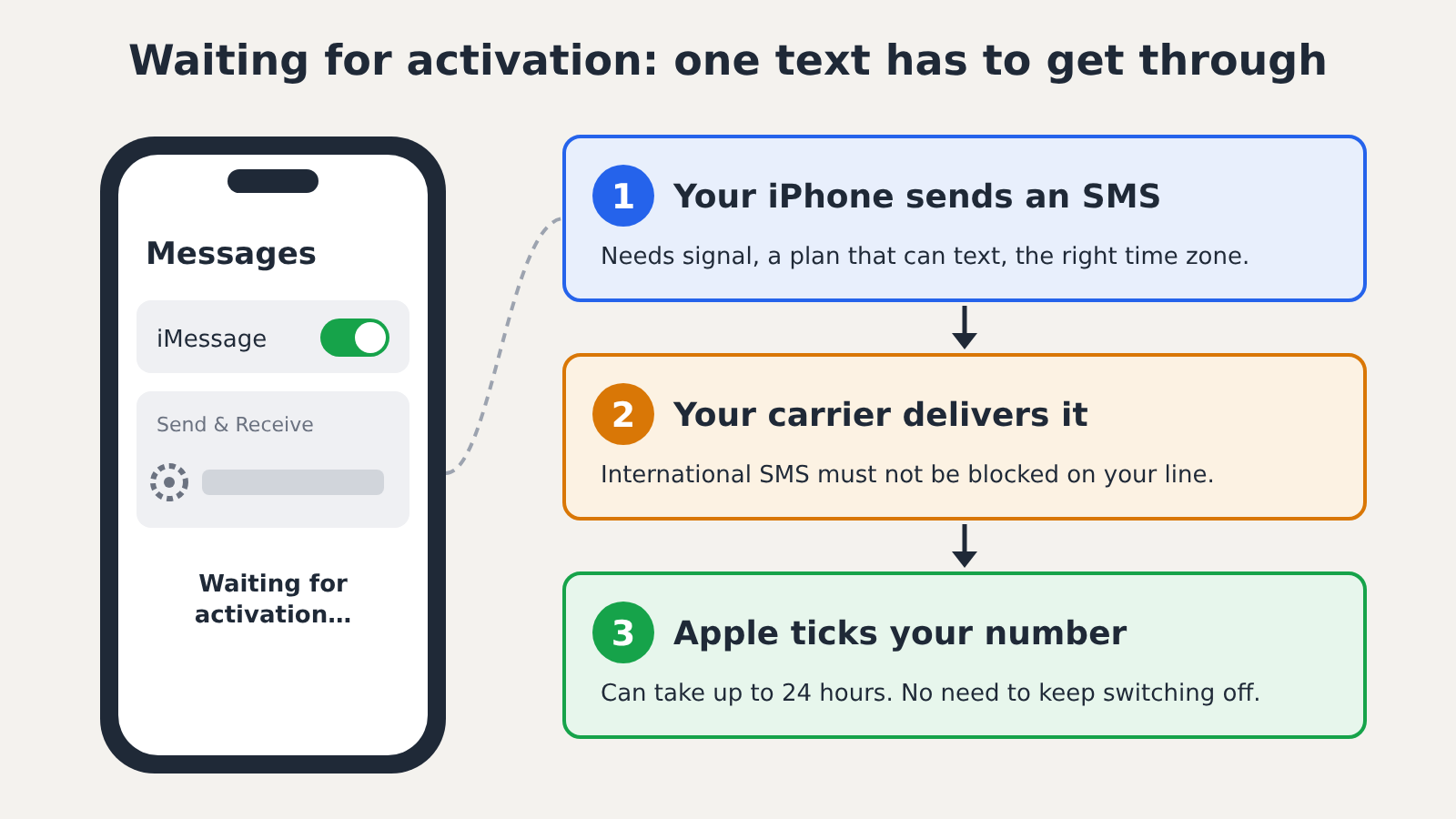
"Waiting for activation" under iMessage or FaceTime means your iPhone has asked Apple to link your phone number to iMessage and FaceTime, and that check has not finished yet. It is not urgent. Ordinary texts still work while you wait, and Apple says the check can take up to 24 hours. If it is still stuck after that, there are a few things to fix, from simple to harder.
This answer covers iPhone with iOS 18 and iOS 26, where the settings live under Settings > Apps. On iOS 17 and earlier, Messages and FaceTime are listed directly in Settings, without the Apps step.
What the message means
Apple's support page lists five messages you might see when iMessage or FaceTime tries to activate:
- "Waiting for activation"
- "Activation unsuccessful"
- "An error occurred during activation"
- "Could not sign in, please check your network connection"
- "Unable to contact the iMessage server. Try again."
They all point to the same step. To use your phone number with iMessage and FaceTime, your iPhone sends a text message (SMS) in the background so that Apple and your carrier can confirm the number is yours. Until that is confirmed, your number has no tick next to it in the Messages settings and iMessage cannot use it.
How urgent is it?
Fix it soon, but you can keep using your phone. While iMessage is not active, messages to other iPhone users go out as SMS, MMS or RCS (green bubbles), or may show the red "Not Delivered" alert. Our guide to the Not Delivered message in iPhone Messages covers that alert. FaceTime calls to your number will not reach you until activation completes.
Fixes, from simplest to hardest
1. Give it time, and leave the switch alone
Apple's page says that if iMessage is on and a spinning gear appears next to your phone number, the iPhone is already trying to verify it, and there is no need to keep turning iMessage off and on. Each off-and-on starts the check again. It can take up to 24 hours for your carrier to verify your number with Apple.
2. Check the basics Apple lists
- You are on Wi-Fi or mobile data, with signal.
- Your iPhone has the latest version of iOS (Settings > General > Software Update).
- Your time zone is right: Settings > General > Date & Time. Turning on Set Automatically is the easiest way.
- You can send ordinary text messages. Activation needs SMS. If a prompt says "Your network provider may charge for SMS messages used to activate iMessage and FaceTime", tap Turn On; depending on your carrier, you might be charged for that text.
If your plan cannot send texts at all (some data-only plans and some prepaid plans that have run out of credit), the activation text cannot go out. A SIM problem stops it too: if your iPhone shows SOS or No Service or SIM Not Supported, fix that first.
3. Turn both off, restart, turn both on
- Open Settings, tap Apps, tap Messages, and turn off iMessage.
- Go back to Apps, tap FaceTime, and turn off FaceTime.
- Restart your iPhone.
- Turn iMessage and FaceTime back on.
Do this once, then give it time again.
4. If you set up an eSIM after setting up your iPhone
Apple notes that on iOS 26, if you did not activate iMessage or your eSIM when you first set up a new iPhone, iMessage does not activate automatically after you add the eSIM later in Settings. Your messages may go out as green bubbles, show Not Delivered, or come from your email address. The fix is to go to Settings > Apps > Messages and turn iMessage off and back on.
5. Ask your carrier about SMS
If your number still has no tick after 24 hours, Apple's advice is to contact your carrier and check that your line can send and receive international SMS messages, then wait up to another 24 hours after trying the steps above. A block on international texts can stop activation even when ordinary texts to local numbers go through.
6. Activate online, or use your email address
Apple offers an online activation request at apple.co/IMFT-mac. Under Enable Apple Account, tap Get Started, sign in with your Apple Account and follow the instructions, entering your phone number if you use it with iMessage and FaceTime. Apple says you will get an email when your account is ready.
In the meantime you can use iMessage and FaceTime with an email address on your Apple Account instead of your number. Go to Settings > Apps > Messages > Send & Receive and choose the email address; for FaceTime, choose it under "You Can Be Reached By FaceTime At". People who only have your number will still reach you by SMS until activation completes.
When the message says your account is blocked
Two messages mean something more serious than a slow check:
- "An error occurred while activating iMessage or FaceTime" with a Get Help button
- "iMessage or FaceTime Activation Failed. This account is blocked due to reported spam."
Apple says that if you see one of these and also get no email after the online request at apple.co/IMFT-mac, your account is likely blocked from iMessage and FaceTime and a request to remove the block was not approved. Apple links blocks to misuse such as commercial or unwanted messages. Turning switches off and on will not fix it; contact Apple Support. Apple notes you may still be able to send SMS, MMS and RCS messages with iMessage turned off.
Apple never asks you to pay to unblock iMessage, and no app or website can activate it for you. A text or caller offering that is a scam.
Source
- Apple Support, If you can't turn on or sign in to iMessage or FaceTime on your iPhone (published September 14, 2026): the activation messages, the steps above, the 24-hour wait, the eSIM note and the blocked-account messages.
