"Charging On Hold" on iPhone: why your iPhone stops charging at 80% and when to worry
In short
Charging On Hold means your iPhone paused charging on purpose: because it is too hot or too cold, or because Optimized Battery Charging is holding it at 80%. How to tell which, how to get to 100% now, and the signs that need a repair.
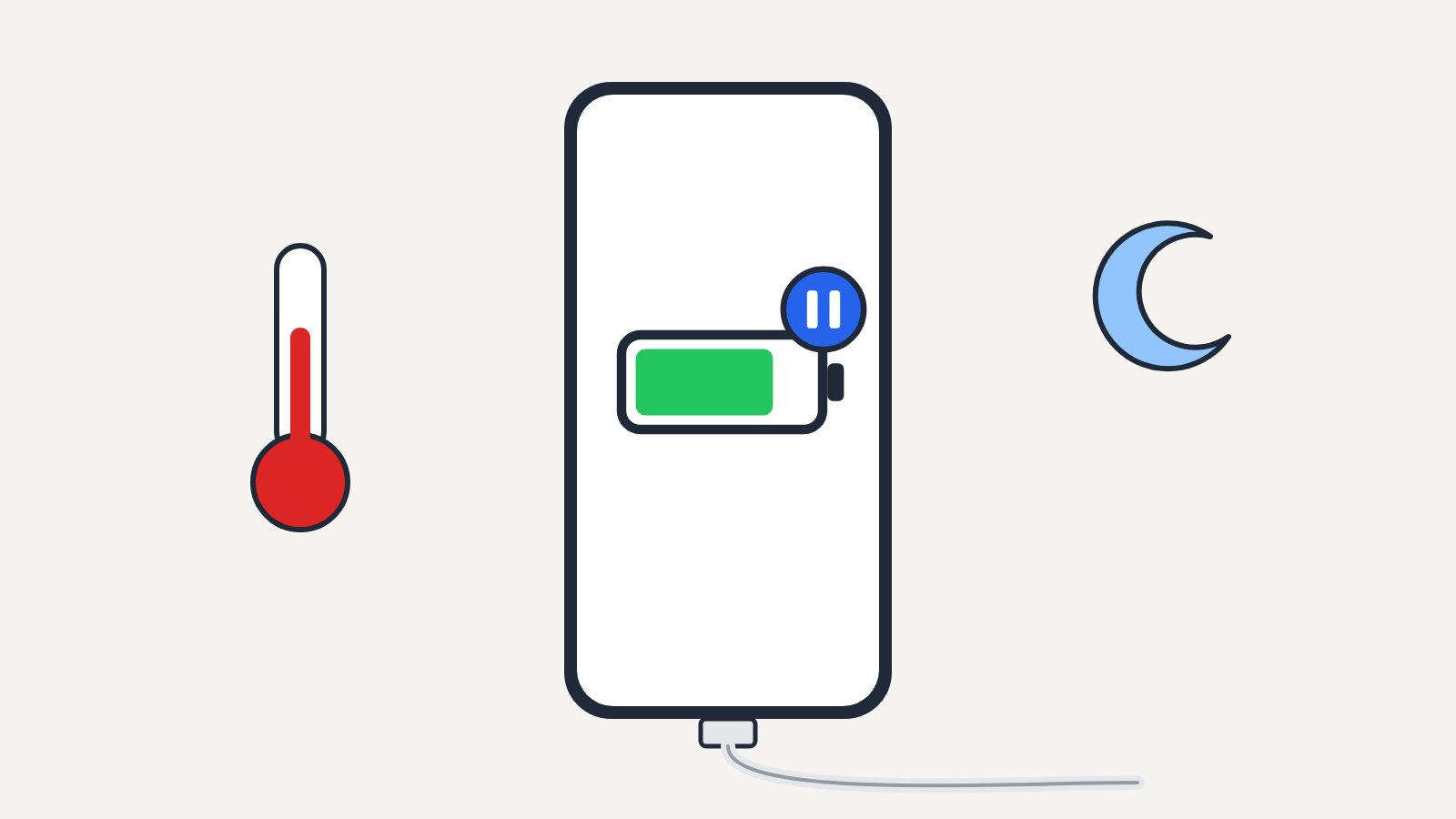
"Charging On Hold" on an iPhone means the phone has paused charging on purpose, either to protect the battery from heat or cold, or because a battery-saving feature is holding it at 80% and will finish later. On its own it's nothing to fix: charging resumes by itself. It's only worth worrying about if the phone is hot to the touch, if it happens in a cool room every time, or if the battery never gets past 80% when you need it.
This applies to iPhones running iOS 16 and later, which is when Apple added the Charging On Hold notification. The menu paths below are for iOS 17, iOS 18 and iOS 26; they come from Apple's support articles "If a Charging On Hold notification appears on your iPhone or iPad", "About Charge Limit and Optimized Battery Charging on iPhone" and "Use Clean Energy Charging on your iPhone".
Which kind of hold is it?
There are three reasons an iPhone pauses charging, and the fix is different for each.
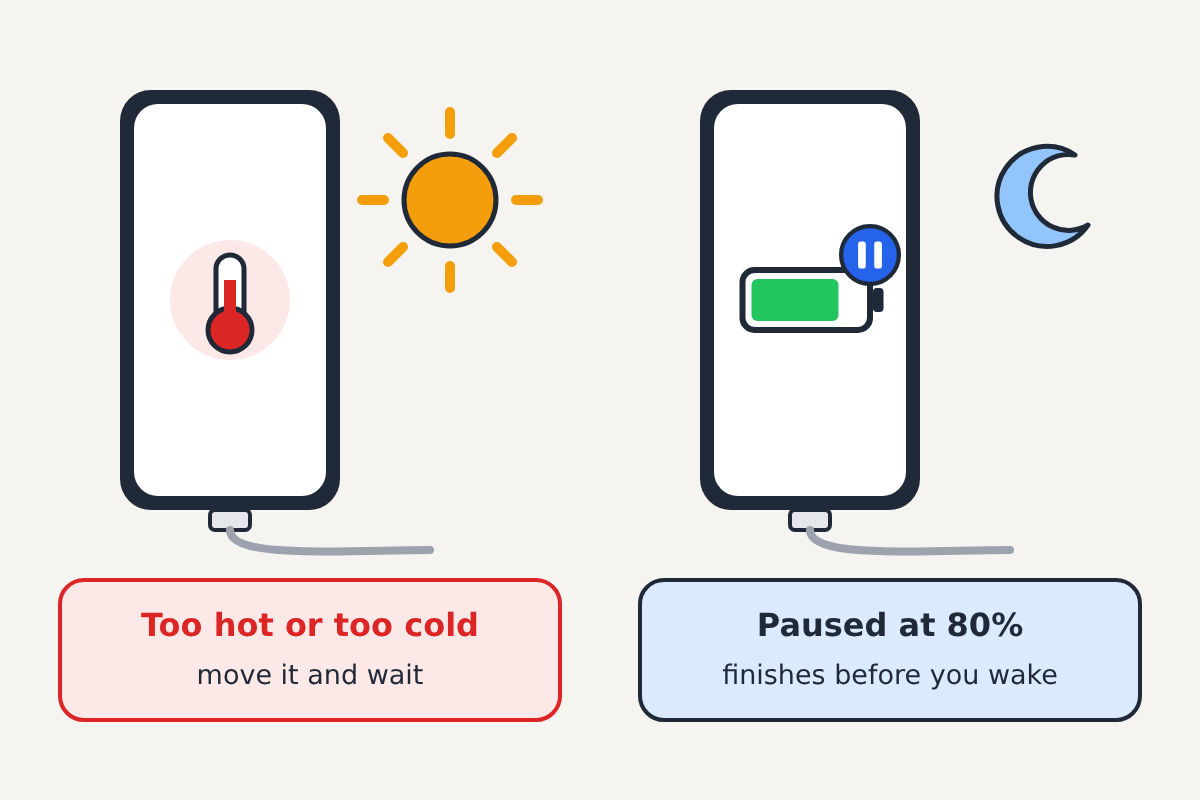
| What you see | Why | What to do |
|---|---|---|
| Charging On Hold, with a note that charging resumes when the iPhone returns to normal temperature | The phone is too hot or too cold | Move it somewhere cooler or warmer and wait |
| Charging On Hold at 80%, often overnight, or "Optimized Battery Charging" in Battery settings | Optimized Battery Charging is holding the battery at 80% | Nothing, or tap Charge Now if you need 100% |
| A note that the iPhone will finish charging later, when cleaner energy is available (US only) | Clean Energy Charging | Nothing, or tap Charge Now |
Apple's iPhone 15 and later models also have a fixed charge limit (80%, 85%, 90%, 95% or 100%) under Settings > Battery > Charging. If you set one, the phone simply stops at that level every time; that's a setting, not a fault.
Temperature hold: the phone is too hot or too cold
Apple says it puts charging on hold when the iPhone gets too hot or too cold, and that this applies whether you use a cable, a MagSafe charger or another wireless charger. Apple's recommended ambient temperature for using an iPhone is 0° to 35°C (32° to 95°F).
The usual causes are a phone charging in direct sun, on a car dashboard, under a pillow, in a thick case on a wireless pad, or running something demanding such as navigation, a game or video recording while it charges. In winter, the reverse happens when a phone that's been outside is plugged in straight away.
From simplest to hardest:
- Move it. Get the phone out of the sun or the hot car; if it's cold, let it warm up indoors to room temperature before you charge.
- Stop using it while it charges. Lock the screen or let it go to sleep. Closing a game or navigation app makes a noticeable difference.
- Take it out of a thick case when charging, especially on a wireless pad, which produces more heat than a cable.
- Try a different charger and cable. A damaged cable or a cheap uncertified adapter can run hot. Apple's own or MFi-certified accessories are the safe choice; our guide to the "This accessory may not be supported" message explains why some cables cause trouble.
Apple says charging resumes once the device is back at a normal temperature, so you don't need to unplug it.
Optimized Battery Charging: paused at 80%
This one is on purpose. Apple's description: with Optimized Battery Charging, iPhone pauses charging at 80%, then finishes charging closer to when you usually unplug it. It learns your routine, so it mostly kicks in overnight at home, and it needs about 14 days of charging data before it switches on at all. The aim is to reduce the time the battery spends sitting at 100%, which wears it faster.
If you need a full battery now:
- Touch and hold the charging notification on the Lock Screen and tap Charge Now, or
- go to Settings > Battery and tap Resume Charging on the charging card.
You can turn the feature off under Settings > Battery > Battery Health & Charging on iPhone 14 and earlier, or Settings > Battery > Charging on iPhone 15 and later. Apple recommends leaving it on; the 80% pause is the reason it exists.
Clean Energy Charging (US only)
On iPhones in the US, Clean Energy Charging can delay the last part of the charge to times when the local grid is using lower-carbon electricity. The Lock Screen shows when the phone will be fully charged; touch and hold the notification and tap Charge Now to override it.
When to worry
The hold is a protection, not a fault. These are the signs that something else is going on:
- The phone is hot even when idle and unplugged, or the case or screen bulges. Stop charging, switch it off, keep it away from anything flammable and contact Apple or an Apple Authorized Service Provider. A swollen battery needs a repair, not a workaround.
- Charging On Hold appears every time in a cool room with nothing running. That can point to a problem with the battery, the charging port or the accessory. Try another charger first, then book a repair.
- It never charges past 80% even after Charge Now and with no charge limit set. Check Settings > Battery for a limit, then contact Apple Support.
- You also see "Liquid Detected". That's a different stop: the port is wet and must dry before charging. See our guide to Liquid Detected in Lightning Connector.
Don't try to defeat the hold by putting the phone in a fridge or freezer: sudden cold and condensation can damage it. Let it cool down in a shaded room instead.
Sources: Apple Support: "If a Charging On Hold notification appears on your iPhone or iPad", "If your iPhone or iPad gets too hot or too cold", "About Charge Limit and Optimized Battery Charging on iPhone", "Use Clean Energy Charging on your iPhone", and the iPhone User Guide, "Optimize iPhone battery charging".
