"iCloud Storage Is Full" on iPhone: what it means and how to free space
In short
"iCloud Storage Is Full" or "Not Enough Storage" means your iCloud space, not your iPhone, is used up, so backups have stopped. Here is what stops working and how to free space safely, from old backups to photos.
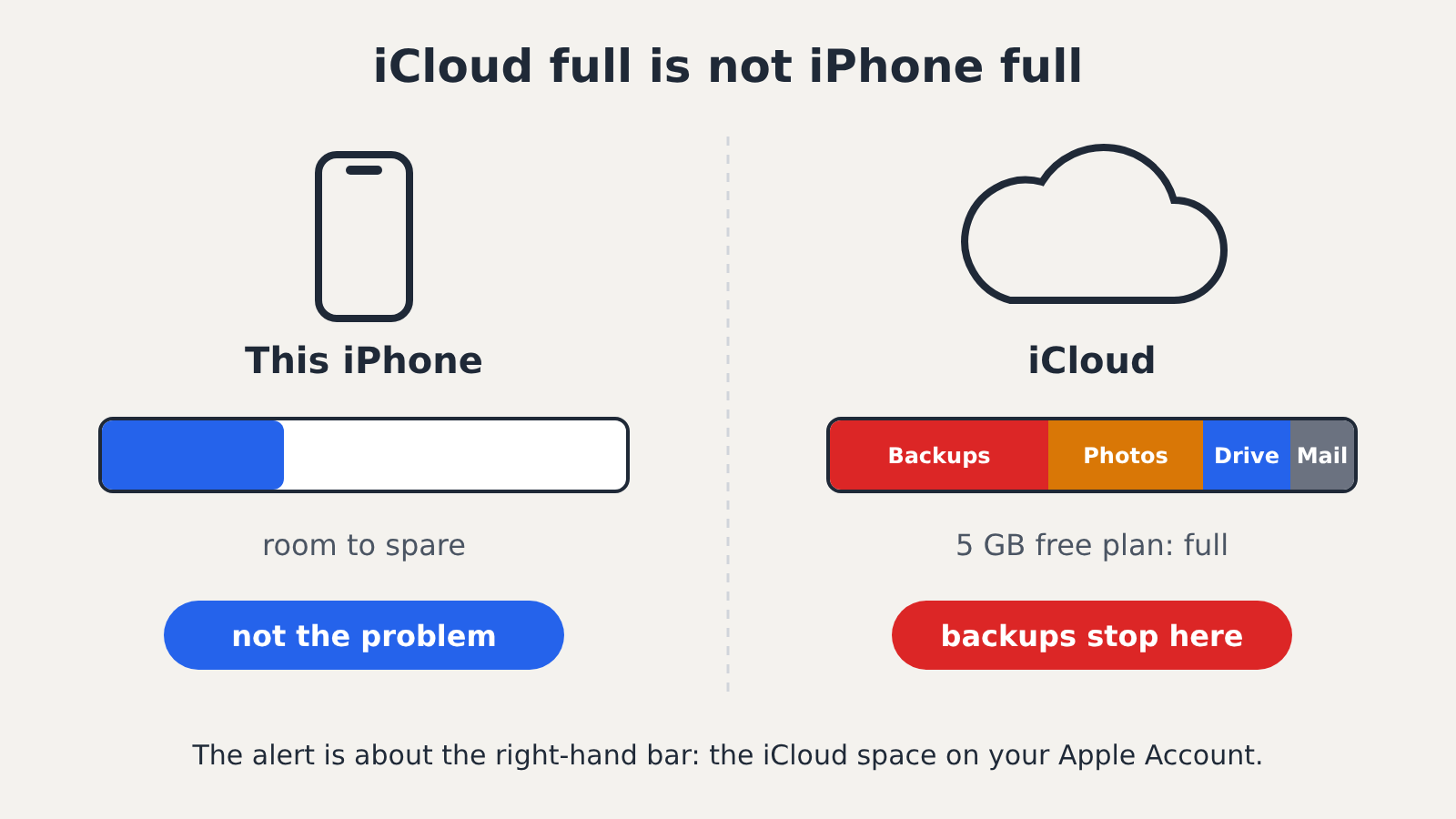
"iCloud Storage Is Full" or "Not Enough Storage" on iPhone means the online storage that comes with your Apple Account is used up. It is about iCloud, not the storage inside your phone, so your iPhone can have plenty of free space and still show it. Apple's support page describes it as an alert that there is not enough iCloud storage for your backup. The exact wording varies a little between iOS versions; a common form reads "This iPhone cannot be backed up because there is not enough iCloud storage available."
Fix it soon. Nothing on the phone is deleted, but your iPhone has stopped backing up, so anything new since the last backup would be lost if the phone were lost or broken. The steps below apply to iPhone with iOS 17 and later, including iOS 26; Recommended for You needs iOS 17 or later.
What stops working when iCloud is full
Apple lists what happens when you run out of iCloud storage:
- Your iPhone won't back up to iCloud.
- New photos and videos won't upload to iCloud Photos.
- iCloud Drive and other iCloud apps won't stay up to date across your devices.
- You can't send or receive email at your iCloud email address.
Every Apple Account comes with 5 GB of iCloud storage free, and that 5 GB is shared by backups, iCloud Photos, iCloud Drive, Mail and the rest. A single phone backup with photos in it can fill it on its own.
If instead you see "Storage Almost Full" about the phone itself, that is a different problem, covered in our guide to freeing space when iPhone storage is almost full.
Step 1: see what is using the space
Open Settings, tap your name, then tap iCloud. The bar at the top shows how much of your iCloud storage is used, and by what. Then tap Storage (or Manage Account Storage), tap Backups, and tap this iPhone. Next Backup Size shows how much space the next backup needs; Apple notes it can take a few minutes to calculate. If that number is bigger than your free iCloud space, the backup cannot run.
Step 2: try Recommended for You
On iOS 17 and later, Settings > [your name] > iCloud > Recommended for You suggests things you may not need any more, such as large files, photos or old backups. Tap an option and follow the instructions.
Step 3: delete old backups
Backups of phones you no longer use are the easiest space to win back. In Settings > [your name] > iCloud > Storage (or Manage Account Storage) > Backups, tap an old device and then Turn Off and Delete from iCloud.
Two things Apple points out. Deleting a backup also turns off iCloud Backup for that device, so only do this for devices you have retired, not the phone in your hand. And a backup that is being used to restore a device can't be deleted.
Step 4: stop backing up apps you don't need
In the same Backups screen, tap this iPhone and turn off apps you don't need backed up. Apple warns that turning an app off removes all of its information from iCloud, so pick apps whose data you can re-download or don't care about. Some apps are always backed up and can't be turned off.
Step 5: clear photos, Messages attachments and Mail, carefully
If you use iCloud Photos, Photos is often the largest item. Before deleting anything, know how it behaves:
- Deleting a photo on one device deletes it on every device signed in to the same Apple Account. Save copies of anything you want to keep first.
- Deleted items normally sit in Recently Deleted for 30 days and don't count toward your storage. But Apple says that when you are already over your iCloud limit, photos and videos you delete are removed immediately and can't be recovered from Recently Deleted.
So when iCloud is full, copy photos you want to keep to a computer or another drive before you delete them.
Large attachments in Messages and old iCloud Mail also count. In iOS 26, contact photos and posters count toward iCloud storage too.
Step 6: or buy more space
If you want to keep everything, Apple's other option is a paid iCloud+ plan. In Settings > [your name] > iCloud you will see the option to upgrade. Once Next Backup Size fits in your free space, the backup can run again.
Then check the backup runs
Connect to Wi-Fi and power, go to Settings > [your name] > iCloud > iCloud Backup, and tap Back Up Now. Apple's backup page says that if a backup is slow, you can leave the phone on power and Wi-Fi for up to 24 hours.
Watch for fake "storage full" messages
Apple shows this alert on your iPhone and in Settings. A text or email that says your iCloud storage is full and asks you to tap a link, enter card details or "claim" extra storage is a common scam. Don't tap it; check your storage in Settings instead. Our guide to fake package delivery texts explains what to do if you already tapped a link like that.
Sources
- Apple Support, Manage your iCloud storage on your Apple device (published September 14, 2026): the 5 GB free tier, what stops working when iCloud is full, Recommended for You, deleting backups, turning off app backups, the iCloud Photos rules.
- Apple Support, If you can't back up to iCloud (published March 17, 2025): the not-enough-storage alert, Next Backup Size, the 24-hour advice for slow backups.
