"Unable to Install Update" on iPhone: what it means and how to fix it
In short
Unable to Install Update, Unable to Verify Update or Unable to Check for Update on iPhone: what each message means, and the fixes in order, from Wi-Fi and free space to deleting the update and updating with a computer.
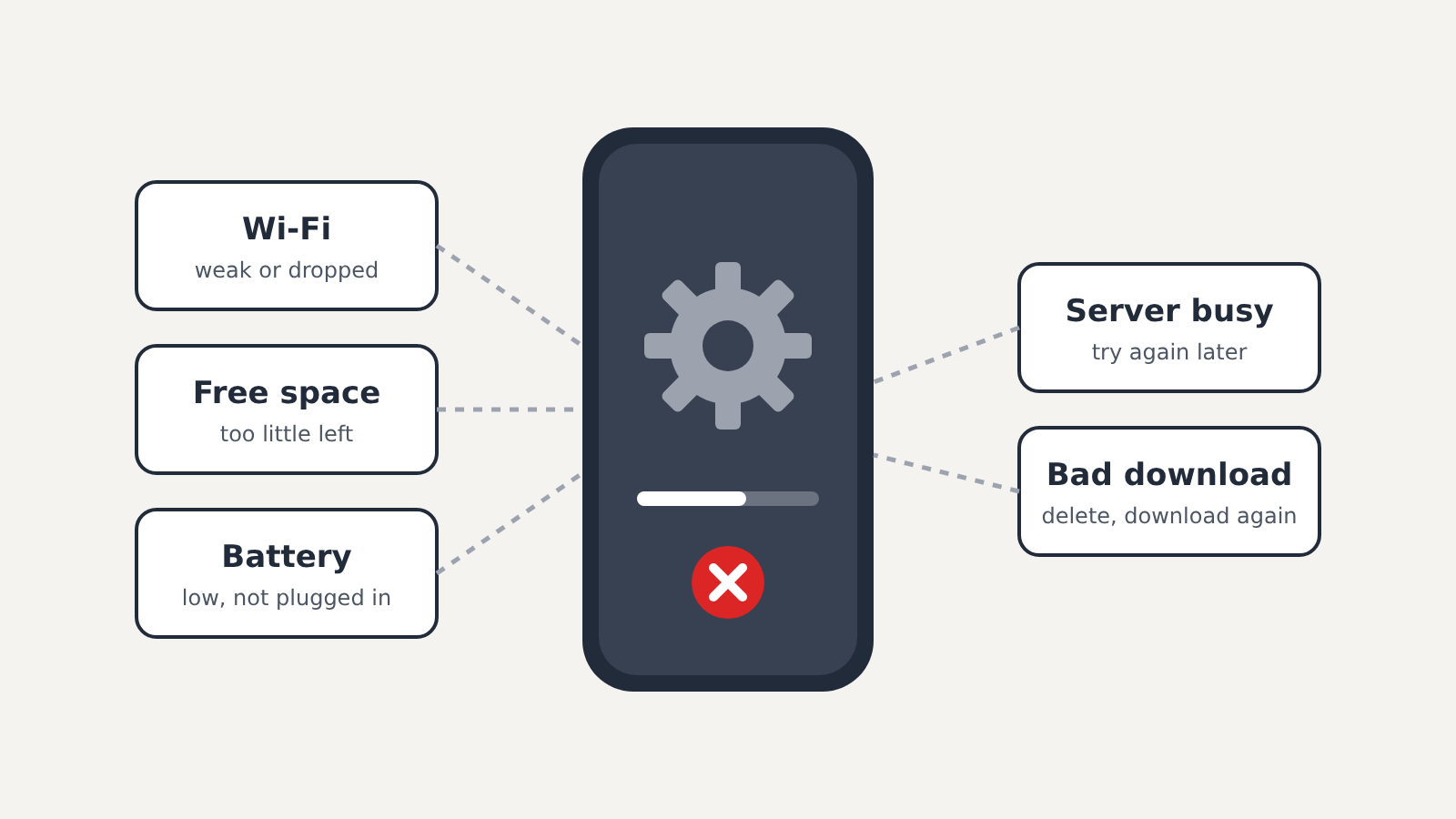
"Unable to Install Update" on an iPhone means iOS downloaded an update but couldn't finish installing it, usually because of too little free space, a weak connection, low battery or a damaged download. Your iPhone keeps working on its current version, so this is "fix soon" rather than urgent, but don't leave it for weeks: iOS updates carry security fixes.
The steps below apply to recent versions (iOS 17, iOS 18 and iOS 26) on iPhone and iPad, and follow Apple's support article "If your iPhone or iPad won't update".
The messages you might see
The exact wording tells you where the update got stuck:
- "Unable to Install Update. An error occurred installing iOS [version]." The download finished but installation failed.
- "Unable to Verify Update. iOS [version] failed verification because you are no longer connected to the internet." The phone lost its connection while checking the update with Apple.
- "Unable to Check for Update. An error occurred while checking for a software update." The phone couldn't reach Apple's update server at all.
- "Update Requested" or a download that never finishes. The update is queued or downloading slowly.
Fixes, from simplest to hardest
1. Plug in and use Wi-Fi. Connect the iPhone to a charger and a reliable Wi-Fi network. iOS won't start installing an update if the battery is low and the phone isn't charging, and a dropped connection during verification causes the "Unable to Verify" message. If your home Wi-Fi is unreliable, try another network.
2. Try again later. Right after Apple releases a major update, its servers are busy and checks or downloads can fail. Waiting an hour or two and tapping Try Again often works.
3. Free up space. Go to Settings > General > iPhone Storage. iOS may offer to remove apps temporarily to make room for the update and reinstall them afterwards. If not, delete large videos you've backed up, old message attachments or apps you don't use. Our guide to freeing space when iPhone storage is almost full explains what takes up the most room and what is safe to remove.
4. Restart the iPhone. Switch it off and on, then go to Settings > General > Software Update and try again.
5. Delete the update and download it again. A download that was interrupted can be damaged, and iOS will keep trying to install the bad copy until you remove it.
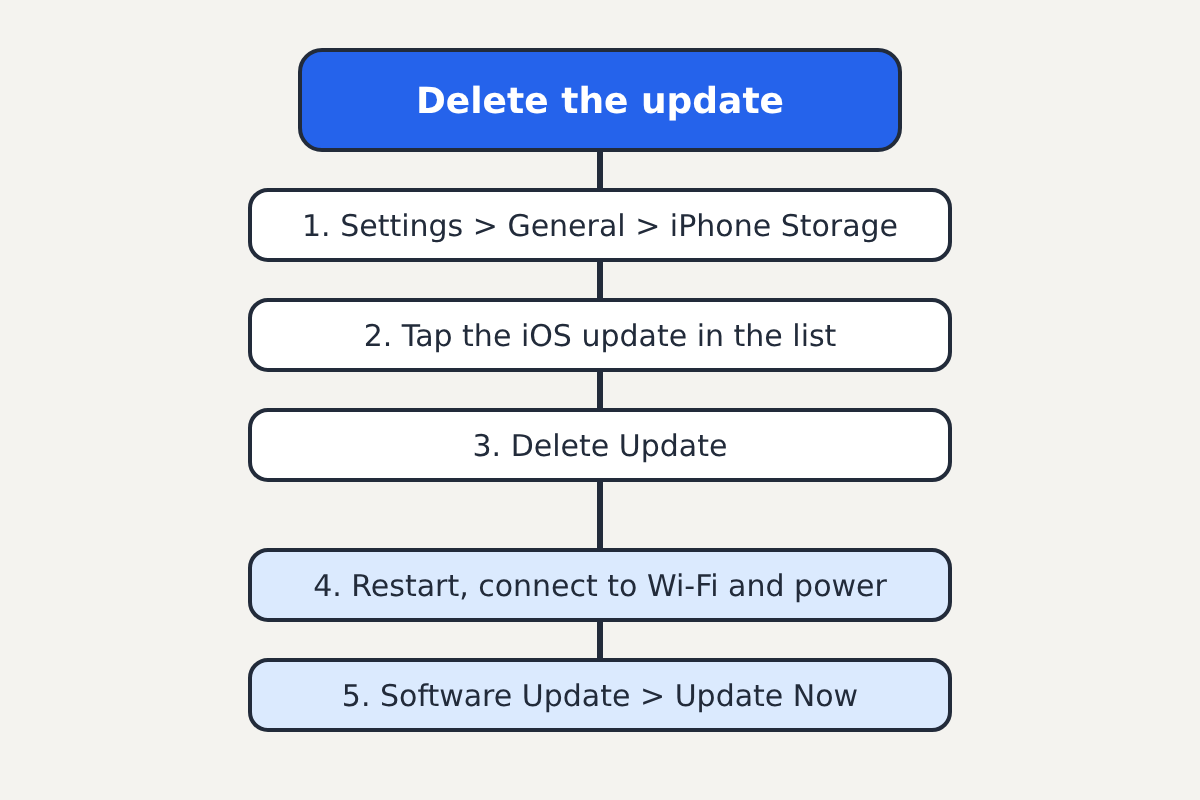
In Settings > General > iPhone Storage, find the iOS update in the list of apps (it shows the version number), tap it and choose Delete Update. Then go to Settings > General > Software Update and download it again. If you don't see the update in the list, there's no downloaded copy to delete; go straight to Software Update.
6. Update with a computer. If the update still won't install on the phone, connect it with a cable to a Mac (use Finder) or a Windows PC (use the Apple Devices app, or iTunes on older setups). Select your iPhone, back it up, then click Check for Update and Update. This downloads the update to the computer and installs it from there. If that fails with a numbered error such as 4013 or 9, see our guide to iPhone restore and update error codes.
7. Contact Apple. If an update fails on the phone and through a computer, Apple Support can help, and a repeated install failure can point to a hardware fault.
If the update isn't offered at all
Each iOS version supports only certain iPhone models. If Software Update says your iPhone is up to date but a newer version exists, check Apple's list of supported models for that version. Your phone may have reached the last version it can run, in which case it can still get some security updates for a while.
If you once installed beta software, also check Settings > General > Software Update > Beta Updates and switch it off if you want the public release.
Things to avoid
Don't download iOS update files from websites other than Apple, and ignore pop-ups in Safari claiming your iPhone needs an urgent update or has a virus. iOS updates only ever come from Settings > Software Update or from Finder, the Apple Devices app or iTunes on a computer. A web page can't update your iPhone, and any page asking you to install a profile, an app or call a number to "update" is a scam.
