WHEA_UNCORRECTABLE_ERROR stop code on Windows 10 and 11: what it means and how to fix it
In short
WHEA_UNCORRECTABLE_ERROR means the processor, memory or another part reported a hardware error it could not recover from. Overclocking and heat are the usual causes. Here is how to find and fix it, step by step.
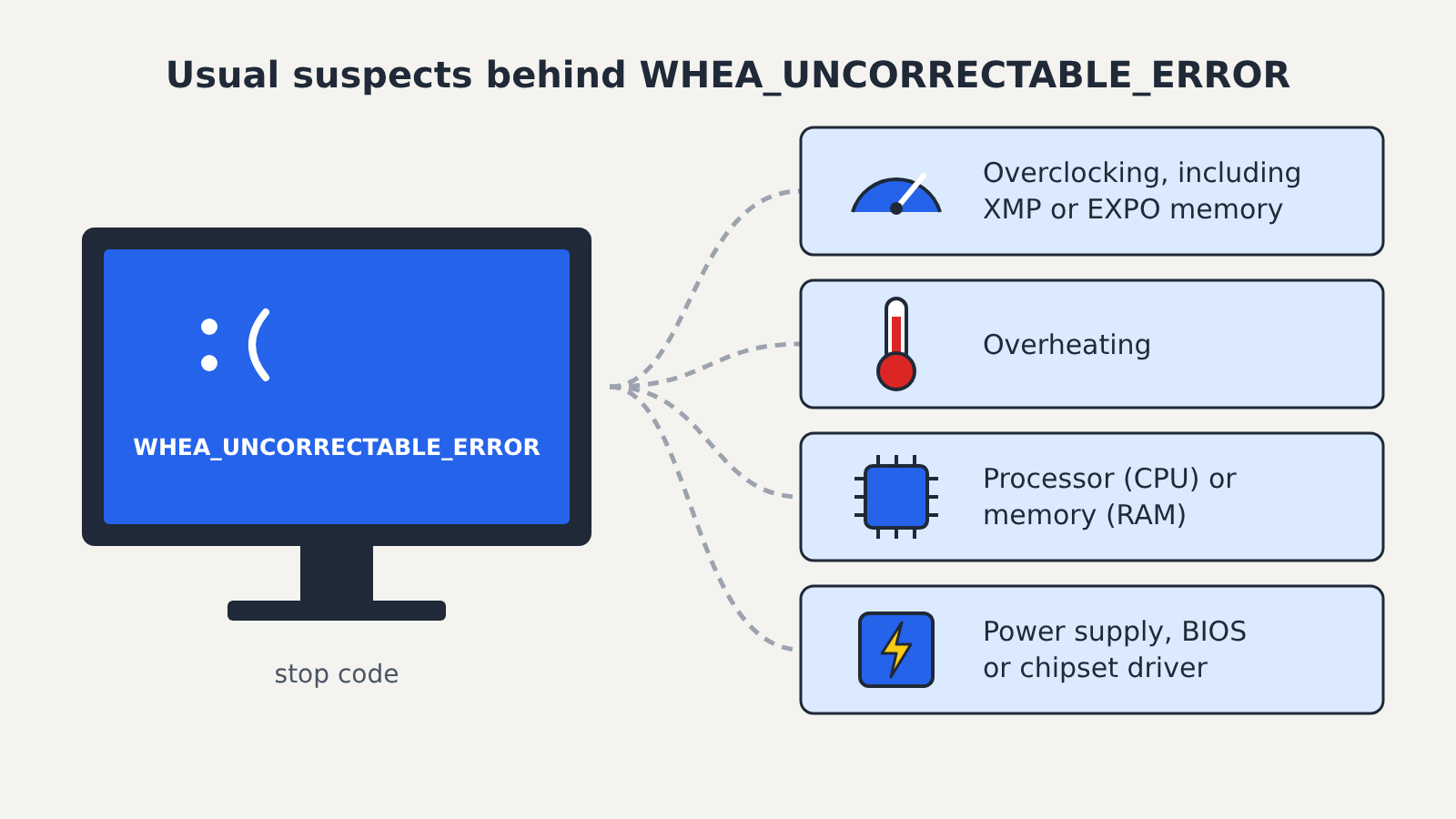
The stop code WHEA_UNCORRECTABLE_ERROR means a piece of hardware inside the PC, usually the processor, the memory or something on the motherboard, reported an error it could not recover from, so Windows stopped everything to protect your data. A single crash is worth noting and moving on from. If it comes back, treat it as "fix soon": unlike most blue screens, this one points at hardware or its settings rather than at Windows itself, and the cause rarely goes away by itself.
It appears on Windows 10 and Windows 11 as a blue (or, on some recent Windows 11 builds, black) screen that says "Your device ran into a problem and needs to restart", with Stop code: WHEA_UNCORRECTABLE_ERROR at the bottom. Microsoft documents it as bug check 0x00000124 ("Bug Check 0x124: WHEA_UNCORRECTABLE_ERROR" on Microsoft Learn). If a crash report or Event Viewer shows 0x00000124, it is the same error.
What the name means
WHEA stands for Windows Hardware Error Architecture, the part of Windows that collects error reports from the hardware. Processors, memory controllers and PCI Express devices check their own work, and many small errors get corrected on the spot without you ever noticing. "Uncorrectable" means this one could not be fixed, so carrying on might have meant writing wrong data to your files.
Microsoft's bug check page describes it as a fatal hardware error and lists the usual causes in plain terms: heat, defective hardware, faulty memory, or a processor that is starting to fail. It also says to switch off overclocking first and to check that fans and cooling work. A driver can be behind it too, but Microsoft calls that less likely.
In practice, on a home PC, look at these first:
- Overclocking, including the one-click memory profiles called XMP (Intel) and EXPO (AMD). They run the RAM faster than its standard speed, and some processors and boards can't hold those speeds reliably. Undervolting tools and "game boost" modes in motherboard software belong here too.
- Heat, from dust-clogged vents, a failing fan, or a laptop used on a bed or sofa.
- The processor or memory itself, either faulty or beginning to wear out.
- Power and firmware: a weak or failing power supply in a desktop, an outdated BIOS or chipset driver.

If you have a desktop with an Intel Core 13th or 14th generation processor, there is one more thing to know. In 2024 Intel confirmed an instability problem in some of those desktop chips, fixed by microcode that reaches your PC through a motherboard BIOS update, and extended the warranty on affected processors. Updating the BIOS (step 3 below) matters more than usual on those PCs, and if the crashes continue afterwards, contact Intel or your PC maker about a replacement rather than living with them.
Is it urgent?
Not an emergency, but don't ignore repeated crashes. Each one closes your apps without saving, and if a memory module or the drive is failing, data you write in the meantime can end up damaged. Back up anything important now, to an external drive or a cloud service, before you start changing settings.
If it happens only while gaming, rendering video or doing something else that works the PC hard, heat and overclocking jump to the top of the list. If it happens at idle or right after startup, a BIOS setting, power or a faulty part is more likely.
Fixes, from simplest to hardest
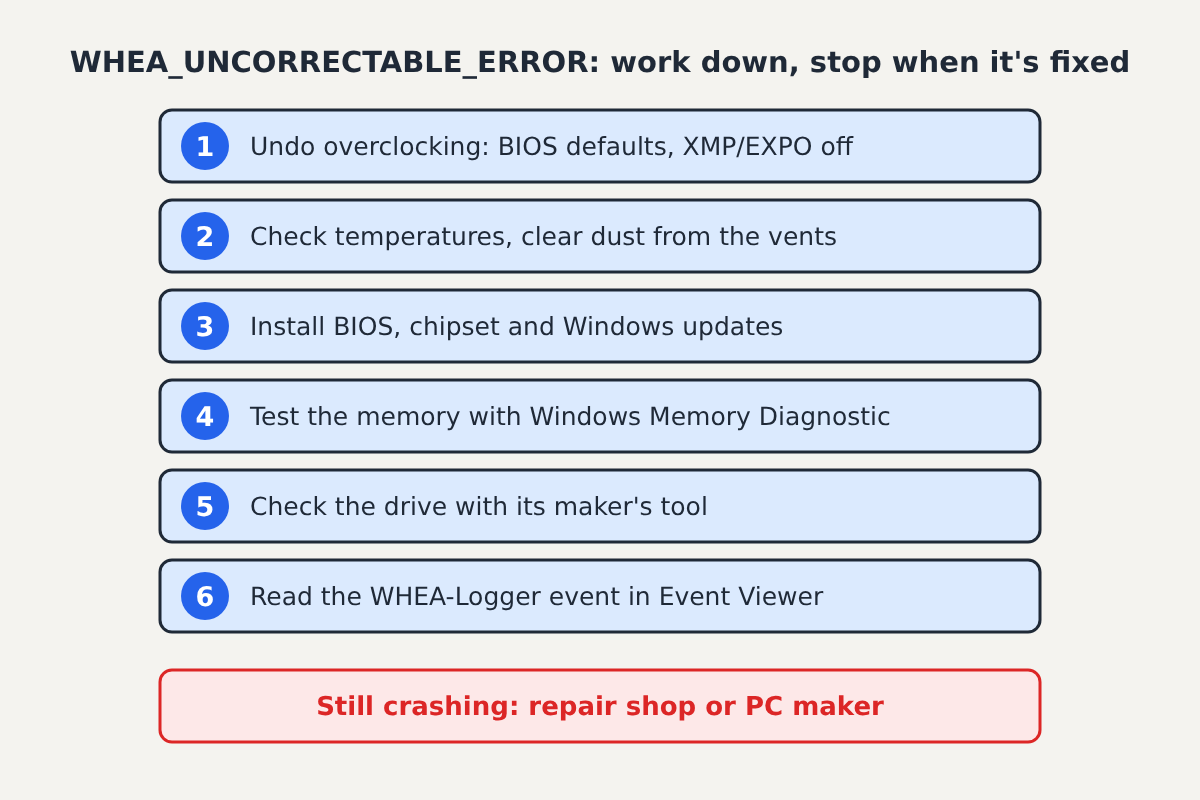
1. Undo overclocking
Before you change any BIOS setting or install a BIOS update, find your BitLocker recovery key. Many Windows 11 PCs have device encryption switched on without their owners knowing, and firmware changes can bring up a BitLocker recovery screen asking for the key. If you use a Microsoft account, the key is usually stored at aka.ms/myrecoverykey.
Restart and enter the BIOS/UEFI setup (usually by pressing Delete, F2 or F10 as the PC starts; the screen or your PC maker's manual says which). Look for an option such as Load Optimized Defaults or Load Setup Defaults, apply it, and save. That turns off XMP or EXPO and any CPU overclock. On Windows 11 you can also get there from Settings > System > Recovery > Advanced startup > Restart now, then Troubleshoot > Advanced options > UEFI Firmware Settings.
Then remove or reset any overclocking, undervolting or "performance boost" software you installed, including graphics card tuning tools, and restart. If the crashes stop, you can try turning XMP or EXPO back on later. If they come back, leave it off: the PC runs a little slower, but it stays up.
2. Check temperatures and cooling
Shut down, unplug, and clear dust from the vents and fans with short bursts of compressed air, holding fans still so they don't spin. Use a laptop on a hard, flat surface so air can reach its vents. Listen for a fan that rattles, grinds or doesn't spin at all; that one needs replacing. Most PC makers' support apps and the BIOS setup screen show processor temperature, so check it while the PC is working hard.
3. Install BIOS, chipset and Windows updates
Go to Settings > Windows Update and install everything offered, including Advanced options > Optional updates > Driver updates. Then check your PC or motherboard maker's support page for the latest chipset driver and BIOS/UEFI update. Follow the maker's instructions for a BIOS update exactly, keep a laptop on its charger, and don't interrupt it: a power cut during one can stop the PC from starting.
4. Test the memory
Search the Start menu for Windows Memory Diagnostic, choose Restart now and check for problems, and let it run. The result shows in a notification after Windows starts again. Any error means a faulty memory module or memory settings the PC can't hold. On a desktop, try running with one module at a time to find the bad one. Our guide to the MEMORY_MANAGEMENT stop code covers memory testing in more detail.
5. Check the drive
PCI Express errors can come from an NVMe SSD. Find your drive's make and model in Device Manager > Disk drives and run the free utility from the drive maker's own website. It shows the drive's health and offers firmware updates. Back up first.
6. Read the WHEA-Logger event
Open Event Viewer (right-click the Start button), go to Windows Logs > System, and look for errors from the source WHEA-Logger around the time of the crash. The event's description names the component that reported the error, such as a processor core, the memory or a PCI Express device. That won't fix anything on its own, but it tells you (or a repair shop) which part to suspect, and it saves guesswork and money.
If Windows crashes too quickly to try any of this, start in Safe Mode: hold Shift while you click Restart, then go to Troubleshoot > Advanced options > Startup Settings > Restart and press 4. If Windows won't start at all, our INACCESSIBLE_BOOT_DEVICE guide explains how to reach the same recovery screens from a PC that keeps failing to boot.
How this differs from other stop codes
Most stop codes, such as DPC_WATCHDOG_VIOLATION or KMODE_EXCEPTION_NOT_HANDLED, mean a driver misbehaved, and the fix is usually software. WHEA_UNCORRECTABLE_ERROR is the hardware itself raising its hand. That's why repairing system files with SFC or reinstalling Windows rarely helps here, and why steps 1 to 4 above come first.
When to get help
Take the PC to a repair shop, or to the maker if it is under warranty, when the crashes continue with default BIOS settings and good temperatures, when the memory test finds errors you can't trace to one module, or when the crashes happen even in Safe Mode. Those point to a part that needs replacing: the processor, the memory, the motherboard or, in a desktop, the power supply. Testing a power supply properly needs equipment most people don't have, so leave that to the shop. Opening a laptop or swapping parts yourself can void the warranty, so read the terms first, and write down what the WHEA-Logger event says before you hand the PC over.
