KMODE_EXCEPTION_NOT_HANDLED stop code on Windows 10 and 11: what it means and how to fix it
In short
KMODE_EXCEPTION_NOT_HANDLED means a driver made an error Windows could not catch. Here is how to find which driver, and the fixes in order from simplest to hardest.
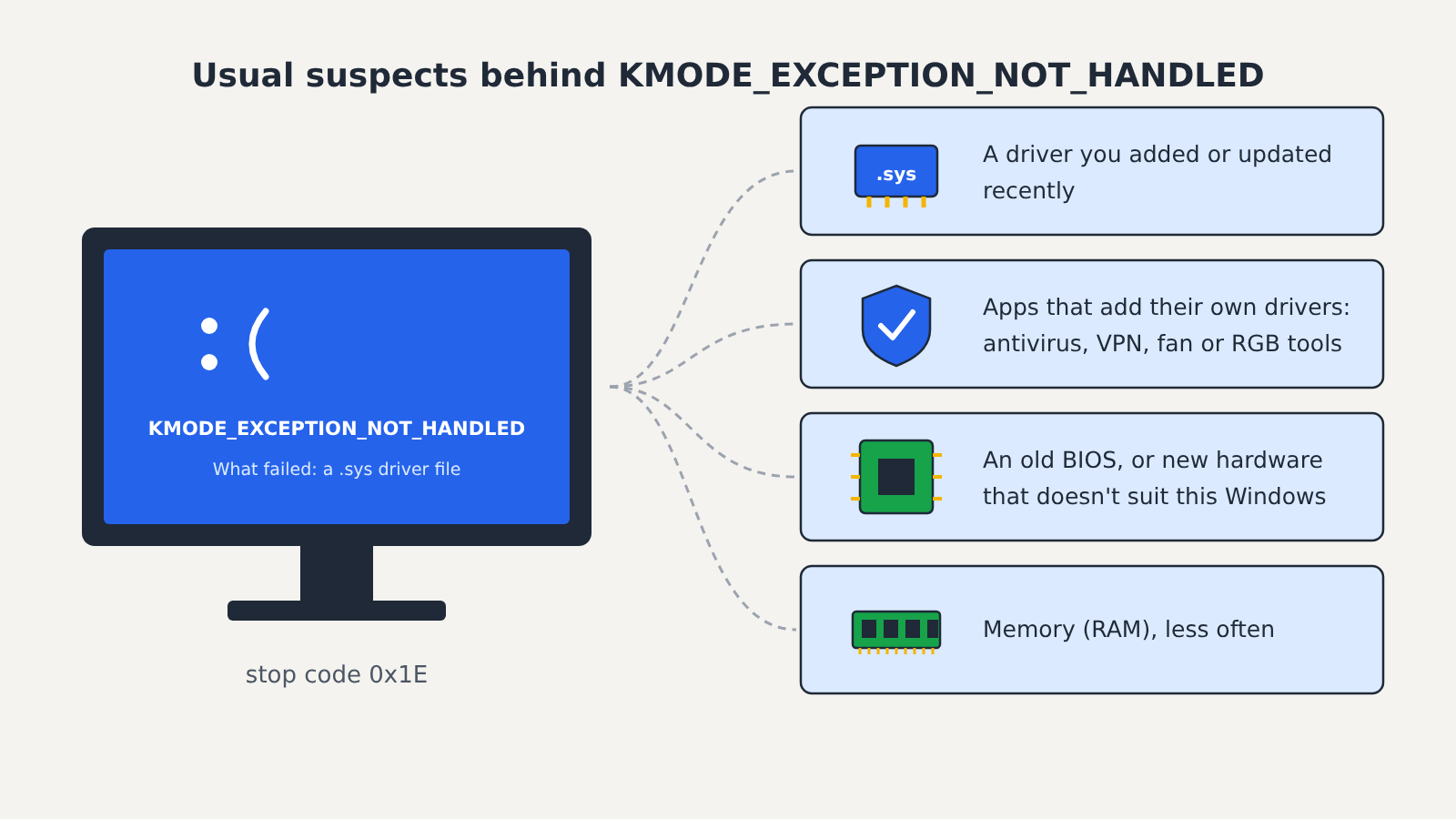
The stop code KMODE_EXCEPTION_NOT_HANDLED means a piece of software running in the core of Windows, almost always a driver, made an error that nothing was set up to catch, so Windows stopped rather than carry on in a broken state. A single crash can wait. Repeated crashes are a "fix soon" problem, and the fix is usually to update, roll back or remove one driver.
You'll see it on Windows 10 and Windows 11 as a blue (on some recent Windows 11 builds, black) screen reading "Your device ran into a problem and needs to restart", with Stop code: KMODE_EXCEPTION_NOT_HANDLED at the bottom. Microsoft documents it as bug check 0x0000001E ("Bug Check 0x1E: KMODE_EXCEPTION_NOT_HANDLED" on Microsoft Learn), so a crash report that shows 0x1E or 0x0000001e is the same error.
What the name means
"Kmode" is kernel mode, the privileged part of Windows where the kernel and device drivers run. An "exception" is the processor's way of saying an instruction went wrong, for example code trying to read memory it has no right to. Normally a handler catches the exception and deals with it. Here nothing did, and an uncaught mistake inside kernel mode could corrupt anything, so Windows halts the whole system.
Microsoft lists the usual causes as a faulty device driver or system service, hardware that isn't compatible with your version of Windows, and hardware issues such as BIOS incompatibilities and memory conflicts. It also notes the error can appear during or right after Windows Setup, where an outdated BIOS is a likely cause.

Look for a "What failed" line
Under the stop code, Windows sometimes adds What failed: followed by a file name. A name ending in .sys is a driver, and Microsoft's advice is direct: if a driver is named, disable or remove it, or get an update from its maker. A web search for the file name usually tells you whose it is (a graphics card, network adapter, antivirus or VPN, for example). Files that belong to Windows itself, such as ntoskrnl.exe, mostly show where the crash landed rather than what caused it.
Read the crash record
If the screen disappeared too fast, Windows keeps a note of it. Search the Start menu for Event Viewer, open Windows Logs > System, and look for an entry from the source BugCheck (Event ID 1001) at the time of the crash. It reads "The computer has rebooted from a bugcheck", followed by the code and four values in brackets. Reliability Monitor (search for View reliability history) lists the same crashes by date.
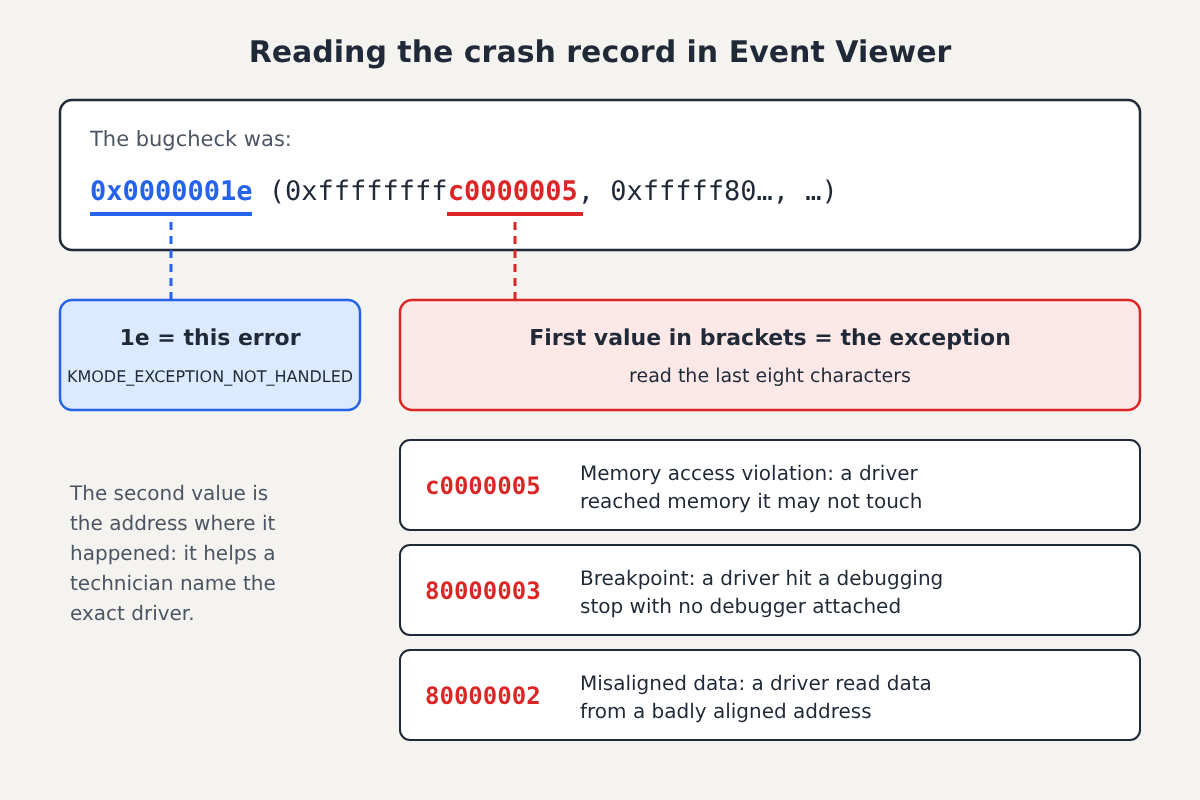
The first value is the exception code. Microsoft names three common ones: c0000005 (a memory access violation), 80000003 (a breakpoint or assertion reached with no debugger attached) and 80000002 (an unaligned data reference). The second value is the address where it happened, which a technician can match to the responsible driver. You don't need to decode it yourself; writing the line down saves time if you end up asking for help.
Is it urgent?
It's not an emergency, and the stop code doesn't damage your files by itself. Every crash does close your apps without saving, though, so save often and back up anything important until the crashes stop.
A real stop code never shows a phone number or asks you to call anyone. If a screen like this tells you to phone "support", it's a scam: see our guide to the fake virus warning pop-up with a phone number.
Fixes, from simplest to hardest
Stop as soon as the crashes stop. If Windows crashes before you can work, start in Safe Mode: hold Shift while you click Restart, then choose Troubleshoot > Advanced options > Startup Settings > Restart and press 4, or 5 for Safe Mode with networking if you need to download a driver. Microsoft notes that Safe Mode is a way to disable a faulty driver in Device Manager when the error hits during startup.
1. Undo the most recent change
Think about what changed just before the first crash: a new driver, a Windows update, a new app, a new device. Microsoft's guidance is to disable or remove drivers and services that were recently added.
- If you updated a driver, open Device Manager, double-click the device, and on the Driver tab choose Roll Back Driver.
- If you installed an app, remember that antivirus suites, VPN clients and fan, lighting or overclocking tools install their own drivers. Uninstall the newest one in Settings > Apps > Installed apps and restart. If you remove third-party antivirus, Microsoft Defender turns itself back on.
- If you added hardware, unplug it or take it out, and check the maker says it supports your version of Windows.
- If a Windows update came first, remove it in Settings > Windows Update > Update history > Uninstall updates.
2. Update the driver that was named
If the "What failed" line named a file, get the current driver for that device from its maker or from your PC or laptop maker's support page. Laptop makers sometimes ship their own versions of graphics and network drivers, and theirs are the ones to use.
3. Install Windows and optional driver updates
Go to Settings > Windows Update and install everything. Then open Advanced options > Optional updates and install any driver updates listed there. Restart afterwards.
4. Repair system files
Right-click the Start button and open Terminal (Admin) (on Windows 10, Windows PowerShell (Admin)). Run these one after the other and let each finish:
DISM /Online /Cleanup-Image /RestoreHealth
sfc /scannow
Then restart.
5. Test the memory
Microsoft recommends running hardware diagnostics, especially the memory scanner, for this error. Search the Start menu for Windows Memory Diagnostic, choose Restart now and check for problems, and check the result when Windows starts again. If it reports errors, our MEMORY_MANAGEMENT stop code guide explains what to do about faulty memory. Your PC maker may also have its own diagnostics, often reached from a key pressed at startup; the manual or support page says which.
6. Update the BIOS or UEFI firmware
Microsoft names an outdated system BIOS as a possible cause, above all when the crash comes during or soon after installing Windows. Get the update only from your PC or motherboard maker's support page and follow their instructions exactly, on mains power. An interrupted firmware update can leave the PC unable to start, so if you're not comfortable with it, leave this step to a repair shop.
When to get help
If the crashes continue after these steps, or Windows won't start at all, contact your PC's maker or a repair shop. Tell them the stop code, any file from the "What failed" line and the BugCheck line from Event Viewer. A technician can read the crash dump files in C:\Windows\Minidump to name the driver. If the PC can't reach the desktop, our INACCESSIBLE_BOOT_DEVICE guide shows how to reach the recovery screens. Two close relatives of this error are also usually caused by drivers: SYSTEM_SERVICE_EXCEPTION and IRQL_NOT_LESS_OR_EQUAL.
Sources: Microsoft Learn: "Bug Check 0x1E: KMODE_EXCEPTION_NOT_HANDLED"; Microsoft Support: "Troubleshoot blue screen errors", "Advanced startup options (including safe mode)", "Windows Memory Diagnostic".
