BitLocker recovery screen on Windows 10 or 11: why it appeared and where to find your key
In short
A BitLocker recovery screen means Windows needs your 48-digit recovery key before it will unlock the drive. Why it appears after firmware or hardware changes, where the key is usually saved, and what happens if you cannot find it.
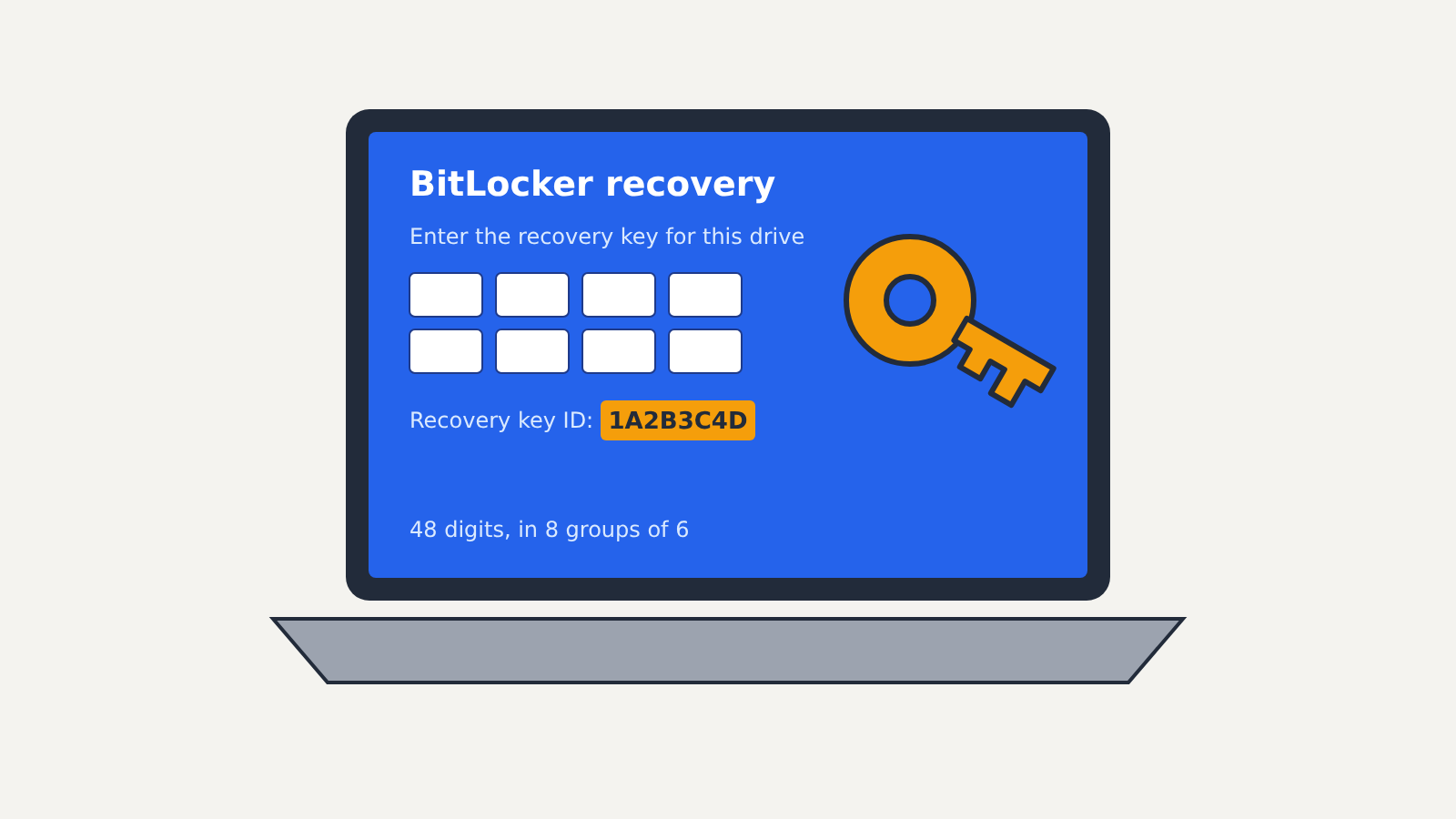
A blue "BitLocker recovery" screen asking you to "Enter the recovery key for this drive" means Windows has locked the drive's encryption because something about the PC's startup changed, and it needs the drive's 48-digit recovery key to prove you're allowed in. It's a "fix now" problem, since the PC won't start without the key, but nothing is broken: your files are still there, encrypted, waiting for that key.
This applies to Windows 10 and Windows 11 PCs that use BitLocker or Windows "device encryption", which many Windows 11 laptops turn on automatically when you sign in with a Microsoft account. The steps follow Microsoft's support article "Find your BitLocker recovery key".
Why the recovery screen appeared
BitLocker checks the PC's startup chain each time it boots, with help from the TPM security chip. If something in that chain changes, it asks for the recovery key instead of unlocking the drive on its own. Microsoft lists common triggers:
- a BIOS or UEFI firmware update, or changed firmware settings such as Secure Boot or the boot order
- a hardware change, such as a new motherboard, a moved drive or a docking station at startup
- the TPM being cleared, reset or switched off
- too many wrong PINs, if your PC uses a BitLocker PIN
Often nobody did anything deliberately: a firmware update installed by the manufacturer's tool or by Windows Update can be enough.
Find your recovery key
The screen shows a Recovery key ID, usually the first eight characters. Note it down: the right key has a matching ID, which matters if you have several PCs.
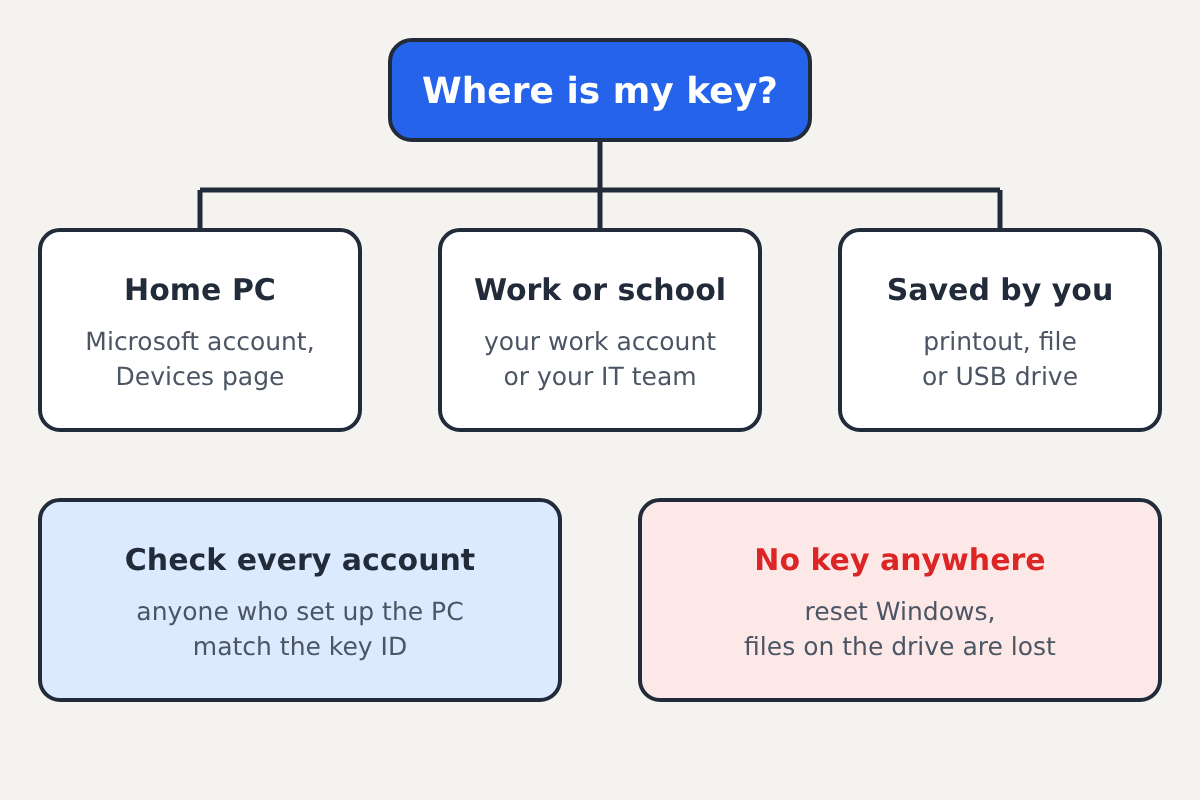
Look in these places:
- Your Microsoft account. On a phone or another computer, sign in at account.microsoft.com, open Devices, and look for the BitLocker recovery key section (Microsoft also offers the short link aka.ms/myrecoverykey). This is where most home PCs with device encryption saved it.
- Your work or school account. If the PC belongs to an employer or school, the key is usually stored in the organisation's account. Sign in at aka.ms/aadrecoverykey with your work account, or contact your IT team.
- Something you saved. When BitLocker was turned on, you may have printed the key, saved it as a text file, or saved it to a USB stick. Check your papers and other computers.
- Whoever set the PC up. A family member, a shop or the previous owner may have signed in with their Microsoft account during setup. The key is then in their account, not yours.
Type the 48 digits on the recovery screen; the dashes are added for you. Use the number keys along the top of the keyboard if the number pad doesn't respond. The PC then starts normally.
If the screen keeps coming back
If Windows asks for the key at every restart, the change that triggered it hasn't settled. Once you're signed in:
- Install any pending Windows and firmware updates, then restart once more.
- Check the firmware settings: if Secure Boot was switched off or the boot order changed, set them back.
- If you plan a firmware update, suspend protection first: search for Manage BitLocker in the Start menu (or open Settings > Privacy & security > Device encryption), choose Suspend protection, update, and Windows resumes protection after the restart.
If it keeps happening after that, the PC maker's support or your IT team should look at it.
If you can't find the key
Microsoft is clear that its support staff can't provide, recover or recreate a lost BitLocker key. Without it, the only way to use the PC again is to reset or reinstall Windows, which erases the drive. Files that were also in OneDrive or another backup can be restored afterwards; files that only lived on that drive are lost.
Before you reset, check every Microsoft account anyone might have used on that PC. It's the step people most often miss.
Once you're back in
Make sure you can find the key next time. Open Manage BitLocker (or Device encryption in Settings) and choose Back up your recovery key, then save it to your Microsoft account and keep a printed copy somewhere safe, away from the PC.
If the PC shows a different blue screen with a stop code after you enter the key, such as INACCESSIBLE_BOOT_DEVICE, that's a separate startup problem; our guide to the INACCESSIBLE_BOOT_DEVICE stop code covers it.
Scam warning
Your recovery key unlocks everything on the drive. Microsoft won't call you about BitLocker, and nobody legitimate will ask you to read your key over the phone or type it into a website other than your own Microsoft account. A pop-up claiming your PC is locked and giving a phone number is a scam: see how to deal with fake virus warnings.
