DPC_WATCHDOG_VIOLATION stop code on Windows 10 and 11: what it means and how to fix it
In short
DPC_WATCHDOG_VIOLATION means a driver held the processor too long, so Windows stopped. Storage drivers and SSD firmware are the usual cause. Here is how to find and fix it, step by step.
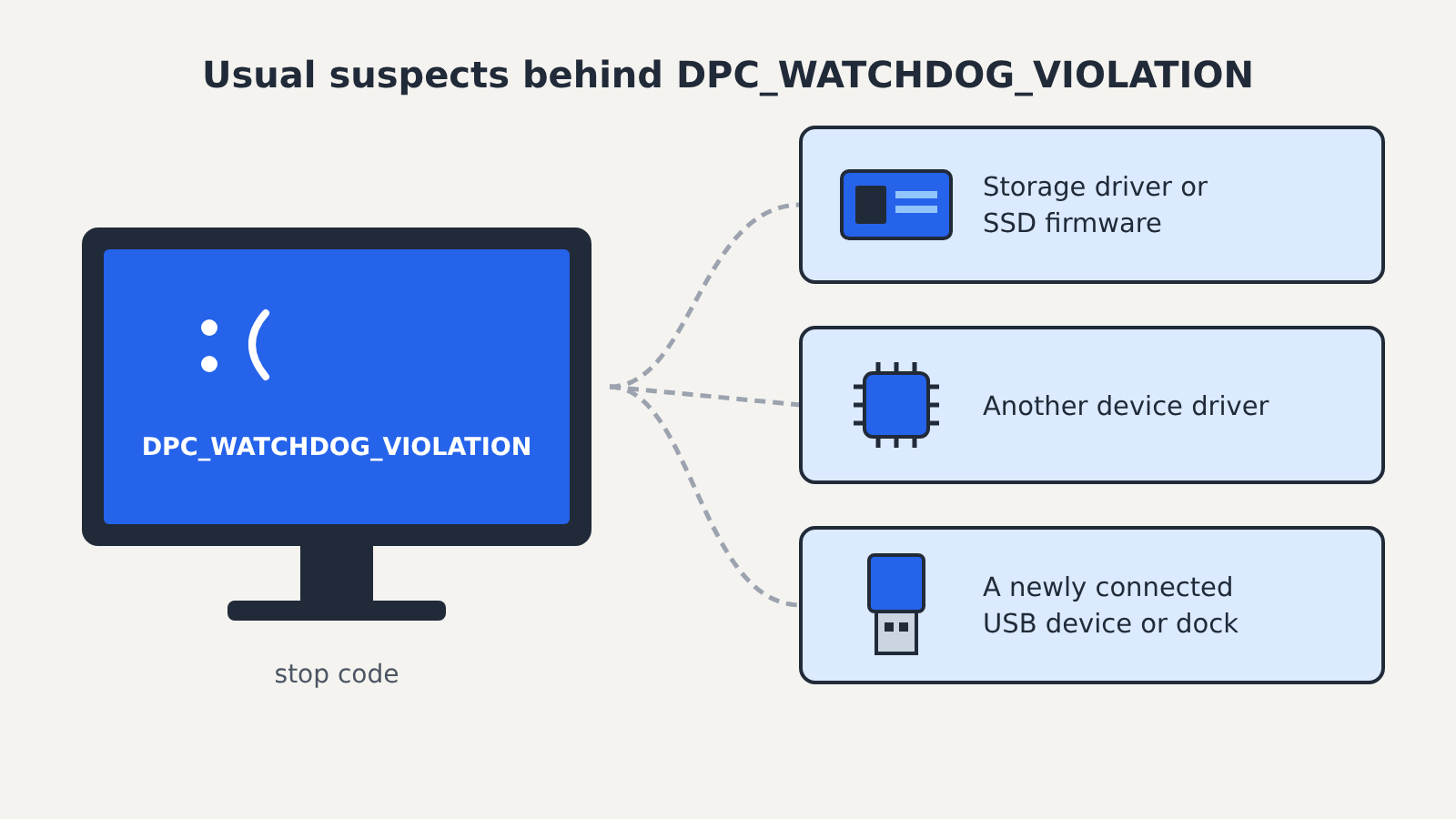
The stop code DPC_WATCHDOG_VIOLATION means a driver kept the processor tied up for too long without handing control back, so Windows stopped the PC rather than let it freeze. One crash is worth noting and moving on from. If it happens again, treat it as "fix soon": the cause is almost always a driver or a storage device, and it rarely goes away on its own.
It appears on Windows 10 and Windows 11 as a blue (or on some recent Windows 11 builds, black) screen that says "Your device ran into a problem and needs to restart", with Stop code: DPC_WATCHDOG_VIOLATION at the bottom. Microsoft documents it as bug check 0x00000133 ("Bug Check 0x133: DPC_WATCHDOG_VIOLATION" on Microsoft Learn). If you see 0x00000133 in Event Viewer or in a crash report, it is the same error.
What the name means
A DPC, or deferred procedure call, is a short piece of work a driver asks Windows to run at high priority, usually right after a device such as a disk, network adapter or USB controller has finished a task. While that work runs, the processor core can't do anything else. Windows keeps a timer, the watchdog, to make sure no driver hogs a core for too long.
Microsoft's bug check page says the watchdog fires in one of two cases: a single DPC ran past its time limit, or the system spent too long, in total, running at that raised priority level (DISPATCH_LEVEL or above). The first parameter in the crash details says which of the two it was. Either way, Windows concludes that a driver has stopped responding properly and halts before the PC locks up for good.
On a home PC the usual causes are:
- The storage driver or the SSD itself. The disk controller driver and the drive's own firmware sit in exactly this high-priority path. An outdated Intel storage driver (files named iaStorA.sys or iaStorAC.sys) is one of the most commonly reported triggers, and SSD makers regularly fix stalls in firmware updates.
- Another device driver, often graphics, network, Wi-Fi or audio, especially one that was just installed or updated.
- New hardware: a USB hub, dock, external drive or adapter whose driver misbehaves.

This differs from IRQL_NOT_LESS_OR_EQUAL, where a driver touched memory it shouldn't have. Here the driver did nothing illegal; it was just too slow to let go.
Is it urgent?
One crash after plugging in a new device or installing an update often clears up once you undo the change. Repeated crashes need attention this week. Each one closes your apps without saving, and if a failing SSD is behind them, waiting risks losing files. Back up anything important before you start, to an external drive or a cloud service.
If the screen names a driver, for example with a line like "What failed: something.sys", write the file name down. Microsoft's guidance is to disable or update that driver first.
Fixes, from simplest to hardest
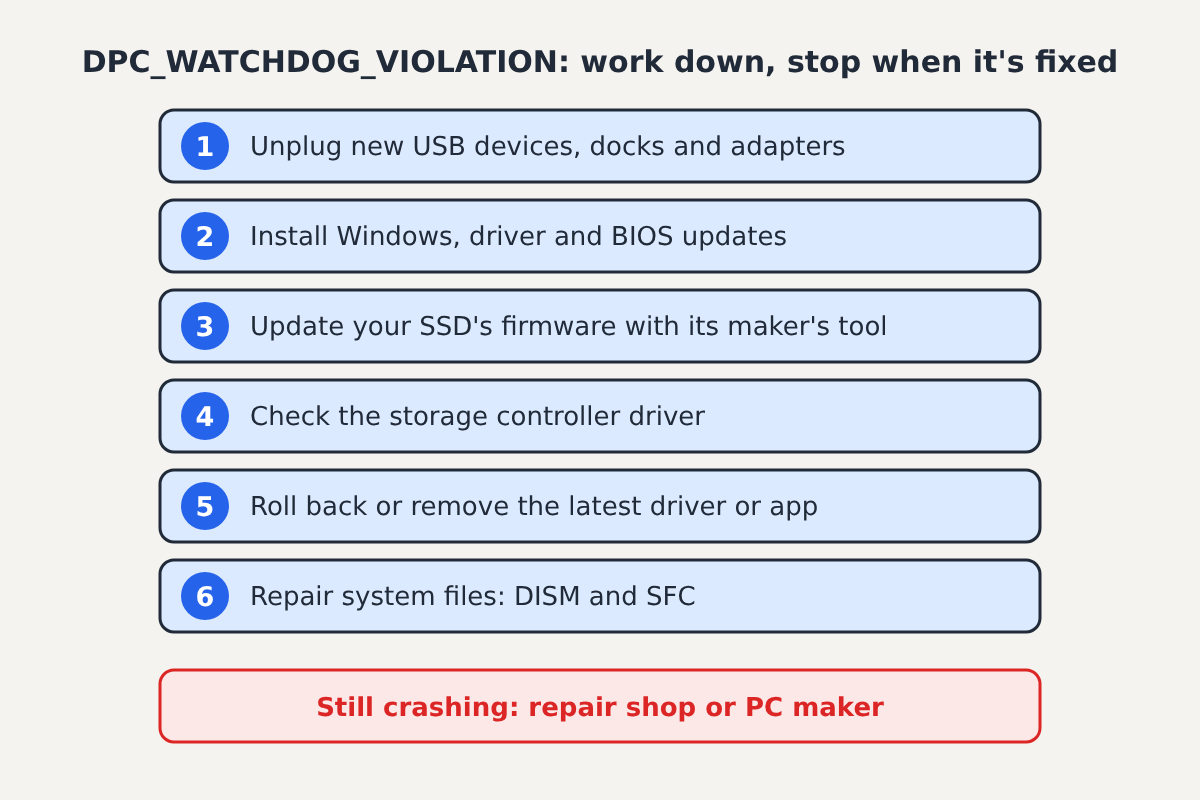
1. Unplug new devices
Shut down, unplug everything that isn't needed to use the PC (USB drives, hubs, docks, printers, game controllers, adapters) and start it again. If the crashes stop, reconnect the devices one at a time over a few days to find the one responsible, then look for a newer driver from its maker.
2. Install Windows, driver and BIOS updates
Go to Settings > Windows Update and install everything offered, including Advanced options > Optional updates > Driver updates. Then check your PC or motherboard maker's support page for the latest chipset and storage drivers and any BIOS/UEFI update. Follow the maker's instructions for a BIOS update exactly, keep a laptop on its charger, and don't interrupt it.
3. Update your SSD's firmware
Find your drive's make and model in Device Manager > Disk drives. Most SSD makers offer a free utility that checks the firmware and installs updates. Download it only from the drive maker's own website, and back up first: a firmware update is usually safe, but a power cut during one can make the drive unusable.
4. Check the storage controller driver
Open Device Manager (right-click the Start button) and expand IDE ATA/ATAPI controllers. If you see an entry named SATA AHCI Controller or Standard SATA AHCI Controller, open it, go to Driver > Driver Details and look at the file list.
- If it lists storahci.sys, you are already on Microsoft's built-in driver; skip to step 5.
- If it lists iaStorA.sys or iaStorAC.sys, that is an Intel storage driver. Create a restore point first (search for Create a restore point). Then choose Update driver > Browse my computer for drivers > Let me pick from a list of available drivers on my computer, select Standard SATA AHCI Controller, and restart.
Don't do this on a controller listed as RAID, Intel RST or VMD. Changing the driver on those setups can stop Windows from finding its own drive. If that happens anyway, our guide to INACCESSIBLE_BOOT_DEVICE explains how to get back in and undo it with System Restore.
5. Roll back or remove the latest driver or app
If the crashes started straight after a driver update, find the device in Device Manager, open Properties > Driver and choose Roll Back Driver if it is available. If they started after you installed an app that brings its own drivers, such as antivirus, a VPN, RGB lighting or fan-control software, uninstall it from Settings > Apps > Installed apps and restart.
If Windows won't stay up long enough, start in Safe Mode, which loads only basic drivers: hold Shift while you click Restart, then go to Troubleshoot > Advanced options > Startup Settings > Restart and press 4.
6. Repair system files
Open Terminal (Admin) or Command Prompt (Admin) and run these one at a time, letting each finish:
DISM /Online /Cleanup-Image /RestoreHealth
sfc /scannow
Restart when both are done.
Finding the driver that caused it
Microsoft's bug check page also suggests looking in Event Viewer under Windows Logs > System for errors logged around the time of the crash; a device or driver that logged errors just before it is a strong suspect. Windows also saves a small crash file in C:\Windows\Minidump after each blue screen. Reading those files properly takes Microsoft's WinDbg debugger, so if you'd rather not, a repair shop can read them for you, and it saves them guesswork.
When to get help
Take the PC to a repair shop, or to the maker if it is under warranty, when the crashes continue after every step above, when they happen even in Safe Mode, or when the SSD maker's tool reports the drive's health as poor. Those point to hardware. Opening a laptop or replacing parts yourself can void the warranty, so check the terms first.
If the hardware checks out and nothing else has worked, Settings > System > Recovery > Reset this PC with Keep my files reinstalls Windows and removes the drivers and apps you added, while keeping your documents. Back up first, and expect to reinstall your apps afterwards. Other driver-related stop codes such as MEMORY_MANAGEMENT follow a similar path, with a memory test added.
