Fake virus warning pop-up with a phone number: how to close it and stay safe
In short
A browser pop-up saying your computer is infected and telling you to call a number is a tech support scam. How to spot it, close it, and what to do if you already called or paid.
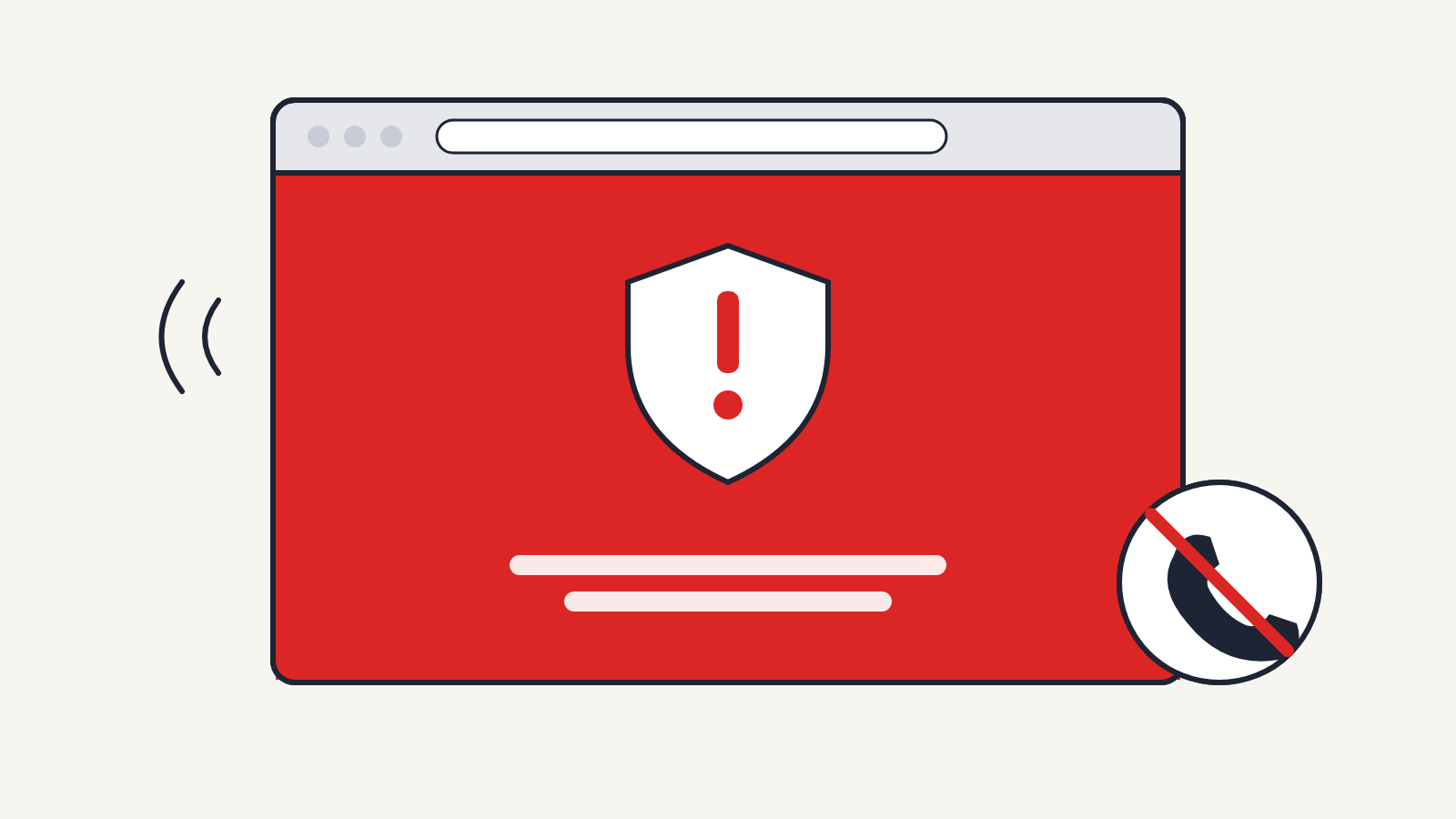
A browser pop-up that says your computer is infected, locked or "blocked for your security", and gives you a phone number to call, is a scam. It is a web page pretending to be a system warning. The pop-up itself can't harm your computer, so the urgency is low if you close it, and high only if you have already called the number, let someone connect to your computer or paid them.
These pages target Windows 10 and 11 and macOS, in Chrome, Edge, Safari and Firefox alike. They often copy the look of Windows Security, Microsoft Defender or Apple, play a loud alarm or a recorded voice, switch the browser to full screen, and show made-up error codes and a countdown. Microsoft states plainly that its error and warning messages never include a phone number, and that it doesn't make unsolicited calls or send unsolicited emails offering to fix your computer. Apple gives the same warning about fake Apple support pop-ups.
How to tell a real warning from a fake one
A real security warning comes from an app on your computer, not from a web page. On Windows that is the Windows Security app (Microsoft Defender), and its notifications appear in the bottom corner of the screen, outside any browser. On a Mac, malware warnings come from macOS itself. Neither will ever ask you to phone anyone or pay to unlock your computer.
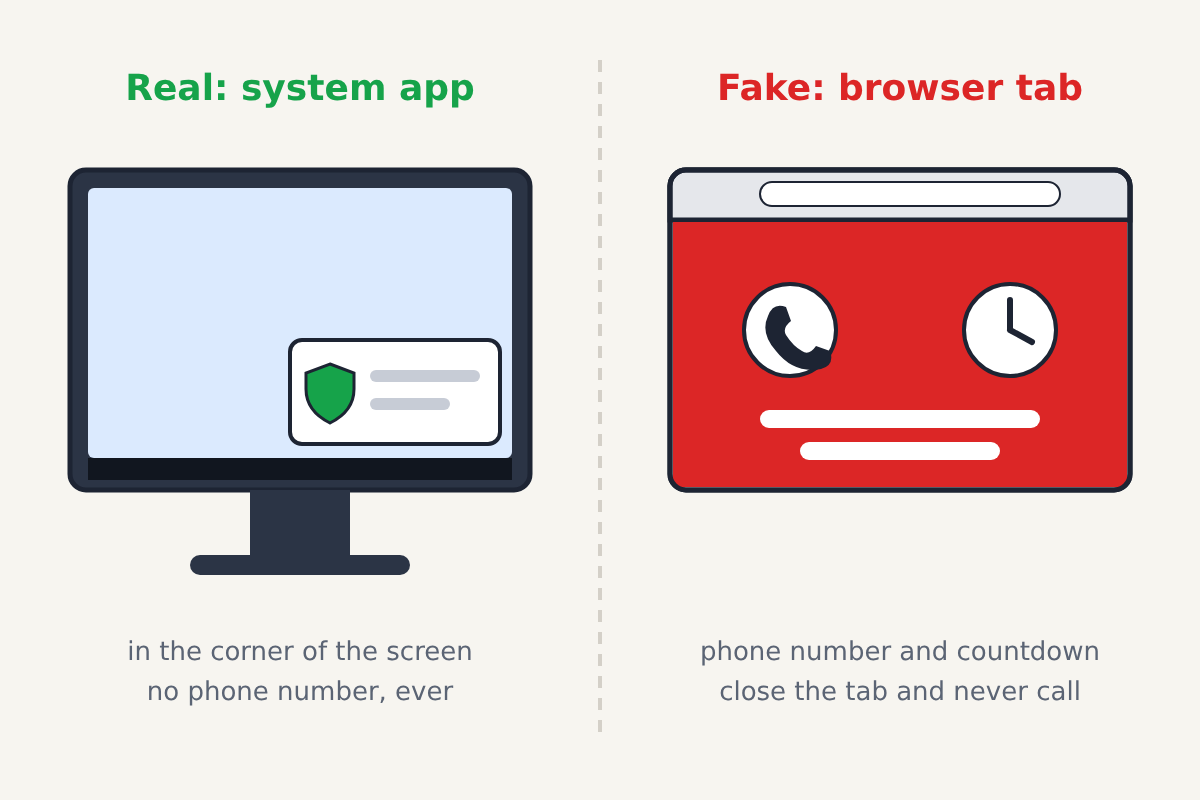
Signs you're looking at a fake:
- It appeared while you were browsing, often after a mistyped address, a pop-up ad or a search result
- It shows a phone number, a chat link or a "call support" button
- It tells you not to restart or shut down your computer
- It counts down to data loss, or claims your files or accounts will be deleted
- You can see the browser's address bar or tabs if you press Esc to leave full screen
How to close it
- Don't call the number, click anything inside the page, or download anything it offers.
- Press Esc to leave full screen, then close the tab or the browser window.
- If the page won't let you close it, force the browser to quit. On Windows, press Ctrl + Shift + Esc to open Task Manager, select the browser and choose End task. On a Mac, press Option + Command + Esc, select the browser and click Force Quit.
- When you reopen the browser, don't restore the previous session if it offers to, or the scam page will load again. On a Mac, holding Shift while you open Safari stops it reopening the last windows.
- Clear the browser's cache and check its notification permissions. Some scam sites ask to send notifications so they can keep pushing fake alerts; in Chrome this list is in Settings > Privacy and security > Site settings > Notifications, and Edge and Firefox have similar pages. Remove any site you don't recognise.
That's all a pop-up needs. Your files were never at risk from the page itself.
If you called, let them connect or paid
Act now, in this order:
- Disconnect the computer from the internet (turn off Wi-Fi or unplug the cable) so the caller can't stay connected.
- Uninstall any remote-access program they had you install. On Windows, use Settings > Apps > Installed apps; on a Mac, drag it from Applications to the Trash.
- Run a full scan. On Windows, open Windows Security > Virus & threat protection > Scan options and run a Full scan, or the Microsoft Defender Offline scan, which restarts the PC and scans before Windows loads.
- From a different device, change the passwords for your email, bank and any account you used or typed while they were connected, and turn on two-factor sign-in where it's offered.
- If you paid by card or bank transfer, call your bank or card issuer straight away using the number on your card. If you paid with gift cards, contact the gift card company too and keep the cards and receipts.
- Report it. In the US, the Federal Trade Commission takes reports at reportfraud.ftc.gov, and Microsoft takes reports of tech support scams at microsoft.com/reportascam. Elsewhere, your national consumer or fraud reporting service can take it.
Scammers often call back with a "refund" offer. That is a second scam: no real refund requires you to let someone onto your computer or buy gift cards.
Stopping it from happening again
Keep your browser and operating system up to date, since updates add protection against known scam pages. Turn on the browser's built-in protection (Microsoft Defender SmartScreen in Edge, Safe Browsing in Chrome, Fraudulent Website Warning in Safari). Be careful with search ads for support numbers, and type the addresses of sites you use often rather than following links in pop-ups.
A real crash screen on Windows is different from these pages: it fills the whole display outside any browser and shows a stop code such as CRITICAL_PROCESS_DIED, never a phone number. On a Mac, apps you download can trigger a genuine macOS check that the app is safe, which also never asks you to call anyone.
