"SOS" or "No Service" on iPhone: what it means and how to get signal back
In short
SOS on your iPhone means you can only make emergency calls; No Service means no mobile network at all. What each status means, how urgent it is, and the fixes in order, from Airplane Mode to your carrier.
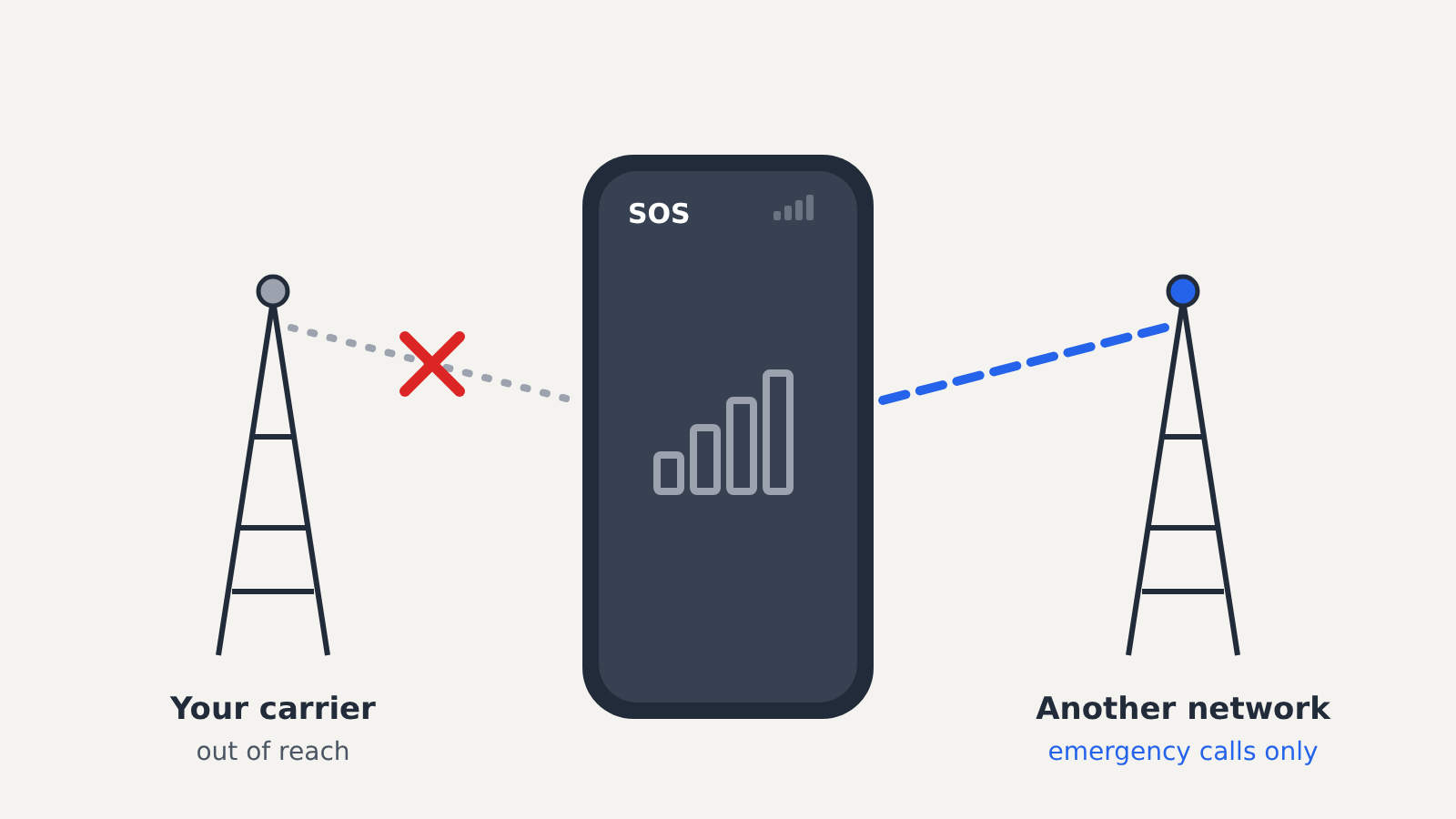
"SOS" or "SOS only" in the corner of your iPhone's screen means the phone isn't connected to your own carrier's mobile network, but it can still place emergency calls through another carrier's network. "No Service" means it can't find any usable mobile network at all, and "Searching" means it is still looking. All three are "fix soon" problems: Wi-Fi keeps working, so Wi-Fi calling, iMessage and apps still go through, but normal calls, texts and mobile data won't until the connection comes back.
This applies to iPhones on recent versions of iOS (iOS 17, iOS 18 and iOS 26), with a physical SIM or an eSIM. The steps follow Apple's support article "If you see No Service or Searching on your iPhone or iPad" and its notes on SOS.
What each message means
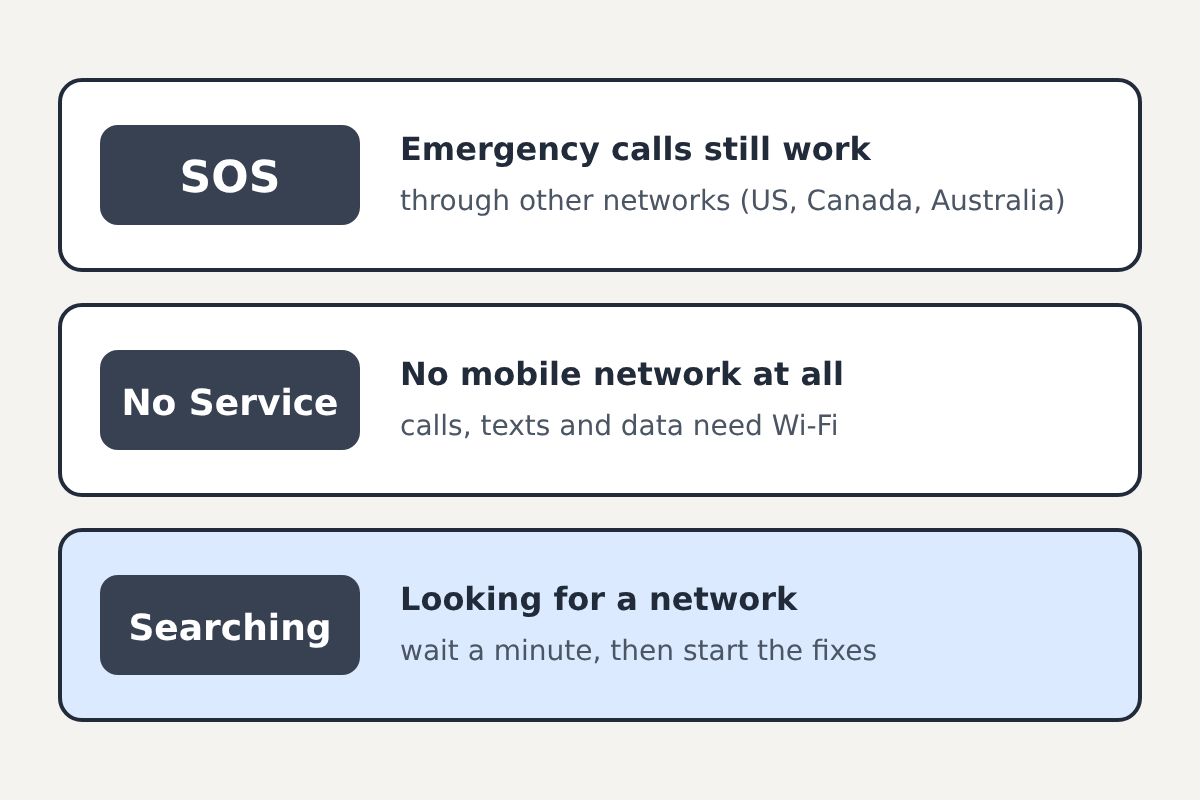
- SOS (or "SOS only"): Apple shows this in Australia, Canada and the United States. Your iPhone can't use your carrier's network, but the emergency call system lets it connect through any available network for calls to emergency numbers.
- No Service: no network your SIM can use is in range, or the phone can't register on one.
- Searching: the phone is scanning for a network. This is normal for a few seconds after you switch off Airplane Mode or leave a tunnel. If it lasts more than a minute or two, treat it like No Service.
On iPhone 14 and later, in countries where Apple offers it, you may also see a satellite symbol when there's no mobile or Wi-Fi coverage at all. That is Emergency SOS via satellite, a separate feature for texting emergency services when nothing else works.
How urgent is it?
If you need emergency help, call your local emergency number anyway: with SOS showing, the call should go through. Otherwise this is a "fix soon" problem rather than a fault in the phone. Most causes are coverage, settings or your account, and the steps below cover them in order.
Fixes, from simplest to hardest
1. Check you're in coverage. Weak signal is the most common cause: basements, lifts, rural roads and thick-walled buildings. Move somewhere open and wait a minute. If you're abroad, check that your plan includes roaming and that Data Roaming is on in Settings > Cellular > Cellular Data Options (Mobile Data in some regions).
2. Turn Airplane Mode on and off. Open Control Center, tap the airplane icon, wait about 15 seconds and tap it again. This makes the phone register with the network again.
3. Check cellular data and your line. In Settings > Cellular, make sure Cellular Data is on and that your line (or the line you want, if you have two) is turned on. With two lines, a dead line can also show up as the Last Line No Longer Available alert when you call someone.
4. Restart the iPhone. Switch it off and back on.
5. Install updates. Go to Settings > General > About and wait a few seconds; if a carrier settings update is available, a prompt appears. Then check Settings > General > Software Update for an iOS update. Do this over Wi-Fi.
6. Check the SIM or eSIM. For a physical SIM, switch the phone off, take the SIM tray out, check the card and put it back until the tray sits flush. If the phone also says "No SIM" or "Invalid SIM", our guide to iPhone SIM messages goes through the SIM side in detail. An eSIM can't be reseated; if its line is missing or shows an error, your carrier needs to reissue it.
7. Reset network settings. Go to Settings > General > Transfer or Reset iPhone > Reset > Reset Network Settings. This clears saved Wi-Fi networks and passwords, VPN settings and cellular settings you changed by hand, so have your Wi-Fi password ready. It doesn't delete your photos, apps or messages.
8. Contact your carrier. If none of that works, the problem is often on the carrier's side: a local outage, a line that's been suspended (for example after a missed payment), a SIM that needs replacing, or an account change that didn't go through. They can check your line and the network in your area.
9. Contact Apple. If your carrier confirms the account and network are fine and another SIM doesn't work in your iPhone either, the fault may be in the phone. Apple Support or an Apple Authorized Service Provider can test it.
When it started after something specific
- After an iOS update: restart first, then check for a carrier settings update. These fix most post-update service problems.
- After travel: switch your line back to your home carrier if you added a travel eSIM, and check Data Roaming.
- On a new iPhone: the line may not work until your carrier finishes moving it from your old phone. If setup stopped with "iPhone could not be activated", sort that out first with the steps for a new iPhone that won't activate.
- After a repair or drop: a damaged antenna or SIM reader is possible. Take it back to the repairer or to Apple.
- In the cold: a phone that is shutting down or acting oddly in freezing weather has a battery problem, not a network one. See what happens to iPhones and Android phones in the cold.
A note on scams
Your carrier won't text or call asking you to install an app, share a code, or move your number "to restore service". If you suddenly lose service without explanation and then get messages about password resets, contact your carrier from another phone straight away: losing service unexpectedly can be a sign someone has moved your number to their own SIM.
