"SIM Not Supported" or "No SIM" on iPhone: what it means and how to fix it
In short
No SIM or Invalid SIM means your iPhone cannot read a working SIM or eSIM; SIM Not Supported means it is locked to another carrier. The fixes for each, from a restart to a carrier unlock, and the unlock scams to avoid.
"No SIM" or "Invalid SIM" on an iPhone means the phone can't read a working SIM or eSIM, so it has no mobile service; "SIM Not Supported" means it can read the SIM but the iPhone is locked to a different carrier and won't use it. Both are "fix soon" problems: Wi-Fi still works, and you can still try emergency calls, but calls, texts and mobile data won't work until it's sorted.
This applies to any iPhone on a recent version of iOS (iOS 17, iOS 18 and iOS 26), with a physical nano-SIM or an eSIM. iPhone 14 and later models sold in the US have no SIM tray and use eSIM only. The steps follow Apple's support articles "If you see Invalid SIM or No SIM on your iPhone or iPad" and "How to unlock your iPhone for use with a different carrier".
Which message do you have?
The wording matters, because the two messages have different causes.
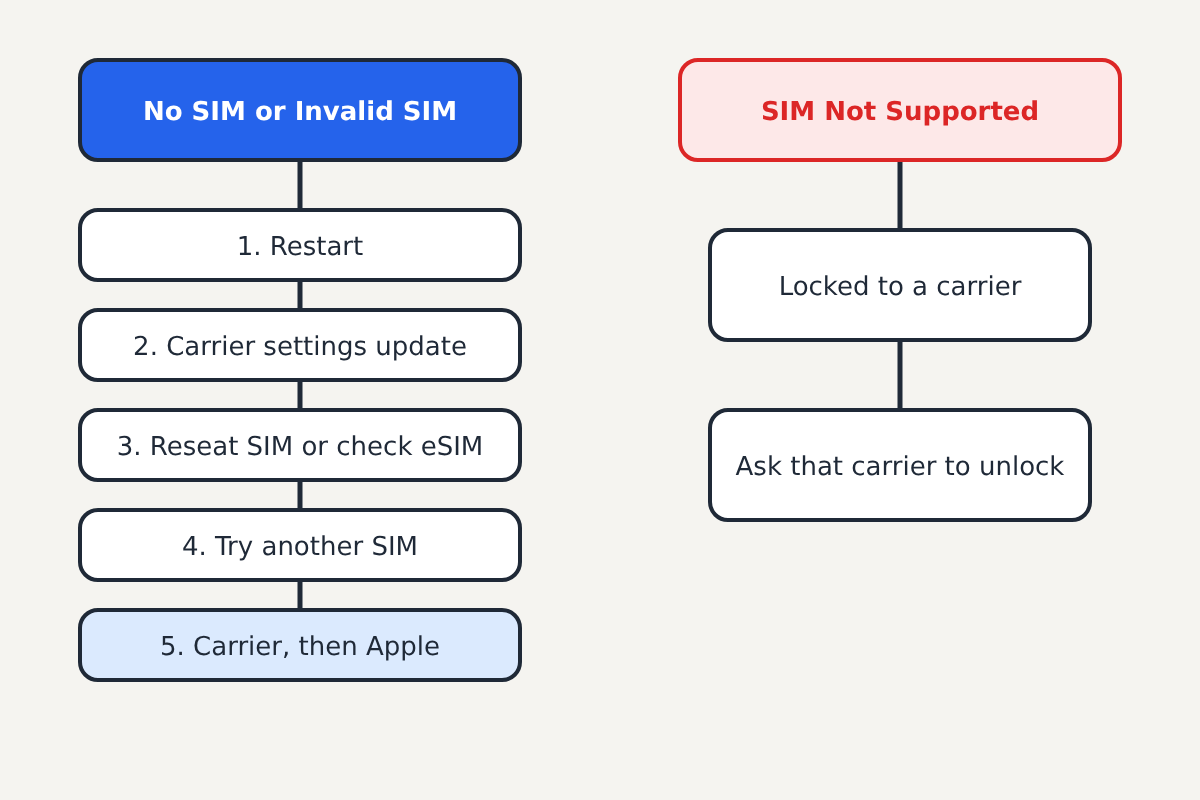
- No SIM, Invalid SIM or "No SIM card installed": the phone can't find or read a valid SIM or eSIM. The fixes are below.
- "SIM Not Supported" (the full alert says the SIM card inserted in this iPhone does not appear to be supported): the iPhone is carrier-locked. Skip to the section on carrier locks.
Fixing "No SIM" or "Invalid SIM"
Apple's order of steps, from simplest to hardest:
1. Check your plan is active. If a bill went unpaid, the line was cancelled, or a new line hasn't been activated yet, the carrier's network may reject the SIM. Check the carrier's app or website over Wi-Fi, or call them.
2. Restart the iPhone. Switch it off and on again. It clears a lot of one-off SIM errors, especially after an update or after travel.
3. Install a carrier settings update. Go to Settings > General > About and stay on that screen for a moment. If a carrier settings update is available, a prompt appears; tap Update. Also check Settings > General > Software Update for an iOS update.
4. If you use an eSIM. An eSIM can't be reseated. Go to Settings > Cellular (Mobile Data in some regions) and check the line is listed and turned on. If it's missing or shows an error, Apple's advice is to contact your carrier, who can reissue the eSIM. Don't delete an eSIM to "start fresh" unless the carrier tells you to: you'll need them to issue a new one either way.
5. If you use a physical SIM. Switch the phone off. Push a SIM-eject tool or straightened paper clip into the small hole in the tray on the side of the phone, take the SIM out and check it for damage. Put it back in the tray, which only fits one way, and slide the tray in until it sits flush.
Apple notes that only a SIM tray from the same iPhone model works properly: a tray from another model or another phone may not fit and can stop the SIM making contact.
6. Try a different SIM. Borrow a SIM from another phone on any network, or ask your carrier's store to test with one. If another SIM works, your SIM card is the problem and the carrier can replace it. If no SIM works at all, the fault is likely in the phone.
7. Contact Apple. If none of that helps, contact Apple Support or visit an Apple Store or Apple Authorized Service Provider. A SIM reader fault is a hardware repair.
Fixing "SIM Not Supported"
This message means the iPhone is locked to a carrier. That's normal for phones bought on a contract or financed through a carrier: they only accept that carrier's SIMs until the carrier unlocks them.
Check the lock status in Settings > General > About. Look for Carrier Lock: "No SIM restrictions" means the phone is unlocked. Anything else means it's still locked.
What to do:
- Use the SIM from the carrier the phone is locked to if you just want it working again.
- Ask that carrier to unlock it. Apple says only the current carrier can unlock an iPhone; Apple can't do it for another carrier. Each carrier sets its own unlock rules, which often include the phone being paid off. Once they confirm the unlock, insert the new SIM and the phone should activate.
- On iOS 13 or earlier, Apple says to confirm the unlock with the carrier and then restore the iPhone from a backup to finish it.
Scams and second-hand phones
If you bought the phone second-hand and it shows SIM Not Supported, the seller needs to ask their carrier to unlock it, or you need proof of purchase to ask yourself. Don't pay a website, a pop-up or a stranger who promises to "unlock" any iPhone for a fee, especially by gift card or remote access: Apple says only the carrier can do it, and these services are a common scam. The same goes for an Activation Lock, which is a different message tied to the previous owner's Apple Account and has nothing to do with the SIM; our guide to getting back into a locked iPhone explains why only that account can clear it.
If your iPhone shows "SOS" or "SOS only" instead of a SIM message, it can still reach emergency services but has no service from your own carrier. It means the phone isn't connected to your carrier's network where you are, which is a different problem from a SIM error.
Sources: Apple Support: "If you see Invalid SIM or No SIM on your iPhone or iPad", "How to unlock your iPhone for use with a different carrier", "If you can't activate your iPhone or iPad (Wi-Fi + Cellular)".
