"Last Line No Longer Available" on iPhone: what it means and how to fix it
In short
On a Dual SIM iPhone, this alert means the line you last used with a contact cannot make calls right now. Here is how to call anyway and fix the line.
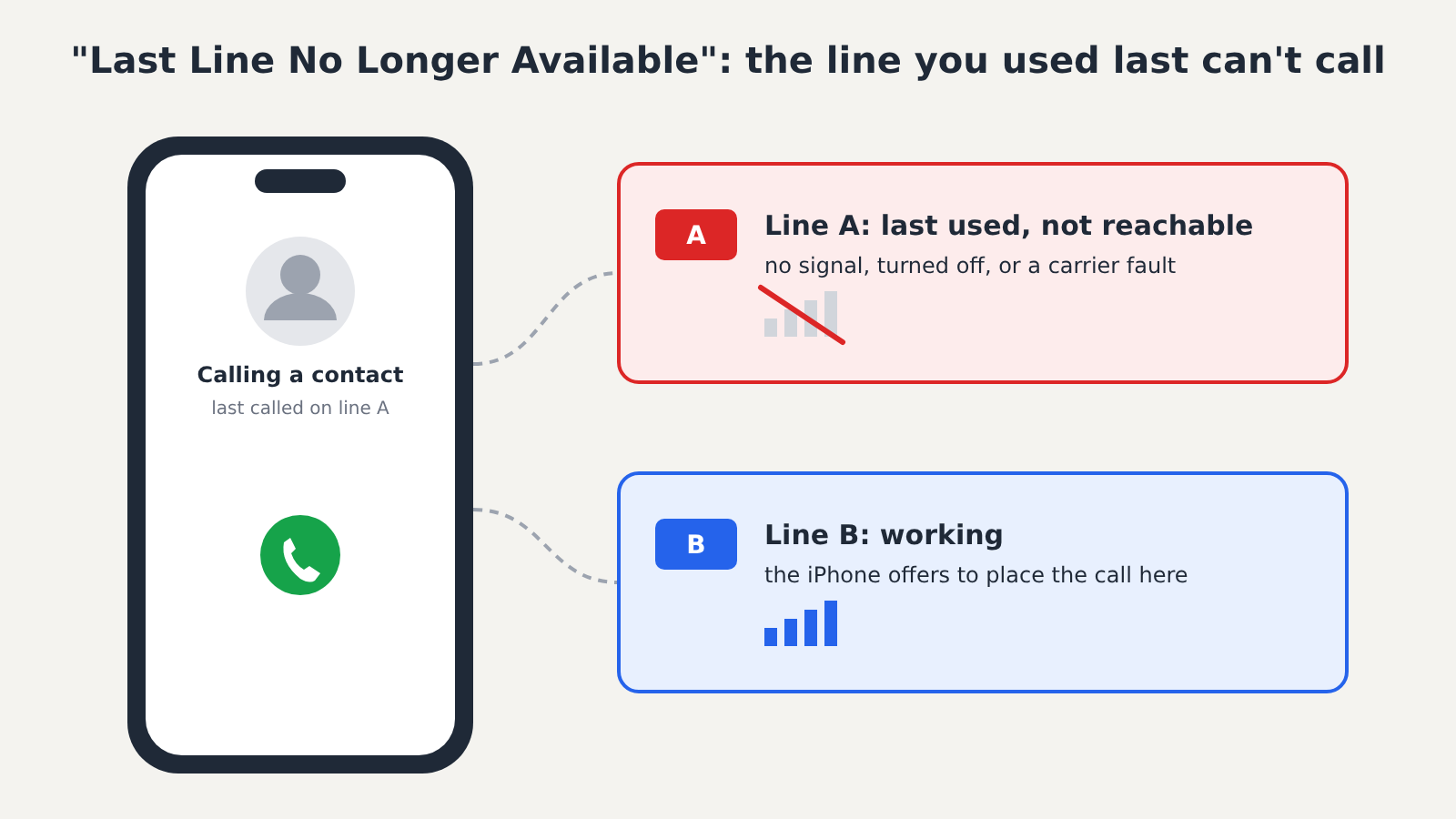
"Last Line No Longer Available" means your iPhone tried to place a call on the phone line you last used with that contact, and that line can't make calls right now. It only appears on an iPhone with two lines set up (Dual SIM, using two eSIMs or a physical SIM plus an eSIM). It is a "fix soon" message: you can usually still make the call straight away on your other line, but if the line you normally use keeps dropping out, something is wrong with its signal, settings or account.
This applies to iPhone models that support Dual SIM, on iOS 17, iOS 18 and later. Apple's support article on the alert describes it the same way: the last-used line for that contact isn't available, and the iPhone offers to call from your other line instead.
Why the iPhone picks a "last line" at all
With two lines, iOS has to decide which one each call goes out on. By default it remembers the line you used the last time you called or texted that contact, and uses it again. That's handy when one line is personal and one is for work. It also means that when that remembered line has no service, is switched off or has a problem with the carrier, the iPhone stops and asks you instead of quietly switching.
So the alert doesn't mean the contact's number has changed or that anything is wrong with the person you're calling. It is about your own line.
How urgent is it?
For a one-off call, not urgent: choose the option to call from your other line, and the call goes through on that line (your contact will see that number instead).
If you see the alert again and again for the same line, fix it soon, because calls and texts to you on that number may not be getting through either. If you need to make an emergency call, dial the emergency number as normal; iPhone will try any available network.
How to fix it, simplest first
1. Check that the line is switched on and has signal. Open Settings > Cellular (Mobile Data in some regions) and tap the line in question. Make sure Turn On This Line is enabled. Then open Control Center: with two lines, the status area shows signal for both. If the line shows No Service or SOS, the problem is coverage or the carrier, and our guide to SOS or No Service on iPhone walks through those causes.
2. Toggle Airplane Mode or restart. Turn Airplane Mode on for about 15 seconds, then off again. This makes the iPhone reconnect both lines to the network. If that doesn't help, restart the iPhone. A temporary network hiccup is the most common reason for the alert, and a reconnect often clears it.
3. Install any carrier settings update and iOS update. Go to Settings > General > About and wait a few seconds. If a carrier settings update is available, you'll be asked to install it. Then check Settings > General > Software Update for a newer version of iOS. Both updates can change how the iPhone handles your carrier's network.
4. Choose which line to use for the contact. If one of your lines is meant for a short trip abroad or a temporary plan, you may not want the iPhone remembering it at all. Open the contact in Contacts or Phone, and under the contact's name you'll find the line it uses by default. Change it to the line you normally call that person on. You can also set your default voice line for everyone under Settings > Cellular > Default Voice Line.
5. Check the physical SIM or eSIM. For a physical SIM, power off the iPhone, eject the tray with the SIM tool, check the card sits flat, and put it back. For an eSIM, check that the plan is still listed under Settings > Cellular and hasn't been removed. If the iPhone shows No SIM or SIM Not Supported for that line, see our explainer on SIM Not Supported and No SIM messages on iPhone.
6. Contact your carrier. If the line still won't make calls, the cause is usually on the carrier's side: an unpaid or expired plan, a prepaid line that ran out of credit, a SIM that has been replaced, or an outage. Call the carrier from your other line or contact them through their website or app. They can see whether the line is active and whether calls are blocked. A repair shop can't fix an account problem, so start with the carrier.
If you're travelling
The alert is common after landing in another country with a travel eSIM. You may have set the travel eSIM for data while your home line stays for calls, and your home line may be unable to roam or have roaming turned off. Check Settings > Cellular, tap your home line, and look at Roaming (or Voice Roaming on some carriers); roaming charges depend on your carrier and plan, so check with them before turning it on. If you'd rather not use your home line abroad, change the default voice line to the travel line, as in step 4, before you make calls.
Before you erase or reset anything
You shouldn't need to erase your iPhone or reset all settings for this message. Reset Network Settings (under Settings > General > Transfer or Reset iPhone > Reset) is a last step before calling the carrier, and it also removes saved Wi-Fi networks and passwords. Don't delete an eSIM to try to fix the alert unless your carrier tells you to: getting it back may need a new eSIM from them.
