"SIM Locked" or PUK code on iPhone: what it means and how to unlock your SIM
In short
SIM Locked means your SIM or eSIM has a PIN switched on. How to unlock it without guessing, where to get the PUK code from your carrier, and what to do if the SIM is blocked.
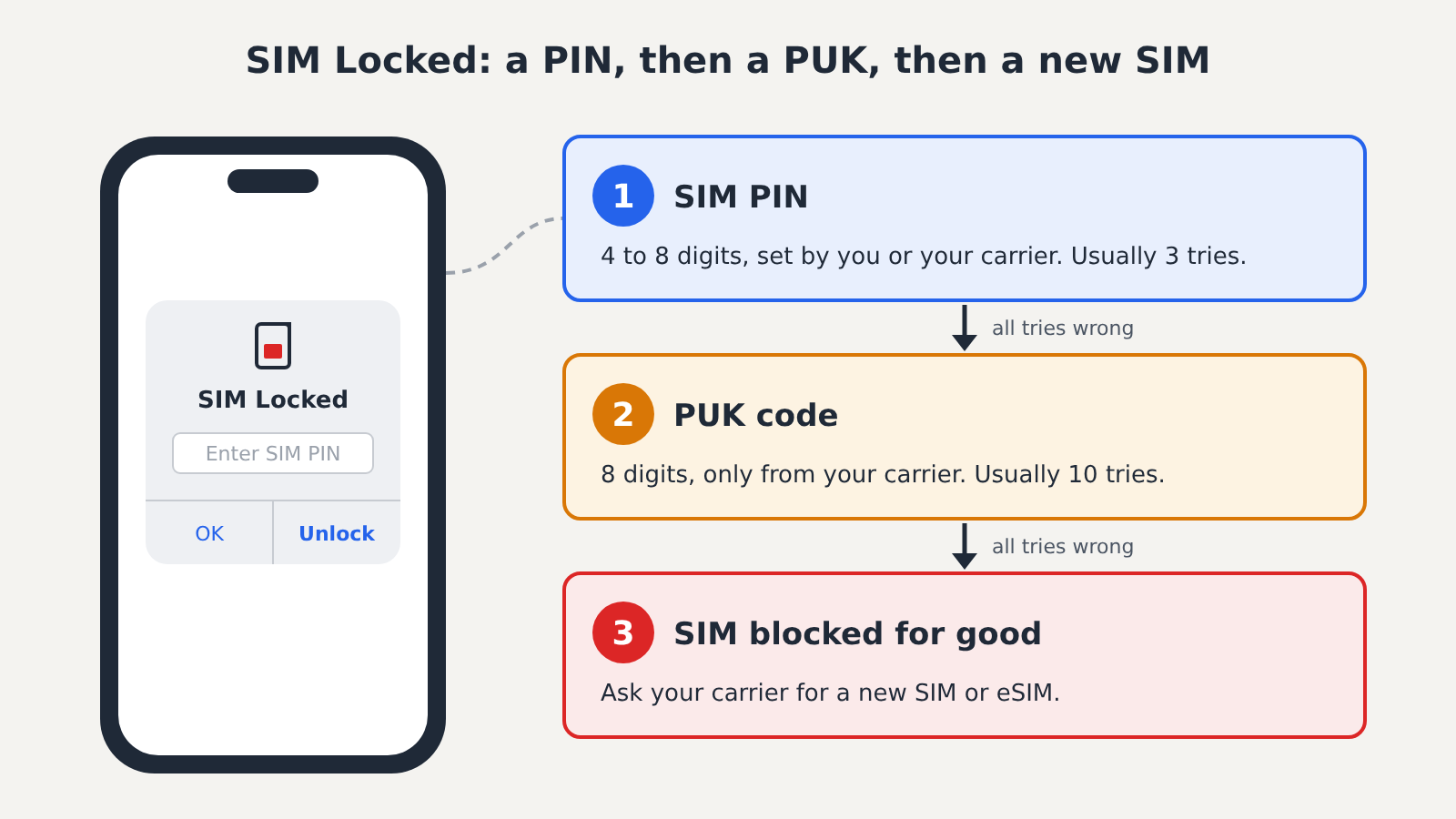
"SIM Locked" on an iPhone means the SIM card (or eSIM) has a PIN switched on, and the phone needs that PIN before it can use your mobile service. It is a "fix soon" message, not an emergency: Wi-Fi keeps working and emergency calls can usually still be placed from the lock screen, but calls, texts and mobile data stay off until you enter the right PIN. The one thing to avoid is guessing. After a few wrong tries the SIM asks for a PUK code that only your carrier can give you, and if the PUK is guessed wrong too, the SIM is blocked for good.
This guide covers iPhone on recent versions of iOS (iOS 17 and later; menu names on older versions are close), with notes for Android phones at the end. The iPhone steps follow Apple's support article "Use a SIM PIN for your iPhone or iPad".

Why the message appeared
The SIM PIN is a lock on the SIM itself, not on the phone. When it's on, the SIM asks for the PIN every time the iPhone restarts or the SIM is put into a phone. That is why the alert often shows up right after a software update, a battery that ran flat, or a restart you didn't notice.
It usually means one of these:
- You, or whoever set the phone up, switched on SIM PIN in Settings at some point.
- Your carrier ships its SIMs with a PIN already switched on. Some carriers do this, and the PIN is their default code, which they print with the SIM or publish on their support pages.
- You bought the phone or SIM second-hand and the previous owner had a PIN set.
The SIM PIN is a different code from the passcode that unlocks your iPhone, and different from your Apple Account password. If the screen asks for your iPhone passcode instead, read how to get back into an iPhone that says iPhone Unavailable. A "SIM Not Supported" message is also unrelated: that is a carrier lock on the phone, covered in our guide to SIM Not Supported and No SIM.
The three levels: PIN, PUK, blocked
Most SIM cards follow the same industry standard:
- SIM PIN: 4 to 8 digits. You usually get three tries.
- PUK (Personal Unblocking Key): 8 digits, set by the carrier when it made the SIM. Once the PIN tries run out, the iPhone asks for the PUK. You usually get ten tries.
- Blocked SIM: if every PUK try is wrong, the SIM is locked permanently and no code will open it. Apple's article says plainly that you then need a new SIM card from your carrier.
A few carriers set different limits, so treat these numbers as the usual case.
How to unlock it, from simplest to hardest
- Tap Unlock and enter the PIN you set. If you never set one, enter your carrier's default SIM PIN. Don't try your iPhone passcode or bank PIN hoping one of them fits: each wrong guess uses up a try.
- If you don't know the PIN, stop and contact your carrier. Apple's advice is the same: don't guess. The carrier can tell you its default PIN, or give you the PUK.
- If the iPhone asks for a PUK, get it from the carrier. Enter the 8-digit PUK, then the iPhone asks you to choose a new SIM PIN. Write that new PIN down somewhere safe.
- If the SIM says it is blocked or permanently locked, ask your carrier for a replacement SIM or a new eSIM. Your number stays the same; only the card or eSIM profile changes. Expect to prove the account is yours.
While you wait, the phone works on Wi-Fi, so iMessage, FaceTime and apps still run. If the status bar later shows only SOS after the SIM is unlocked, that's a signal problem, explained in what SOS and No Service mean on iPhone.
Where to get your PUK
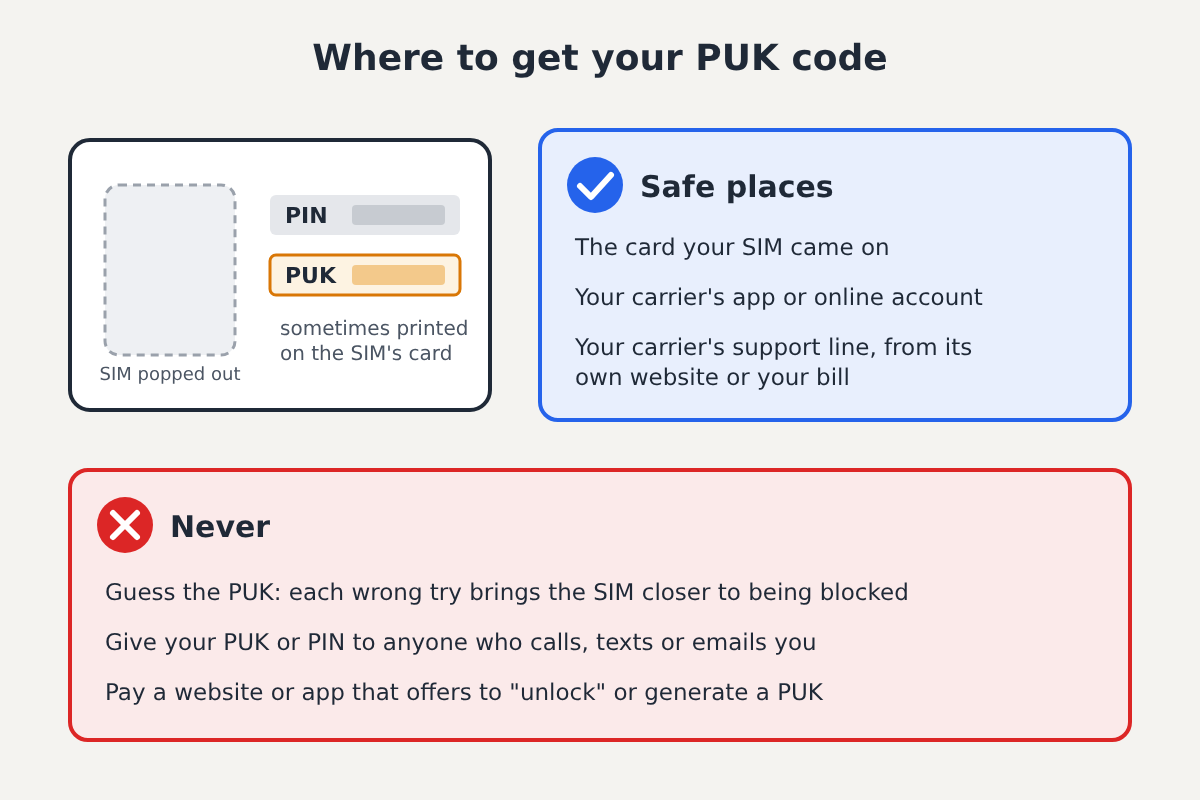
Look in this order:
- The plastic card your SIM came on. Some carriers print the PIN and PUK there, sometimes under a scratch-off panel.
- Your carrier's app or online account. Many carriers show the PUK after you sign in, often under the SIM or device settings.
- Your carrier's support line. Use the number on the carrier's own website or your bill. They will check that you own the account before giving the code.
The PUK is tied to one SIM, so there is no master code. Websites and apps that offer to "generate" a PUK from your phone number or IMEI can't do it. Be just as careful with anyone who contacts you first. Your carrier gives you the PUK when you ask; it has no reason to call or text asking you to read it out, and someone who does may be trying to take over your number.
Turn the SIM PIN off, change it, or keep it
Once the SIM is unlocked, go to Settings > Cellular > SIM PIN (Mobile Data or Mobile Service in some regions; with two lines, tap the line first). Here you can switch the PIN off or tap Change PIN.
Keeping it on has a real benefit: if your phone is stolen, the thief can't move your SIM to another phone and receive your calls and texts, including sign-in codes. If you keep it, pick a PIN you'll remember and store it with your other important codes.
On Android phones
Android phones use the same SIM PIN, PUK and blocked-SIM levels, because the lock lives on the SIM. The wording on screen differs by maker, but you'll see a request for the SIM PIN, then for the PUK. The fix is the same: don't guess, and get the PUK from your carrier. To change or switch off the lock afterwards, look in Settings under Security (on Google Pixel, the SIM lock setting sits in the security settings; on Samsung Galaxy, under Security and privacy, then Other security settings). Menu names change between Android versions, so search Settings for "SIM lock" if you can't find it.
When to go to the carrier straight away
Go to the carrier (a store, or its official support line) without trying more codes if:
- the phone says the SIM is blocked or permanently locked,
- you have used most of your PUK tries,
- or you didn't set a PIN, your carrier says the SIM has none, and the phone keeps asking. That needs the carrier to check the SIM and the account.
Apple can't unlock a SIM PIN or PUK, because the codes belong to the carrier's SIM, not to the iPhone.
