"iPhone Unavailable" or "Security Lockout": how to get back into your iPhone
In short
Too many wrong passcodes lock your iPhone. What the message means, when waiting is enough, how the 72-hour previous passcode option works, and how to erase and restore safely.
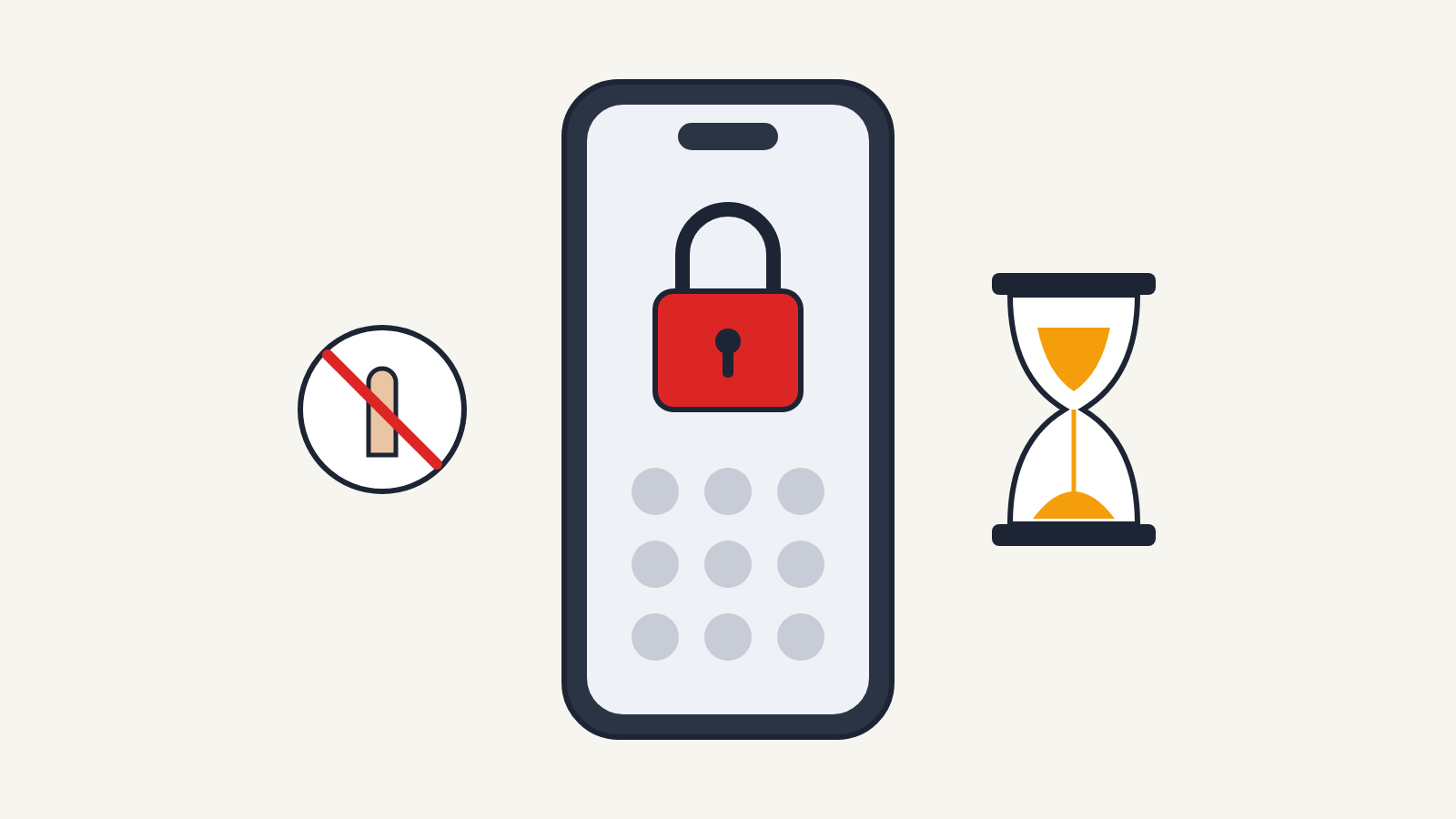
"iPhone Unavailable" means your iPhone has locked itself after too many wrong passcode attempts, and you have to wait before you can try again. It is a "stop and think" message: each further wrong guess makes the wait longer, and if the Erase Data setting is turned on, ten failed attempts in a row erase the iPhone.
This wording appears on iPhone with iOS 15.2 or later; on an iPad it reads iPad Unavailable. Older versions of iOS showed iPhone is disabled instead. You may also see Security Lockout, which is the same lock with the option to erase shown on screen. Apple's support article on forgotten passcodes covers each version, and the steps below follow it.
How urgent is it?
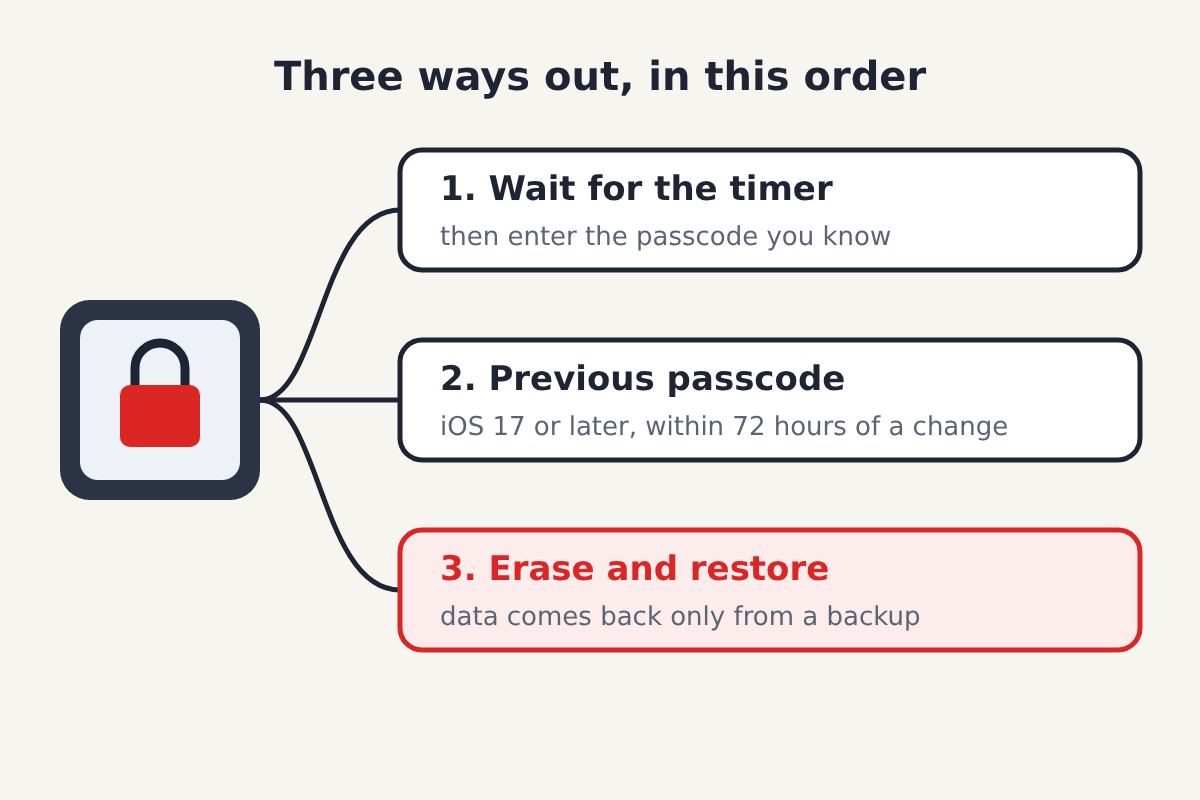
Stop entering guesses. If the screen shows a timer such as "try again in 15 minutes", wait it out, then try only the passcode you are most confident about. The waiting periods get longer with each wrong attempt, from a minute up to an hour, and after enough failures the iPhone stops offering a timer at all.
If you still know your passcode (a child or pocket presses may have caused the lockout), waiting and then entering it carefully is all you need to do.
If you changed your passcode in the last 72 hours
iOS 17 and later have a Passcode Reset option. For 72 hours after you change your passcode, you can use the old one to get in:
- On the Unavailable screen, tap Forgot Passcode? in the bottom corner.
- Tap Enter Previous Passcode and enter your old passcode.
- Follow the steps to set a new passcode.
Your data stays intact this way. After the 72 hours, the old passcode no longer works.
If you have forgotten the passcode
There is no way to remove a forgotten passcode without erasing the iPhone. That is the point of the passcode: it protects your data from anyone who picks up the phone, including you if you can't prove it's yours. What you get back afterwards depends on whether you have a backup in iCloud or on a computer.
Erase from the Lock Screen
This is the simplest route if the iPhone is connected to Wi-Fi or mobile data and you know your Apple Account password (formerly Apple ID).
- Keep entering the passcode until the Unavailable or Security Lockout screen shows an option in the bottom corner: Forgot Passcode? on iOS 17 and later, or Erase iPhone on iOS 15.2 to iOS 16.
- On iOS 17 and later, tap Start iPhone Reset.
- Enter your Apple Account password to sign out, then confirm to erase all content and settings.
- When the iPhone restarts, follow the setup steps and restore from your backup.
Erase with a computer (recovery mode)
Use this if the iPhone has no network connection or the erase option doesn't appear. You need a Mac with Finder, or a Windows PC with the Apple Devices app or iTunes.
- Make sure the iPhone isn't connected to the computer, then turn it off.
- Find the right button for your model: the side button on iPhone 8 and later (including iPhone SE 2nd and 3rd generation), the volume down button on iPhone 7, or the Home button on iPhone 6s and earlier and iPhone SE (1st generation). Hold that button while you connect the iPhone to the computer, and keep holding it until the recovery mode screen appears.
- On the computer, find the iPhone and choose Restore. The computer downloads the software and erases the iPhone.
- If the download takes longer than about 15 minutes, the iPhone leaves recovery mode on its own; repeat step 2.
After either method, Activation Lock asks for the Apple Account and password that were on the iPhone before. That is expected and proves the phone is yours.
Preventing another lockout
- Turn on a passcode you can remember but others can't guess, and keep Face ID or Touch ID on so you rarely type it.
- Check that iCloud Backup is on in Settings > [your name] > iCloud > iCloud Backup, so an erase costs you very little.
- Decide deliberately about Settings > Face ID & Passcode > Erase Data. It protects a lost phone, but with small children around it can turn a game into a full wipe.
Watch out for unlock scams
If you are offered a paid service, a download or a phone number that promises to remove the lock without erasing, it is a scam. Never pay for an unlock with gift cards, and never install remote-access software for a stranger. If the iPhone isn't yours, return it to its owner or hand it in: Activation Lock means it can't be set up without their account, and nobody legitimate can remove that for you.
