qBittorrent "No direct connections" (orange flame icon): what it means and how to fix it
In short
qBittorrent's orange flame and "No direct connections" message mean no other peer has connected to you yet. Sometimes you just need to wait. Otherwise, check the listening port, your firewall, your router and any VPN, in that order.
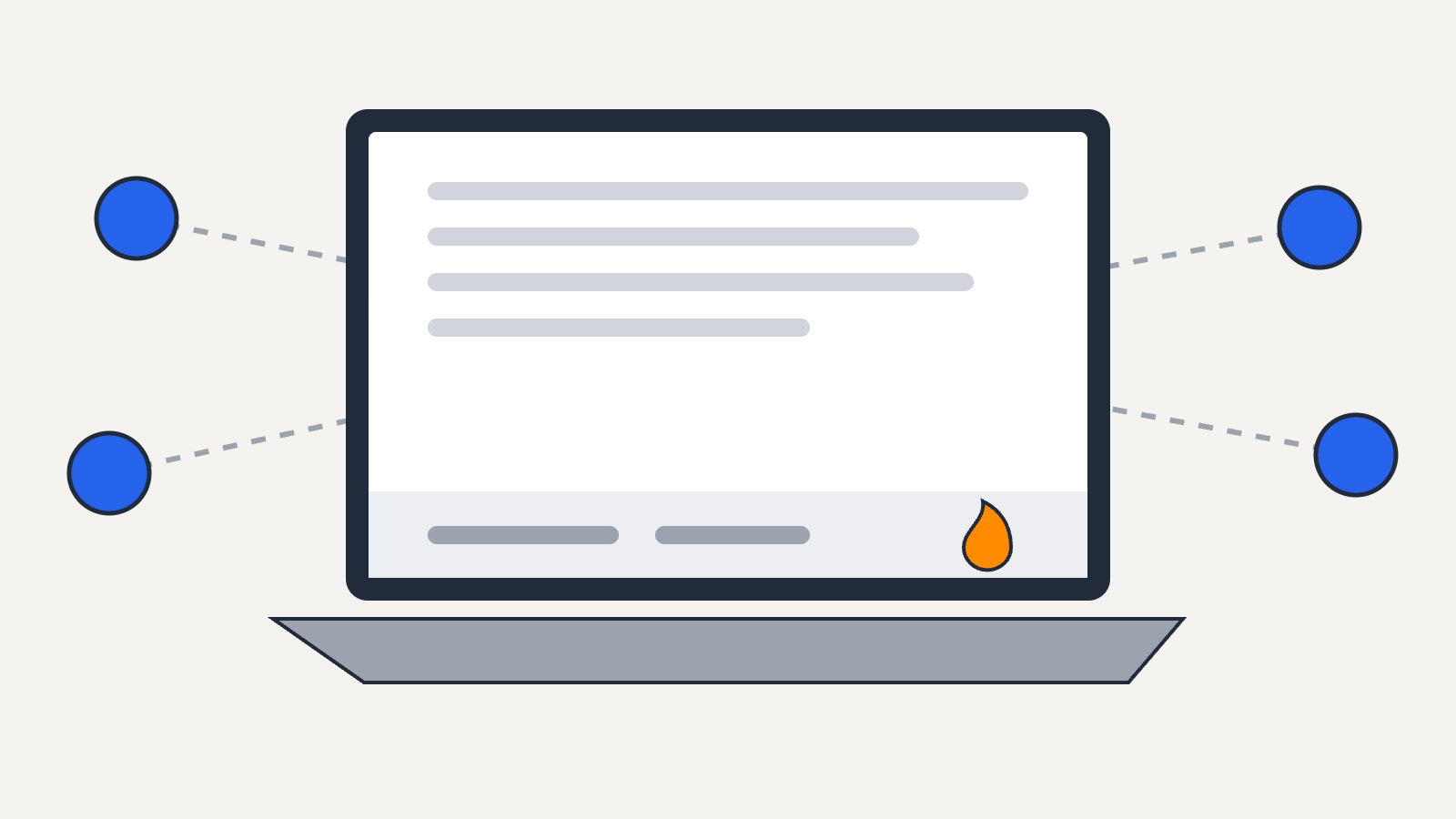
The orange flame in qBittorrent's status bar, with the tooltip Connection Status: No direct connections. This may indicate network configuration problems, means no other computer has connected in to your copy of qBittorrent since it started. It's an "ignore or fix when convenient" message. Your transfers can still run over connections your computer starts, though you may see fewer peers and slower speeds.
This applies to current qBittorrent versions on Windows, macOS and Linux. The wording and the logic behind it come from qBittorrent's own source code, which is public on GitHub, and from the documentation for libtorrent, the library it uses for transfers.
BitTorrent is a peer-to-peer system used legally for things like Linux downloads and openly licensed media. Downloading copyrighted material without permission is a separate matter, and nothing here is about hiding that activity.
What the three icons mean
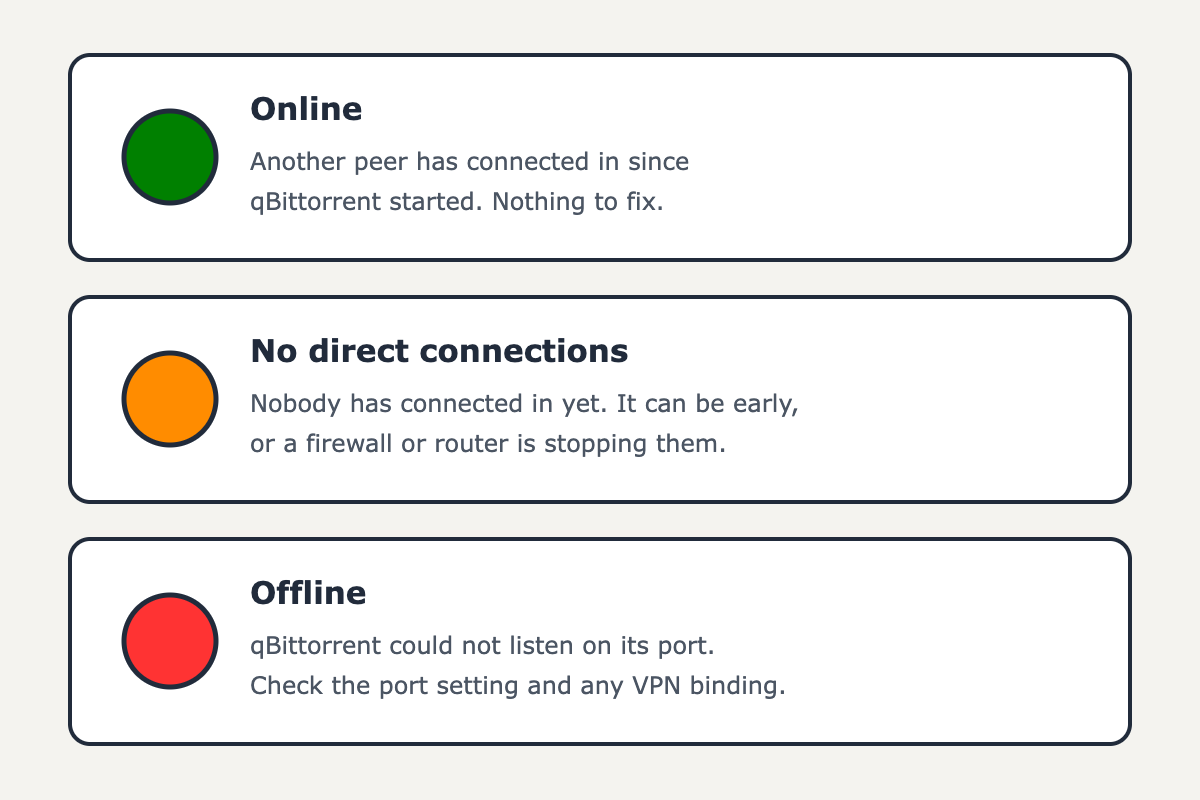
In a peer-to-peer swarm, every computer tries to connect to others directly. Two computers can connect if at least one of them can accept incoming connections. If you can't, you can still reach anyone who can, but you and another blocked peer usually can't reach each other.
Here's the detail most guides miss. The flame isn't the result of a test. libtorrent's flag starts as false and flips to true when the first incoming connection is made, and it exists to tell whether the client is behind NAT. So a perfectly set up computer shows the flame just after launch, or when nothing is active. Add an active torrent with plenty of peers and give it several minutes before you change anything.
Fix it in this order
Check after each step. Restart qBittorrent when you change a setting, because the flag starts again from the beginning.
1. Check the listening port
Open Tools > Options > Connection (on a Mac, look under the qBittorrent menu if it isn't there). Under Listening Port, note the number beside Port used for incoming connections. Pick a fixed number rather than changing it often, or you'll have to redo your router setup each time. Leave Use UPnP / NAT-PMP port forwarding from my router ticked, since this lets qBittorrent ask a compatible router to open the port itself. That one tick fixes it on many home networks, as long as UPnP is on in the router.
2. Check your computer's firewall
If you clicked Cancel on the Windows alert when you first ran the app, Windows made block rules for it and won't ask again. Our guide to the "blocked some features of this app" alert shows how to find and remove them.
On a Mac, if the firewall is on, System Settings > Network > Firewall > Options needs qBittorrent set to allow, and Block all incoming connections needs to be off. Our guide to the Mac incoming connections alert has the steps. Third-party security suites have firewalls of their own, so check there too.
3. Forward the port on your router
If UPnP isn't working or is off, forward the port by hand.
- In your router's settings, reserve a fixed local address for your computer (often called DHCP reservation).
- Find the port forwarding page, and forward the qBittorrent port, for both TCP and UDP, to that address.
- Save, then restart qBittorrent.
Your router's manual has the exact menu. Avoid the DMZ setting here. It exposes the whole computer to the internet when you only need one port open. A forwarded port is only reachable while an app is listening on it, but if you stop using qBittorrent, remove the rule anyway.
4. Check for double NAT or a shared address
If you've done all that and nothing connects, your router may not have a public address. Compare the WAN address on your router's status page with what a "what is my IP" site shows. If they differ, your connection passes through a second layer of address translation, from a provider gateway or from the provider itself, and your forwarded port never gets the traffic. Our guide to double NAT and strict NAT is written for Xbox owners, but the router checks and the bridge mode fix apply here too.
5. Check your VPN
With a VPN on, your router's port forwarding doesn't apply, because incoming connections reach the VPN's server first. Unless your VPN offers port forwarding, seeing the flame is normal, and no setting in qBittorrent will change that. If it does, use the port it assigns you as the listening port.
If the icon is red
A red icon reads Offline. This usually means that qBittorrent failed to listen on the selected port for incoming connections. That's a different fault: the app can't open the port on your own computer. Common causes are another app already using that port, or qBittorrent being tied in Options > Advanced to a network interface that's gone, such as a VPN that's disconnected. Try another port, check the interface setting, and restart the app.
Should you worry about it?
Not if your transfers are moving at a speed you're happy with. Fixing the flame helps you connect to more peers, which matters most on torrents with few people sharing. The flame says nothing about your computer's safety, and you don't need extra software to fix it.
An email or a pop-up that demands payment over your downloads, or offers to fix your connection for a fee, deserves suspicion. Contact your provider using the number on your bill, never one from the message, and treat a phone number in a browser pop-up as you would any fake virus warning.
Sources: qBittorrent source code on GitHub (status bar and options dialog); libtorrent documentation, session statistics (net.has_incoming_connections).
