"Do you want the application to accept incoming network connections?" on Mac: Allow or Deny
In short
The macOS firewall shows this alert when something tries to connect to an app it has no rule for. When to click Allow, when to click Deny, how to change your answer later, and how it differs from the local network prompt.

The alert Do you want the application "App Name" to accept incoming network connections? means the macOS firewall is on and something is trying to connect to that app, so your Mac wants to know whether to let it through. The urgency is low. Your Mac is holding the connection back while it waits, and you can take a moment to decide.
You'll see it on Macs with the firewall turned on, with the buttons Deny and Allow and a line saying that clicking Deny may limit the application's behavior. The steps here apply to current macOS versions, where the setting lives in System Settings under Network, and follow Apple's Mac User Guide pages "Block connections to your Mac with a firewall" and "Change Firewall settings on Mac". Older versions keep the same option under Security & Privacy.
Why it appears
Apple says that when your Mac detects an attempt to connect to an app you haven't added to the list and given access, an alert asks whether to allow or deny it. Until you act, the message stays on screen and connection attempts to that app are denied.
Plenty of normal Mac apps need this. Peer-to-peer tools are the obvious group, because other computers connect straight to yours: file transfer and sync apps, torrent clients and some games. Screen-sharing tools, media servers and developer tools that run a small local server do it as well. On a PC, the same kinds of app trigger the Windows Defender Firewall alert, which asks a similar question with different buttons.
An app can get past this alert without you seeing it. Apple's firewall options include automatically allowing built-in software and downloaded signed software to receive incoming connections, and these apps join the allowed list without asking you. Apps that do trigger the alert are often the ones not covered by those settings, or you may have those options switched off.
Allow or Deny?
Click Allow if you just opened the app, you know where it came from, and what you're doing explains the request. Hosting a game for friends, sending a file to another computer or letting your TV reach your media library all fit.
Click Deny if you don't recognise the app, it wasn't open as far as you know, or the name is odd. A Deny is cheap. At worst, a feature in that app stops working, and you can reverse the decision in under a minute. Apple notes that blocking an app's access could interfere with the app or with other software that depends on it, so if something breaks later, this is one place to check.
If you don't recognise the name at all, look for the app in your Applications folder and check when you installed it. Remove anything you can't account for. Be wary of a download you were talked into by a website, and see our explanation of Mac apps that Apple cannot check for malicious software for how macOS treats apps from outside the App Store.
Don't confuse it with the local network prompt
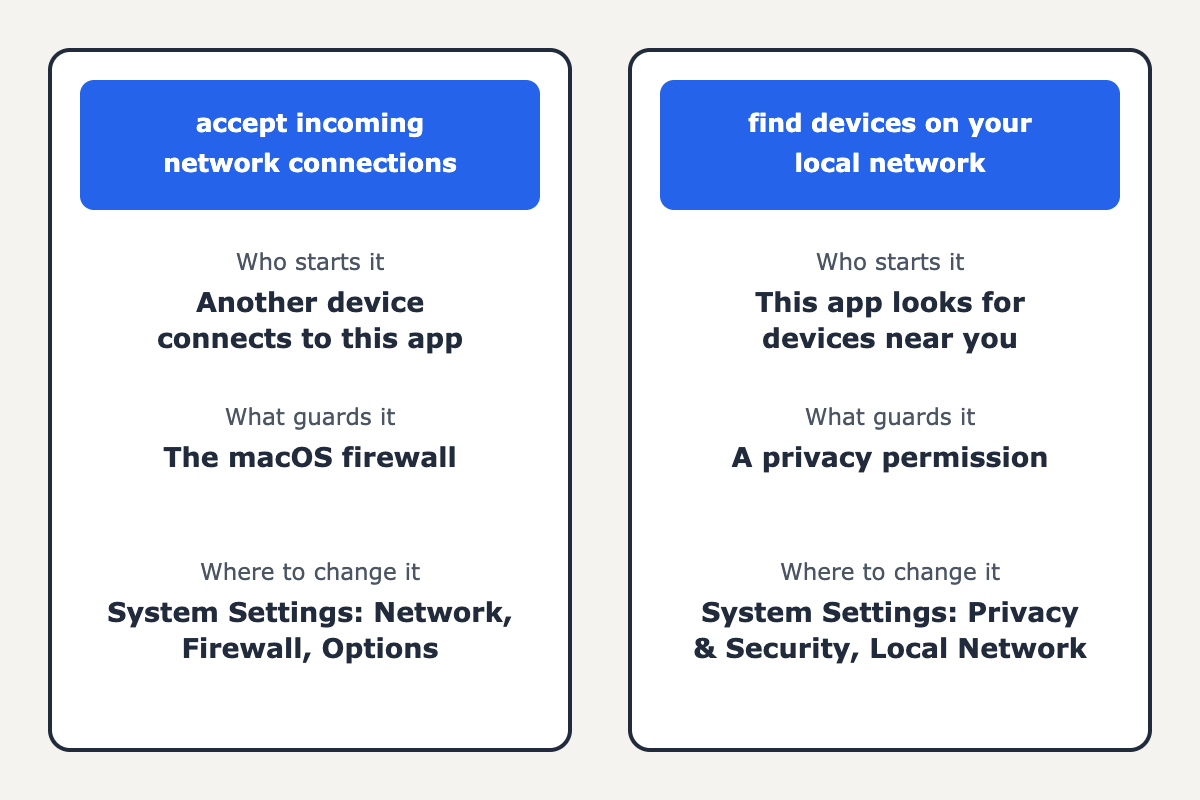
Recent versions of macOS have a second, similar-sounding prompt asking whether an app may find devices on your local network. That one comes from a privacy setting, and Apple documents it separately. If an app can't see your printer, speaker or a nearby computer even though the firewall allows it, the local network permission is the next place to look: System Settings > Privacy & Security > Local Network, then turn the app on.
How to change your answer
Apple's steps for changing a firewall decision:
- Choose Apple menu > System Settings, click Network in the sidebar, then click Firewall.
- Click Options. If the button is greyed out, the firewall is off, so turn it on first.
- Find the app in the list. Click its up and down arrows to choose whether to allow or block incoming connections. If it's missing, click the add button under the list and select it.
- Click OK, then quit and reopen the app.
If an app still can't take connections, check the top of that same Options window. Block all incoming connections prevents incoming connections to everything except basic internet services, and Apple says it also shuts out sharing services. It overrides what you set for individual apps, so a lot of "my allowed app still doesn't work" cases end right here. Turn it off if an app needs to take connections, and turn it back on when nothing needs to reach your Mac.
If the alert keeps coming back
Sometimes the same question appears each time you open an app. Add the app to the Options list yourself (step 3 above) and set it to allow. If it still returns, delete the app and install a fresh copy from the developer's own site, then choose again. Check that you're opening the installed copy in Applications, and not a copy inside a disk image or your Downloads folder, since these are separate files to macOS.
For a work Mac, ask your IT team first. Managed Macs can have firewall settings locked by policy, and an option you can't change usually means exactly that.
When to be suspicious
The real alert is a small macOS system window with only Deny and Allow. It doesn't show a phone number, ask for payment or tell you to install anything. If a web page shows you a security warning with any of those, close the page: our guide to the fake virus warning pop-up with a phone number explains how, and you should never give a stranger remote access to your Mac.
Sources: Apple Mac User Guide, "Block connections to your Mac with a firewall", "Change Firewall settings on Mac" and "Control access to your local network on Mac".
