"Windows Defender Firewall has blocked some features of this app": Allow access or Cancel?
In short
This Windows 10 and 11 alert means an app wants to accept connections from other devices. How to decide between Allow access and Cancel, which network box to tick, and how to undo the choice if the app stops working.
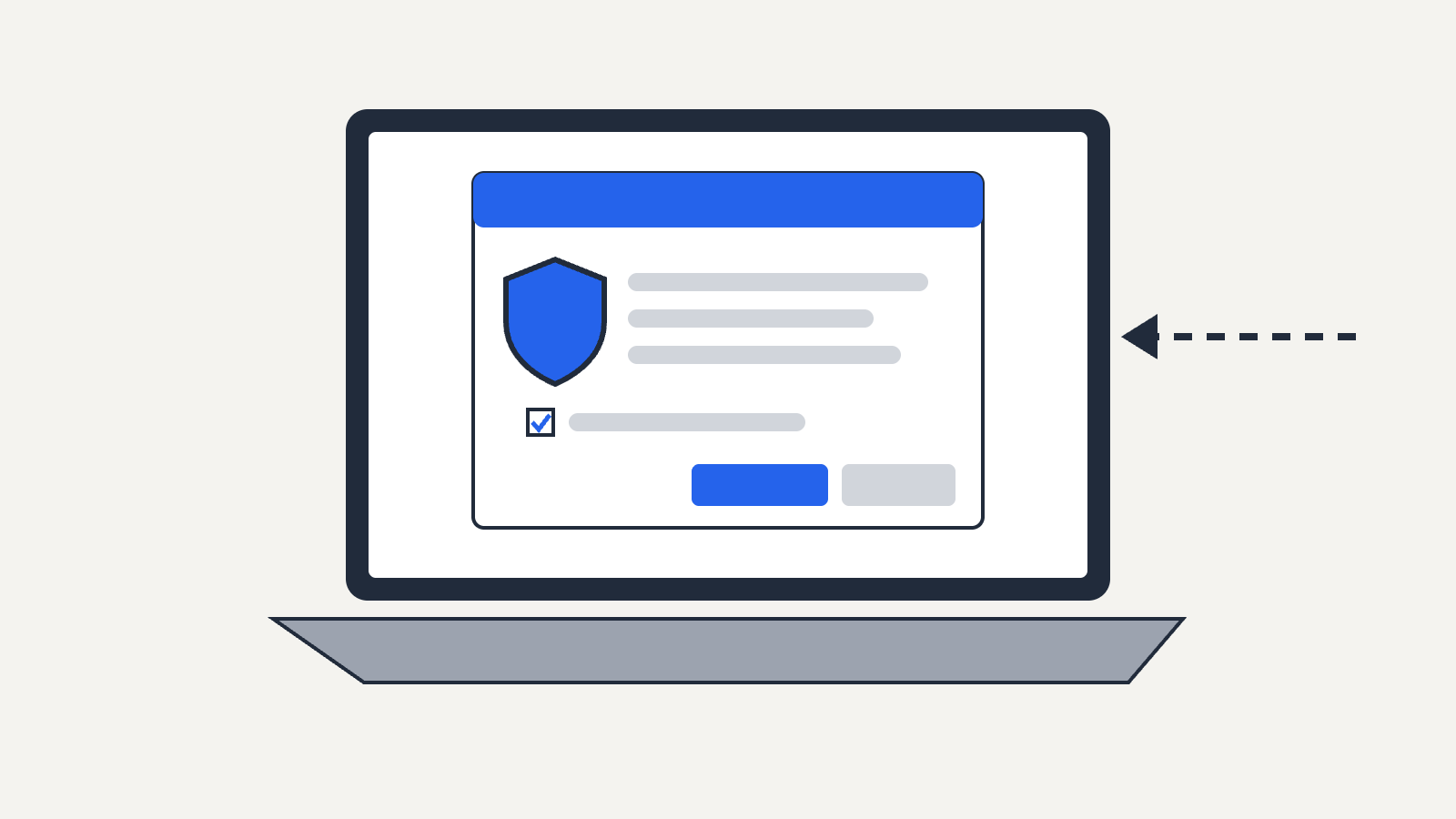
The alert "Windows Defender Firewall has blocked some features of this app" means an app on your PC has asked to accept connections from other devices, and Windows wants your decision before letting them in. The urgency is low: nothing has been damaged and your PC isn't under attack. But you do have to choose, and the choice sticks until you change it.
It appears on Windows 10 and Windows 11 in a box titled Windows Security Alert, and recent versions may say "Windows Firewall" instead. The box names the app, its publisher and its path, and offers two tick boxes (Private networks and Public networks) with the buttons Allow access and Cancel. What follows is based on Microsoft's "Windows Firewall rules" page on Microsoft Learn.
Why it appears
A firewall's default is to block connections that start outside your PC. Microsoft says that when a network app first starts listening, Windows has a default block action for inbound traffic, so the app needs an exception. If the app's installer didn't add one, you get this prompt.
Plenty of normal software needs inbound connections. Peer-to-peer apps are the classic case, because each computer connects straight to the others with no central server in between: file sharing clients, some multiplayer games, and some call and screen-sharing tools. Anything that serves your own files to other devices at home, such as a media server, needs them too.
The alert doesn't mean the app has lost the internet. Windows blocks inbound connections by default; outbound connections the app starts itself are normally allowed. So after you click Cancel, the app may carry on working for most things, while a feature that relies on others reaching you won't.
How to decide
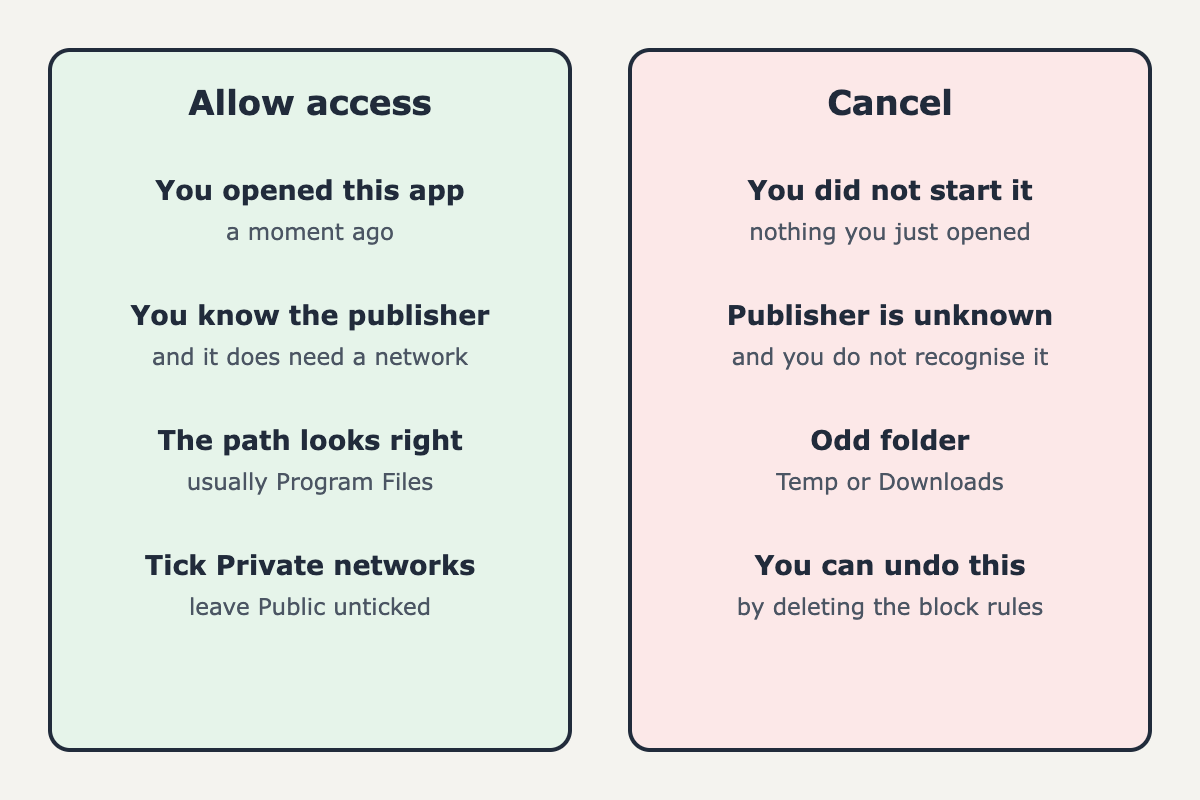
Look at three things in the box before you click.
- Did you just do something that explains it? The alert normally appears the first time an app runs or tries to use the network. If you just opened a game or a call app, that's your answer.
- Is the publisher one you recognise? Some legitimate small apps show as Unknown, so this is a clue and doesn't settle it alone.
- Does the path look right? Installed apps usually live under
C:\Program FilesorC:\Program Files (x86). Be more careful with a path in a Temp or Downloads folder, particularly for an app you never meant to run.
If all three look fine, tick Private networks and click Allow access. Leave Public networks unticked unless you need this app to accept connections on café, hotel or airport Wi-Fi. The box itself warns that public networks often have little or no security, and most people have no reason to open an app up there.
If something looks off, click Cancel, then run a scan with Microsoft Defender (Windows Security > Virus & threat protection > Quick scan). Don't try to clear the alert by turning the firewall off. That removes the protection for every app on the PC when you only wanted to answer for one.
What Cancel really does
Cancel does more than close the box. Microsoft says that if you respond no or cancel the prompt, Windows creates block rules for the app, typically one each for TCP and UDP. If you aren't an administrator on the PC, block rules are created whichever option you pick. That catches people out on a family PC: you clicked Allow, nothing changed, and the fix has to come from an administrator account.
Those rules are also why the alert never returns. Microsoft says that once the rules exist they must be deleted before the prompt can appear again. Until then the traffic stays blocked and you get no warning, which looks like a broken app.
Fix it if you chose wrong
Work down this list, simplest first.
- Check the network type. If you allowed the app on Private only and it still fails at home, Windows may be treating your home network as Public. In Windows 11, go to Settings > Network & internet > Wi-Fi > your network's properties and look at the network profile type. Set it to Private only for a network you trust.
- Change the app's permission. Open Control Panel > Windows Defender Firewall > Allow an app or feature through Windows Defender Firewall, and click Change settings. Find the app and tick Private. You can reach the same list from Windows Security > Firewall & network protection > Allow an app through firewall.
- Delete leftover block rules. If it's ticked and still blocked, a block rule is probably winning, since Microsoft says explicit block rules take precedence over conflicting allow rules. Press Windows + R, type
wf.msc, press Enter and select Inbound Rules. Look for entries with the app's name and a red block icon, and delete those. The next time the app listens, you should get the prompt again. - Reinstall the app. If you can't find the rules, or the app was moved, reinstall it from the maker's own site. Microsoft notes that application rules use the app's full path, so a rule made for an old location won't cover a new one.
Restore defaults, in the same Control Panel page, wipes every custom firewall rule on the PC. It's a last resort and other apps may prompt you again afterwards. If this is a work or school PC, stop at step 1 and ask your IT team, because their policies can override these settings.
When the alert is suspicious
The real alert is a small system window with tick boxes and two buttons. It never shows a phone number, asks for payment or tells you that you are infected. A browser page that does any of those things is a scam, and our guide to the fake virus warning pop-up with a phone number covers closing one safely. Never install remote-access software because a pop-up told you to.
If an app you allowed still can't reach other devices, the hold-up may be further along, in your router or your internet connection. Start with whether the problem is your router, your provider or your device.
Source: Microsoft Learn, "Windows Firewall rules".
