Mac app "can't be opened because Apple cannot check it for malicious software": what to do
In short
Gatekeeper couldn't confirm the app comes from an identified developer and was checked by Apple. How to decide whether to open it, the supported Open Anyway route on macOS Sequoia, and when to delete it.
This message means your Mac's built-in security check, Gatekeeper, couldn't confirm that the app you're opening comes from a developer Apple has identified and has been checked by Apple for known malware. It doesn't mean the app is malware, but it is a "stop and check" message: only open the app if you know exactly where it came from and trust that source.
The wording depends on your macOS version. You may see:
- "AppName" can't be opened because Apple cannot check it for malicious software.
- "AppName" cannot be opened because the developer cannot be verified.
- On macOS Sequoia (15) and later, "AppName" Not Opened, with a note that Apple could not verify it is free of malware that may harm your Mac or compromise your privacy.
All three come from Gatekeeper, and Apple's support article "Safely open apps on your Mac" covers them.
Why your Mac blocks the app
By default, macOS lets you open apps from the App Store and from identified developers. Developers outside the App Store can sign their apps with an Apple Developer ID and submit them to Apple for notarization, an automated scan for malicious content. When an app you downloaded has neither, or has been changed since it was signed, Gatekeeper stops it on first launch and shows this message.
You can see the setting behind this in System Settings > Privacy & Security, under Security, where "Allow applications from" is set to App Store, or to App Store and identified developers. Leave it on the second option. It already covers most legitimate software outside the App Store, and recent versions of macOS no longer offer a choice to allow apps from anywhere in that menu.
Common reasons a legitimate app is blocked:
- It is old, from before notarization was required, or no longer maintained
- It comes from a small or open-source developer who doesn't pay for an Apple Developer account
- It was downloaded from a mirror or a third-party download site instead of the developer's own page, and may have been repackaged
And the reason that matters most: some apps are blocked because they really are unsafe. Gatekeeper can't tell you which kind you have.
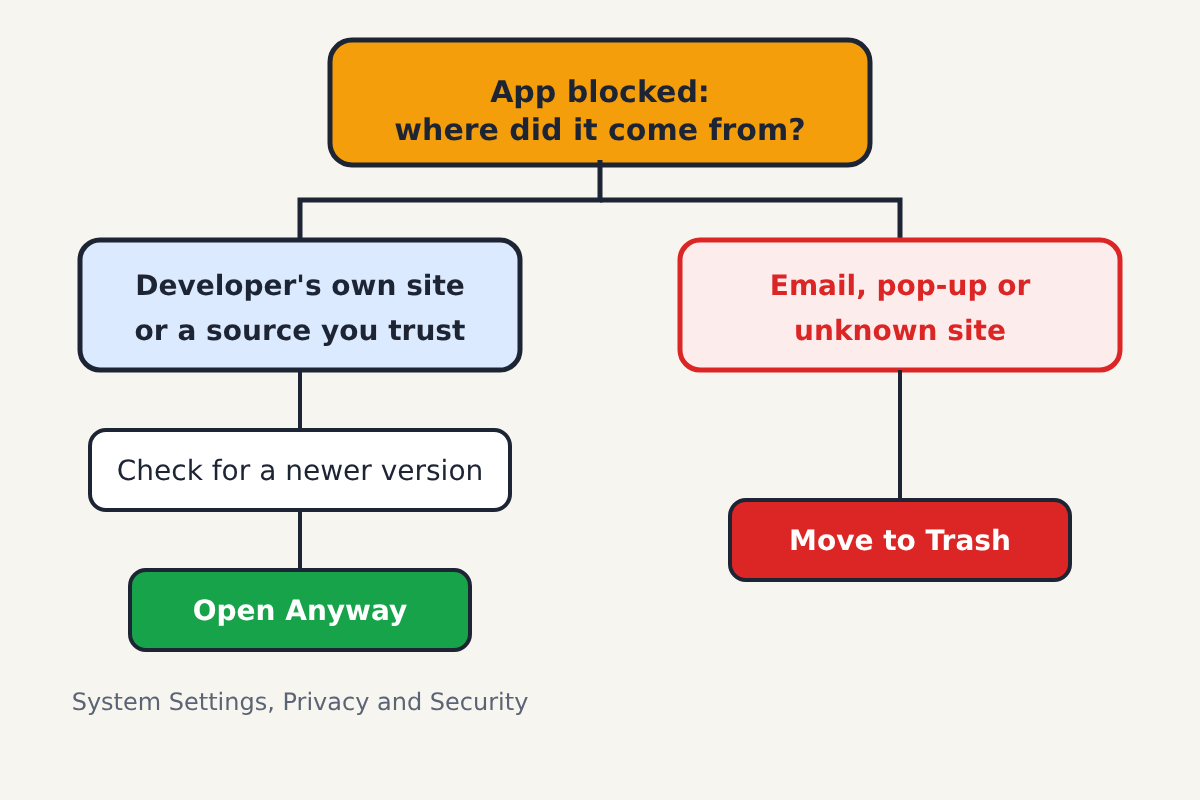
Should you open it?
Ask where the file came from before anything else.
If you downloaded it from the developer's official website, or someone you trust (such as your workplace's IT team) gave it to you, it is reasonable to open it after a quick check: see whether the developer offers a newer, notarized version or an App Store version, and make sure the site you used is the developer's real one, not a lookalike from a search ad.
If it arrived in an email, a messaging app, a pop-up telling you to "update your player", or a download site you don't recognise, don't open it. Move it to the Trash and empty the Trash. Fake video players, codec packs and "cleaner" apps are a common way malware reaches Macs.
How to open an app you trust
Apple provides a supported way to open a blocked app you've decided to trust, without lowering your Mac's security settings for everything else:
- Try to open the app once, and close the warning (click Done or OK, not Move to Trash).
- Open System Settings > Privacy & Security and scroll down to the Security section.
- You'll see a message that the app was blocked, with an Open Anyway button. Apple says the button is available for about an hour after you try to open the app.
- Click Open Anyway, enter your Mac's login password, and confirm.
macOS remembers your choice for that app, so you won't be asked again unless the app changes. On macOS Sequoia and later, this route through System Settings is the way to do it; the older shortcut of Control-clicking the app and choosing Open no longer skips the check.
Avoid instructions from forums that tell you to turn off Gatekeeper entirely or paste Terminal commands to strip the security flags from apps. They remove protection for every app you download afterwards, not just the one you trust.
When the message is different
Two related messages call for a different response:
- "AppName" is damaged and can't be opened. You should move it to the Trash. The download may be incomplete or the app altered. Delete it and download a fresh copy from the developer's own site. If a fresh copy shows the same message, contact the developer.
- "AppName" will damage your computer. This means macOS has recognised known malware. Move it to the Trash straight away and don't try to open it.
If the app came with a pop-up urging you to call a support number, that is part of a fake virus warning scam, and you shouldn't call or install anything it suggests.
