"Moisture detected" on a Samsung Galaxy: why it won't charge and how to fix it
In short
The water-drop "Moisture detected" warning means your Galaxy sensed water or debris in its USB-C port and stopped wired charging. How to dry it, charge in the meantime and when it needs a repair.
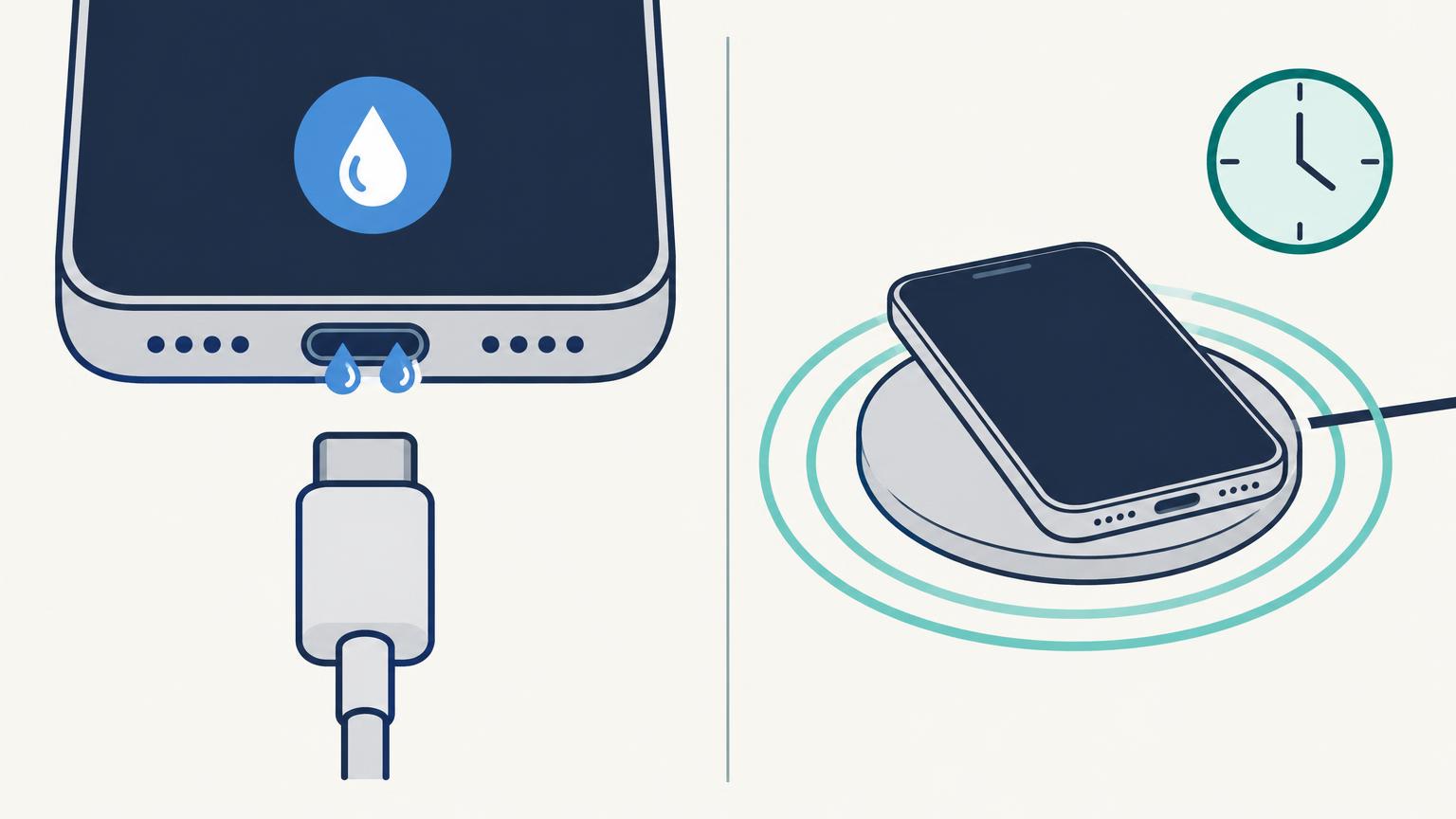
The "Moisture detected" warning on a Samsung Galaxy phone means the phone has sensed water, sweat or something conductive (often lint or dirt) in its USB-C port, and it has stopped wired charging to protect the port and the phone. It usually shows as a notification with a water-drop icon, and the exact wording varies by model and One UI version; on many phones it reads along the lines of "Moisture has been detected" or "Check your charger/USB port".
Urgency: fix soon, not an emergency. Unplug the cable now and let the port dry. The phone itself keeps working, and on most phones the warning clears by itself once the port is dry. Samsung's own support pages say the same: when there is water in the USB port or moisture above a set level, the phone will not charge through the cable.
This applies to Samsung Galaxy phones and tablets with a USB-C port running One UI, including water-resistant models. Water resistance keeps water out of the inside of the phone; the port opening itself can still get wet.
Why it appears even when the phone was never in water
The port checks for anything that conducts electricity between its pins. Common triggers:
- Rain, a wet hand, a steamy bathroom or sweat during a workout
- Condensation after moving from the cold outdoors into a warm room
- Pocket lint packed into the back of the port
- Corrosion on the pins, or a damaged cable or charger
So a warning on a dry day is not necessarily a sensor fault. It is often dirt.
How to fix it, simplest first
1. Unplug and let it dry
Disconnect the cable from the phone. Hold the phone with the port facing down and tap it gently against your palm to shake out any drops. Wipe the outside of the port and the cable's plug with a soft, dry, lint-free cloth.
Then leave it somewhere dry with good airflow. Depending on how much water got in, it can take a few hours for the warning to clear. Do not plug it back in while the warning is still showing.
Avoid shortcuts that do more harm than good:
- No hair dryer or other heat source; heat can damage the phone.
- No rice: Apple advises against it for iPhones because small particles can get into the phone, and the same goes for a Galaxy port.
- Nothing pushed into the port that could bend the pins.
2. Charge wirelessly in the meantime
Samsung notes that wireless charging is not affected by moisture or foreign material in the port. If your Galaxy supports wireless charging, dry the outside of the phone thoroughly and put it on the pad. Galaxy tablets generally do not support wireless charging, so this does not help there.
3. Check the port for lint
If the phone was dry and the warning still appeared, look into the port with a torch (flashlight). Compacted lint looks like a grey felt layer at the back. Samsung's guidance is to clean the port and the cable with a soft, clean cloth. If lint is packed in tightly, a phone repair shop or Samsung service centre can clean it without damaging the pins.
4. Restart and try a different cable and charger
A worn cable or a damaged plug can also set the warning off. Restart the phone, then try a different USB-C cable and, ideally, a Samsung or other good-quality charger. If the warning only appears with one cable, replace that cable.
5. If it keeps coming back when the port is dry
A warning that persists for a day or more with a dry, clean port and a known-good cable points to corrosion or a hardware fault in the port. That needs a repair: book it with Samsung or an authorised service centre, and check first whether the phone is still under warranty. Liquid damage can affect warranty cover, so ask before you agree to a repair.
Should you turn off moisture detection?
Some guides suggest turning off moisture detection or using a workaround to force wired charging. Do not. The check is there to stop current flowing through a wet port, which can corrode the pins and damage the phone. If the warning will not clear and you need power, use wireless charging or get the port looked at.
Related messages
iPhones show a similar warning with different steps; see what "Liquid Detected in Lightning Connector" means on iPhone. If your Galaxy charges but an app on it keeps crashing, see what "App keeps stopping" means on Android.
Sources: Samsung Support, "My device displays a water drop icon and will not charge"; Samsung Support, "How to fix moisture detect warning in your Samsung device"; Samsung Support, "What to do if there is moisture in your water-resistant Samsung phone or tablet".
