"App keeps stopping" on Android: what it means and how to fix it
In short
An app keeps stopping message means that Android app crashed. Whether one app or many are affected, and the fixes in order: restart, update, clear cache, update WebView, clear storage and reinstall, plus how to spot fake crash pop-ups.
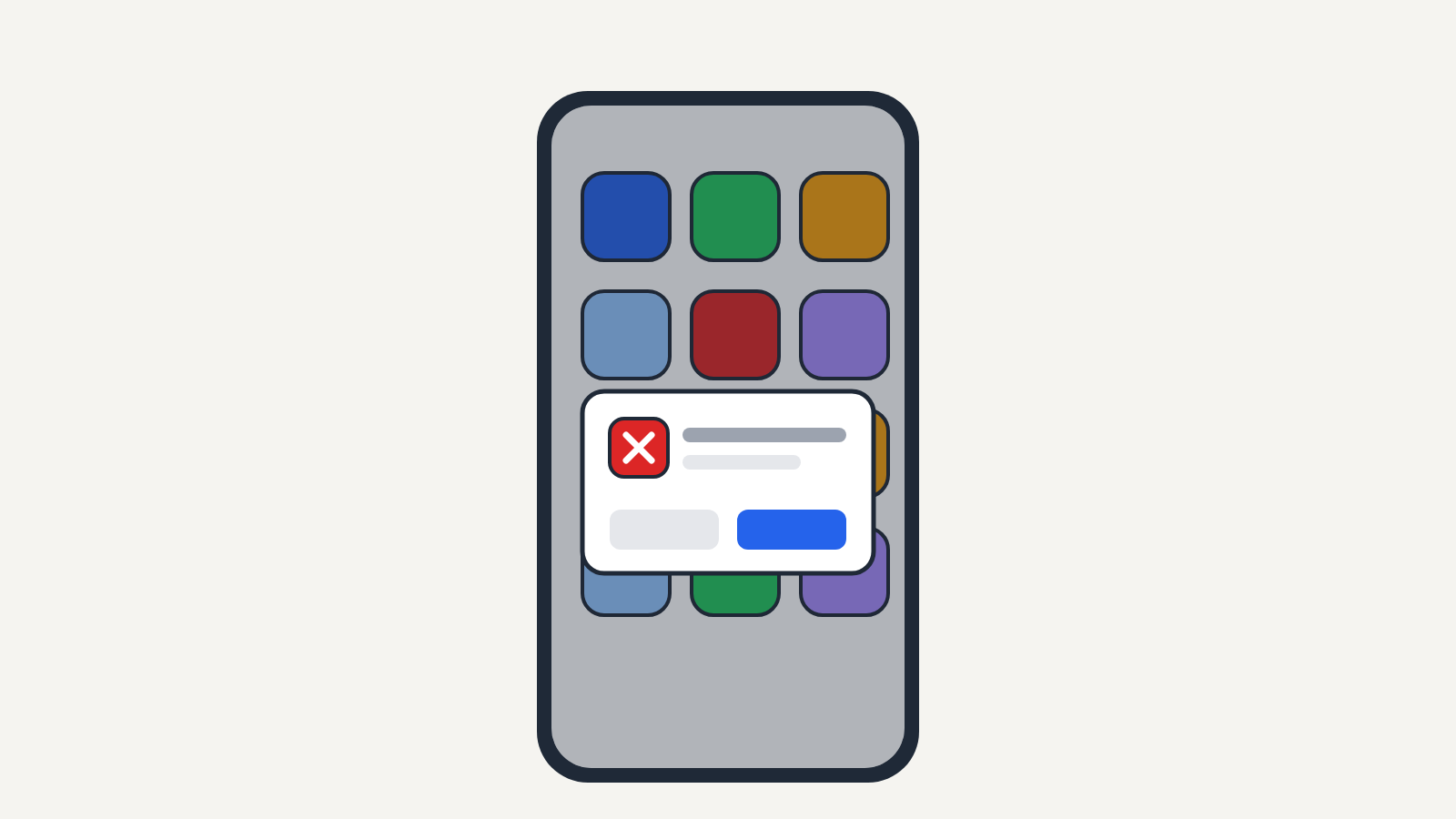
"[App name] keeps stopping" on an Android phone or tablet means that app has crashed: it ran into an error it couldn't handle and Android closed it. It's rarely urgent. If it happens once, ignore it; if it happens every time you open the app, work through the fixes below, which go from a 10-second restart to reinstalling the app. Your phone isn't damaged, and the message isn't a virus warning.
The message appears as a small box on Android 10 and later, including Samsung Galaxy (One UI), Google Pixel, Motorola, OnePlus and Xiaomi phones, with options such as App info and Close app, and sometimes Send feedback. Older phones showed "Unfortunately, [app] has stopped." The steps follow Google's Android Help article "Fix an installed Android app that isn't working"; menu names vary a little between phone makers.
Is it one app or many?
That's the first thing to work out, because it changes where the fault is.
- One app crashes: The problem is that app, its data, or an update to it. Start at step 1.
- Several apps crash at once, especially ones that show web pages inside them (email, banking and shopping apps), or a system app such as "System UI" or "Google Play services". The cause is more likely a shared part of Android. Go straight to step 4.
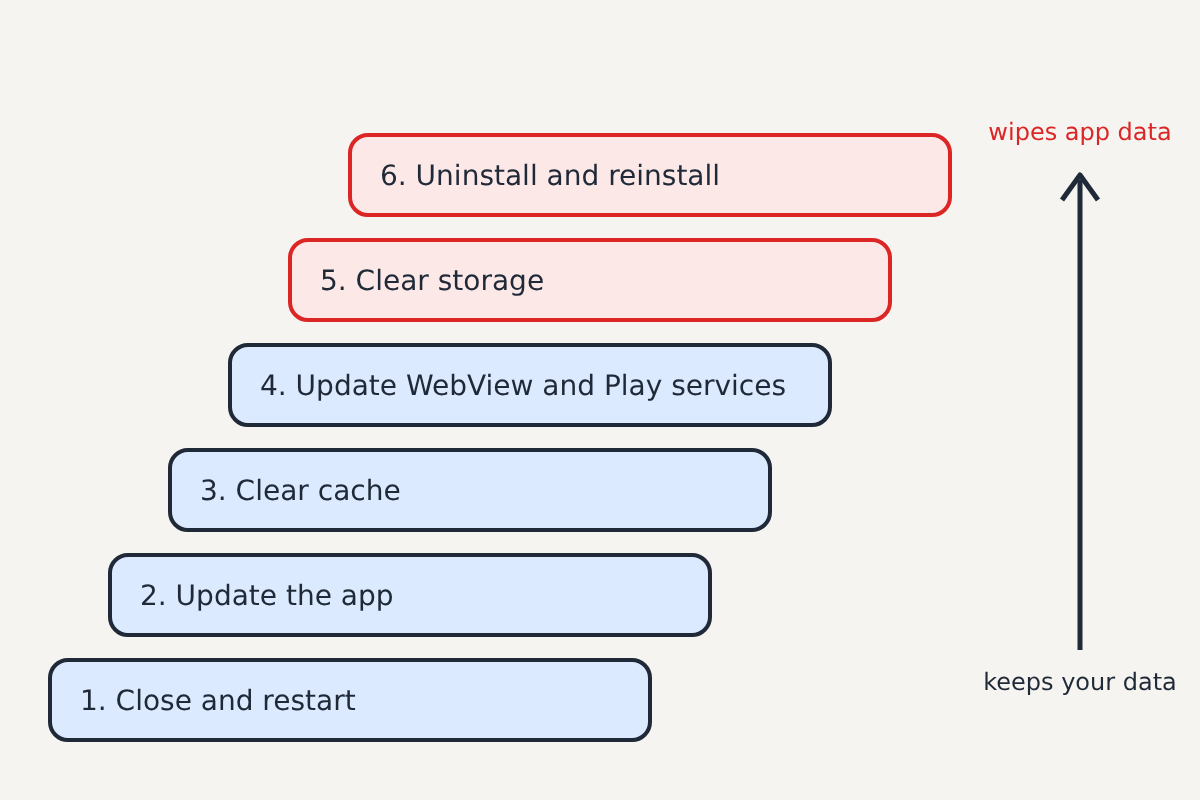
Fixes, from simplest to hardest
Test the app after each step.
1. Close the app and restart the phone
Tap Close app, then restart the phone. Google's guide also suggests holding the power button for about 30 seconds to force a restart if the phone is frozen. A restart clears out a temporary fault more often than you'd think.
2. Update the app
Open the Google Play Store, tap your profile picture, then Manage apps & device. Update the crashing app, or tap Update all. Developers often push a fix within days of a bad update, and a crash right after an app update is commonly fixed by the next one.
3. Force stop and clear the cache
Go to Settings > Apps, choose the app (tap See all apps if it isn't listed), and tap Force stop, then OK. Then tap Storage & cache (or Storage) > Clear cache. Google notes that clearing the cache only deletes temporary data, so you won't lose your settings or sign-in, though the app may be slow the first time you reopen it.
4. Update Android System WebView, Chrome and Google Play services
Many apps rely on Android System WebView to display web content. If several apps crash together, a fault there is a likely cause. In March 2021, a bad WebView update made apps such as Gmail crash on large numbers of phones; Google's fix was to update Android System WebView and Chrome from the Play Store.
Search the Play Store for Android System WebView and Google Chrome and install any updates. Then check for Android updates in Settings > System > Software update (Settings > Software update on Samsung), which also updates Google Play system components on most phones.
5. Clear storage
Back in Settings > Apps > [the app] > Storage & cache, tap Clear storage (Clear data on some phones). This resets the app to how it was when first installed. Google warns that it permanently deletes the app's data, so you'll need to sign in again, and anything the app keeps only on the phone, such as offline downloads or unsynced notes, will be gone. Check the app's own backup or sync first.
Don't clear storage for Google Play services unless everything else has failed: Google says it can remove saved information such as passwords and payment cards.
6. Uninstall and reinstall
Press and hold the app's icon, tap Uninstall (or App info > Uninstall), then reinstall it from the Play Store. For apps that came with the phone and can't be removed, App info > ⋮ > Uninstall updates returns them to the factory version.
If an app only started crashing after a recent update and reinstalling doesn't help, the update itself is likely the fault. Leave a review or use Send feedback so the developer sees it, and check the app's page on the Play Store for news of a fix.
When to go further
- A single app still crashes after all six steps: contact the app's developer through its Play Store page. The problem is in the app, not your phone.
- Many apps crash, or the phone restarts itself: check free storage (Settings > Storage) and free up space if it's nearly full, then try Safe Mode, which starts the phone with only its built-in apps. If the crashes stop in Safe Mode, an app you installed is to blame; remove recent installs one by one. Google's article "Fix an Android device that's restarting or crashing" explains how to enter Safe Mode on your phone.
- Crashes continue in Safe Mode: back up the phone and contact the phone's maker or your carrier. A factory reset may be needed, and that erases everything.
Fake crash and virus pop-ups
A real "keeps stopping" message is a small, plain box from Android itself. It never contains a phone number, never says your phone is infected, and never asks you to install anything. A page in your browser that flashes a warning, vibrates, counts down or tells you to install a "cleaner" or call support is a scam. Close the tab, don't tap anything in it, and never call the number. Our guide to the fake virus warning pop-up with a phone number explains what to do if you already did.
Sources: Android Help: "Fix an installed Android app that isn't working", "Fix an Android device that's restarting or crashing"; Google Play Help: "Keep your device & apps working with Google Play services".
