Liquid Detected in Lightning Connector on iPhone: what it means and how to dry it
In short
Your iPhone found moisture in its charging port and stopped cable charging to protect the pins. How urgent it is, how to dry the port the way Apple recommends, and what not to try.
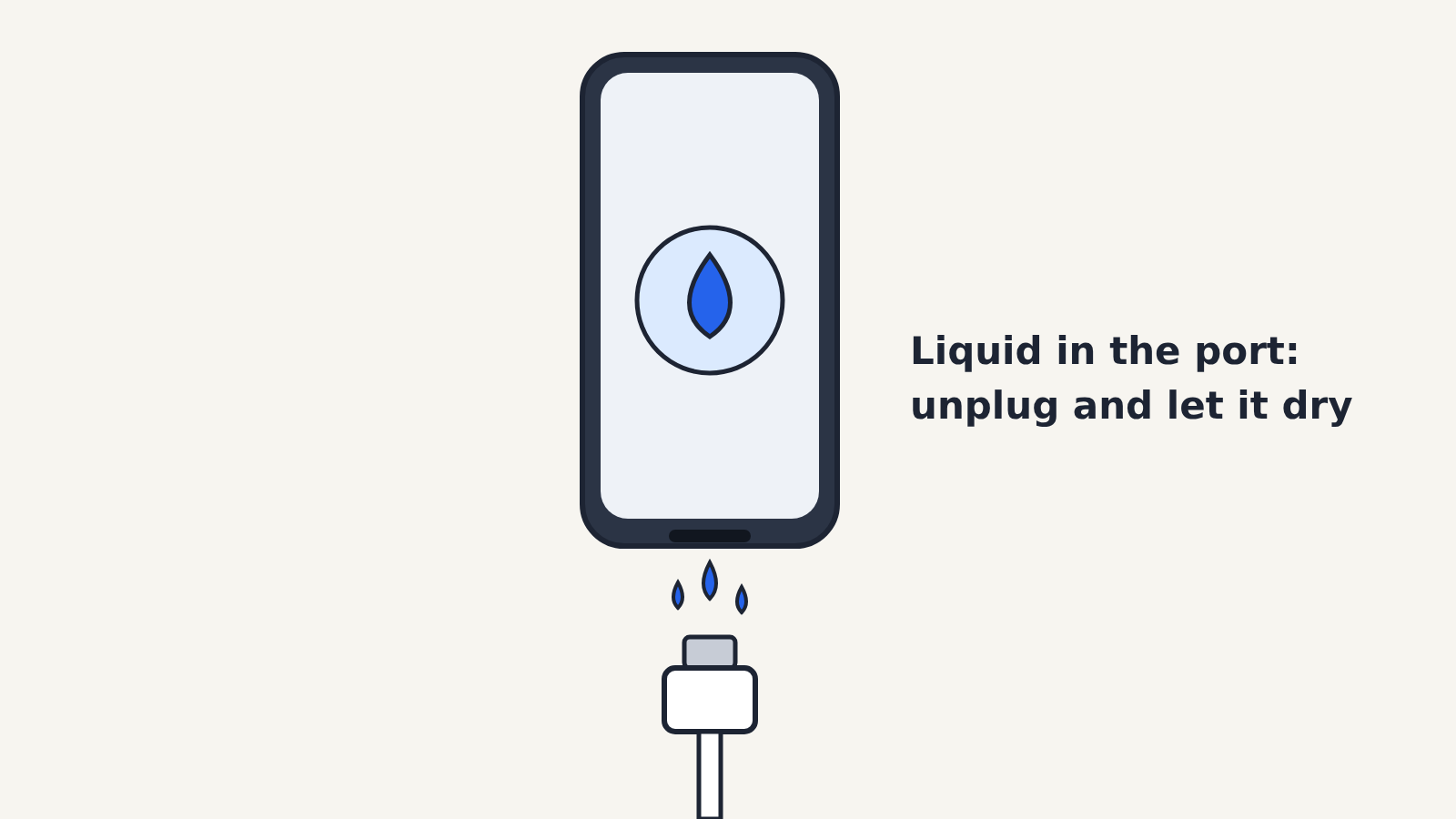
The liquid-detection alert means your iPhone has found moisture in its charging port and has stopped charging through the cable so the wet pins don't corrode. It is a "fix soon" message, not an emergency: your iPhone keeps working, and in most cases the alert clears on its own once the port dries, usually within half an hour to a day.
The alert appears on iPhone XS, iPhone XS Max, iPhone XR and later models, according to Apple's support article on liquid-detection alerts. On models with a Lightning port it names the Lightning connector; on iPhone 15 and later, which use USB-C, it names the USB-C connector. You may see it with either of these titles:
- Charging Not Available, when you plug in a charging cable
- Liquid Detected in Lightning Connector (or USB-C Connector), when you plug in a cable or another accessory
Both tell you to disconnect the cable so the connector can dry, and warn that charging now may damage your iPhone.
Why your iPhone blocks charging
Charging pushes current through the port's pins. With water, sweat or another liquid bridging those pins, the current can corrode them and the contacts on your cable. Apple warns that this can cause permanent damage or make the port or cable stop working. The alert is the phone protecting itself, so it is worth letting it do its job.
Water resistance doesn't prevent the alert. iPhone 7 and later are splash, water and dust resistant, but Apple notes that this resistance is not permanent and can wear down over time, and its warranty does not cover liquid damage.
How to dry the port, step by step
These steps follow Apple's own advice, from simplest to slowest.
- Unplug the cable and any accessory from your iPhone.
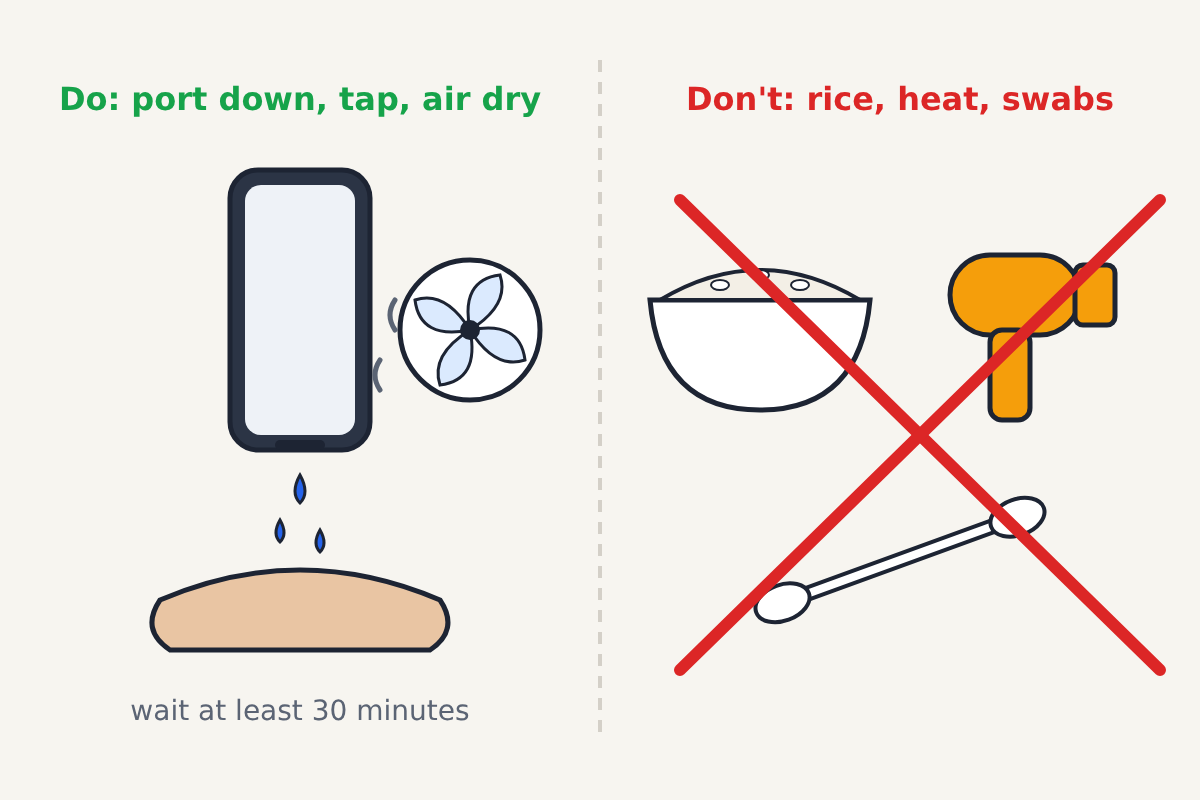
- Hold the iPhone with the charging port facing down and tap it gently against your hand to shake out excess liquid.
- Leave it somewhere dry with some airflow, such as on a table in a room with moving air.
- After at least 30 minutes, try charging again.
- If the alert comes back, there is still liquid in the port or under the pins. Leave the iPhone in a dry place with some airflow for up to a day, then try again.
- If the phone is dry and still won't charge, unplug the cable from the adapter and the adapter from the wall, then connect everything again.
What not to do
Apple lists three things to avoid, and they are the ones people try first:
- Don't use a hair dryer or any other heat source, and don't use compressed air.
- Don't push a cotton swab, paper towel or other object into the port.
- Don't put the iPhone in a bag of rice. Small particles of rice can get into the port and damage it.
Patience works better than any of these. Most ports dry within an hour or two in normal room air.
Can you charge anyway?
When the alert appears, it can offer an Emergency Override option that lets you charge through the cable regardless. Use it only if you truly need power right now, because it runs current through the wet port, which is exactly the risk the alert exists to prevent.
A wireless charger avoids the port entirely. If your iPhone supports MagSafe or Qi charging and you have a charger for it, that is a safer way to top up while the port dries.
When the alert appears and nothing got wet
Moisture isn't always obvious. Sweat or condensation on the cable end can be enough, and a damaged or dirty cable or accessory is another common suspect when the phone itself stayed dry. Try these in order:
- Try a different cable, ideally an Apple cable or one with Apple's "Made for iPhone" certification.
- Look into the port with a flashlight. Lint and dust packed into the port can cause charging problems, and the same debris is behind many cases of the "This accessory may not be supported" message.
- Restart your iPhone.
If the alert keeps coming back for more than a day on a dry phone, or appears with nothing plugged in at all, the port itself may be damaged. That needs Apple Support or an Apple Authorized Service Provider, not more drying.
