"Untrusted Enterprise Developer" on iPhone: what it means and whether to tap Trust
In short
Your iPhone or iPad blocks an app installed outside the App Store until you trust its developer. Here is how to trust a real work or school app, and why an app a stranger sent you should be deleted instead.
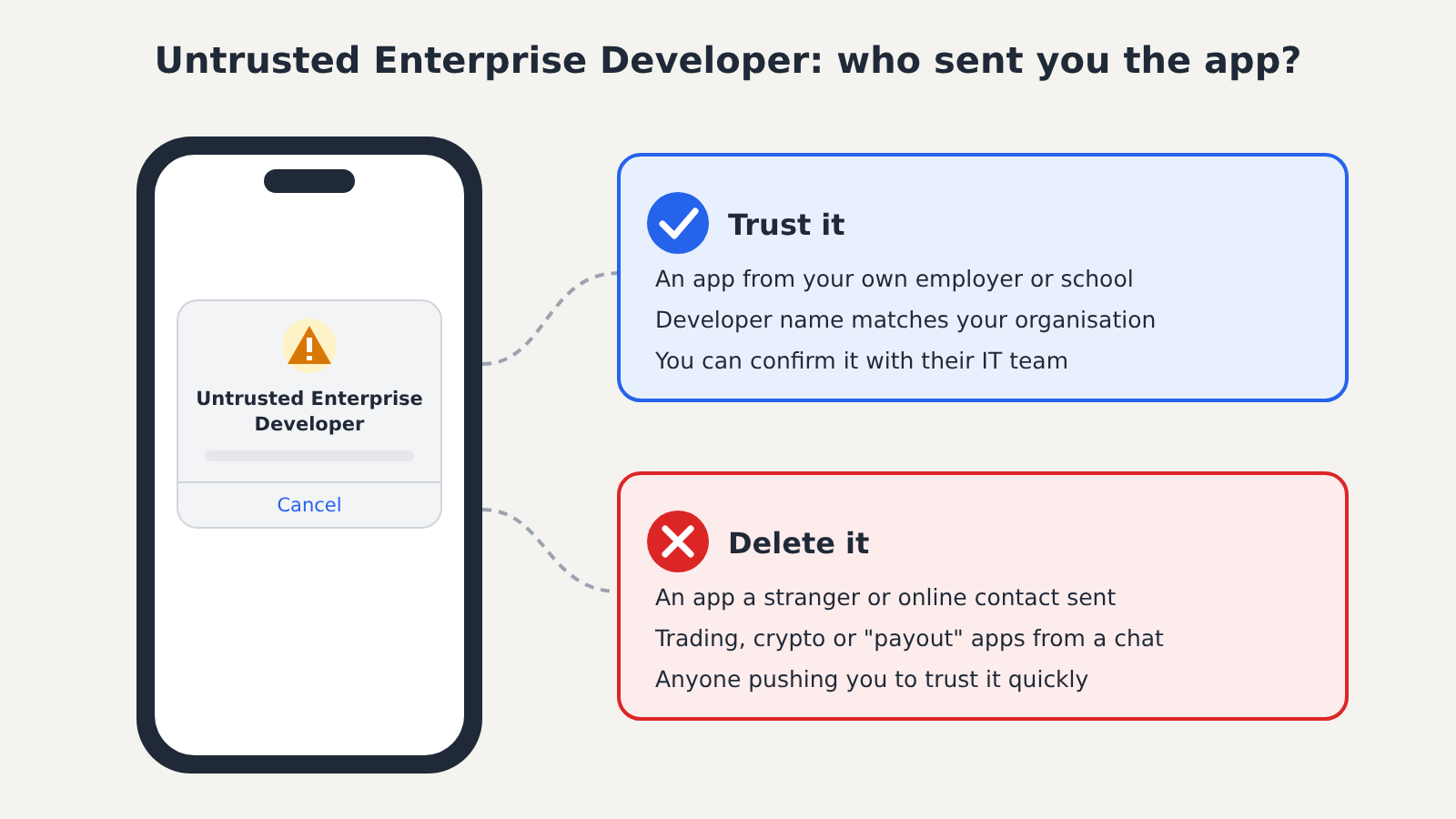
"Untrusted Enterprise Developer" means you are trying to open an app that did not come from the App Store. Someone installed it with an Apple enterprise certificate, and your iPhone or iPad won't run it until you choose to trust whoever signed it. How urgent is it? That depends on who gave you the app. A work or school app from your own IT team: fix it in a minute. An app a stranger, a new online friend or an "investment adviser" sent you a link to: do not trust it, delete it, and read the scam section below.
This applies to iPhone and iPad; the last step changed in iOS 18 and iPadOS 18. The steps come from Apple's support article Install custom enterprise apps on iOS, iPadOS, and visionOS.
What the alert is telling you
Companies, schools and other organisations can join the Apple Developer Enterprise Program to make apps for their own staff. Those apps skip the App Store and its review. The organisation either pushes them to your device with a Mobile Device Management (MDM) system, which Apple recommends and which sets up trust automatically, or posts them on a website for you to install by hand.
If you installed the app by hand, the first time you open it iOS shows the "Untrusted Enterprise Developer" alert and names the developer. Apple describes it as a notification that the developer of the app isn't trusted on your device. The app stays blocked until you tell your iPhone that you trust that developer. The alert has nothing to do with a virus, a hacked phone or a fault in iOS. It is iOS asking a question only you can answer: do you know who made this?
First, decide where the app came from
Answer this before you tap anything:
- Your employer, school or a club you belong to sent you the link, the app carries their name, and you could confirm it with someone you know there. This is the normal case. Go to the steps below.
- Someone you only know online (a dating match, a contact who messaged you out of the blue, a trading "mentor", a group chat) asked you to install it, often to invest, trade crypto or collect a payout. Do not trust it. Skip to the scam section further down.
- You are not sure? Treat it as the second case until you can check with your IT department through a number or address you already have.
How to trust a work or school app
- On the alert, tap Cancel. The app won't open yet.
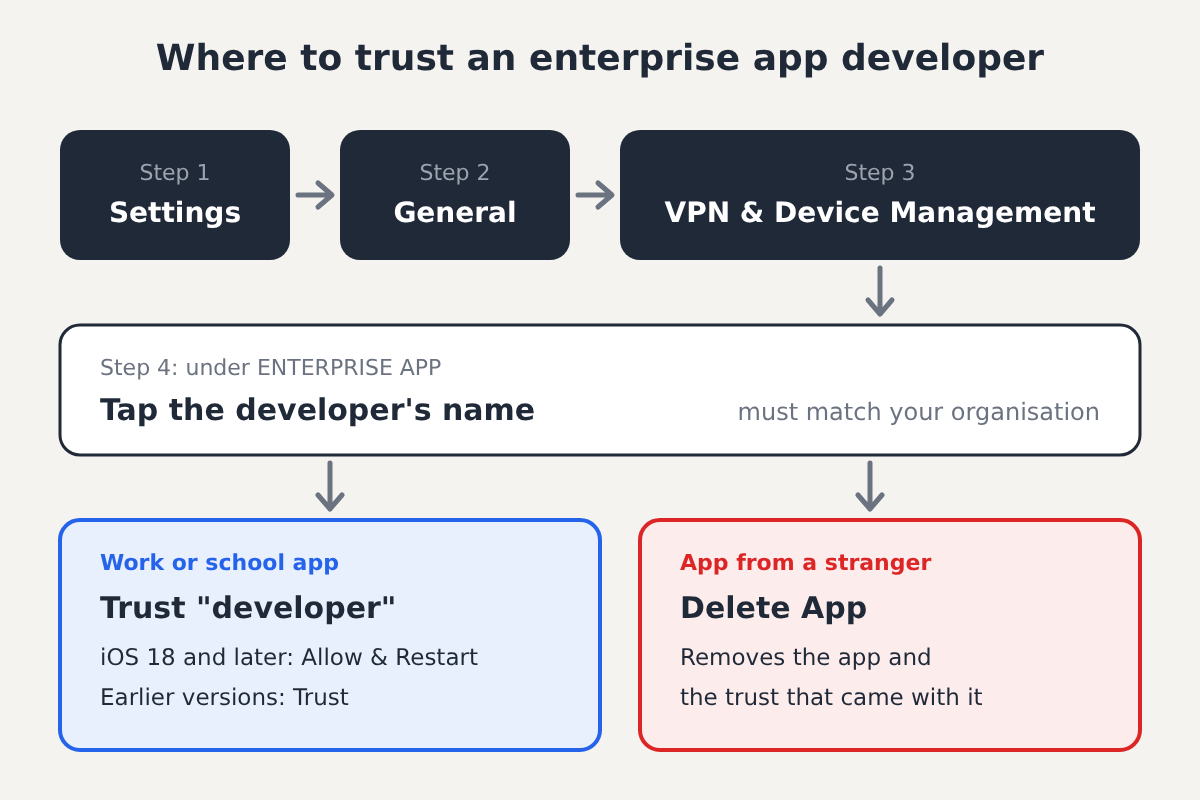
- Open Settings, tap General, then VPN & Device Management.
- Under Enterprise App, tap the developer's name. It should match your organisation.
- Tap Trust "[developer name]".
- On iOS 18 and iPadOS 18 or later, tap Allow & Restart. Your iPhone restarts, then follow the on-screen steps to finish. On earlier versions, tap Trust and you are done.
Once you trust a developer, other apps from the same developer open straight away without asking again.
If the developer's name does not match your organisation, stop and ask your IT team before you trust it.
"Not Verified" or "verification will expire soon"
Trusting a developer needs an internet connection, because your iPhone checks the developer's certificate with Apple. If you were offline, the developer shows as Not Verified. Connect to Wi-Fi or mobile data, go back to Settings > General > VPN & Device Management, and tap Verify App.
Your device also re-checks the certificate from time to time. If it cannot, you may see a message that verification will expire soon. Usually the fix is to get online. On a work network that blocks the check, Apple says the firewall needs to allow connections to https://ppq.apple.com. That is a job for your IT team, not something to change yourself.
If the app still refuses to open after it is verified, the organisation may have withdrawn the certificate or the app may be out of date. Ask them for the current version.
If someone you met online sent you the app
This alert shows up in a well-known kind of fraud. The FBI has warned that criminals reach people through dating and networking apps, build trust, then steer them to install a "trading" or cryptocurrency app from outside the official store. The app shows balances growing, and the money paid in goes to the criminals (FBI public service announcement I-081423-PSA). Being asked to trust a developer by hand is one of the few clues iOS gives you that the app was never reviewed by Apple.
If that sounds like your situation:
- Don't trust the developer. If you already did, open Settings > General > VPN & Device Management, tap the developer under Enterprise App and tap Delete App. Apple notes that a developer stays trusted until you delete all of their apps this way.
- Check the same screen for profiles. If you see a configuration profile or device management entry you did not knowingly install for work or school, tap it and remove it.
- Stop sending money, including "fees" or "taxes" the app or your contact says you must pay to withdraw. Never pay by gift card, and never install remote-access software because someone tells you to.
- Call your bank using the number on your card, and report what happened at ic3.gov if you are in the US.
- Change your Apple Account password if you typed it into the app or gave it to the person who sent it.
This pattern overlaps with other scams this site covers: fake virus pop-ups in Safari that push you to install something, delivery texts with a link, and messages claiming your Apple Account has been locked.
Removing trust from a work app later
Leaving a job or school? Delete their apps from Settings > General > VPN & Device Management with Delete App, not just from the Home Screen, so the trust goes too. If your organisation enrolled your iPhone in device management, they may need to remove it, or you can remove the management profile from that same screen if it belongs to an organisation you no longer work with. Ask their IT team first if the device belongs to them.
When to ask for help
Ask your organisation's IT team if the developer name looks wrong, the Trust button is missing, or verification keeps failing on their network. If you think you were scammed, talk to your bank first, then report it. Apple Support can help with your Apple Account, but cannot recover money you sent through a fake app.
