"Storage Almost Full" on iPhone: what it means and how to free space
In short
The Storage Almost Full alert means the space on your iPhone itself is nearly used up, not your iCloud. How urgent it is, how to tell it apart from iCloud Storage Is Full and scam pop-ups, and the steps to free space, simplest first.
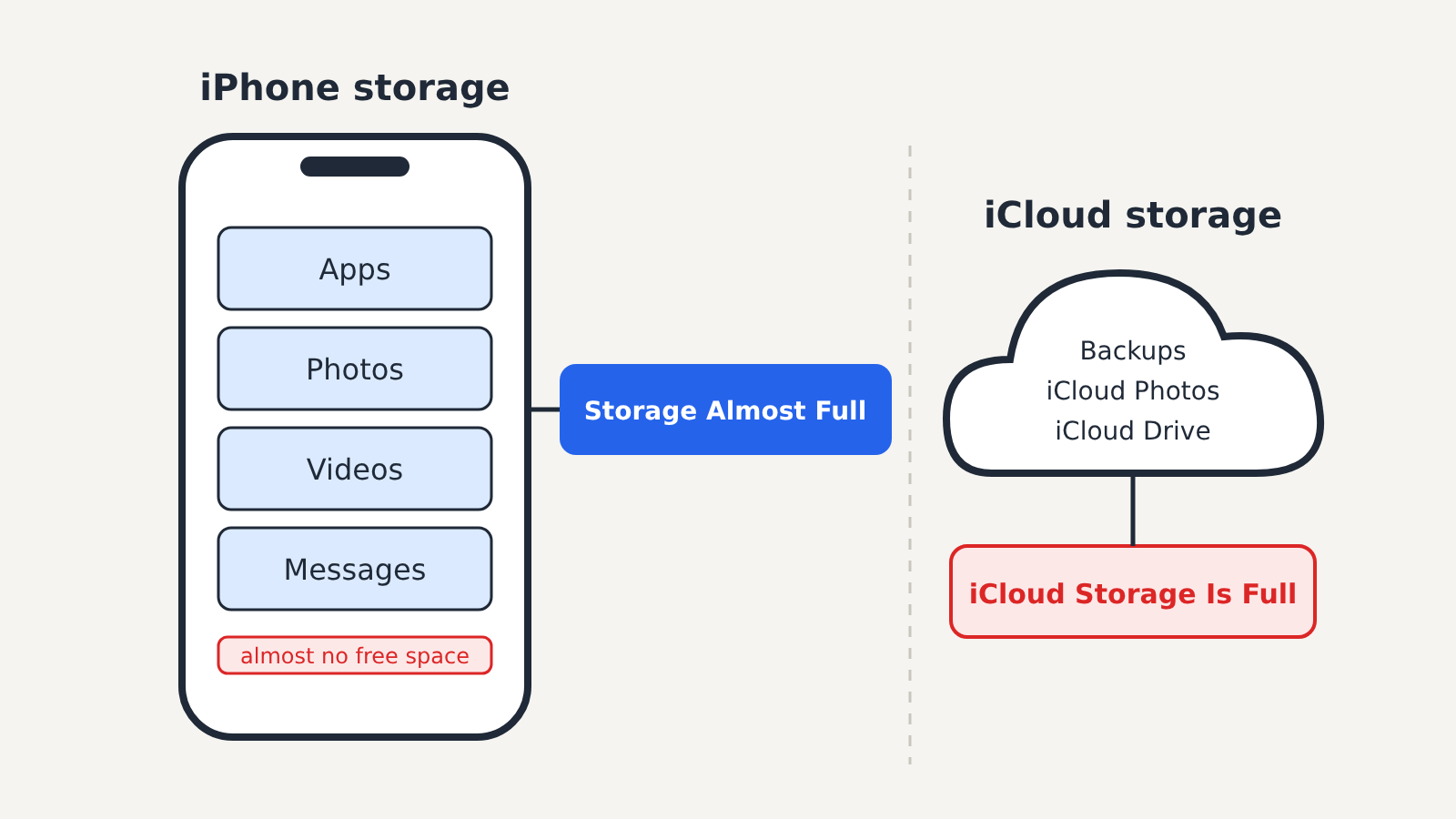
"Storage Almost Full" means your iPhone is running out of its own built-in space: the apps, photos, videos and messages saved on the phone itself. It has nothing to do with iCloud, which has its own separate limit and its own warning. It is a fix-soon problem rather than an emergency, but once the phone is completely full it can stop taking photos, installing updates and downloading message attachments, so clear space within a day or two.
This guide applies to iPhones on recent versions of iOS (iOS 17 and later); menu names on iPad are the same with "iPad Storage" in place of "iPhone Storage".
What the message looks like
The alert usually reads Storage Almost Full, with a line telling you that you can manage your storage in Settings, and a Settings button. You may also see a banner at the top of the Settings app, or a note when you try to take a photo, record a video or install an update that there isn't enough space.
It is easy to confuse with two other messages:
- iCloud Storage Is Full (or Almost Full) is about your iCloud account, the online space Apple gives you for backups, iCloud Photos and iCloud Drive. Freeing space on the phone won't clear it, and clearing iCloud won't free space on the phone.
- A pop-up inside Safari or another app that says your phone is full, infected or about to lose its photos, and asks you to tap, call, install an app or pay, is a scam. A real storage alert comes from iOS, never asks for money or a phone call, and only ever sends you to the Settings app. If one of those web pop-ups won't go away, our guide to fake virus warning pop-ups shows how to close it safely.
Why it matters
When the phone has almost no free space, things start failing quietly. The Camera may refuse to record, apps can't update, iOS updates can't download or install, and some apps behave oddly because they have no room for their temporary files. Apple says that when there isn't enough space for an iOS update, the phone may ask to remove some apps temporarily; if you agree, they are reinstalled after the update.
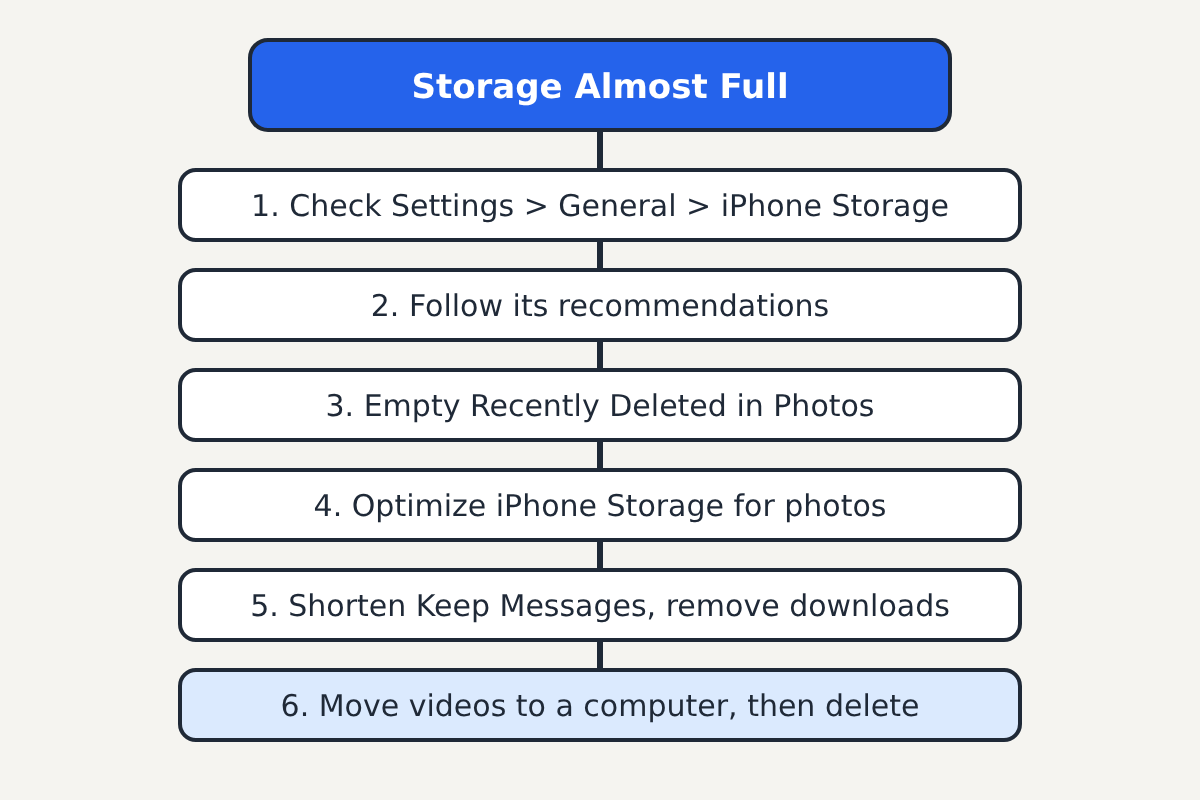
Nothing is lost when the alert first appears. You have time to choose what to remove, and the order below starts with the steps that cost you nothing.
Step 1: See what is using the space
Go to Settings > General > iPhone Storage. Give it a few seconds to finish calculating. At the top is a coloured bar showing how much space each kind of content takes (apps, photos, media, messages, iOS and System Data). Below it, iOS lists recommendations, then every app sorted by size.
Tap any app to see two numbers: the size of the app itself and the size of its documents and data. That second number is often the surprise: a messaging app, podcast app or streaming app with offline downloads can take far more space than the app.
Step 2: Follow the recommendations
The suggestions iOS shows depend on what's on your phone. Common ones:
- Offload Unused Apps removes apps you haven't used for a while but keeps their documents and data. The icon stays on your Home Screen with a small cloud next to its name; tap it and the app downloads again, with your data intact (as long as the app is still in the App Store).
- Review Large Attachments lists photos, videos and files sent in Messages, biggest first, so you can delete the ones you don't need.
- Review Downloaded Videos or similar lists films and episodes you downloaded for offline viewing.
Step 3: Empty Recently Deleted
Photos and videos you delete go to the Recently Deleted album in the Photos app and stay there for 30 days, still taking up space. Open Photos, go to Albums (or scroll down in the library on newer versions of iOS), open Recently Deleted, unlock it with Face ID or your passcode, and delete the items for good. Check you really don't want them first: there is no undo after this.
Step 4: Let photos live in iCloud
If you use iCloud Photos, go to Settings > Photos and choose Optimize iPhone Storage. Full-resolution originals stay in iCloud and the phone keeps smaller versions, downloading the full one when you open it. This only works if your iCloud account has room for your library, so check the iCloud storage figure in Settings under your name before relying on it.
If you don't use iCloud Photos, copy your photos and videos to a computer or another backup you trust, check they opened correctly, and then delete them from the phone. Videos, especially 4K ones, are usually the biggest single use of space.
Step 5: Trim messages and downloads
- In Settings > Messages, under Message History, set Keep Messages to 30 Days or 1 Year instead of Forever. iOS will warn you before it deletes older conversations.
- In music, podcast and video apps, remove downloaded episodes and albums you've finished with.
- Delete apps you no longer use entirely, rather than offloading them, if you don't need their data.
About "System Data"
The grey System Data part of the bar (called "Other" in older versions) holds caches, logs and other files iOS manages itself. You can't delete it directly. It often shrinks after a restart or once there is more free space, because iOS clears caches when it needs room. If it stays very large for weeks, update iOS when you have space; if that doesn't help, contact Apple Support rather than trying a reset.
When to get help
If iPhone Storage shows plenty of free space but the alert keeps returning, or the phone won't start properly because it is full, contact Apple Support or visit an Apple Store or authorised service provider. Don't erase the phone to fix a storage alert unless you have a current backup and Apple has advised it.
