"Not Delivered" with a red exclamation mark in iPhone Messages: what it means and how to fix it
In short
A red exclamation mark and Not Delivered mean iMessage could not send that message. Tap Try Again, send it as a text, then check the number, storage and iMessage settings.
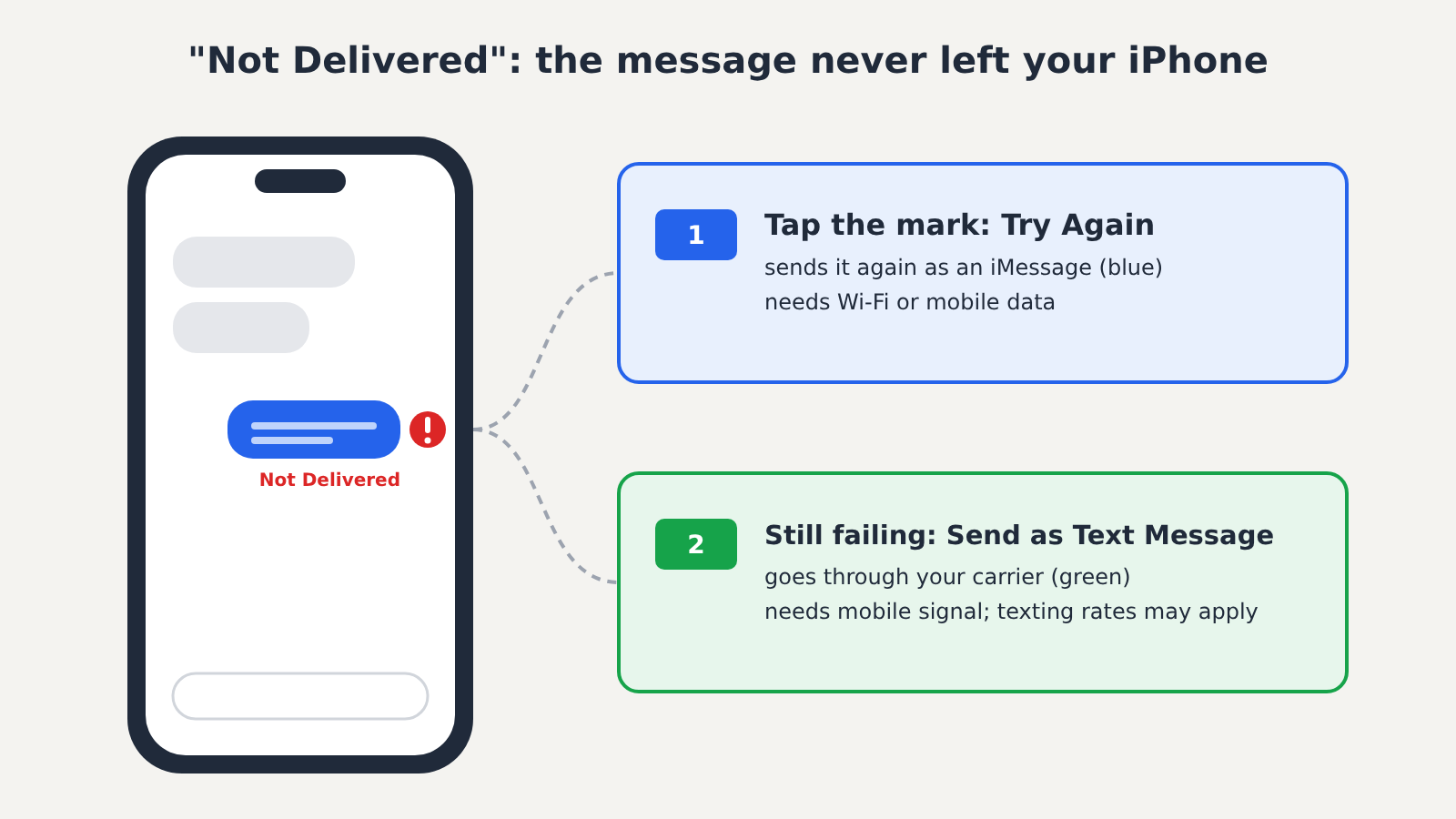
A red exclamation mark with "Not Delivered" under a message in the iPhone Messages app means the message did not leave your phone: iMessage could not send it, and the person you wrote to has not received it. It is a fix-soon problem, not an emergency. Nothing is wrong with the iPhone itself, and in most cases the message goes through once you tap the mark and choose Try Again, or send it as a text message instead.
This guide applies to iPhone and iPad on iOS 18 and iOS 26 (and iPadOS). On iOS 17 and earlier the steps are the same, but the Messages settings sit directly under Settings > Messages rather than Settings > Apps > Messages. The steps follow Apple's support article If you can't send or receive messages on your iPhone or iPad.
What the red mark is telling you
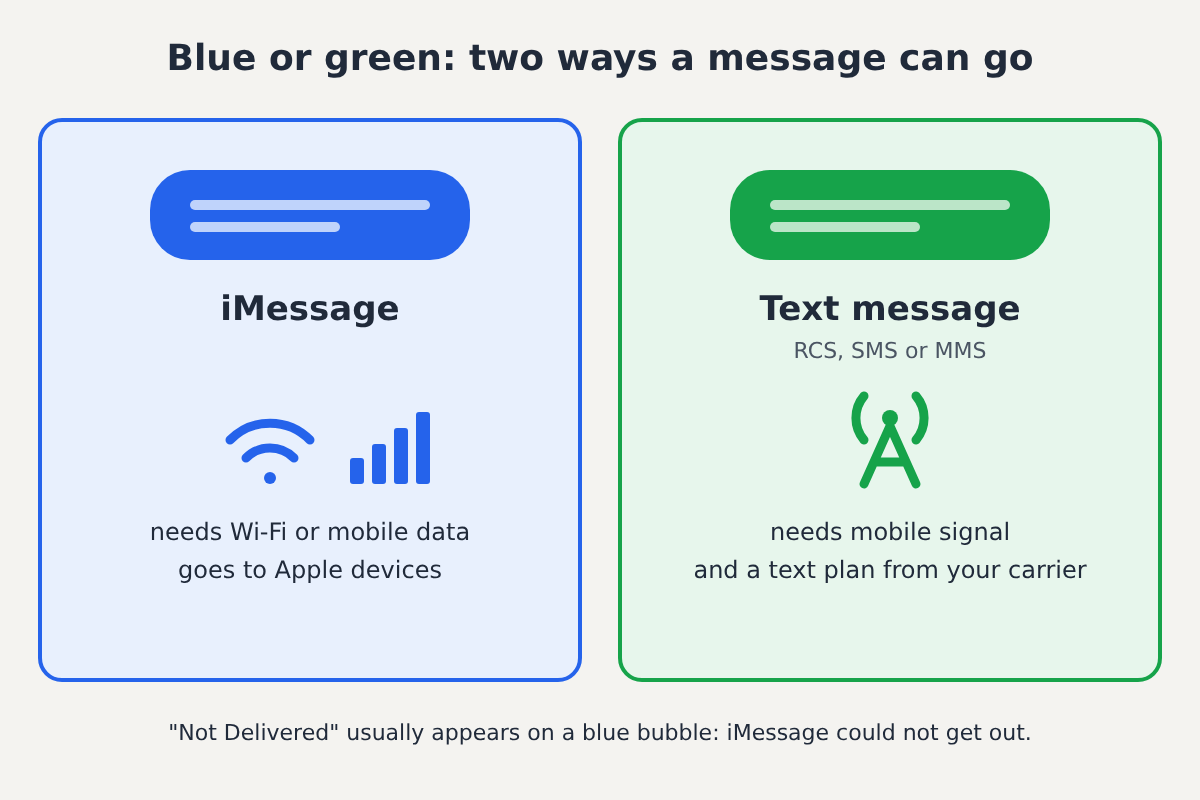
Messages has two ways to send. A blue bubble is an iMessage: it goes over Wi-Fi or mobile data to another Apple device. A green bubble is a text message sent through your carrier as RCS, SMS or MMS, and it needs a text-messaging plan.
"Not Delivered" almost always appears on a blue bubble. Your iPhone tried to send it as an iMessage and could not reach Apple's servers, or could not deliver it to that number or email address. Apple's fix gives you two choices for that one message: try iMessage again, or send it as a text through your carrier.
Step 1: Check your connection, then tap Try Again
iMessage needs a working internet connection. Look at the top of the screen. If you see no Wi-Fi symbol and no 5G, LTE or 4G next to the signal bars, the message had no way out. Turn on Wi-Fi or mobile data, or move to where you have signal. If your iPhone shows SOS or No Service, fix that first; our guide to getting signal back when the iPhone says SOS or No Service walks through it.
Then tap the red exclamation mark and choose Try Again.
Step 2: Send it as a text message instead
If Try Again fails, tap the red exclamation mark again and choose Send as Text Message. The bubble turns green and goes through your carrier. Apple notes that messaging rates may apply, so on a plan without unlimited texts this can cost you, and abroad it can cost more.
A text message needs mobile signal. With Wi-Fi Calling turned on, Apple says SMS can also go over Wi-Fi.
To have this happen on its own the next time iMessage is unavailable, open Settings > Apps > Messages and turn on Send as Text Message. Older versions of iOS call the same switch Send as SMS. If you do not see the option, Apple says your carrier may not support the feature.
Step 3: Check the number or email address
iMessage can only deliver to a phone number or email address that is right. Open the conversation, tap the contact's name at the top, and check the number, including the country code if they are abroad. A contact saved with an old number or an old email keeps failing however many times you try.
Step 4: Free up space for photos and videos
If the failed message was a photo or video, Apple's article says to make sure your device has enough space for it. Check Settings > General > iPhone Storage. If it is nearly full, our guide to clearing space when the iPhone says Storage Almost Full shows what is safe to remove.
Step 5: Turn iMessage off and on again
If every iMessage fails, or messages you expect to be blue keep turning green, reset iMessage. This is the step Apple gives after setting up a new phone:
- Open Settings > Apps > Messages.
- Turn iMessage off, then back on.
- Tap Send & Receive and choose the phone number you want to send from.
Then restart the iPhone and try the message again. Apple also suggests updating to the latest iOS or iPadOS in Settings > General > Software Update.
If you see "Waiting for activation" after turning iMessage back on, that is a separate alert: our guide to the Waiting for activation message covers its fixes.
When green messages fail too
When even Send as Text Message gives a red mark, the problem is the carrier side: no signal, a SIM problem, or a plan that does not include the kind of message you sent. Apple's advice is to contact your carrier and check that your plan supports SMS, MMS and RCS. If your iPhone also says "No SIM" or "SIM Not Supported", start with our guide to those SIM messages on iPhone.
RCS, which gives green messages typing indicators and better photos with Android phones, needs iOS 18 or later and a carrier that supports it on iPhone. You can find it under Settings > Apps > Messages > RCS Messaging. If the switch is not there, RCS is not available from your carrier yet, and texts go as SMS or MMS instead. Apple explains this in Turn on RCS messaging on your iPhone.
If texts work but iMessage still fails after you have reset it, updated iOS and restarted, contact Apple Support from Apple's own website or the Apple Support app.
Not Delivered is not a scam message
The red mark comes from the Messages app on your own phone, never from a link or a text someone sends you. If a text claims a message or parcel "could not be delivered" and asks you to tap a link or pay a fee, that is a different thing altogether. See how to spot fake package delivery texts before you tap anything.
