"This Apple Account has been locked for security reasons" on iPhone: what it means and how to unlock it
In short
Your Apple Account locks itself after too many wrong sign-in attempts. Here is how to tell a real lock from a scam text, and the safe ways to unlock it on iPhone.
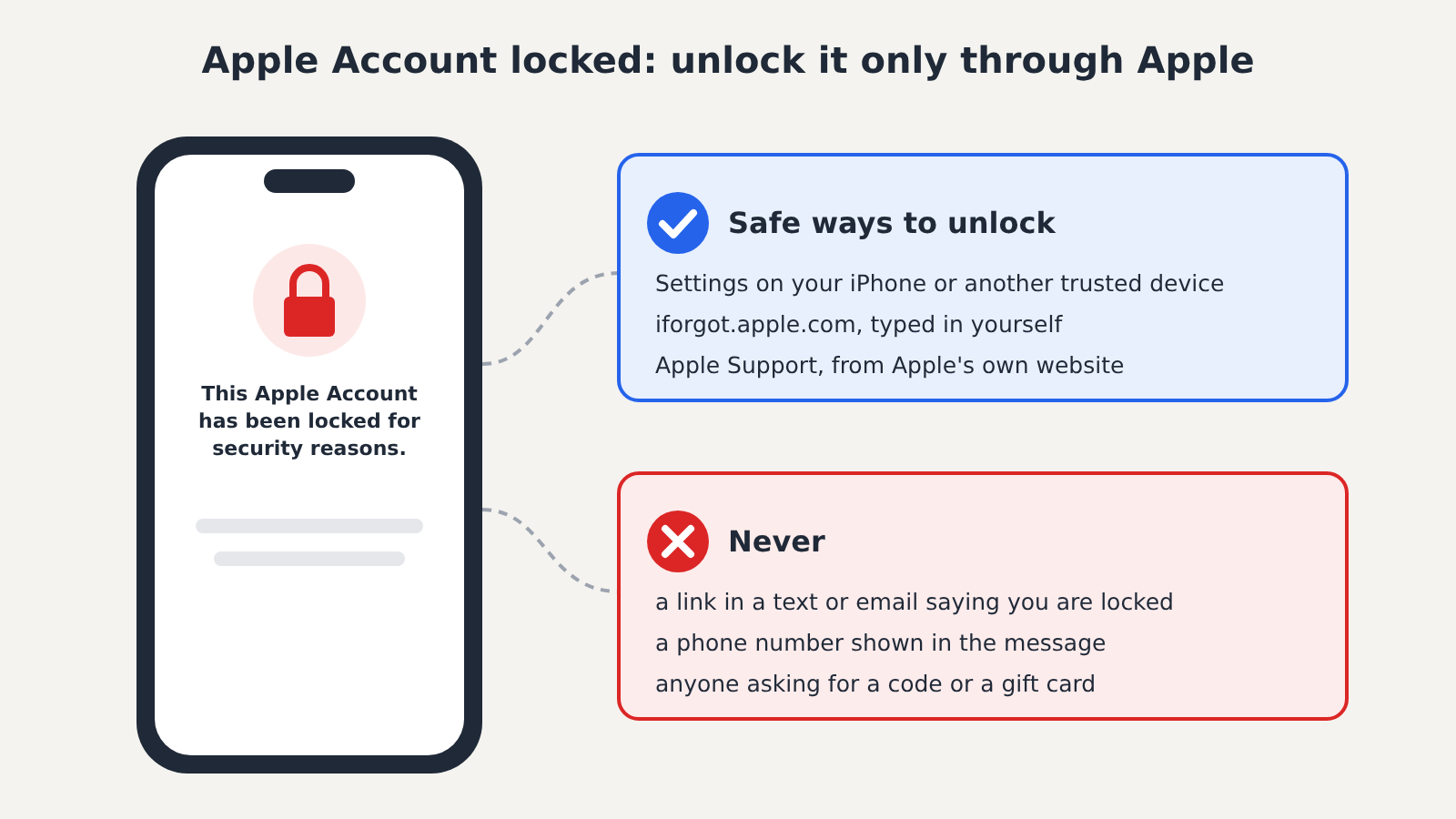
"This Apple Account has been locked for security reasons" means Apple has temporarily blocked sign-in to your account, usually because the password or other account details were entered wrongly too many times, by you or by someone else. It is a "fix soon" message: your iPhone keeps working, but iCloud, the App Store, iMessage and other Apple services won't let you sign in until you prove the account is yours.
The answer below applies to iPhone and iPad on iOS 18 and later, where Apple renamed the Apple ID to Apple Account. On older versions the same messages say "Apple ID" instead. It follows Apple's support article on locked, inactive or disabled accounts.
The exact messages and what each one means
Apple lists several wordings. You may see one of these on your iPhone, on a Mac or on an Apple website:
- This Apple Account has been locked for security reasons.
- This Apple Account has been disabled for security reasons.
- You can't sign in because your account was disabled for security reasons.
All three describe the same automatic lock. Apple's article explains that the account locks itself after too many incorrect attempts at the password, security questions or other account details, to stop someone guessing their way in. It does not mean Apple thinks you did something wrong.
Two other messages look similar but have different causes:
- This Apple Account is not active. Apple says to contact Apple Support for this one; you can't clear it yourself.
- Your account has been disabled in the App Store and iTunes. This one usually points to a payment or billing problem with the account rather than a security lock, and Apple again directs you to Apple Support.
First, make sure the message is real
Scammers copy this wording in texts and emails, because a locked account makes people act fast. A real lock appears on your device itself, for example when you open Settings, the App Store or iCloud, or on Apple's own sign-in pages.
Treat it as a scam if it arrives as a text, an email or a browser pop-up with a link to tap or a phone number to call. Apple does not unlock accounts through links in messages, and nobody from Apple will ask you for your password, a verification code or payment by gift card. If you already tapped a link and typed your password, change it straight away using the steps below. The same advice applies to fake "your iPhone has been hacked" pop-ups in Safari and fake package delivery texts. Apple asks people to forward suspicious emails that claim to be from Apple to reportphishing@apple.com.
How to unlock your Apple Account
Work through these in order. Each one is a little more involved than the one before.
1. Unlock it on a device you are already signed in to
If you use two-factor authentication, the quickest route is a trusted iPhone, iPad or Mac that is still signed in to your account. On iPhone:
- Open Settings and tap your name at the top.
- Tap Sign-In & Security (called Password & Security in older versions of iOS).
- Tap Change Password and follow the steps. You'll be asked for the device passcode.
Setting a new password this way also clears the lock. Afterwards, sign in again on your other devices with the new password.
2. Use iforgot.apple.com
If you don't have a trusted device to hand, type iforgot.apple.com into your browser yourself rather than following a link. Enter your Apple Account email address or phone number, then follow the steps to unlock the account with your existing password or to reset it. You'll usually need access to your trusted phone number to receive a code.
Apple notes that if you try to unlock the account several times without success, it stays locked and you can try again the next day. Guessing over and over makes things slower.
3. Account recovery, if you can't verify yourself
If you've lost access to your trusted devices and trusted phone number, iforgot.apple.com offers account recovery instead. This is a waiting period Apple uses to make sure the person asking is the real owner, and it can take several days or longer. You'll get updates by text or phone call, and you can check the status at iforgot.apple.com. Avoid using the account on other devices while you wait, because that can cancel the request.
If you set up a Recovery Key for your account, you'll need it, along with access to a trusted device or phone number. Apple can't reset your password for you without it.
4. Contact Apple Support
If none of these works, or the message says the account is not active, contact Apple Support. Find them through apple.com or the Apple Support app, not through a number in a message or a search ad. Apple Support can explain what happened, but for security reasons it can't simply unlock an account for someone who can't verify it.
What still works while the account is locked
Your iPhone itself stays usable: calls, texts over your carrier, the camera and apps already installed keep working. What stops is anything that needs you to sign in, such as buying apps, iCloud sync and backups, and setting up a new device.
The account lock is separate from your iPhone passcode. If the screen says iPhone Unavailable after wrong passcode attempts, that's a different lock with different steps, covered in our guide to getting back into an iPhone that says Unavailable or Security Lockout. It also matters if you are erasing or selling the phone, because Activation Lock asks for the Apple Account password. That's one reason to get the account unlocked before you reset anything.
Keeping it from happening again
Some locks come from someone else trying your email address and a guessed password, which you can't fully prevent. A few habits help:
- Use a long, unique password for your Apple Account that you don't use anywhere else.
- Keep at least two trusted phone numbers on the account if you can, such as your own and one of a family member, under Sign-In & Security.
- Keep your trusted phone number up to date when you change carriers or numbers.
- Consider adding a Recovery Contact (in the same Settings screen), a person you trust who can help you get back in, so you're less likely to end up in account recovery.
