Windows Update error 0x800f0922: what it means and how to fix it
In short
Error 0x800f0922 stops a Windows update from installing. Usually it is a VPN or a dropped connection; sometimes a small hidden partition is full.
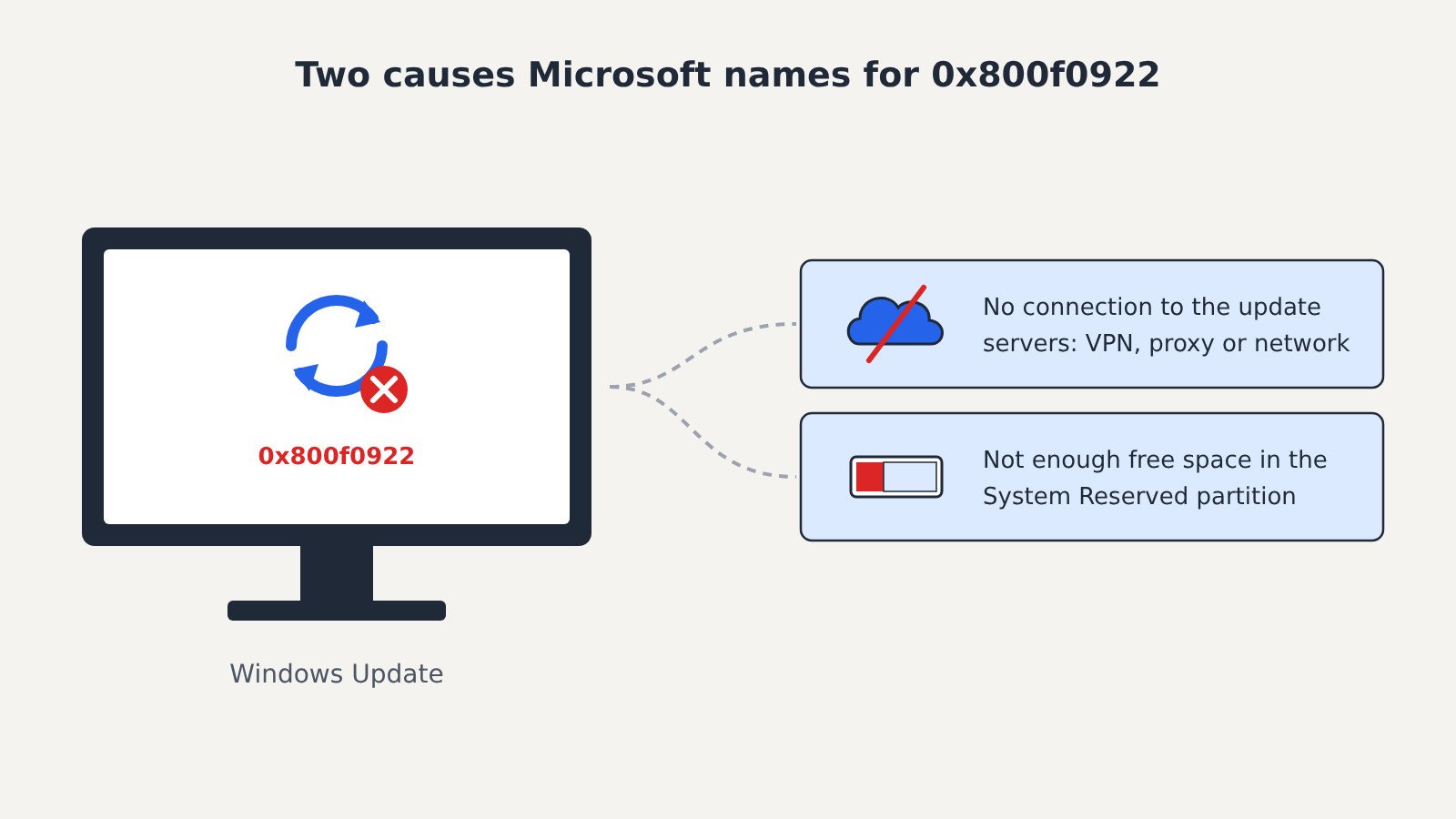
Windows Update error 0x800f0922 means an update was downloaded but couldn't be installed. Microsoft names two usual causes: the PC lost its connection to the Windows Update servers partway through (a VPN is a common reason), or a small hidden part of the drive called the System Reserved partition is too full. It's a "fix soon" problem. Windows keeps working and your files are safe, but the PC isn't getting security fixes until the update goes in.
You'll see it on Windows 11 and Windows 10 in Settings > Windows Update, usually next to a named update as "Install error - 0x800f0922", and sometimes after a restart, when the update rolls itself back with a message that it couldn't complete. The causes and steps below come from Microsoft's support article "Troubleshoot problems updating Windows", which lists 0x800F0922 among its common errors.

What causes it
A broken connection to the update servers. Installing an update isn't a single download. Windows checks back with Microsoft's servers during the process, and if that check fails, the install stops. Microsoft's advice is specific: if you use a VPN to connect to a work network, disconnect from that network, turn off the VPN software, and try again. A proxy server, a strict firewall, or a flaky Wi-Fi connection can have the same effect.
Too little space in the System Reserved partition. Your drive is split into partitions. Most of it is C:, where Windows and your files live, but there are also small hidden partitions that hold the files your PC needs to start. Some updates need to write to one of these, and if it's full, the update fails with 0x800f0922 even when C: has lots of room.
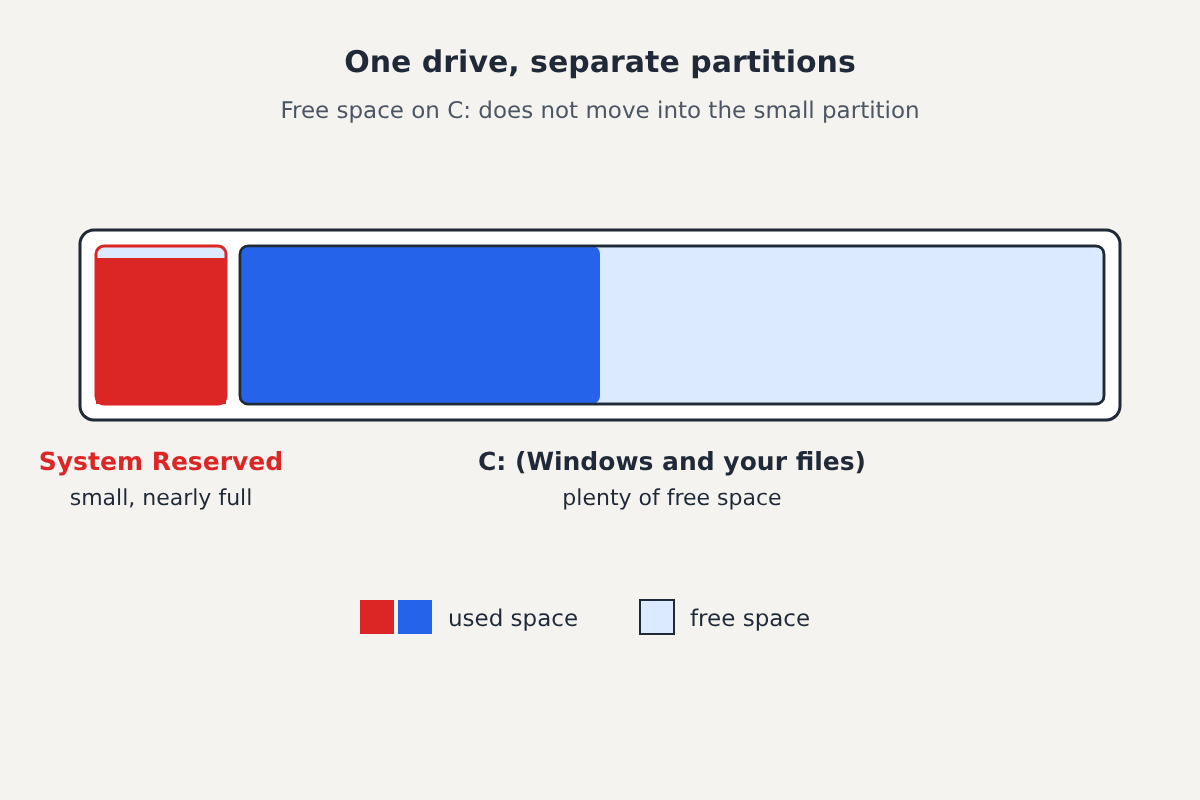
That's the key difference from storage errors such as Windows Update error 0x80070002, where clearing out C: often helps. Here, deleting files from C: changes nothing for the second cause.
Fixes, from simplest to hardest
1. Restart and try again
Restart the PC (use Restart, not Shut down), make sure you're online, then go to Settings > Windows Update and select Check for updates or Retry. A short network drop during the first attempt is enough to cause this error, and a second try often succeeds.
2. Turn off the VPN and any proxy
Disconnect your VPN and quit the VPN app completely, then retry the update. Check for a proxy as well: on Windows 11, open Settings > Network & internet > Proxy; on Windows 10, Settings > Network & Internet > Proxy. If a manual proxy is switched on and you didn't set it up, or don't need it, turn it off for now.
On a work or school PC, talk to your IT team before changing any of this. Many organisations deliver updates through their own servers on purpose, and the fix may be on their side.
3. Run the Windows Update troubleshooter
On Windows 11, go to Settings > System > Troubleshoot > Other troubleshooters and select Run next to Windows Update. On Windows 10, go to Settings > Update & Security > Troubleshoot > Additional troubleshooters > Windows Update. On recent versions of Windows 11 this opens the Get Help app, which runs the same checks. It resets common update settings and clears out stuck update files.
4. Repair Windows system files
Damaged system files can also stop an update from installing. Right-click the Start button and open Terminal (Admin) (on Windows 10, Windows PowerShell (Admin)), then run these one at a time, letting each finish:
DISM /Online /Cleanup-Image /RestoreHealth
sfc /scannow
Restart and try the update again.
5. Install the update another way
If one particular update keeps failing, note its KB number from the Windows Update page and download it yourself from the Microsoft Update Catalog (catalog.update.microsoft.com). Double-click the downloaded file to install it. On recent versions of Windows 11, Settings > System > Recovery > Fix problems using Windows Update reinstalls the current version of Windows while keeping your apps and files.
For a big yearly feature update, Microsoft's Installation Assistant on its Windows download page is another route.
6. Deal with a full System Reserved partition
If everything above fails, the partition is the likely cause. You can see it by right-clicking the Start button and choosing Disk Management: it's the small partition with no drive letter, labelled System Reserved on older PCs or EFI System Partition on most newer ones. Don't delete it or anything in it. Without it, the PC won't start.
Microsoft's article says you may be able to fix the problem by making that partition bigger with third-party partition software. That works, but resizing partitions is the one step here that can leave a PC unable to start if something goes wrong. Back up your files to an external drive or cloud storage first. If you're not comfortable with it, a repair shop can do it, or your PC maker's support line can advise for your model.
When it's something else
Windows never shows a phone number in an update error, and Microsoft doesn't call people about failed updates. A pop-up or caller claiming your PC has an update problem and asking you to call or install remote-access software is a scam; see our guide to the fake virus warning pop-up with a phone number. If an update has left the PC unable to start, our guide to INACCESSIBLE_BOOT_DEVICE explains how to reach the recovery tools.
Sources: Microsoft Support: "Troubleshoot problems updating Windows", "Windows Update Troubleshooter"; Microsoft Update Catalog.
