"Connected, no internet" on Wi-Fi: is it your router, your provider or your device?
In short
Your device has joined the Wi-Fi but cannot reach the internet. A two-minute test with a second device tells you whether the fault is that device, your router or your provider, and what to do for each.
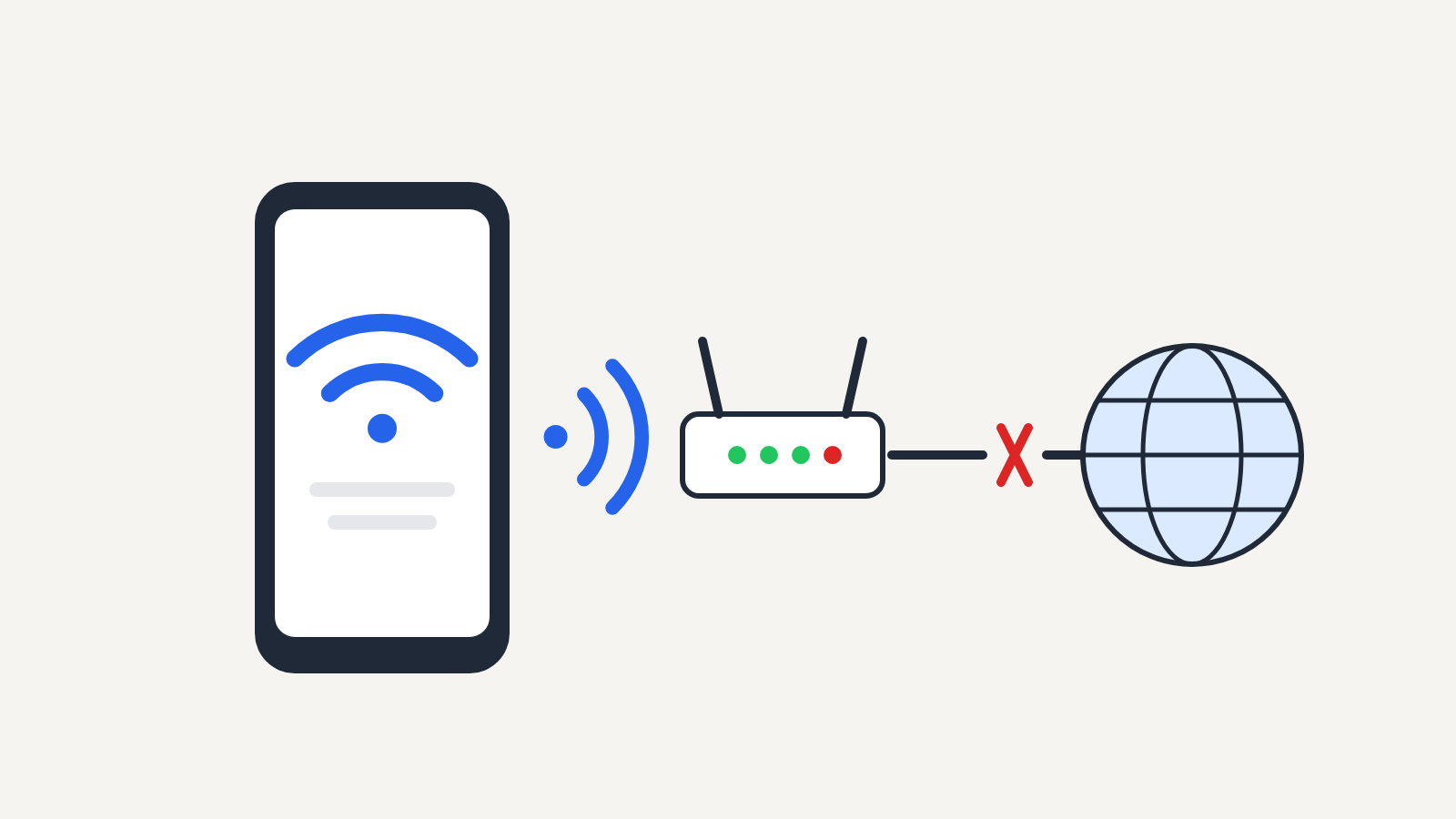
"Connected, no internet" means your device has joined the Wi-Fi network but can't reach the internet through it: the link between your phone or laptop and the router is fine, and something past that point is not. It's a "fix now if you need to get online" problem, never a dangerous one, and the quickest way to fix it is to work out first whether the fault is in one device, in your router, or with your internet provider.
The wording depends on the device. On an iPhone or iPad, Apple's support page says iOS and iPadOS can show a Wi-Fi recommendation such as "No Internet Connection" under the name of the network you're joined to. Android phones and tablets, Windows 10 and 11 PCs and Macs show a similar note next to the network name or on the Wi-Fi icon. The steps below follow Apple's "If you can't connect to Wi-Fi on your iPhone or iPad" and Microsoft's "Fix Wi-Fi connection issues in Windows" support pages.
Step 1: find where the problem is
Before you change any settings, pick up a second device and try it on the same Wi-Fi.
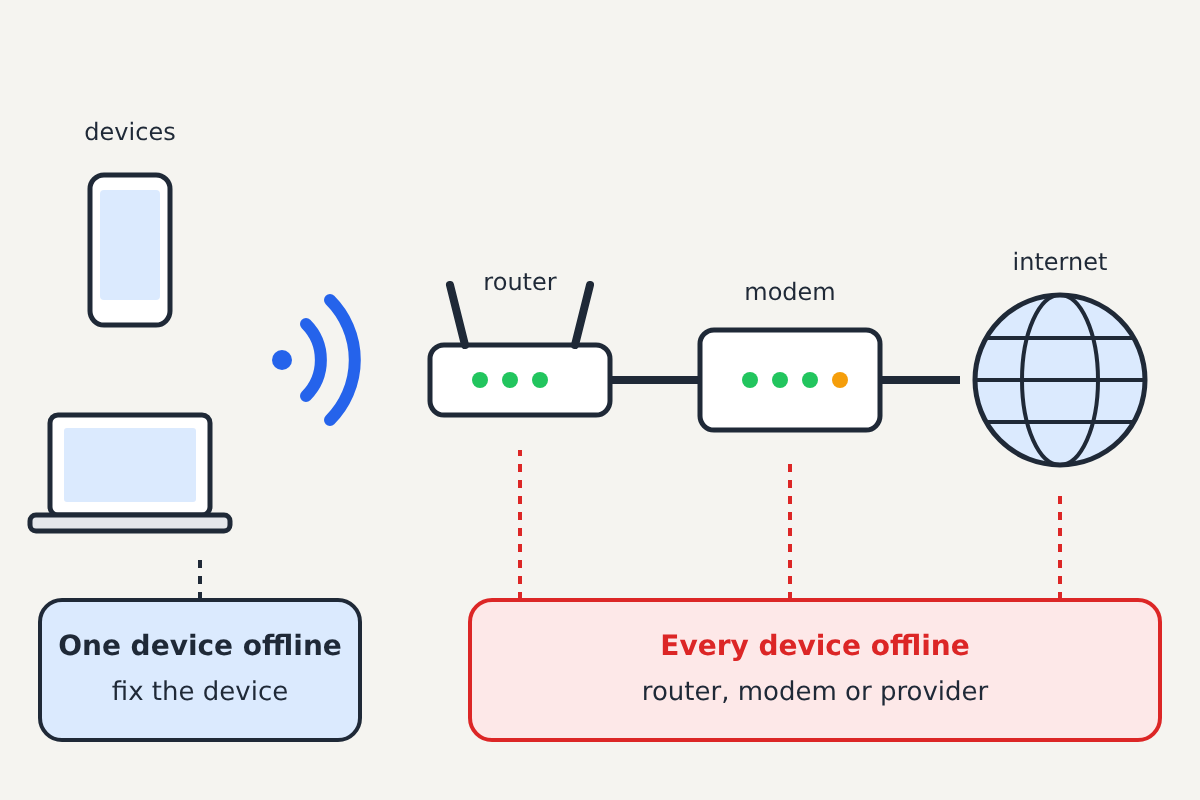
- Only one device has no internet: Everything else on the same Wi-Fi works. The router and the provider are fine; go to step 3.
- Every device has no internet: Phones, laptops and the TV all show the same thing. The problem is your router, modem or provider; go to step 2.
- You are on public Wi-Fi in a hotel, café, airport or train. Most of these networks hold you at a sign-in page until you accept their terms. Open a web browser and try loading any ordinary website; the sign-in page usually appears. Until you complete it, every device will say there's no internet.
Step 2: when every device is offline
Restart the router and modem
Apple's advice is to unplug the router and the cable modem, then plug them back in. Give the modem a minute or two to reconnect before you switch the router on, and wait until its lights settle. If your provider gave you a single box that does both jobs, restart that one box.
Look at the lights
Most routers and modems have a light for the internet or broadband connection. If it's off, red or amber after a restart while the Wi-Fi light is normal, the box can't reach your provider, which points away from your devices. Your router's manual (or the provider's help pages) says what each colour means for your model.
Check for an outage
If a restart doesn't help, the problem is probably on the provider's side. Check the provider's service status page or app using mobile data, or call them. Apple's page puts it plainly: if you can't get online using your other devices, there might be a service outage, and you should contact your internet service provider.
Check the cables
Make sure the cable from the wall (phone, coax or fibre) is firmly in the modem, and that the cable between the modem and the router, if you have two boxes, is pushed fully home at both ends.
Step 3: when only one device is offline
Work through these from simplest to hardest, testing the connection after each one.
- Turn Wi-Fi off and on, or switch Airplane Mode on and off. This forces the device to reconnect and ask the router for a fresh address.
- Restart the device.
- Check the date and time. If the clock is wrong, secure websites refuse to load. Set date and time to automatic.
- Turn off a VPN, proxy or security app. Apple suggests uninstalling VPN or security software and testing again. On Windows, Microsoft suggests checking Settings > Network & internet > Proxy and turning off any manual proxy you didn't set up yourself.
- Forget the network and rejoin it. On Windows, go to Settings > Network & internet > Wi-Fi > Manage known networks and select Forget; on an iPhone, tap the network's info button and choose Forget This Network. Then join again with the password.
- Run the troubleshooter (Windows). Windows 11 has a Network and Internet troubleshooter in the Get Help app, and Windows 10 has one under Settings > Network & Internet > Status. Microsoft says it runs diagnostics and tries to fix most problems automatically.
- Check the IP address (Windows). Microsoft's guide warns about an address that starts with 169.254: that means the device didn't get an address from the router at all. Restarting the router or renewing the address usually fixes it.
- Reset network settings. This is the last step because it wipes every saved Wi-Fi network and password. On an iPhone it's under Settings > General > Transfer or Reset iPhone > Reset > Reset Network Settings, which also resets cellular, VPN and APN settings. Windows has Network reset under Settings > Network & internet > Advanced network settings.
If your router has parental controls, a "pause internet" feature or a list of blocked devices, check that this device isn't on it. People forget they set these up, and the result looks exactly like "connected, no internet" on one device only.
Router, provider or device?
| What you notice | Most likely cause |
|---|---|
| One device offline, others fine | That device's settings, VPN or a router block on it |
| Every device offline, router lights normal | The modem or the provider |
| Every device offline, internet light red or off | The modem's link to the provider, or an outage |
| Works near the router, fails in far rooms | Weak signal; move closer or use a mesh system or extender |
| Public Wi-Fi only | A sign-in page you haven't completed |
When to call someone
Call your provider if every device is offline after a router and modem restart, or if the internet light stays red. Call the device maker or a repair shop if a single device can't get online on any network, including a phone hotspot, after a network reset; that suggests a fault in its Wi-Fi hardware or software.
One warning: your provider won't ask you to call a phone number from a browser pop-up or to install remote-access software so a stranger can "fix" your connection. Pop-ups like that are scams, explained in our guide to the fake virus warning pop-up with a phone number.
Sources: Apple Support, "If you can't connect to Wi-Fi on your iPhone or iPad"; Microsoft Support, "Fix Wi-Fi connection issues in Windows".
