"Your startup disk is almost full" on Mac: what it means and how to free space
In short
Your startup disk is almost full means your Mac is nearly out of internal storage. How to see what fills it, what is safe to delete, what to leave alone, and the built-in tools that free space for you.
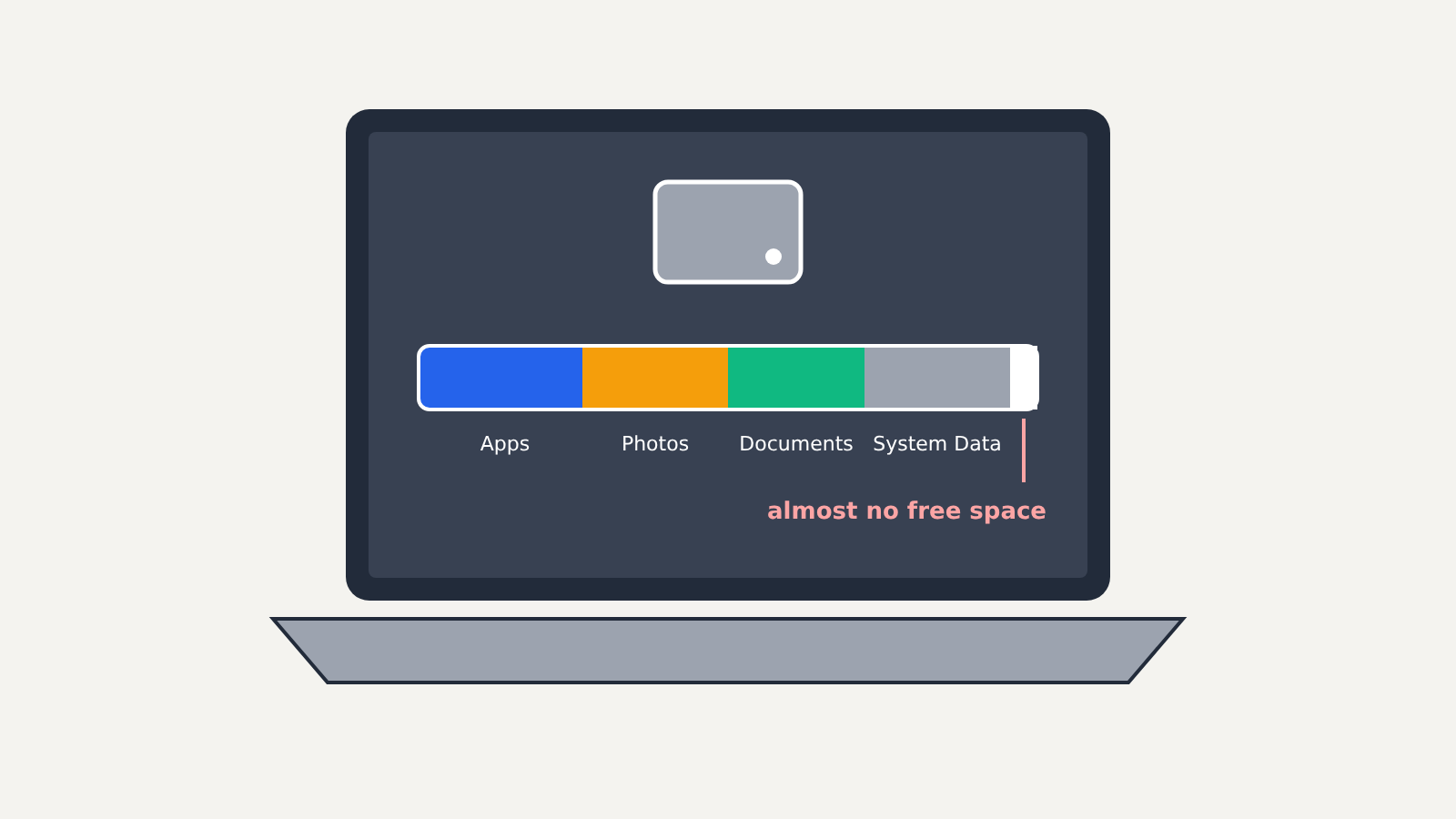
"Your startup disk is almost full" on a Mac means the internal drive that macOS runs from has very little free space left. It's a "fix soon" warning: the Mac keeps working, but with almost no space, apps can fail to save, macOS updates can't install and the whole system can slow down. You fix it by moving or deleting files, starting with the ones macOS can find for you.
The full alert usually reads "Your startup disk is almost full" with the line "To make more space available on your startup disk, delete some files." Apple doesn't publish an exact threshold for it. The steps follow Apple's support article "Free up storage space on Mac" and apply to macOS Ventura and later, with notes for older versions.
What is filling the disk
Start by looking. Choose Apple menu > System Settings > General > Storage. After a moment of calculating, the bar at the top shows what takes up space: Applications, Photos, Documents, Messages, macOS, System Data and others. On macOS Monterey or earlier, choose Apple menu > About This Mac > Storage, then Manage.
The list below the bar shows each category's size. Click the info button next to a category to see the biggest files in it and delete them from there.
The Documents category is usually the most useful one to open. Its info button shows your files sorted by size, with separate views for large files and for the Downloads folder, so a forgotten 20-minute screen recording or an old disk image stands out at once. Select a file and click Delete, or choose Show in Finder if you'd rather move it to an external drive first.
Fixes, from simplest to hardest
1. Use the built-in recommendations. The Storage page offers:
- Store in iCloud: keeps files and photos in iCloud and leaves only recent ones on the Mac. It needs enough iCloud storage, which may be a paid plan.
- Optimize Storage: removes Apple TV films and shows you've already watched.
- Empty Trash Automatically: deletes items that have been in the Trash for 30 days.
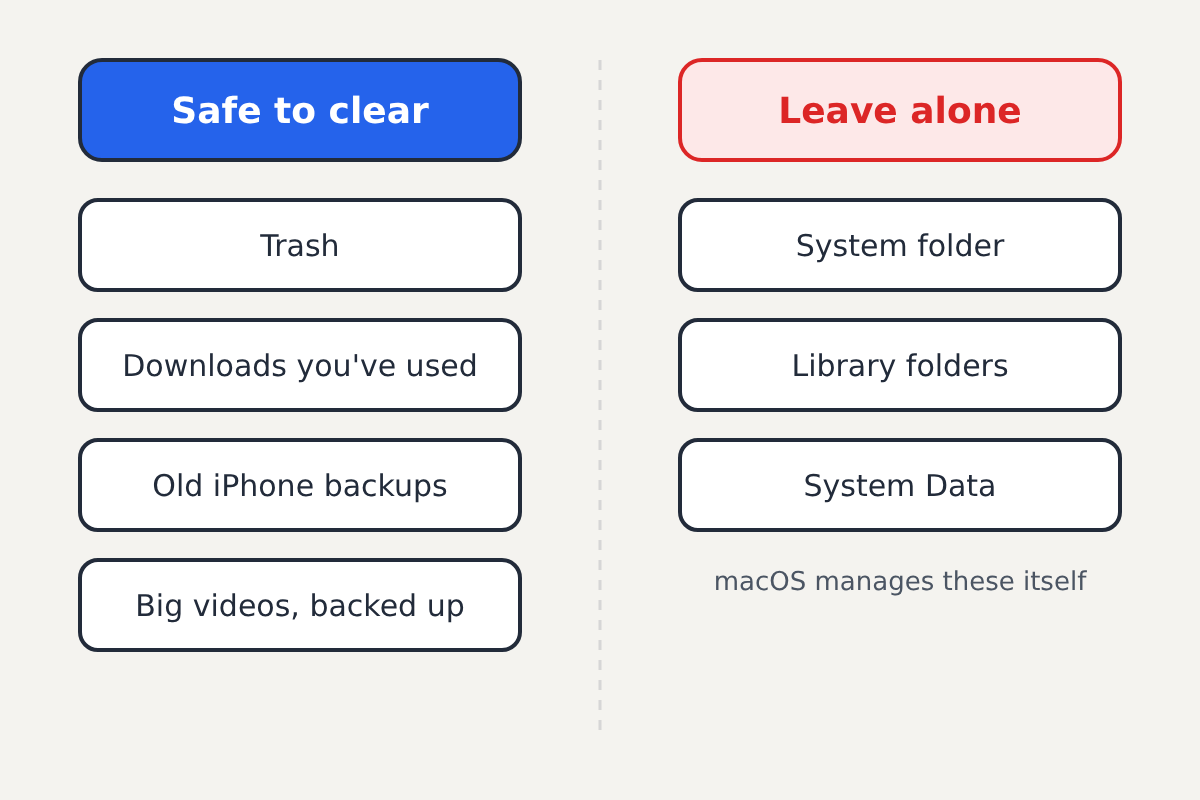
2. Empty the Trash. Files you delete stay on the disk until the Trash is emptied. Control-click the Trash in the Dock and choose Empty Trash. Some apps, such as Photos and Mail, have their own deleted items folders; empty those too.
3. Clear out Downloads. Installers, disk images (.dmg files) and zipped archives pile up in Downloads. Once you've installed an app, its .dmg file can go.
4. Remove old iPhone and iPad backups. In the Storage list, iOS Files can hold full device backups that take many gigabytes. Delete ones for devices you no longer own, or ones you now back up to iCloud instead.
5. Move large videos and photo libraries. If you edit video or keep a big Photos library, an external drive is often the only lasting fix. Make sure you have a backup before you delete anything from the Mac.
6. Review Messages attachments. If you use Messages on the Mac, its category in the Storage list can hold years of photos and videos. Click its info button to see the largest attachments and delete the ones you don't need, or set Messages to keep messages for a year instead of forever in its settings.
7. Uninstall apps you don't use. In the Applications category, sort by size and delete the large ones you don't need.
Why it matters for macOS updates
macOS updates download to the startup disk and need extra room to unpack and install. If Software Update says there isn't enough space, or an update fails partway through, free space with the steps above first and then try again. Time Machine backups to an external drive don't count against your startup disk, so there's no need to delete those to fix this warning.
What to leave alone
Don't delete anything inside the System folder or the Library folders by hand, and don't try to clear System Data directly. System Data includes caches, logs and Time Machine local snapshots, and macOS removes local snapshots and many caches by itself when it needs the space. It often shrinks after a restart or once you've freed space elsewhere.
Be wary of "cleaner" apps, and especially of web pop-ups claiming your Mac is full or infected and offering a download or a phone number. Those are scams; our guide to fake virus warning pop-ups explains how to close them safely.
If the warning keeps returning
- Restart the Mac after freeing space, then check the Storage page again.
- If System Data stays huge after a restart and you use Time Machine, let a backup finish: local snapshots are cleared once the backup completes and space is needed.
- If the Mac crashes or restarts by itself while almost full, free space first, then see our guide to the "Your computer restarted because of a problem" message if it keeps happening.
The same idea applies on an iPhone, where the warning is "Storage Almost Full": see how to free space when iPhone storage is almost full.
