"Your computer restarted because of a problem" on Mac: what a kernel panic means and how to fix it
In short
The message means your Mac had a kernel panic and restarted itself. Apple says software is the usual cause. How to read the report, test in safe mode, rule out accessories, run Apple Diagnostics and know when to book a repair.
"Your computer restarted because of a problem" on a Mac means macOS hit a serious error it couldn't recover from, called a kernel panic, and restarted itself to protect your data. Apple says the most likely cause is software, and less often damaged or incompatible hardware, including devices plugged into the Mac. Once is usually nothing to act on. If it happens again, or several times a day, work through the steps below: that's a "fix soon" problem, and a Mac that panics every time it starts needs attention now.
This applies to Macs with Apple silicon (M1 and later) and Intel processors running recent macOS versions, including macOS Sonoma, Sequoia and Tahoe. After the restart you may see the message in a dialog with a Report… button, or as a short notice on the startup screen. The steps follow Apple's support articles "If your Mac restarted because of a problem", "If your Mac restarts and a message appears" and "Start up your Mac in safe mode".
How often is it happening?
- Once, after weeks of normal use: note what you were doing, keep the Mac updated and move on.
- Again within days, or at the same moment each time (opening a particular app, plugging in a dock, waking from sleep): follow the steps below.
- In a loop, so the Mac can't finish starting up: skip to steps 3 and 4.
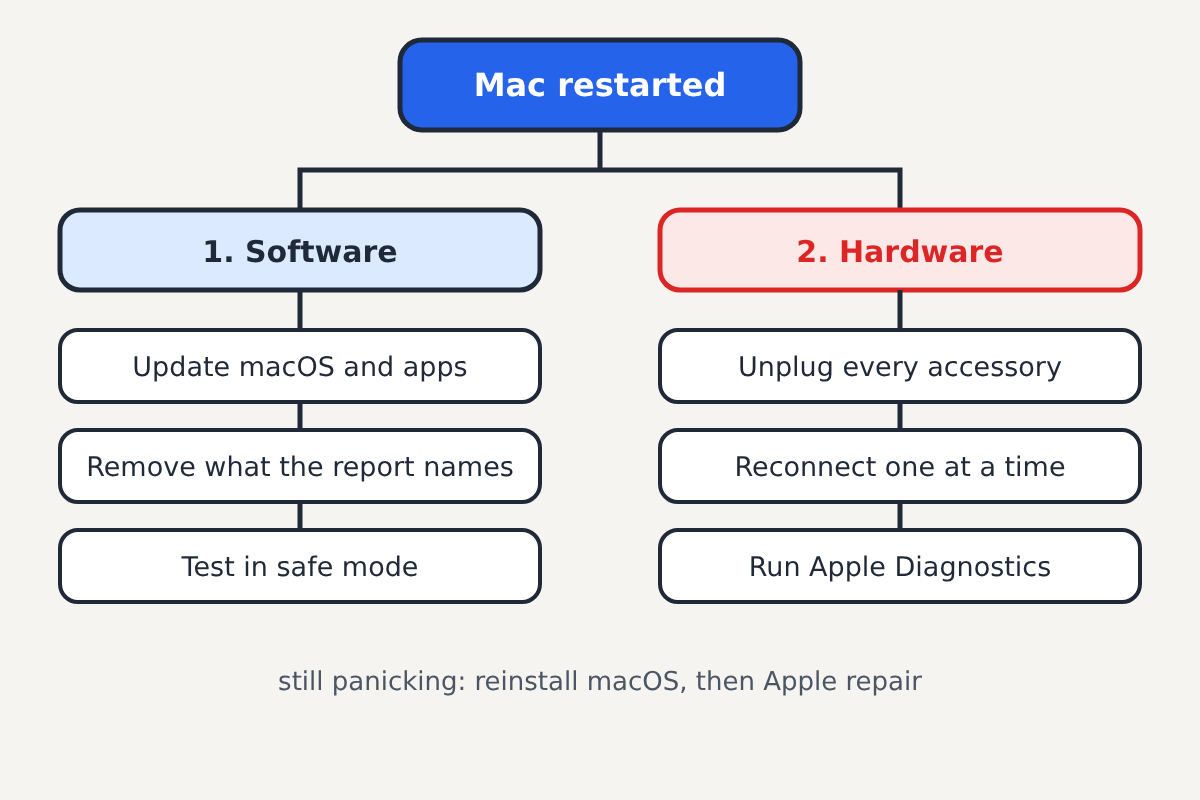
Fixes, from simplest to hardest
1. Update macOS and your apps
Go to Apple menu > System Settings > General > Software Update and install anything available. Then update your apps: in the App Store, click Updates, and for apps from elsewhere use each app's own update option. Apple's advice is that kernel panics are most often caused by software, and many are fixed in the next release of macOS, a driver or an app.
2. Check what the report says
When the message appears after a restart, click Report… to see the panic details. You don't need to read all of it. Look near the top for a named app, or for a kernel extension ("kext") that isn't from Apple, such as one from antivirus software, a VPN, a virtual machine, an audio interface or a USB adapter. Apple says that if macOS identifies the software that caused the panic, you should move it to the Trash, or check with the developer for an update.
The Console app (Applications > Utilities > Console) keeps these reports in its Reports section, which is useful if you want to compare several panics. If they keep naming the same item, that's your culprit.
3. Start up in safe mode
Safe mode starts macOS with only essential software, skips third-party login items and extensions, and checks the startup disk.
- Apple silicon: Shut down. Press and hold the power button until "Loading startup options" appears. Select your startup disk, then press and hold Shift and click Continue in Safe Mode.
- Intel: Turn on or restart the Mac and immediately press and hold Shift until the login window appears.
"Safe Boot" appears in the menu bar. If the Mac runs without panics in safe mode, the cause is very likely software that loads at startup. Remove recently installed apps, login items (System Settings > General > Login Items & Extensions) and any security or system utilities, then restart normally.
4. Disconnect everything and test the hardware
Apple suggests shutting down and disconnecting every accessory: docks, hubs, external drives, displays, printers and adapters. Leave only the power adapter, and an Apple keyboard and mouse on a desktop Mac. If the panics stop, reconnect one device at a time, using the Mac for a while after each, until the problem returns.
Then run Apple Diagnostics, which checks the Mac's internal hardware:
- Apple silicon: Shut down, press and hold the power button until startup options appear, then press Command-D.
- Intel: Turn on the Mac and immediately press and hold the D key until a progress bar or a language list appears.
Diagnostics shows a reference code if it finds a problem; Apple's support site explains what each code means.
5. Reinstall macOS
If none of that helps and the hardware passes, Apple's next step is to reinstall macOS from macOS Recovery. Reinstalling macOS doesn't erase your files, but back up with Time Machine first in case something goes wrong.
When to take it to Apple
Book a repair with Apple or an Apple Authorized Service Provider if:
- Apple Diagnostics reports a fault;
- the Mac panics in safe mode with nothing connected;
- it panics during startup every time and won't stay on. Apple notes that a Mac that panics repeatedly at startup may shut down after several attempts;
- there are other signs of hardware trouble, such as a liquid spill, a swollen battery lifting the trackpad, or scrambled graphics before the restart.
If you replaced the memory or an internal part in an older Intel Mac yourself, Apple suggests removing third-party memory and expansion cards as a test.
Not to be confused with
The kernel panic message comes from macOS itself, after a restart. A web page claiming your Mac has crashed or is infected, with a phone number to call, is a scam; see our guide to the fake virus warning pop-up with a phone number. And if an app won't open because "Apple cannot check it for malicious software", that's Gatekeeper, explained in our guide to that Mac security warning.
Sources: Apple Support: "If your Mac restarted because of a problem", "If your Mac restarts and a message appears", "Start up your Mac in safe mode", "Use Apple Diagnostics to test your Mac".
