Flashing question mark folder when your Mac starts up: what it means and how to fix it
In short
A folder with a flashing question mark means your Mac cannot find a startup disk with working macOS. Here is how to tell which case you are in and fix it, from picking the startup disk to Disk Utility and reinstalling macOS.
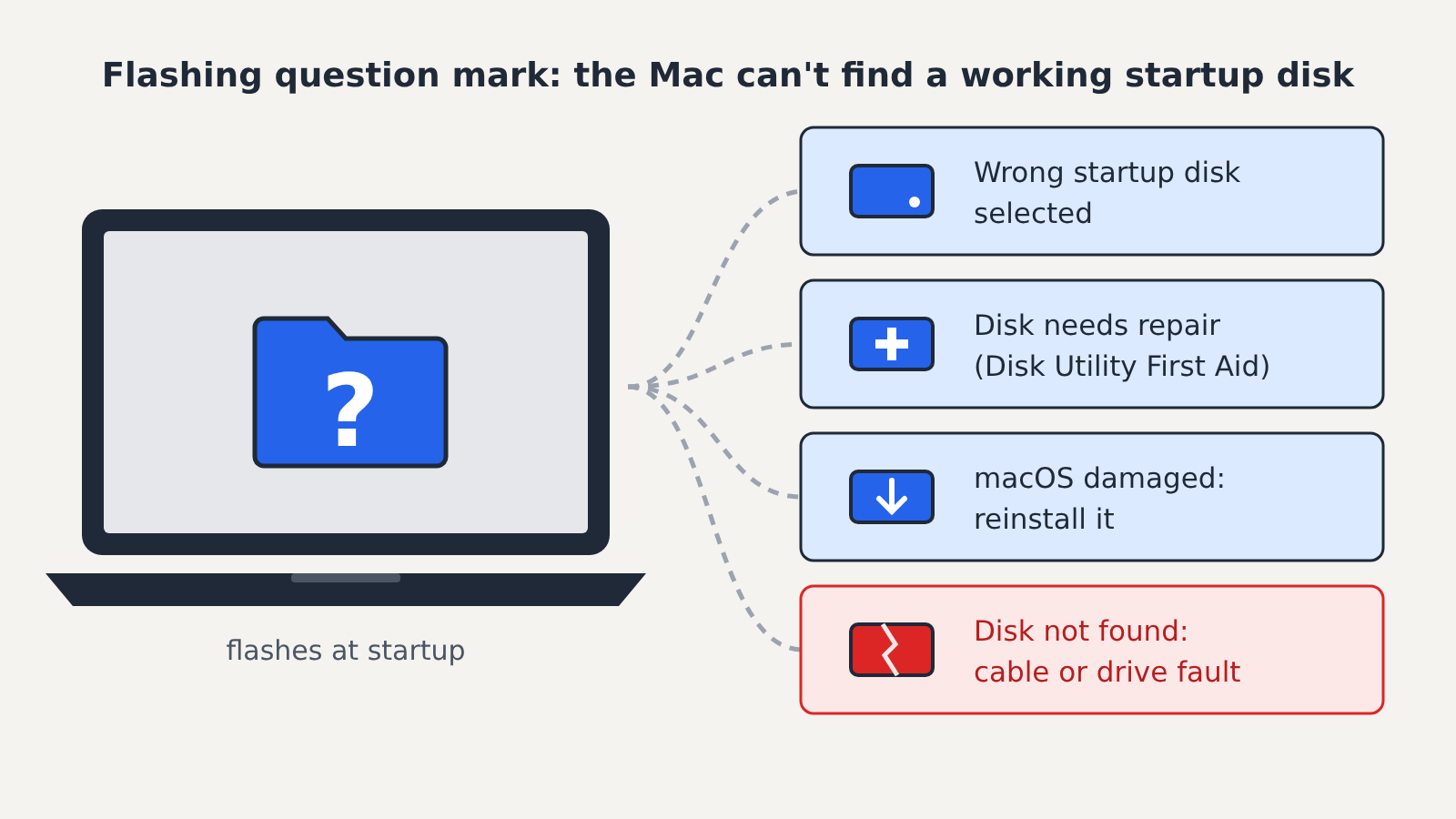
A folder with a flashing question mark at startup means your Mac can't find its startup disk, or found it but the disk has no working copy of macOS on it. It's a "fix now" message: the Mac won't get past this screen on its own, so nothing on the internal disk is reachable until you fix it. The good news is that the usual fixes, from picking the right startup disk to reinstalling macOS, don't erase your files. Only the last resort does, and you'll know before you get there.
This guide follows Apple's support article "If your Mac starts up to a question mark" and applies to Intel-based Macs and Macs with Apple silicon (M1 and later) running current versions of macOS. Where the two kinds of Mac differ, both are given. Apple's own Mac Help notes that on Intel-based Macs the question mark means the Mac "may not be able to locate system software".
Which case you're in
Watch what happens after the question mark appears:
- It flashes for a few seconds, then the Mac starts normally. The Mac is looking for a startup disk before it finds the right one. This one is a "fix soon": skip to the next section.
- It stays on screen and the Mac never starts. The disk can't be found or macOS on it is damaged. Work through the steps under "When the question mark won't go away".
If you started up from an external drive on purpose, check that drive first: its cable, its connection and, if it has one, its power supply. Apple lists those checks for external startup disks.
When it flashes and then the Mac starts
Tell the Mac which disk to use so it stops searching:
- Choose Apple menu > System Settings > General > Startup Disk. On macOS Monterey or earlier, it's System Preferences > Startup Disk.
- Select your usual startup disk (usually Macintosh HD) and confirm with your administrator password if asked.
- Restart and watch whether the question mark still appears.
If it still flashes on an Intel-based Mac, reset NVRAM, which stores the startup disk setting: shut down, press the power button, then immediately hold Option-Command-P-R for about 20 seconds before letting go. When the Mac has started up, open Startup Disk settings again and check the selection. Apple lists this key combination for Intel-based Macs only.
When the question mark won't go away
Work down this list and stop as soon as the Mac starts normally.
1. Start up from macOS Recovery
macOS Recovery is a separate small system on your Mac with the tools to repair the disk and reinstall macOS.
- Apple silicon: with the Mac shut down, press and hold the power button until the startup options window appears. Click Options, then Continue.
- Intel-based Mac: press the power button, then immediately press and hold Command (⌘) and R until you see an Apple logo or a spinning globe.
If an Intel-based Mac can't start from its built-in Recovery, Apple's Recovery article says Option-Command-R starts Recovery over the internet instead, so connect to Wi-Fi or Ethernet when asked. You may be asked for an administrator password along the way.
2. Repair the startup disk with Disk Utility
In the Recovery window, select Disk Utility and click Continue. Choose View > Show All Devices, select your startup volume (usually Macintosh HD) in the sidebar, click First Aid, then Run. What you do next depends on what First Aid reports, as the chart below shows.
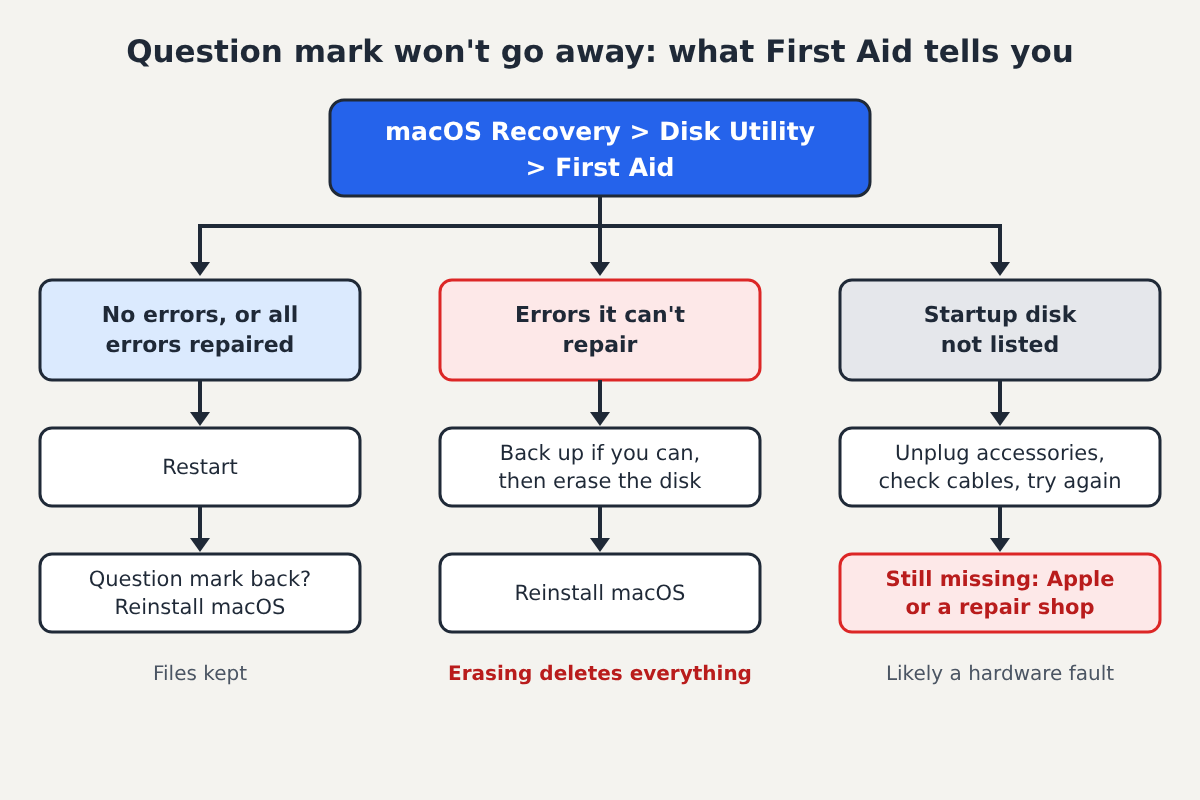
- No errors, or every error repaired: choose Apple menu > Restart. If the Mac starts up normally, you're done.
- The question mark comes back after that restart: go to step 3 and reinstall macOS.
- Errors First Aid can't repair: go to step 4.
- Your startup disk isn't listed at all: go to step 5.
3. Reinstall macOS
Start up from Recovery again, choose Reinstall macOS in the Recovery window and follow the prompts. Apple says reinstalling macOS this way doesn't remove your personal data: it puts a fresh copy of the system on the disk. Keep the Mac plugged into power and connected to the internet until it finishes, which can take a while.
If this fixes the startup, the macOS installation was damaged. If the question mark is back afterwards, the disk itself is the more likely problem.
4. Erase the disk and reinstall (this deletes everything on it)
When First Aid finds errors it can't repair, Apple's next step is to erase the disk with Disk Utility and then reinstall macOS. Erasing removes every file on that disk, so stop and think about your data first:
- If you have a Time Machine or other backup, you can restore from it after reinstalling. Recovery offers to restore from Time Machine.
- If you have no backup and the files matter, don't erase yet. A repair shop or Apple may be able to copy data off a disk that won't start, but there is no guarantee, and erasing first ends that chance.
Once you've decided, select the disk in Disk Utility, click Erase and follow the prompts, then quit Disk Utility and choose Reinstall macOS.
5. When the disk doesn't show up
If Disk Utility doesn't list your startup disk, or erasing it fails, Apple says the Mac or its startup disk may need service. Before booking a repair, try once more with nothing extra attached: shut down, unplug every nonessential device (hubs, docks, external drives, printers), and start from Recovery again. For an external startup disk, swap its cable and port too.
If the disk is still missing, it's a hardware fault for Apple or an authorized service provider. A disk that isn't listed can't be fixed from the keyboard, and older Macs with a removable drive need someone to test the drive and its cable.
Related messages
A Mac that starts but then restarts with "Your computer restarted because of a problem" has a different fault, explained in our guide to Mac kernel panics and what to do about them. A disk that's nearly full can't install the macOS update or reinstall you may need, so if you get the Mac running again, check whether your startup disk is almost full. Windows PCs have their own version of "can't find the system disk", the INACCESSIBLE_BOOT_DEVICE stop code.
Sources: Apple Support, "If your Mac starts up to a question mark", "How to start up from macOS Recovery" and "Mac startup key combinations"; Apple Mac User Guide, "If your Mac doesn't start up as expected".
