iPhone error 4013, 9, 4005 or 4014 in Finder or iTunes: what it means and how to fix it
In short
Error 4013, 9, 4005 or 4014 means your computer lost its connection to the iPhone during an update or restore. What each code points to, and the fixes in order: computer updates, cable and port, recovery mode, then Apple.
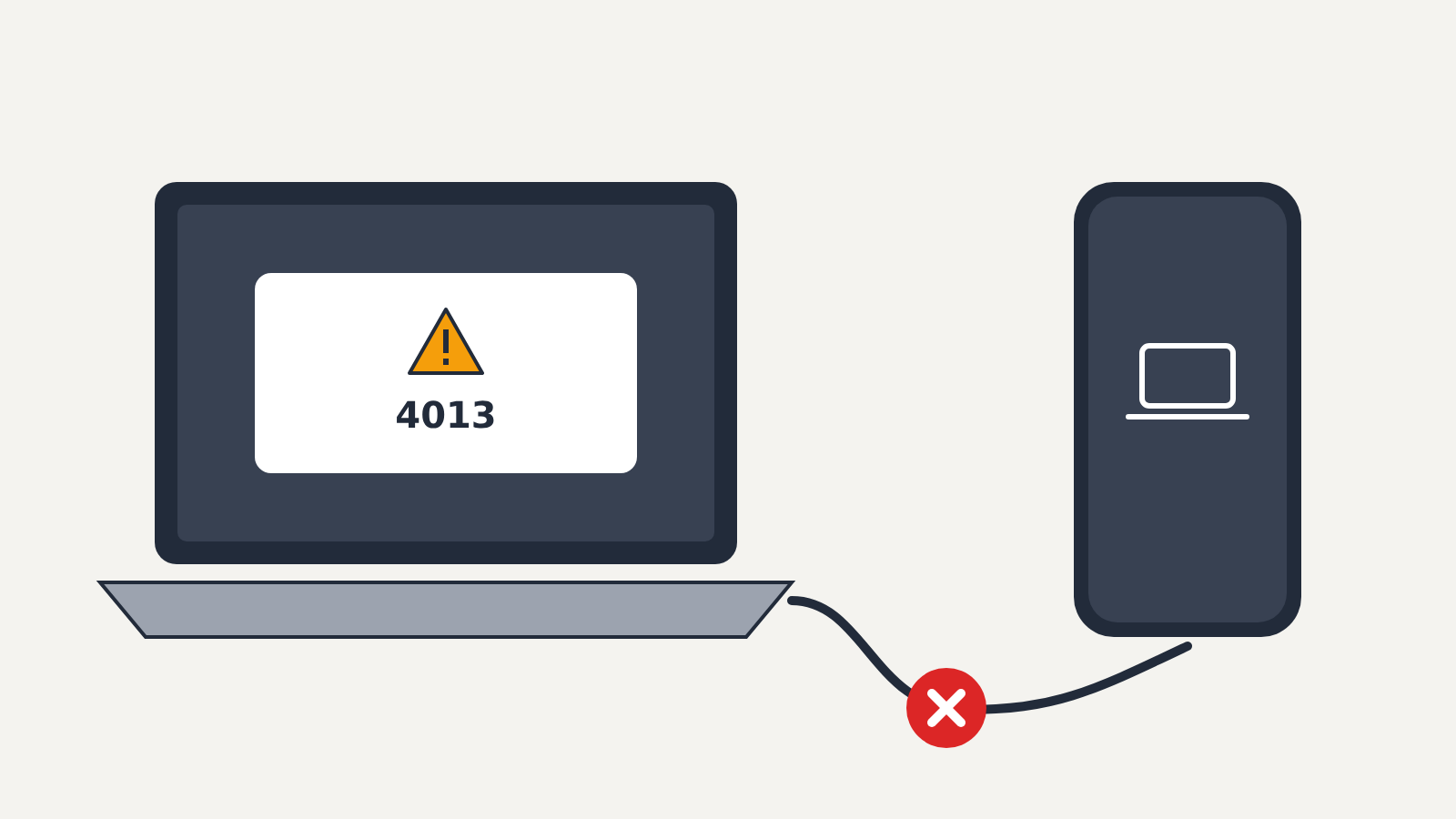
Error 4013 in Finder or iTunes ("The iPhone could not be restored. An unknown error occurred (4013)") means the computer lost its connection to your iPhone while it was updating or restoring it. Errors 9, 4005 and 4014 mean the same thing in Apple's documentation. It's a "fix now" problem only if the phone is stuck on the recovery screen; otherwise you can work through the steps at your own pace.
This guide covers iPhone and iPad updated or restored from a Mac with Finder, or from a Windows PC with the Apple Devices app or iTunes. It follows Apple's support articles on update and restore errors, including "If you see error 9, 4005, 4013 or 4014". If the update fails on the iPhone itself, with no computer involved, start with the fixes for Unable to Install Update instead.
What the error numbers mean
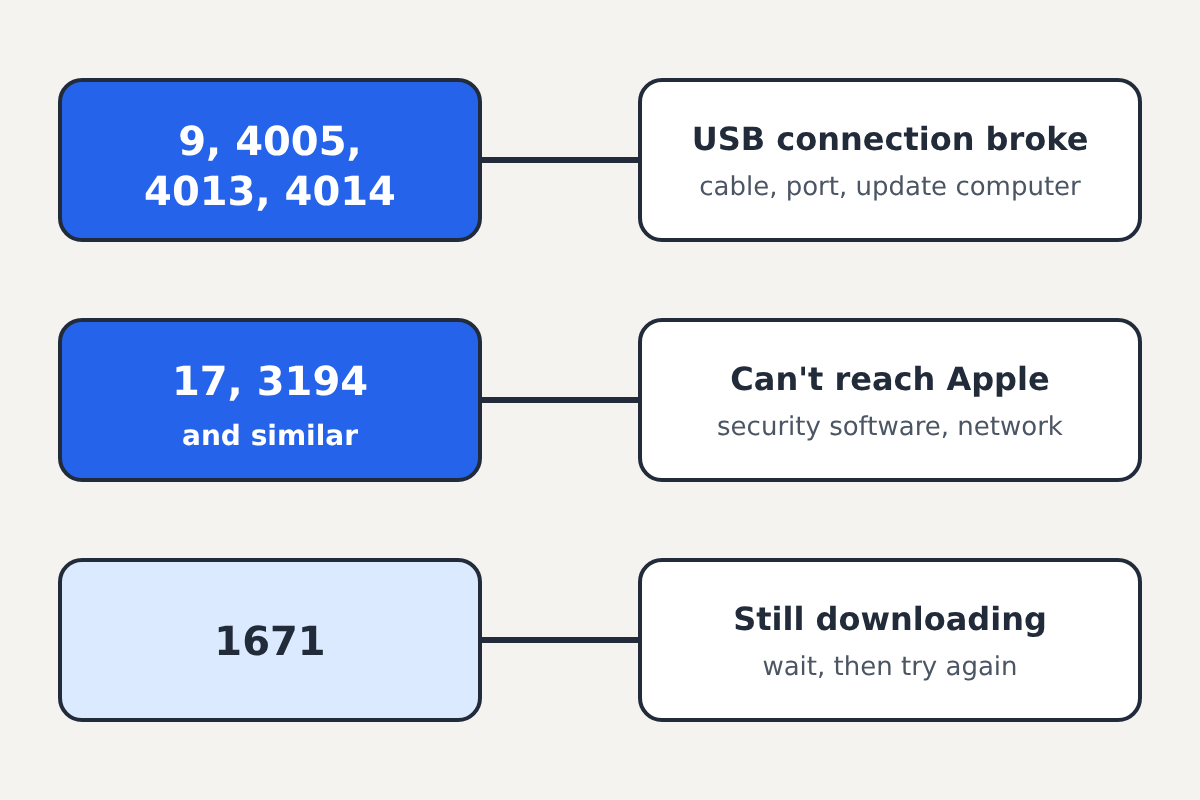
- 9, 4005, 4013 and 4014: the device disconnected during the update or restore, or the update couldn't complete. The cause is usually the cable, the USB port or out-of-date software on the computer, and occasionally a hardware fault in the phone.
- 17, 3194 and similar: the computer couldn't contact Apple's software update server. Security software, a firewall, a VPN or an edited hosts file is the usual reason.
- 1671: the computer is still downloading the software it needs. Let the download finish, then try again.
Before you start: update or restore?
When the computer offers a choice, Update reinstalls iOS and keeps your data. Restore erases the iPhone and installs a clean copy, so you'll need a backup to get your photos, messages and apps back. Always try Update first.
Fixing 9, 4005, 4013 and 4014
1. Update the computer. On a Mac, install the latest macOS from System Settings > General > Software Update. On Windows, update the Apple Devices app or iTunes from the Microsoft Store, and install Windows updates.
2. Change the cable and port. Use an Apple USB-C or Lightning cable, or another one in good condition, and plug it straight into a port on the computer, not a hub, dock or keyboard. Try a different port.
3. Restart both devices. Restart the computer. Restart the iPhone too, or force restart it if it's frozen: on iPhone 8 and later, press and quickly release volume up, press and quickly release volume down, then press and hold the side button until the Apple logo appears.
4. Try again in recovery mode. Connect the iPhone to the computer. Press and quickly release volume up, press and quickly release volume down, then press and hold the side button and keep holding it after the Apple logo appears, until you see the recovery mode screen (a computer and a cable). On an iPad or an older iPhone the buttons differ; Apple's recovery mode article lists them for each model. In Finder or the Apple Devices app, choose Update. Apple notes that if the download takes more than 15 minutes, the iPhone leaves recovery mode; just repeat this step once the download has finished.
5. Try another computer. If you can, repeat the update on a different Mac or PC. If it works there, the first computer's port, cable or software was the problem.
6. Contact Apple. If the error comes back with a good cable, a different port and another computer, Apple's advice is to contact Apple Support: the fault may be in the iPhone itself, and a repair may be needed.
Fixing 17, 3194 and other connection errors
These errors come from the computer, not the phone. Check that the computer is online, turn off any VPN or proxy, and temporarily disable third-party security software or firewalls that might block the connection to Apple. On a computer someone else set up, an edited hosts file can redirect Apple's update server; if you aren't sure how to check that, ask whoever manages the computer or try a different one. Then run the update again.
If you were restoring because you're locked out
If you're restoring because the iPhone says "iPhone Unavailable" or you've forgotten the passcode, restoring erases it, and you'll need the Apple Account password that was on the phone afterwards because of Activation Lock. Our guide to getting back into an iPhone that says iPhone Unavailable explains the options, including erasing from the lock screen without a computer.
Scam warning
Restore errors attract paid "fix" tools and websites. You don't need any of them: Finder, the Apple Devices app and iTunes are free, and nobody can legitimately remove Activation Lock for a fee. Never install remote-access software for someone who contacts you offering to fix your iPhone, and never pay by gift card.
