"This accessory may not be supported" on iPhone: causes and fixes
In short
Your iPhone or iPad can't confirm the cable or accessory you plugged in works properly. The usual causes, how urgent it is, and fixes from a firm replug to cleaning lint out of the port.
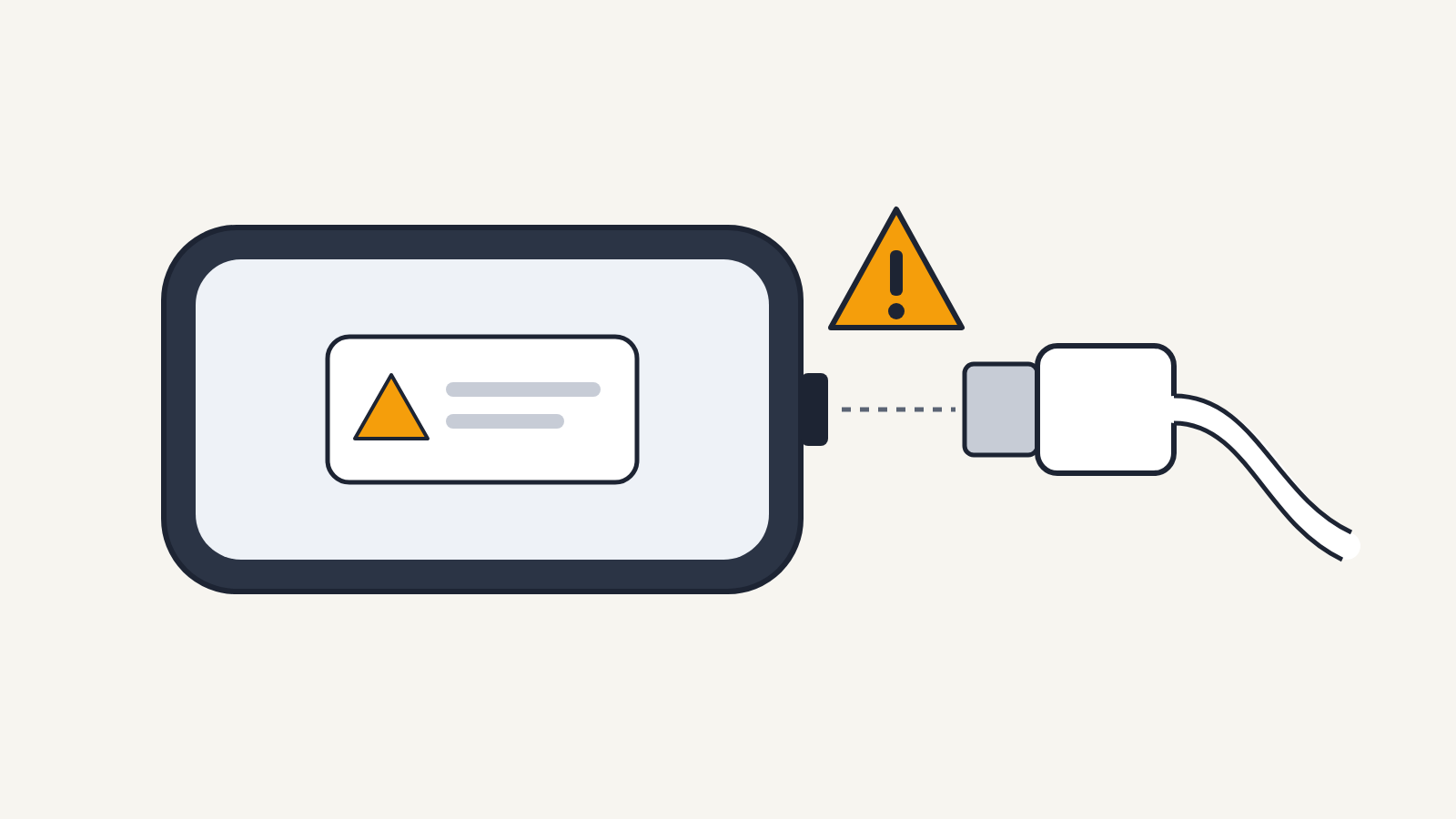
"This accessory may not be supported" means your iPhone or iPad can't confirm that the cable, charger or accessory you just connected works properly with it, so it may not charge or connect. It is a "fix soon" message: nothing is wrong with your data, but if the cable, charger or port is damaged, keep using it only after you've ruled that out.
The message appears on iPhone and iPad models with a Lightning or USB-C port, on current versions of iOS and iPadOS. You may also see the wording Accessory Not Supported or This accessory is not supported by this device.
Why you see it
Apple's support article on this alert lists several causes:
- The charging port on your iPhone or iPad is dirty or damaged.
- The accessory is faulty, damaged, or not certified by Apple.
- The accessory isn't designed to work with your device.
Apple certifies third-party Lightning accessories through its "Made for iPhone" (MFi) program, and certified products carry the Made for iPhone, iPad or iPod badge on the packaging. Uncertified cables are the most frequent trigger: some work for a while and then start showing the alert, sometimes after an iOS update.
iPhone 15 and later models, and recent iPads, use USB-C instead of Lightning, and they work with standard USB-C cables and chargers rather than only MFi-certified ones. The alert can still appear on these models when a USB-C cable is damaged or poorly made, or when an accessory such as a dock or adapter isn't designed for the device. A cable from a reputable maker that states its power rating clearly is the safest choice.
How urgent is it?
Usually it is an annoyance rather than a hazard. Stop using the cable or charger right away, though, if it is hot to the touch, smells of burning, has a frayed or bent end, or makes the phone unusually warm. Those are signs of a failing accessory, not a software check.
Fixes, from simplest to hardest
- Unplug the accessory and plug it back in firmly. A connector that is only half seated is enough to trigger the alert.
- Restart your iPhone or iPad.
- Try a different cable and a different power adapter. If the alert disappears with another cable, the first one is the problem. Replace it with an Apple cable or an MFi-certified one.
- Update to the latest version of iOS or iPadOS in Settings > General > Software Update.
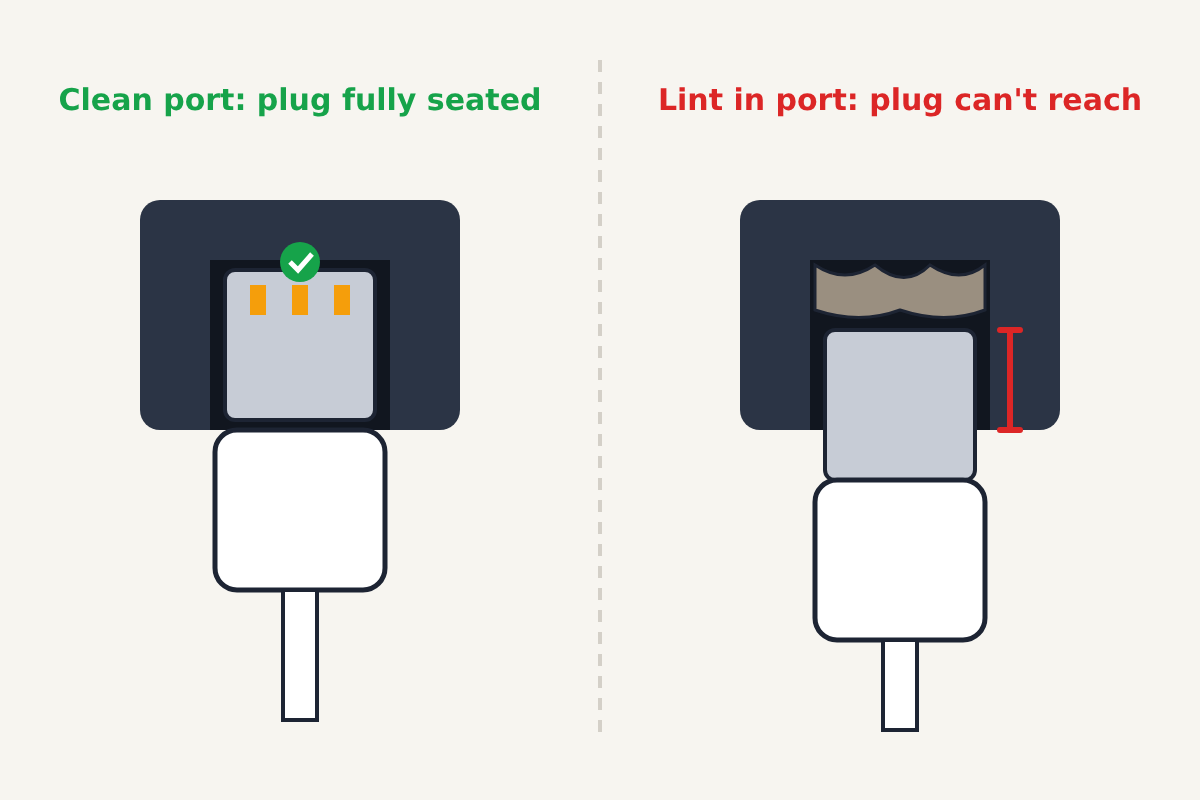
- Check the port for lint and dust. Shine a flashlight into it: pocket lint packs into the bottom of the port and stops the cable from seating fully.
- If the alert appears with nothing plugged in, or with every cable you try, the port is likely damaged. Contact Apple Support or an Apple Authorized Service Provider.
Cleaning the port safely
Turn the iPhone off first. Use something soft and non-metallic, like a wooden toothpick, and gently lift lint out from the back of the port rather than pushing it in. Avoid metal objects, which can scratch or short the pins, and avoid liquids. If the lint is packed in hard, or you are not comfortable doing it, an Apple Store or authorized service provider can clean the port for you.
If your iPhone shows a liquid alert instead, the cause is moisture, not lint, and the fix is different: see what the liquid-detection alert on iPhone means before charging again.
When it keeps coming back
A cable that works one day and triggers the alert the next is usually wearing out at the connector end. Replacing it is cheaper than chasing the problem. If the alert shows up only with one power source, such as a car charger, a cheap multi-port hub or a keyboard's USB port, test the same cable in a wall adapter. When it works there, the power source is the weak link: replace the car charger or hub, or plug into a different port, rather than the cable. If the alert follows every cable and charger, including Apple's own, the fault is in the device, and a repair is the right next step rather than more troubleshooting at home.
Never pay a stranger to "unlock" charging or accessory support, and never install software someone sends you to fix this alert. It is a hardware check, and no legitimate fix requires either.
