Smart plug or holiday lights won't connect: "Pairing Failed", "No Response" and what to do
In short
Most smart plugs and Wi-Fi light strings only work on 2.4 GHz, and that one setting explains a lot of failed holiday setups. Here is what "Pairing Failed", "No Response" and "unreachable" mean, and the fixes in order.
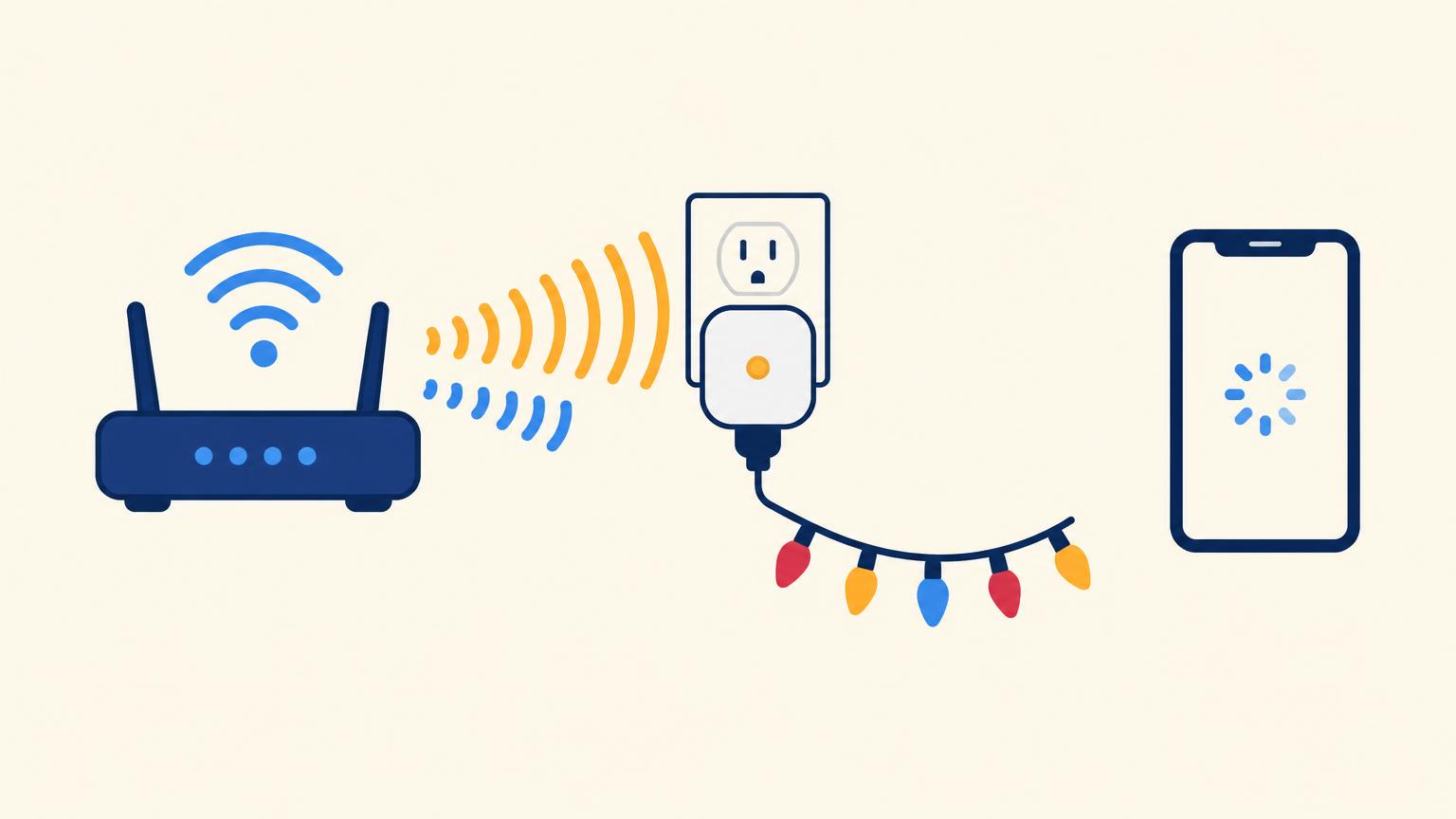
A smart plug or light that won't connect has usually failed in one of two places: it never joined your Wi-Fi during setup, or it joined once and has since dropped off. Urgency: fix when convenient. Nothing is wrong with the house wiring in either case. The exception is stop now if a plug feels hot, smells of burning or has scorch marks: unplug it at the wall if you can do that safely, and don't use it again.
This covers TP-Link Tapo and Kasa plugs, Philips Hue lights, and plugs and light strings shown in Apple Home, Google Home and Alexa. Wording changes between apps and versions, so match what your own screen shows.
Electrical safety first
Check the plug's rating before you hang anything off it. An indoor plug isn't made for an outdoor socket or a damp porch, and the plug's packaging or manual gives its maximum load. Add up what the light strings draw if you're daisy-chaining them. If a breaker trips when you switch the lights on, leave that circuit off until you've removed the lights, and call an electrician if it trips again with them removed.
What each message means
"Unable to Connect to Your Network", "Pairing Failed" or "Failed to receive an IP address" (Tapo). The plug found your router but couldn't finish joining it. TP-Link lists a wrong Wi-Fi password, distance from the router and router settings as the things to check.
"Unable to Find/Connect to this Tapo Device" (Tapo). The app can't see the plug at all. TP-Link's checklist: pick the right model in the app, stand closer, power on one plug at a time, and turn off any VPN or ad-blocking app. On iPhone, the Tapo app also needs the Local Network permission.
The plug's own Wi-Fi shows "No Internet", "No Connection" or "Unsecured" on your phone. This is normal during Tapo setup, according to TP-Link. That network only exists so your phone can talk to the plug. Connect to it, go back to the app and carry on.
"No Response" (Apple Home). The Home app can't reach an accessory that worked before, or that was just added.
Lights "unreachable" (Philips Hue). Hue's support FAQ gives two usual causes: the light has been switched off at the wall, or it's out of range of the rest of the system. Holiday lamps on a plain socket switch or a timer are a common way to trigger the first one.
Offline in Google Home, or unresponsive in Alexa. The assistant has lost contact with the device or the maker's cloud account. Test the device in the maker's own app before anything else, because that tells you which side has failed.
The 2.4 GHz problem
TP-Link says plainly that its Kasa plugs need a 2.4 GHz connection and don't support 5 GHz networks, and its Tapo guide says to make sure the router broadcasts 2.4 GHz. Many other Wi-Fi plugs have the same limit, so check your model's specifications.
Two setups cause trouble. A router or mesh system that shows one combined network name can leave your phone on 5 GHz while the plug is looking for 2.4 GHz. A newer router may have 2.4 GHz switched off, or set to a mode older devices dislike. TP-Link's fix is to give 2.4 GHz its own network name in the router's settings, then connect your phone to that network during setup. Afterwards the phone can go back to the faster band.
Fixes, simplest first
- Confirm power. Check the socket works with another device, and make sure any wall switch, timer or power strip feeding it is on. For Hue, leave the wall switch on all the time.
- Restart things in order. Unplug the plug or light, wait a minute or two (Google's advice for offline devices) and plug it back in. If several devices dropped at once, restart the router as well.
- Move closer for setup. Do the first pairing within a few feet of the router, then move the plug to where you want it. If it drops off there, the signal at that spot is the likely problem. TP-Link suggests the same check for Tapo.
- Sort out the band. Connect your phone to the 2.4 GHz network, as above. If your router won't split the bands, a guest network or a phone hotspot is a quick test: TP-Link recommends comparing on one of those to find out whether the router is the cause.
- Check the password. Forget the network on your phone and rejoin it, typing the password carefully. TP-Link notes that special characters in a network name or password can cause failures.
- Reset the plug. Follow the reset steps in your model's manual, then set it up from scratch. Resetting removes the plug from its routines and schedules, so expect to rebuild those.
- Remove and add it again in the assistant. Apple's sequence for "No Response" is to turn on Bluetooth, restart the accessory, check the maker's app for a firmware update, restart any bridges and home hubs, and only then remove the accessory and add it back. Amazon's guidance for Alexa is similar: disconnect the device in the Alexa app and set it up again, and if the maker's app works but Alexa doesn't, re-enable that maker's skill. Google suggests unlinking and relinking the maker's account in the Google Home app.
- Look at router filters. TP-Link names MAC filtering, firewall rules and access control lists as settings that can block a plug. If you changed these or installed a new router recently, start there. Our guide to "Connected, no internet" helps you work out whether the router or your provider is at fault.
When the app says connected but nothing happens
If the plug's in the app and shows on but the lights stay dark, test the light string in a regular socket. Plugs switch power and can't repair a blown fuse or a failed section in a string. If the lights work on their own and the plug won't switch them, check the plug's maximum load, then contact the maker.
When to contact the maker
Contact the manufacturer if the plug still fails after a reset on a known-good 2.4 GHz network, or a hotspot. Apple and TP-Link both end their troubleshooting there, and a faulty unit may still be under warranty. Don't open a plug or attempt a repair: it carries mains voltage. The first cold week also tends to expose other home-network problems, including a smart thermostat that won't start the heating.
Sources: TP-Link: "What should I do if I fail to configure the Tapo Smart Plug?", "How to Set Up a Kasa Smart Plug", "Kasa Smart Home Devices FAQs". Apple Support: "If your HomeKit or Matter accessory isn't responding in the Home app". Philips Hue Support: "Why are my lights unreachable?". Google Home and Nest Help. Amazon Customer Service: Alexa smart home troubleshooting.
