"Your connection is not private" in Chrome: what the warning means and what to do
In short
Chrome shows "Your connection is not private" when it cannot confirm a site is genuine. The NET::ERR_CERT code underneath tells you why. Here is how to read it, fix the usual causes, and when never to click through.
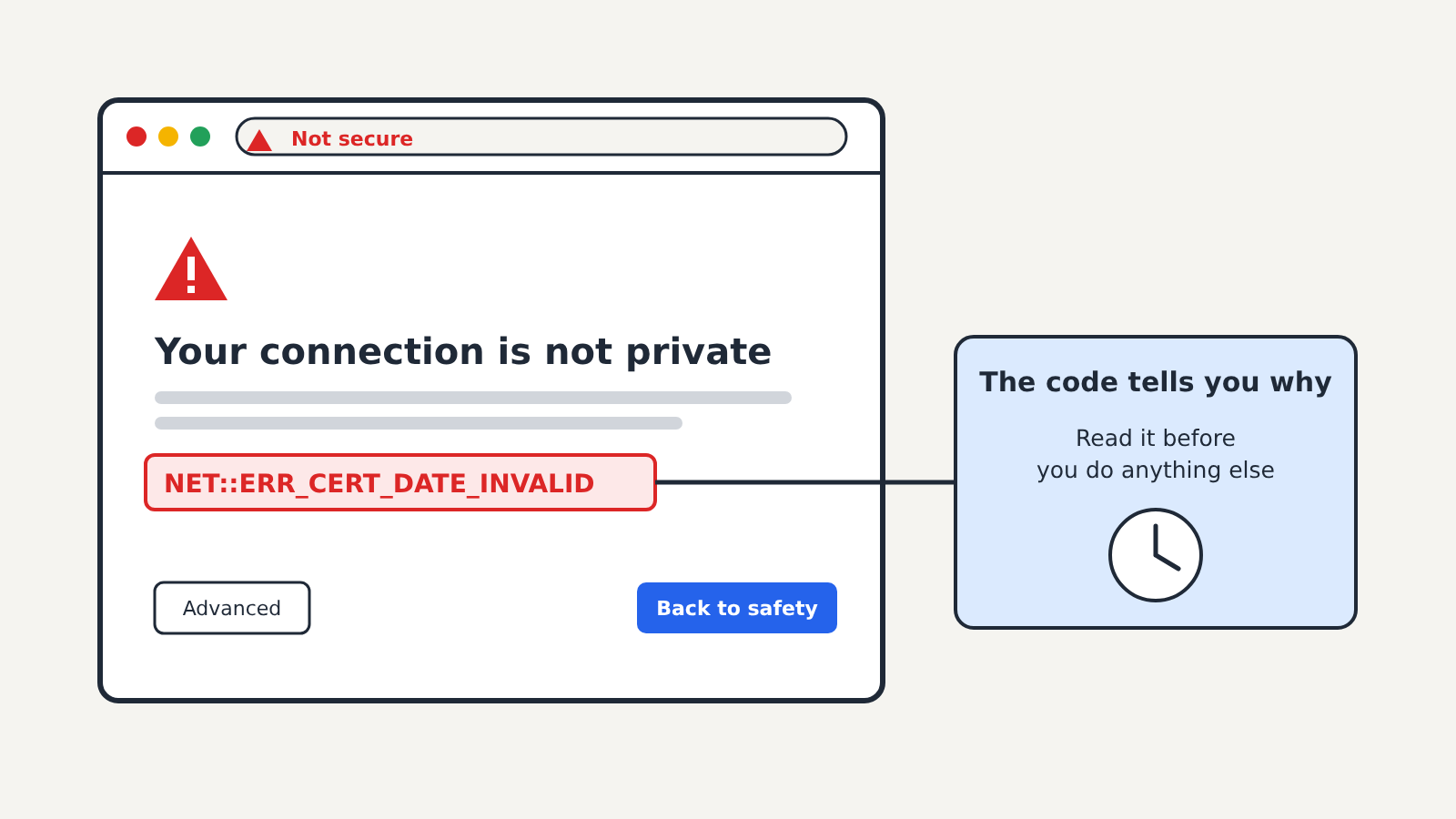
"Your connection is not private" means your browser couldn't confirm that the website is really the one in the address bar, so it stopped before sending anything. Treat it as "stop and check": often the cause is harmless, like a wrong clock on your computer, but on a bank, email or shopping site, never click through it.
This is the wording Google Chrome uses on Windows, macOS and ChromeOS. Microsoft Edge says "Your connection isn't private", and Firefox shows "Warning: Potential Security Risk Ahead". All three are reacting to the same thing, the site's security certificate. Under the heading Chrome shows a short code starting with NET::ERR_CERT_, and that code tells you which check failed. The advice below follows Google's Chrome Help article on fixing connection and privacy errors.
Why the browser stops
Every site that uses HTTPS hands your browser a certificate, a digital ID issued by a company the browser trusts. The browser checks three things: that the certificate is for the address you're visiting, that a trusted issuer signed it, and that it's within its valid dates. If any check fails, the browser can't rule out that someone between you and the site is reading or changing the traffic, so it shows this page instead.
The full message reads "Attackers might be trying to steal your information from" the site's address, "(for example, passwords, messages, or credit cards)". That's the worst case, not a diagnosis. Most of the time the reason is more ordinary, and the code helps you tell which.
Read the code first
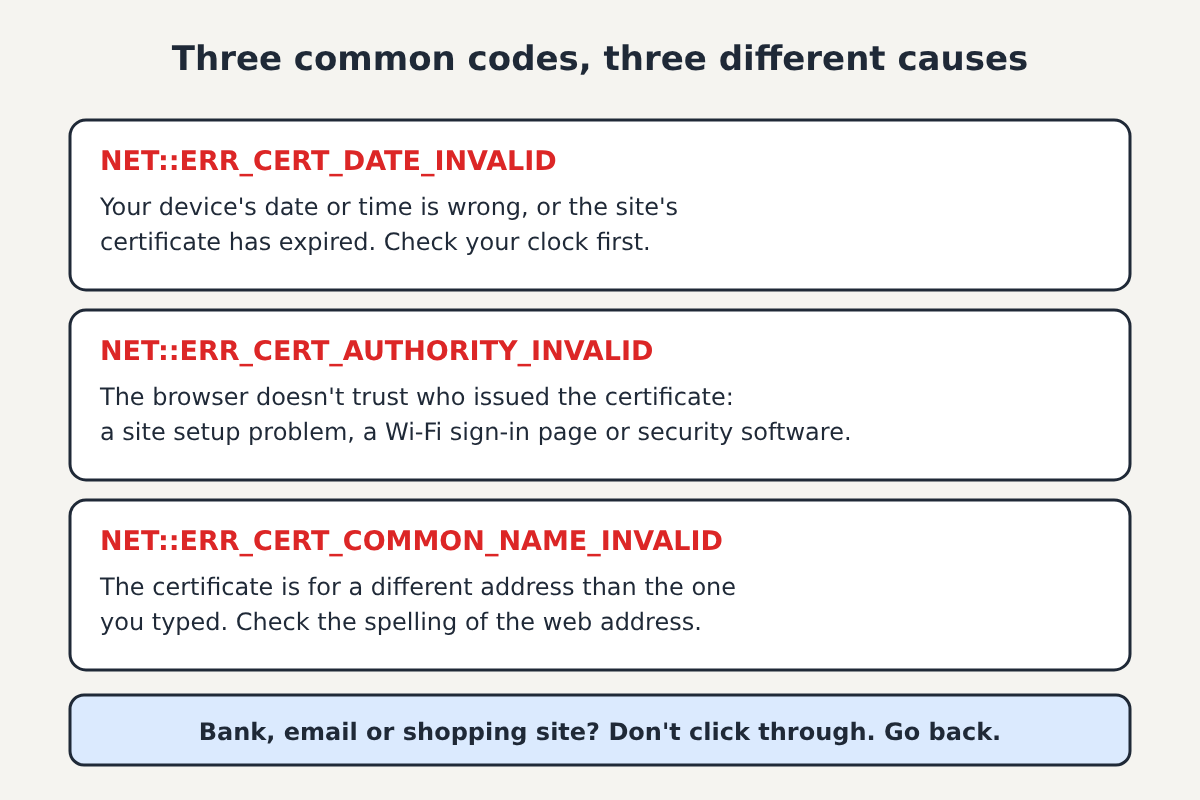
NET::ERR_CERT_DATE_INVALIDmeans the certificate looks expired or not yet valid. Either your computer's date and time are wrong, or the site's owner let the certificate lapse. Chrome sometimes says this plainly with "Your clock is behind" or "Your clock is ahead".NET::ERR_CERT_AUTHORITY_INVALIDmeans the browser doesn't recognise who issued the certificate. This happens on sites that set up their own certificate, on public Wi-Fi that wants you to sign in first, and with some security software or work networks that inspect encrypted traffic.NET::ERR_CERT_COMMON_NAME_INVALIDmeans the certificate is for a different address. Check the spelling in the address bar; a mistyped or look-alike address is a classic sign of a fake site.
You may also see NET::ERR_CERT_REVOKED (the issuer withdrew the certificate, so don't go further) or ERR_SSL_VERSION_OR_CIPHER_MISMATCH (the site uses old security settings, which only the site's owner can fix).
What to do, from simplest to hardest
1. Reload, and check the address
Press F5 (or Cmd+R on a Mac) to reload. Then look at the address bar. If you clicked a link in an email or text message and the address isn't exactly the site you expected, close the tab and type the real address yourself.
2. Fix your computer's date and time
For NET::ERR_CERT_DATE_INVALID, this is the usual fix.
- Windows 10 and 11: Settings > Time & language > Date & time. Turn on Set time automatically and Set time zone automatically, then click Sync now.
- macOS: System Settings > General > Date & Time. Turn on Set time and date automatically.
- ChromeOS: the clock is set from the network. Restart the Chromebook while connected to Wi-Fi, and check the time zone under Date and time in Settings.
A clock that keeps losing time after every shutdown on an older desktop can point to a worn-out motherboard battery; a repair shop can replace it.
3. Sign in to the Wi-Fi network
In a hotel, café, airport or on a train, the network may be trying to show you its sign-in page and the browser blocks it. Open a new tab and go to a plain address such as http://neverssl.com (Google's help suggests trying a site that starts with http://). The sign-in page should appear. Once you've accepted it, reload the site you wanted.
4. Try another browser, network or device
If the warning appears on one site only, from every device and network, the problem is the site's. Wait, or contact the business another way. If it appears on every site, the problem is on your side: your clock, your network, or software on your computer.
5. Check security software and extensions
Some antivirus and parental-control programs check encrypted traffic by putting their own certificate in the middle, and when that goes wrong every site can show NET::ERR_CERT_AUTHORITY_INVALID. Update the program first. If that doesn't help, look in its settings for a feature named something like HTTPS scanning or encrypted connection scanning, or ask the maker's support. Also try a Chrome window with extensions off (Ctrl+Shift+N on Windows and ChromeOS, Cmd+Shift+N on a Mac, for an incognito window, which runs most extensions disabled).
On a work or school computer, the organisation may inspect traffic on purpose. Ask your IT team before you change anything.
6. Update Chrome and your operating system
An outdated browser or system may not recognise newer certificates. In Chrome, open the three-dot menu > Help > About Google Chrome to update, then run Windows Update or macOS Software Update.
Should you click "Proceed anyway"?
Under Advanced, Chrome offers a link to "Proceed to" the site "(unsafe)". On anything where you sign in, pay or type personal details, don't use it. The warning is the only thing standing between you and a copy of the site. Using it is reasonable only for something you control and understand, like the setup page of your own home router, which often uses a certificate it made itself.
Some sites, including most banks and big email providers, tell browsers to always require a valid certificate. On those, Chrome doesn't offer the link at all, and you'll see that the site "uses HSTS". That's deliberate, and there's no safe way around it: fix the clock or network instead.
Fake warnings are a different thing
A real certificate warning sits inside the browser tab, has no phone number, and never asks you to call anyone or install anything. If a page shouts that your computer is infected and shows a number to call, that's a scam, not this error: see how to close a fake virus warning pop-up. Never call the number and never let a stranger install remote-access software.
If a warning stays on every site after you've fixed the clock and checked your security software, or if someone else set up your computer and you don't know what's installed, ask a repair shop to look at it. On a Mac that refuses to open a downloaded app rather than a website, that's a separate check: see what "Apple cannot check it for malicious software" means.
