"ChromeOS is missing or damaged" on a Chromebook: what it means and how to recover it
In short
ChromeOS is missing or damaged means your Chromebook cannot find a working copy of its system. Try a hard reset first; if that fails, here is how to make a recovery USB and what recovery erases.
"ChromeOS is missing or damaged" on a Chromebook means the laptop couldn't find or verify its operating system when it started, so it won't boot normally. It's a "fix now" problem only in the sense that the Chromebook is unusable until it's sorted. The fix is usually a hard reset, and if that doesn't work, a recovery that reinstalls ChromeOS and erases files stored only on the Chromebook.
The full message on most models reads "ChromeOS is missing or damaged. Please insert a recovery USB stick or SD card." Older models and versions may say "Chrome OS" or mention only a USB stick. The steps follow Google's Chromebook Help article "Recover your Chromebook".
Why it happens
Chromebooks check their own system software every time they start, a feature Google calls Verified Boot, and they keep a spare copy of the system so an update can fall back if something goes wrong. This screen appears when the Chromebook can't find a copy that passes that check. A failed or interrupted update can cause it, and so can a fault in the Chromebook's internal storage, which is why the hard reset sometimes fixes it and sometimes doesn't.
What it means for your files
Your Google Account, Gmail, Google Drive files and Chrome bookmarks synced to your account are stored online and come back when you sign in again. What a recovery erases is anything saved only on the Chromebook itself, usually in the Downloads folder in the Files app. If the hard reset below works, nothing is lost.
Fixes, from simplest to hardest
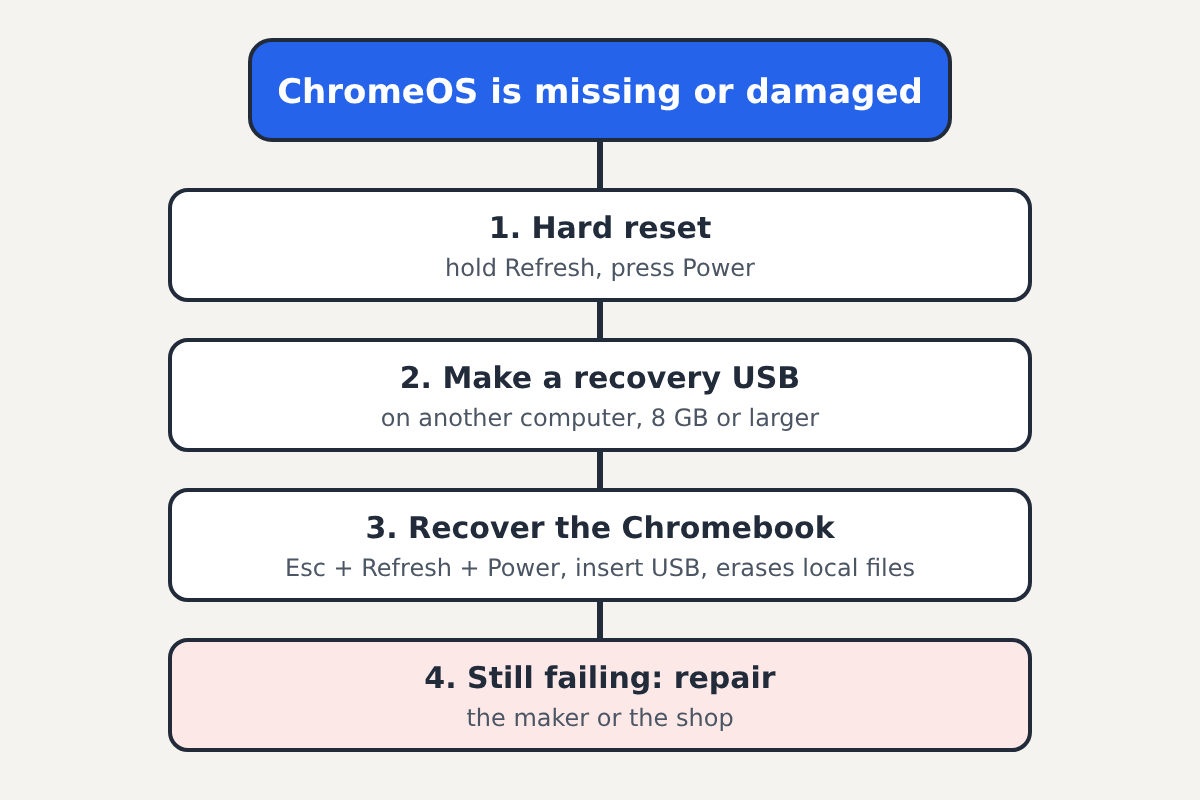
1. Hard reset. Turn the Chromebook off. Press and hold the Refresh key (the circular arrow, above 3 and 4), and tap Power. When it starts, let go of Refresh. On a Chromebook tablet, press and hold Volume Up and Power for about 10 seconds. Some models use a different method; Google's article lists them, and the maker's support pages cover the rest. If the Chromebook starts normally, you're done.
Try it twice before moving on.
2. Check for a recovery over the internet. Some newer Chromebooks offer to recover using an internet connection directly from the recovery screen. If yours shows that option, connect to Wi-Fi and follow it; you can skip making a USB stick.
3. Make a recovery USB stick on another computer. If you don't have a second computer, a friend's, a family member's or a library computer will do, as long as it runs Chrome and lets you install an extension. The stick is only needed for a few minutes, and you can reuse it for other files afterwards by erasing it from the same utility.
Then: you need a USB stick or SD card of 8 GB or more (it will be erased) and that computer running Chrome, whether it's a Windows PC, a Mac or another Chromebook.
- In Chrome, install the Chromebook Recovery Utility extension from the Chrome Web Store.
- Open it, select your Chromebook's model (the recovery screen shows the model name near the bottom, or you can pick from the list), insert the stick and follow the steps to create the recovery media.
4. Recover the Chromebook. If the Chromebook isn't already on the recovery screen, put it into recovery mode: press and hold Esc and Refresh, then press Power and let go. Insert the recovery stick and follow the on-screen instructions. This reinstalls ChromeOS and erases local files. When it finishes, remove the stick and sign in with your Google Account. Your apps, extensions and settings sync back over the next few minutes. Files from Google Drive reappear in the Files app as soon as you're online; anything that was only in Downloads won't, so check there first if you were relying on a local file.
5. If recovery fails or the message comes straight back, the Chromebook's internal storage may be failing. Contact the manufacturer's support or a repair shop, especially if it's under warranty.
School and work Chromebooks
If the Chromebook belongs to a school or employer, tell your IT team before you recover it. Managed Chromebooks usually re-enroll in the organisation's management automatically after recovery, so the admin may want to handle it, and they may simply swap the device.
Don't confuse it with these screens
- "OS verification is OFF" means developer mode is on; that is a different screen, and pressing the wrong key there also erases the Chromebook.
- A Chromebook that won't turn on at all, with a black screen and no message, is usually a charging or battery problem, not this error.
If you see a pop-up in the Chrome browser claiming your Chromebook is infected or locked and giving a phone number, that's a scam page, not a ChromeOS error. Our guide to fake virus warning pop-ups explains how to close it.
